grandMA3 User Manual Publication
Fixture Sheet Settings
|
grandMA3 User Manual » Operate Fixtures » Fixture Sheet » Fixture Sheet Settings
|
Version 2.3
|
To open the Fixture Sheet Settings menu, tap the MA logo in the title bar of the Fixture Sheet:
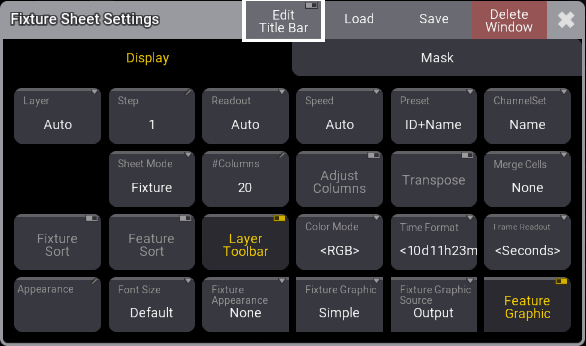
The Display tab contains the following settings:
- Layer:
It selects which layer is displayed in the window. It is a swipe button that opens a list of the layers. A special property is Auto. This property makes the window follow the selected layer in the Encoder Bar. - Step:
It selects which step to display. Steps are used with Phasers. It is a property input button that opens a calculator pop-up. - Readout:
This selects the value readout for fixture attributes. It is a swipe button that opens a list of readout types with the following options:-
Auto:
This makes the sheet follow the selected readout in the Encoder Bar. -
Natural:
Each attribute has a defined Natural readout. This is defined in the Attribute Definition. Selecting this option will show the different readouts defined for the attributes. -
Percent:
This is a range from 0 to 100. -
PercentFine:
This is a range from 0.00 to 100.00. -
Physical:
This uses the physical range defined in the fixture type definition. -
Decimal8:
This is a decimal range from 0 to 255. -
Decimal16:
This is a decimal range from 0 to 65 535. -
Decimal24:
This is a decimal range from 0 to 16 777 215. -
Hex8:
This is a hexadecimal range from 00 to FF. -
Hex16:
This is a hexadecimal range from 0000 to FFFF. -
Hex24:
This is a hexadecimal range from 000000 to FFFFFF.
-
Auto:
- Speed:
It sets how the speed value is displayed. It has the following options: Auto (following the User Profile setting), Hertz, BPM (Beats Per Minute), and Seconds. - Preset:
This defines how the preset information is displayed in the sheets. There are six properties which are different combinations of these three elements:-
ID:
Shows the ID number of the preset. -
Name:
Shows the name of the preset. -
Value:
Shows the values stored in the preset.
-
ID:
- ChannelSet:
This setting defines the readout of values that are part of channel sets. It has three options:-
Value:
Displays only the value. -
Value + Name:
Displays the value and channel set name. -
Name:
Displays only the channel set name.
-
Value:
- Sheet Mode:
The sheet mode changes how the sheets look. There are four different modes:-
Fixture:
This shows a matrix with the fixtures in rows and the attributes in columns.
-
Channel:
This shows the fixtures as tiles with the dimmer attribute.
-
Dimmer+:
Looks similar to the Channel mode. However, it additionally displays the attributes of the selected feature group. Vertical gray separators are displayed when there is a jump in IDs and when the IDType changes for fixtures that do not have a fixture ID. This mode can display the Fixture Graphics, but does not display the Feature Graphics.
-
Sheet/Filter:
Similar to Dimmer+. However, it displays all attributes unless there is a defined filter in the Mask tab of the sheet settings.
-
Fixture:
- #Columns:
This input button sets the number of columns a sheet should display (the settings Transpose and Adjust Columns must be switched On except in the DMX Sheet).The DMX Sheet shows all the DMX channels and their output values. Learn more in the DMX Sheet topic.
- Adjust Columns:
This On/Off button makes a sheet adjust the column width to match the window size and the number of columns. - Transpose:
This On/Off button flips the columns and rows in windows. - Merge Cells:
Cells can be merged to show a value only once if the adjacent cell has the same value and belongs to the same feature or feature group. For instance, if all red, green, and blue values are "100", then "100" are only shown once.-
None:
Cells are not merged. -
Feature:
The values of a feature are merged to only be shown once if the two or more adjacent values are the same. -
Feature Group:
The values of a feature group are merged to only be shown once if the two or more adjacent values are the same.
-
None:
- Fixture Sort:
This On/Off button activates the sorting of fixtures. The fixtures are sorted in the selection order to the top or left hand side of the sheet showing the fixtures. - Feature Sort:
This On/Off button activates feature sorting. The selected feature is moved before the other features in the sheets showing features. - Layer Toolbar:
This On/Off button shows or hides a layer toolbar at the bottom with the different Layers. - Color Mode:
This switches the color readout between RGB and CMY. The default value is to follow the setting in the User Profile. The user profile setting is shown between "<>". - Time Format:
This defines the time format for the windows. This can be used to select a different format than the default set in the user profile. - Frame Readout:
This defines the frame readout for this window. It can be used to overwrite the default set in the user profile. - Appearance:
Tapping this button opens a Select Appearance pop-up that lists all the defined appearances and the possibility of creating a new appearance. Selecting one will apply that appearance to the window. - Font Size:
This defines how the appearance of the fixtures is shown in the sheets. There are three options:-
None:
The fixture appearance is not shown. -
Enabled:
The appearance of the fixture type is shown. -
Graphic:
The appearance is shown with a colored background to match the output.
-
None:
- Fixture Appearance:
This defines how the appearance of the fixtures is shown in the sheets. There are three options:-
None:
The fixture appearance is not shown. -
Enabled:
The appearance of the fixture type is shown. -
Graphic:
The appearance is shown with a colored background to match the output.
-
None:
- Fixture Graphic:
This defines which graphics are displayed in front of the name column in sheets showing the fixture graphic. Resizing the name column to a very small size will hide the graphic.
This setting has the following options:-
None:
No graphic is shown. -
Flip:
Adds the flip indicator for fixtures with position attributes on the left side of the Name column. -
Simple:
Adds a simple square graphic indicating combined color and dimmer values next to the flip indicator in the Name column. -
Gobo:
Adds a gobo image on the simple graphic. It only displays the gobo of one gobo wheel at a time. Gobo wheels in ascending order define which gobo is displayed. For example, when Gobo 1 is set to open, then the gobo of Gobo 2 is displayed.
-
None:
- Fixture Graphic Source:
This defines which values are visualized. There are four options:- Auto: The values are visualized according to the selected layer of the Layer Toolbar.
- Value: The icon displays the output of the Absolute Layer and the Relative Layer.
- Output: The values are visualized according to the Output Layer.
- DMX: The values are visualized as the resulting DMX values.
- Feature Graphic:
Shows or hides a small graphic next to each feature in the sheets showing the features.
The Mask tab contains the following settings:
- Show ID Type:
It shows the ID Type of the fixtures on the sheet. This setting is only relevant when the Sheet Mode is different than Fixture. - Show Fixture Name:
It shows the name of the fixtures on the sheet. This setting is only relevant when the Sheet Mode is different than Fixture in the fixture sheet. In the sequence sheet this setting is only relevant when Track Sheet is enabled. - Hide Subfixtures:
Subfixtures are not displayed in the fixture sheet. - Sorted By:
This defines how the sheet is sorted. The two options are:- FID:
The sheet is sorted by FID. - CID:
The sheet is sorted by CID.
- FID:
- Group By ID Type:
This organizes the sheet by ID type, grouping together fixtures with the same ID type.
To show or hide buttons in the title bar, tap Edit Title Bar:
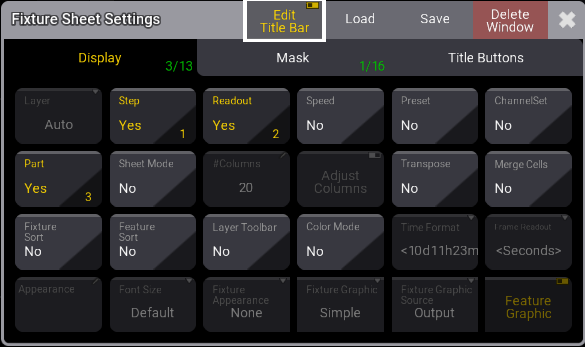
Under the Display tab, tap the buttons you wish to display in the title bar of the Fixture Sheet and toggle to Yes. See Title Bar Configuration for more information.