grandMA3 User Manual Publication
Uninstalling Previous Versions of grandMA3 onPC Windows®
|
grandMA3 User Manual » grandMA3 onPC » Uninstalling Previous Versions of grandMA3 onPC Windows®
|
Version 2.5 |
Deleting or uninstalling the grandMA3 onPC application does not necessarily remove all version-specific grandMA3 files from the computer.
Additional version-specific files may be stored in the MALightingTechnology folder in the hidden Windows ProgramData directory.

|
Important: |
| Several versions of grandMA3 onPC can be installed on the same Windows computer. When uninstalling, make sure to select the correct version. Before removing a version, back up any show files or custom user data that may still be needed. |
To fully remove previous versions of grandMA3 onPC from a Windows system, follow these steps:
1. Close grandMA3 onPC.
2. Open the Windows Start menu.
3. Open Settings.
4. Select Apps.
5. Select Installed apps.
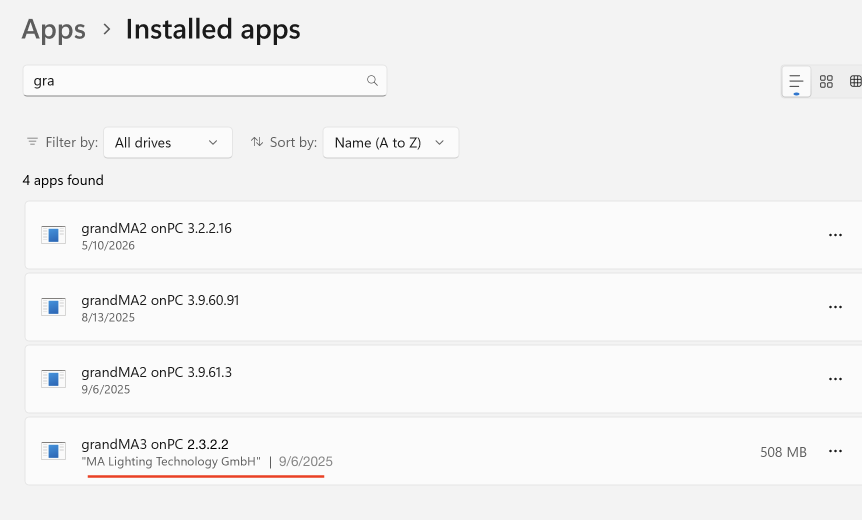
6. In the list of installed apps, search for grandMA3 onPC.
7. Locate the version that should be removed.
8. Select More options ....
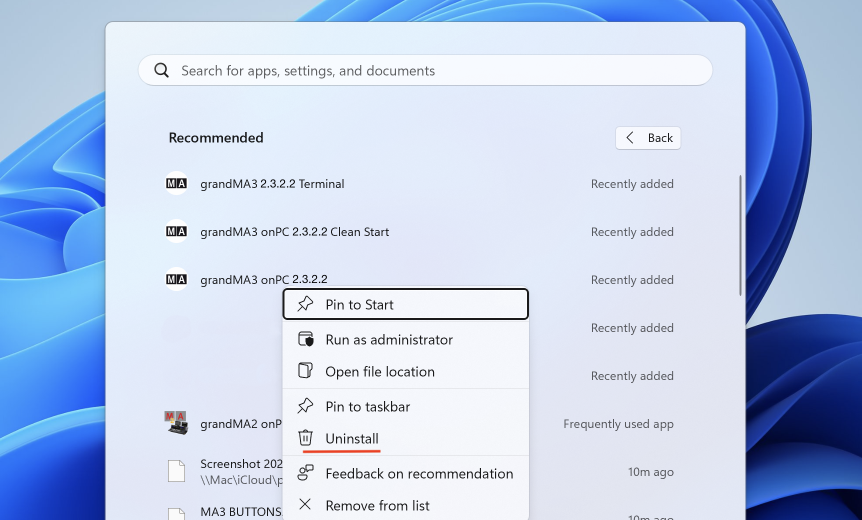
9. Select Uninstall.
9. Select Uninstall.
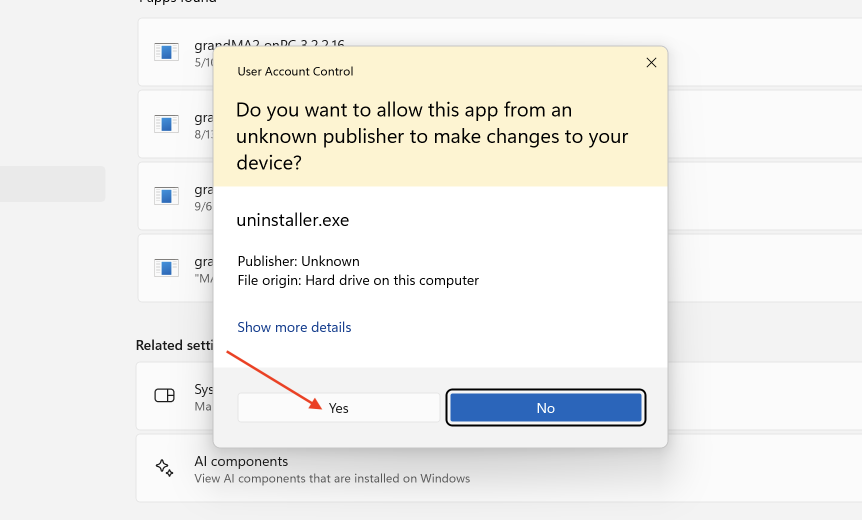
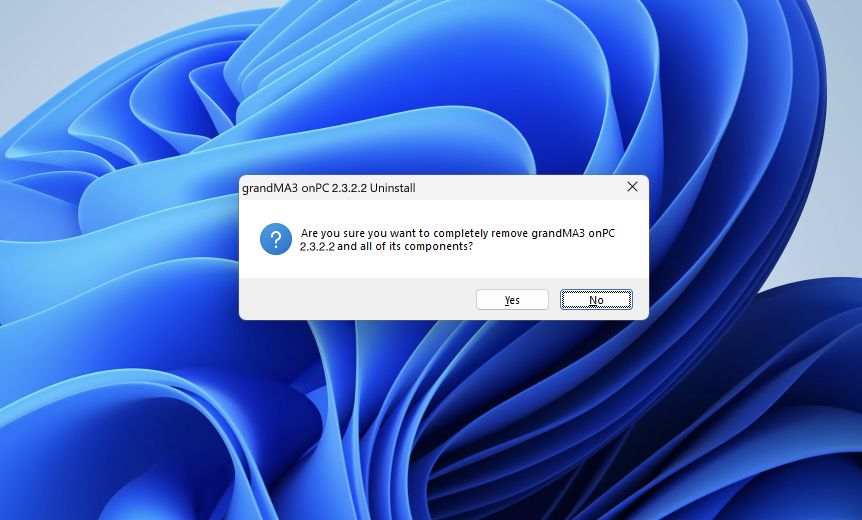
10. Confirm the Windows prompts to remove the selected version.
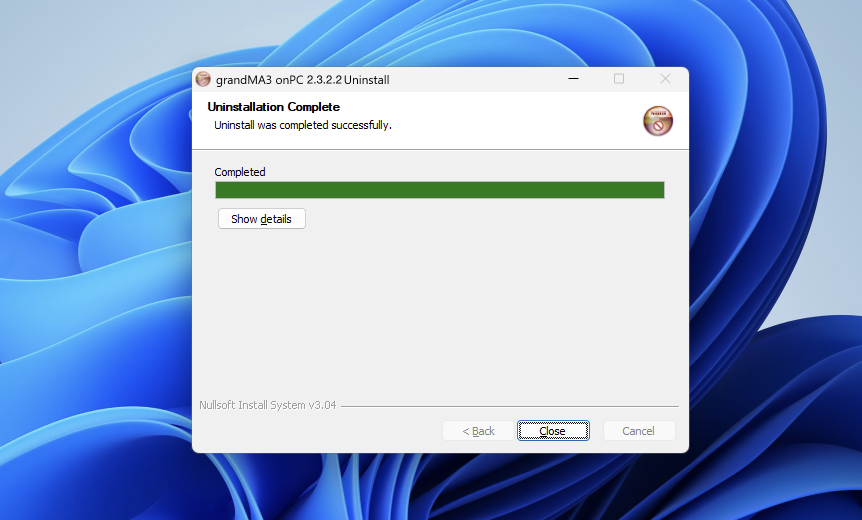
Only the selected version folders are removed. The currently installed grandMA3 application and shared user data remain unchanged.
Deleting the MALightingTechnology folder entirely is not recommended unless all installed grandMA3 versions and related files should be removed from the system.
|
|
Important: |
Removing the application from the Applications folder only deletes the visible application bundle and does not automatically remove older installed versions stored inside the application package. |