Command Editor
|
grandMA3 User Manual » Macros » Command Editor
|
Version 2.3
|
Command Input
When editing a command, for example, in a macro, a cue, or an agenda event, the Edit Command pop-up opens:
The entered command is previewed to see if the software will interpret it as intended: Attribute "Dimmer" at 100.
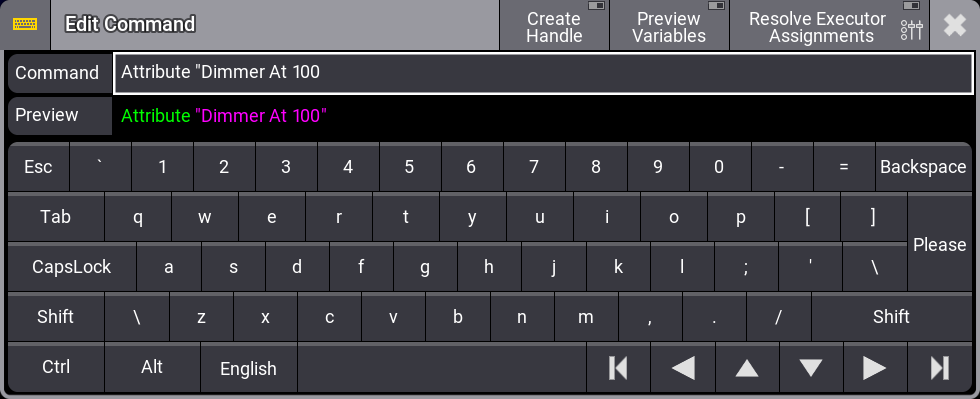
There are three buttons in the title bar that can be enabled:
- Create Handle
- Preview Variables
- Resolve Executor Assignments
They can make writing macros easier.
In the user profile settings you can select whether these buttons are enabled or disabled by default.
Create Handle
Handles can be used instead of object numbers or object names to address objects.
They are created using the #[Object] Keyword. For more information on how to use handles, see #[Object] Keyword.
Using handles to address an object works even if the object is moved or renamed. The handle always points to the object. The command does not need to be updated.
If Create Handle is enabled in the title bar of the command editor, the last object in a command is automatically converted into a handle.
To convert an object to a handle using Create Handle:
- Enable Create Handle.
- Type a command in the command editor that includes an object.
- Press Please.
The object in the command is converted to a handle in the command input field.

|
Important: |
Create Handle only converts the last object in a command to a handle, not all objects. To convert multiple objects in a command to handles using Create Handle, press Please after every object you want converted. |
Example:
- Enable Create Handle in the title bar.
- Type the command Go+ Sequence 1 into the input field.
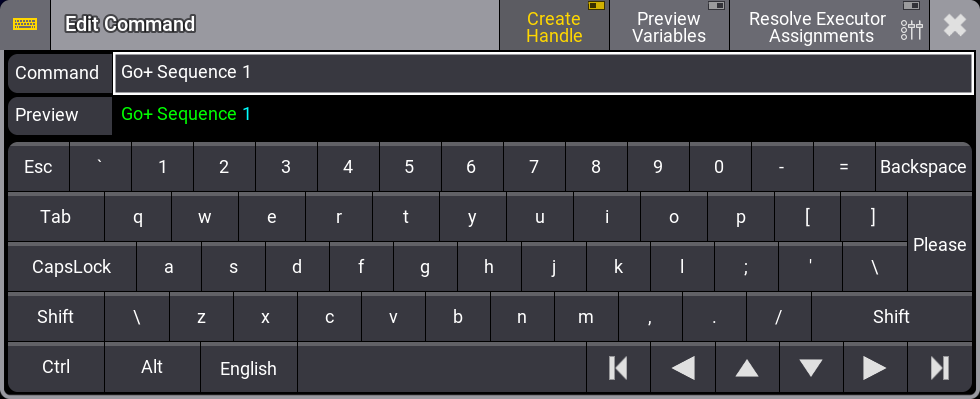
- Press Please.
"Sequence 1" is converted to a handle. For the demo show the command now looks like this in the editor: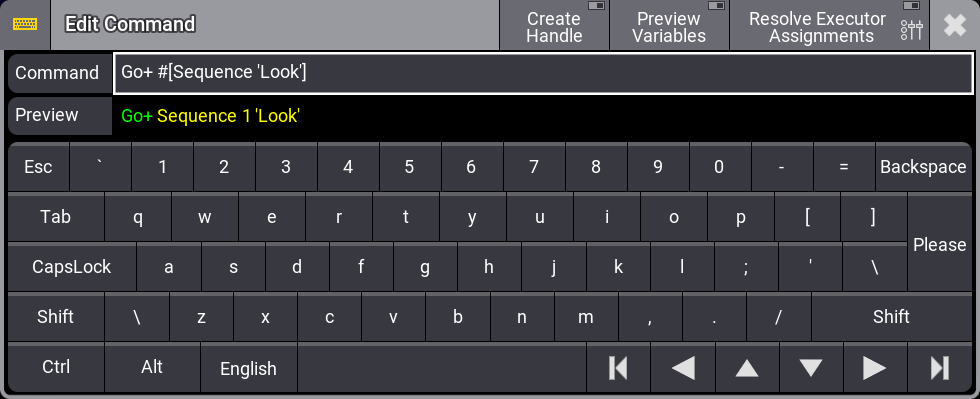
The preview and macro editor display the current location and name of the object. - Move the sequence to slot 5 in the sequence pool.
- Rename the sequence "New Name"
The macro editor now displays the new location and name of the sequence.
Preview Variables
Enable Preview Variables to display the content of a specific variable. The content can only be displayed if the variable exists:
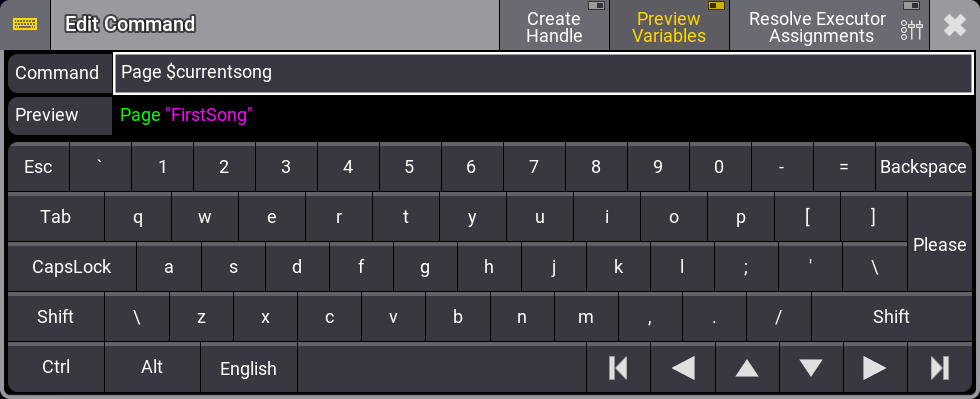
For more information on Variables, see Variables.
Resolve Executor Assignments
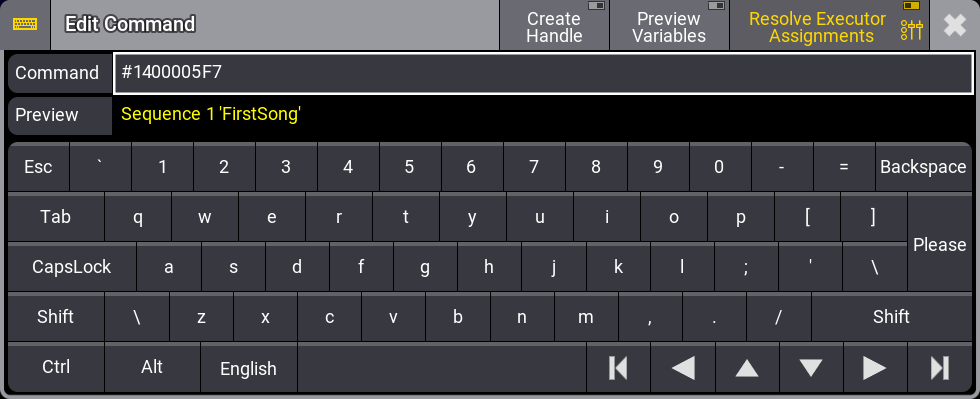
Sequence 1 'FirstSong' is assigned to executor 3.201 in the following example. If Resolve Executor Assignments is disabled, pressing executor 3.201 when inputting a command enters Page 3.201 in the command:
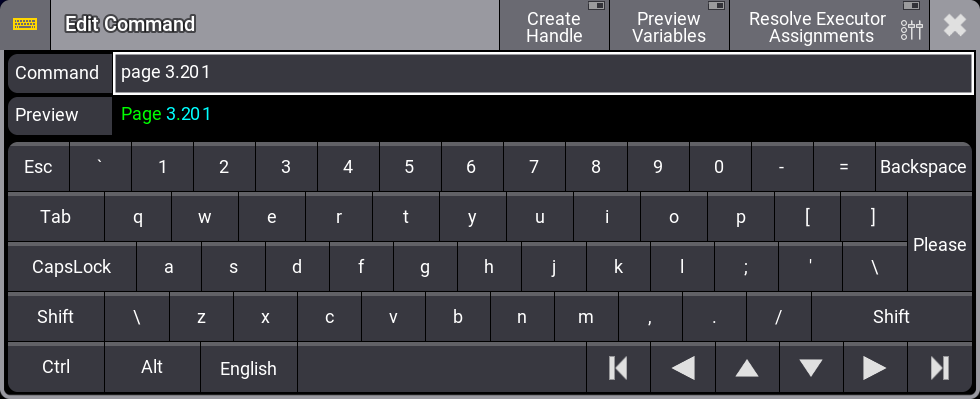
Sequence 1 'FirstSong' is assigned to executor 1.201 in the following example. Pressing that executor when inputting a command when Resolve Executor Assignments is enabled, the handle of the object assigned to the pressed executor is entered in the command. The preview displays the object type, number, and name in yellow.