|
grandMA3 User Manual » Layouts » Create a Layout
|
Version 2.2
|
Layouts are created in the Layout pool and can be edited in the Layout window or the Layout editor.
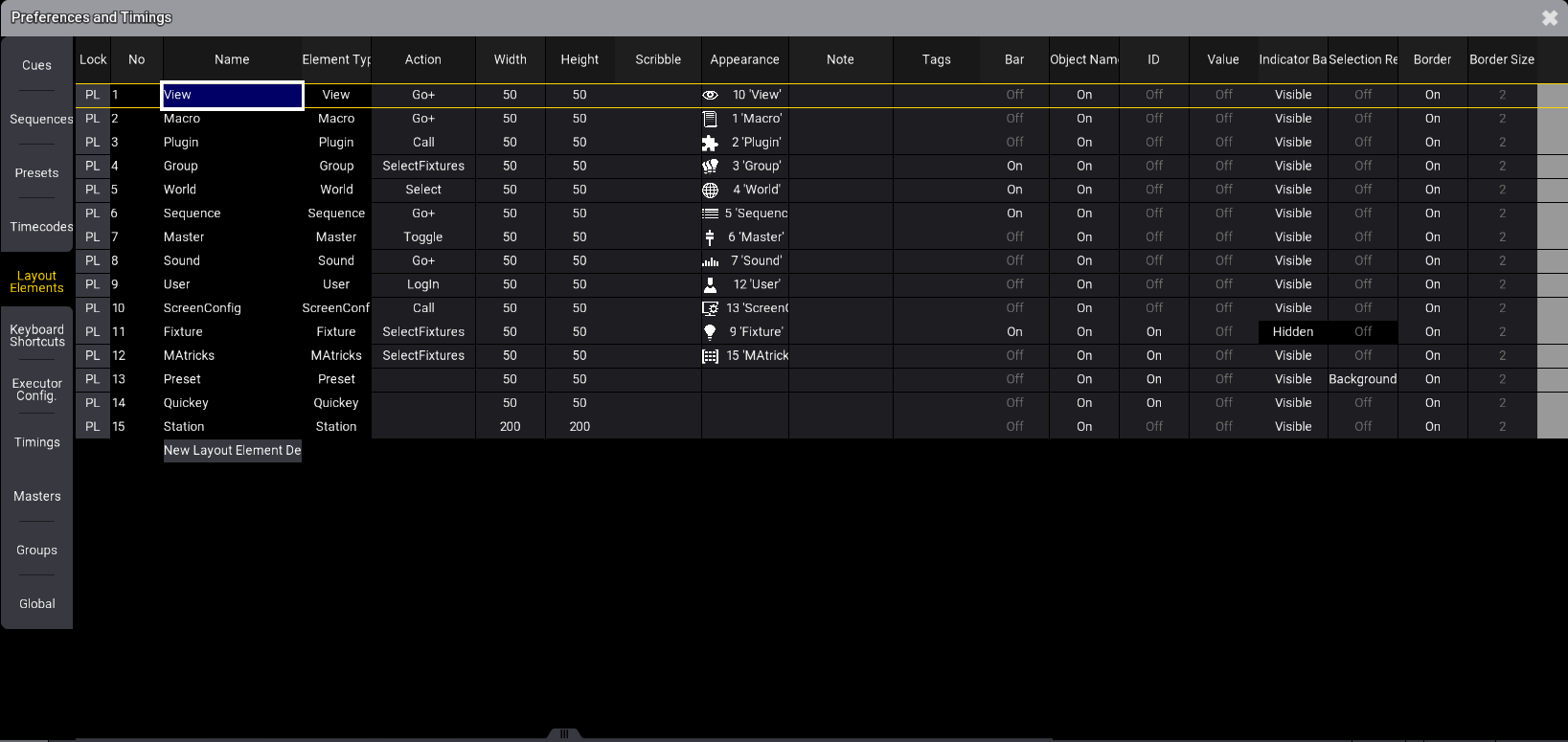
Default layout elements can be defined in the Preferences and Timings menu:
Press Menu and tap Preferences and Timings, then tap Layout Elements on the left side of the menu:
Arrange the layout pool and the layout viewer on one screen to operate the layouts faster and to have them all at a glance. See Add Window.
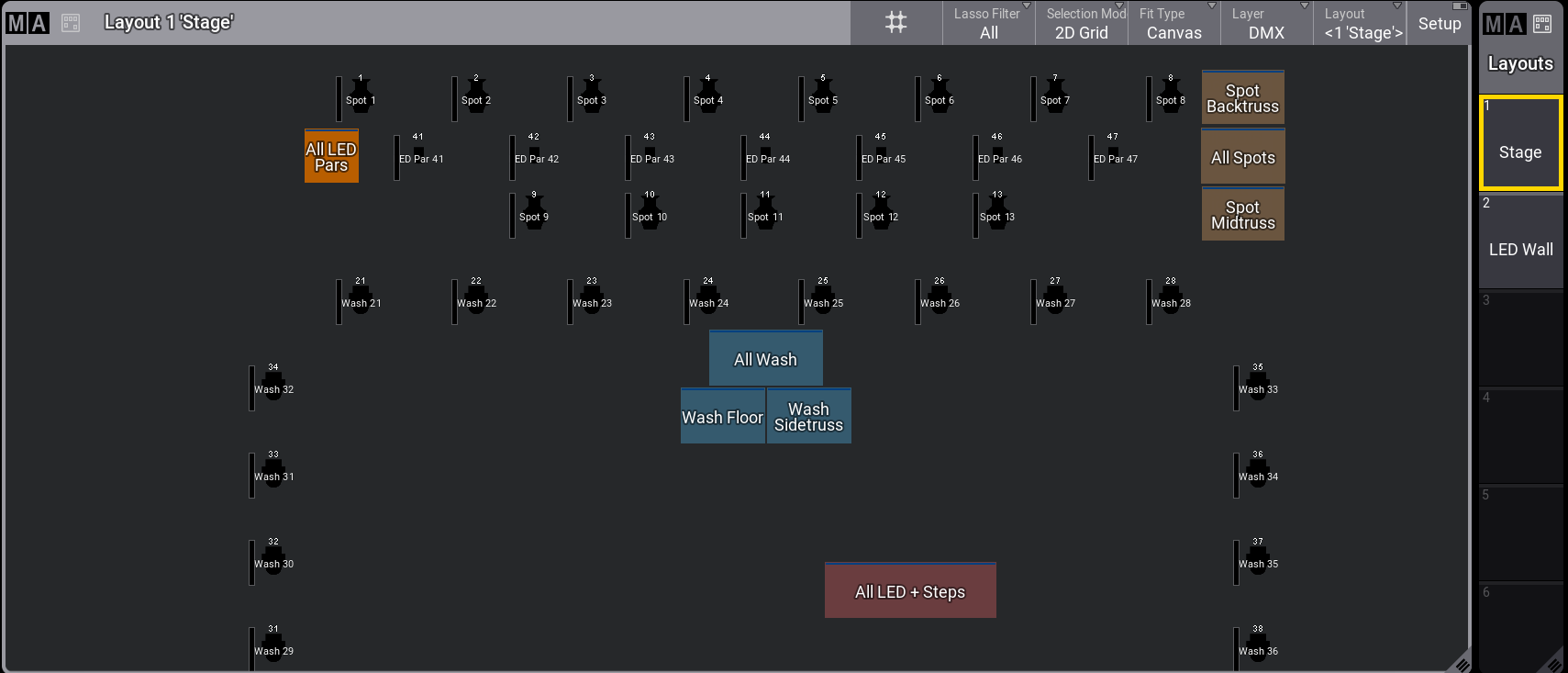
Layout viewer and layout pool
Adding fixtures to Layouts
- Select the fixtures you want to assign to the layout. The selected fixtures' selection grid positions are assigned to layouts. For more information, see Selection Grid.
- Press Assign and tap an empty layout poll object, or tap the area in the layout viewer where you want to assign them.
- A new layout pool is created with the selected fixtures.
- Label the new layout pool. See Label Pool Objects.
Layout viewer and layout pool
Adding Sub-Fixtures to Layouts
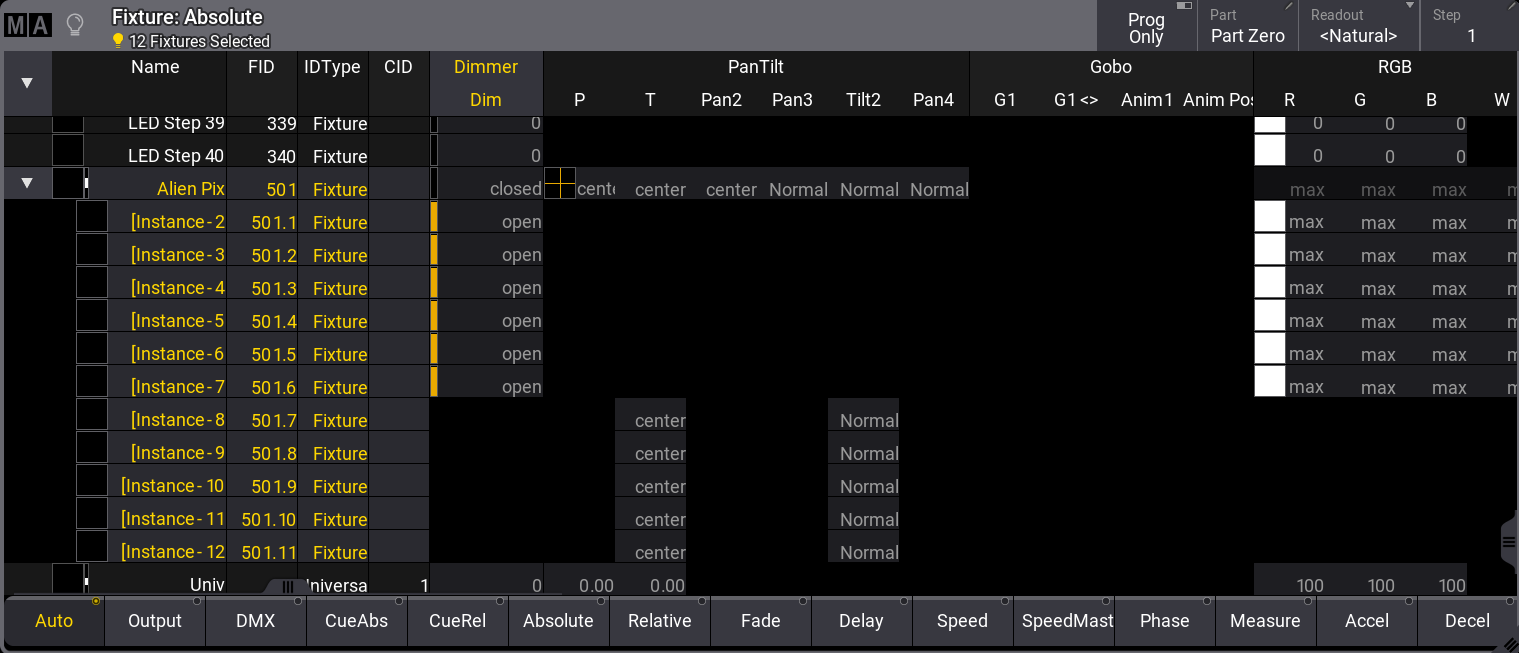
Some fixtures may comprise several sub-fixtures that can also be assigned to layouts.
To add sub-fixtures, repeat steps 1 and 2 above; this is what it could look like in the fixture sheet:
- A new layout pool is created with the selected fixtures.
- Label the new layout pool. See Label Pool Objects.
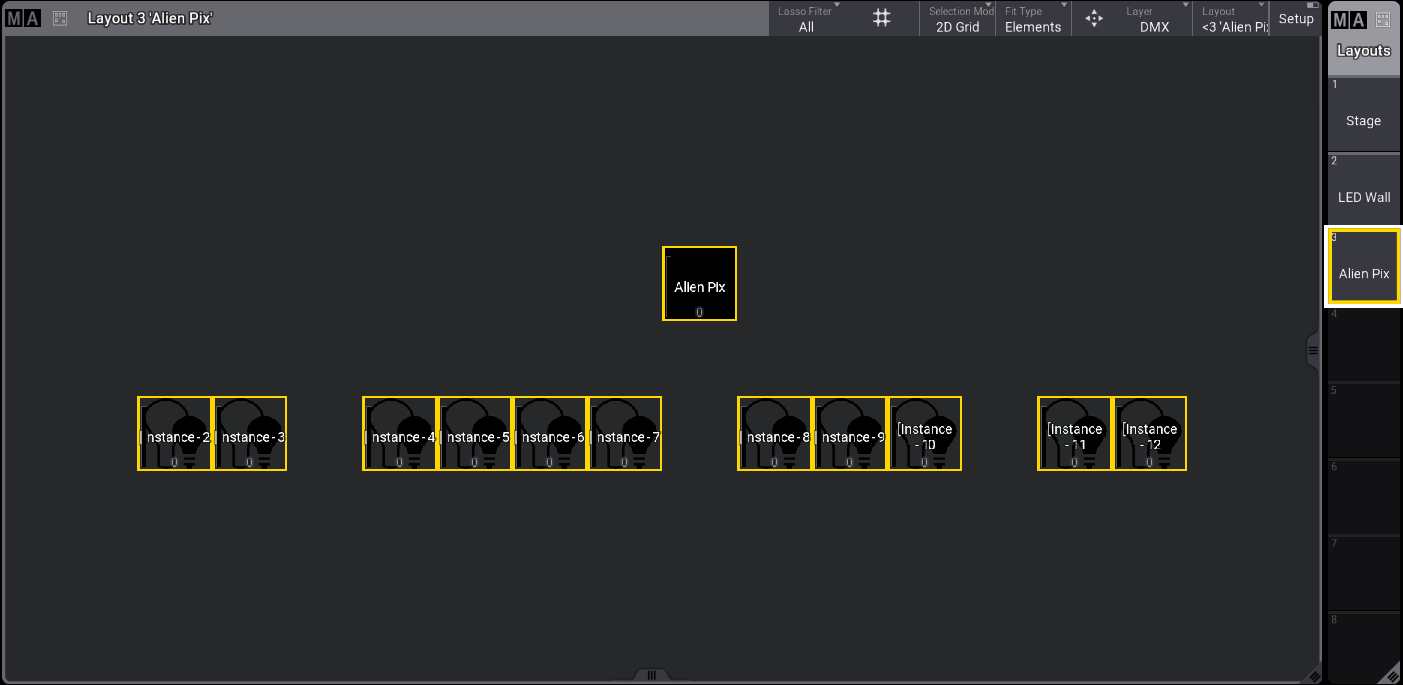
Layout viewer with the prominent fixture and its sub-fixtures added
Pool Elements
To add pool elements to the layout viewer, for example, group 1:
Press Assign Group 1 and then tap the area of the layout viewer where you would like to assign this group. The pool element is added.
To set up defaults for various layout elements, see Edit Layout.
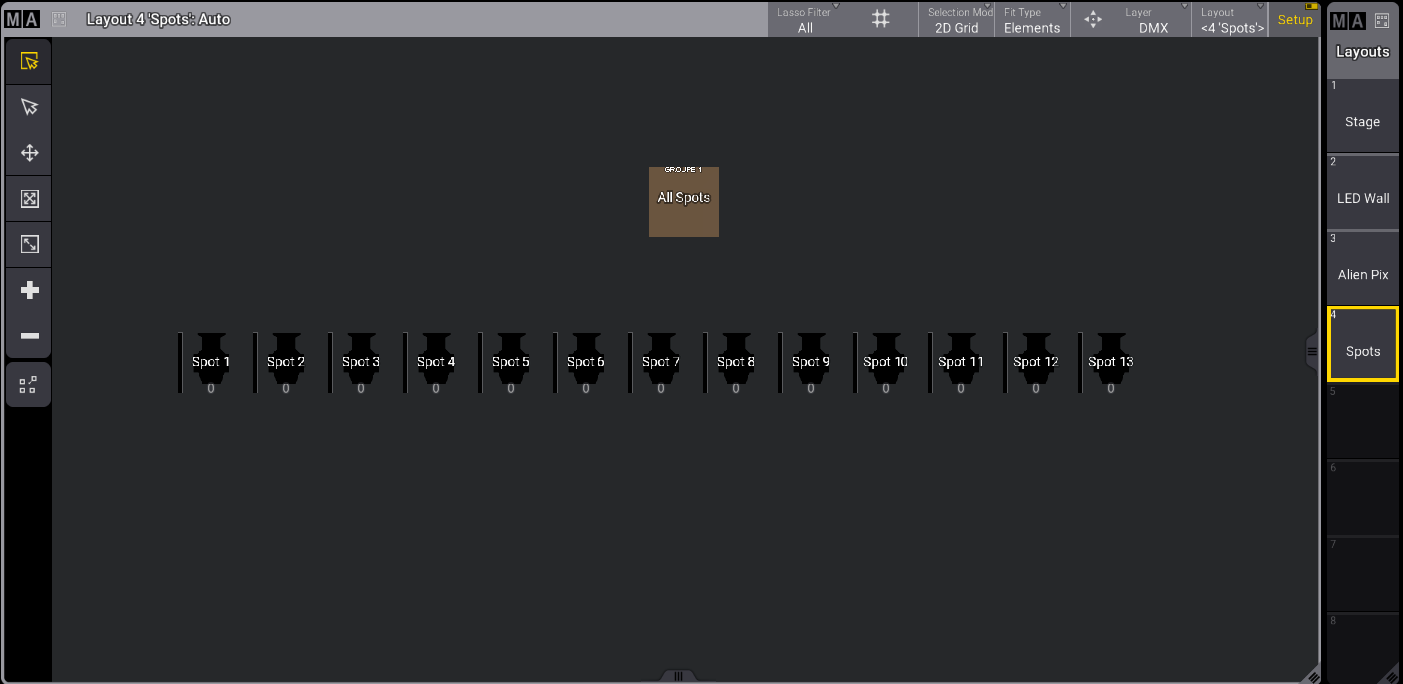
Layout viewer and layout pool
Output stations can be assigned to layouts.
To assign an Output Station to a layout, for example, an onPC station, type:
|
User name[Fixture]>Assign "HostName" At Layout 3 |
The Output Station is assigned to the layout:
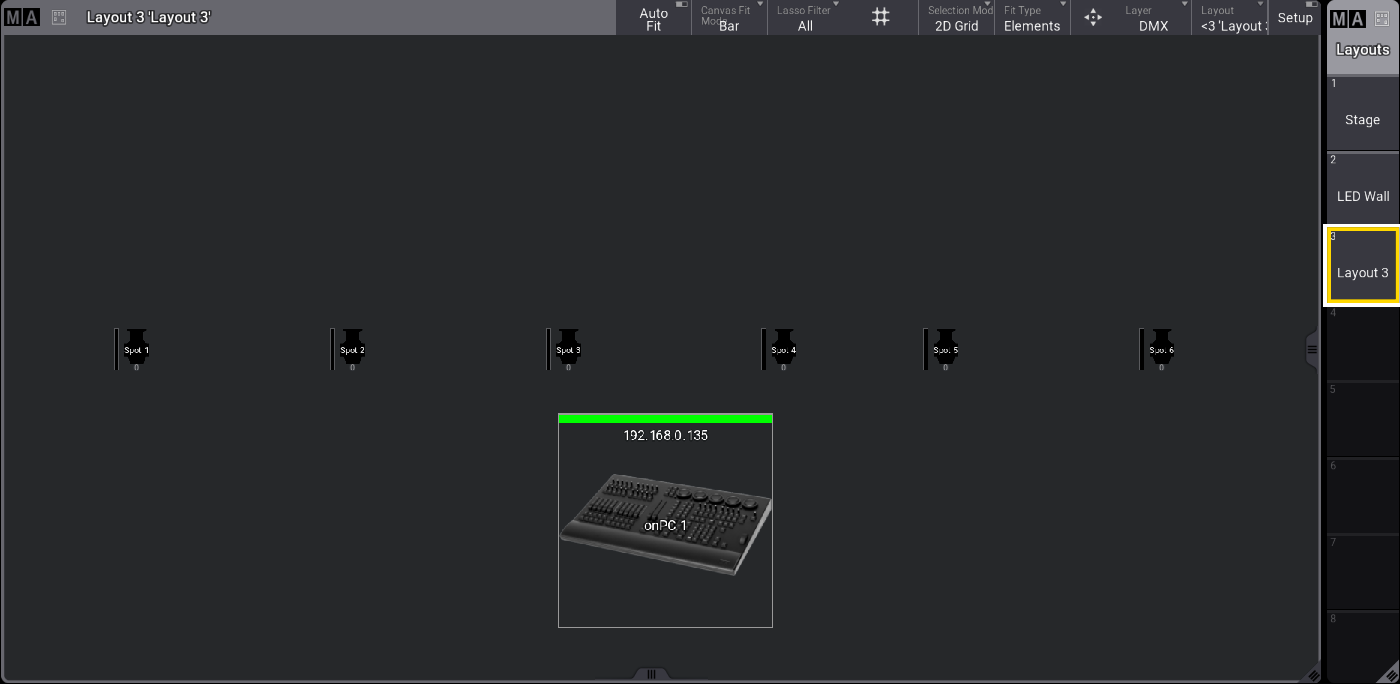
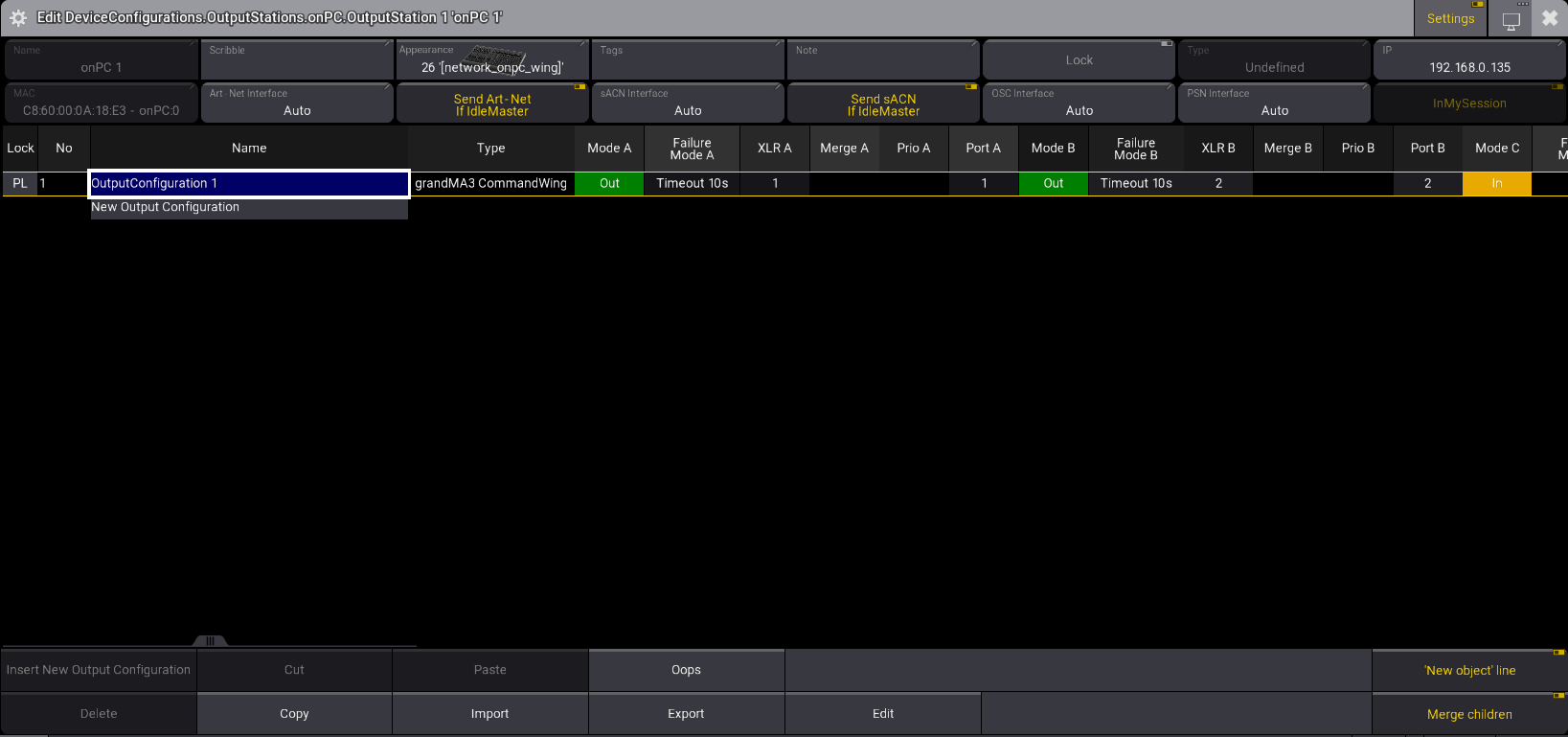
Assigned output stations display their current network state in the indicator bar. The colors in the indicator bar are based on the defined output station color from the color theme. For more information, see Color Theme. Press Edit and tap the assigned station to open the Device Configuration menu:
Layout Viewer Toolbar
Tap Setup in the title bar of the layout viewer to enable the layout viewer toolbar on the left side of the layout view.

|
Hint: |
|
When Setup is enabled, the layout encoder bar is also enabled. See, Layout encoder bar.
|
Auto Tool
- To use the auto tool, tap
 .
. - Tap the element you wish to select or use the lasso command to select multiple elements. A yellow responsive frame appears around the selected items.
The following functions can be used depending on where the layout element is tapped:
- Tap, hold, and drag inside a layout element to move it.
- Tap, hold, and drag one of the outer edges to change the size of the layout element for that particular edge.
- Tap, hold, and tap one of the outside corners to resize that layout element without considering proportions. Pressing MA additionally takes proportions into account.
Select an Element
-
To select an element, tap
 .
.
- Tap the element you wish to select or use the lasso command to select multiple elements.
- The element is selected.
Move an Element
-
To move an element within the layout window, tap
 .
.
-
Tap, hold, and drag the element to move it.
The element is moved.
Resize an Element
-
To resize an element, tap
 .
.
- Select the element you would like to resize.
-
Tap, hold, and drag to resize.
The element is resized.
Resize an Element with Fixed Ratio
-
To resize an element and preserve the actual size ratio, tap
 .
.
- Select the element you would like to resize.
-
Tap, hold, and drag to resize.
The element is resized with a fixed ratio.
Add an Element
The upper left corner of a layout element is set to the insertion point.
- To add an element in the layout window, tap
 .
. - Tap a space in the layout window.
- The element is added.
- To add an object to the element, see Edit layout view.
Delete an Element
- To delete an element in the layout window, tap
 .
. - Tap the element you want to delete.
- The element is deleted.
Align Selection
- Select the elements that should be aligned.
- Tap
 . The elements are aligned.
Layout View Fit Options
In the title bar, tap Fit Type and select the fit option you wish to perform.
- Select Elements to fit all layout elements in the window.
- Select Canvas to fit the entire canvas in the window. If assigned far outside the canvas, some elements will not be displayed.
- Selecting Both will fit the canvas and all elements.
-
Tap
 to execute "Zoom to Fit" depending on the selected Fit Type.
|
|
Hint: |
|
The canvas fit mode can be modified. For more information, see Layout View Settings.
|
- The layout keyword can be used to create a layout with the command line. For more information, see Layout and Assign keywords.
|
|
User name[Fixture]>Assign Layout 1 |
Cloning in Layouts
Fixtures can be cloned into a layout using a clone syntax. For more information about cloning, see the Clone keyword and the Clone topic.
Requirements:
- Patched fixtures. For more information, see Patch and Fixture Setup.
- The Layout Viewer window and the Layout Pool are open.
For the following example, fixtures 1 through 10 were patched and labeled Spots. For more information, see Patch and Fixture Setup.
These 10 fixtures were used to create layout 3 labeled Spots. For more information, see Create a Layout.
To clone fixtures into a layout, follow the steps in the example below:
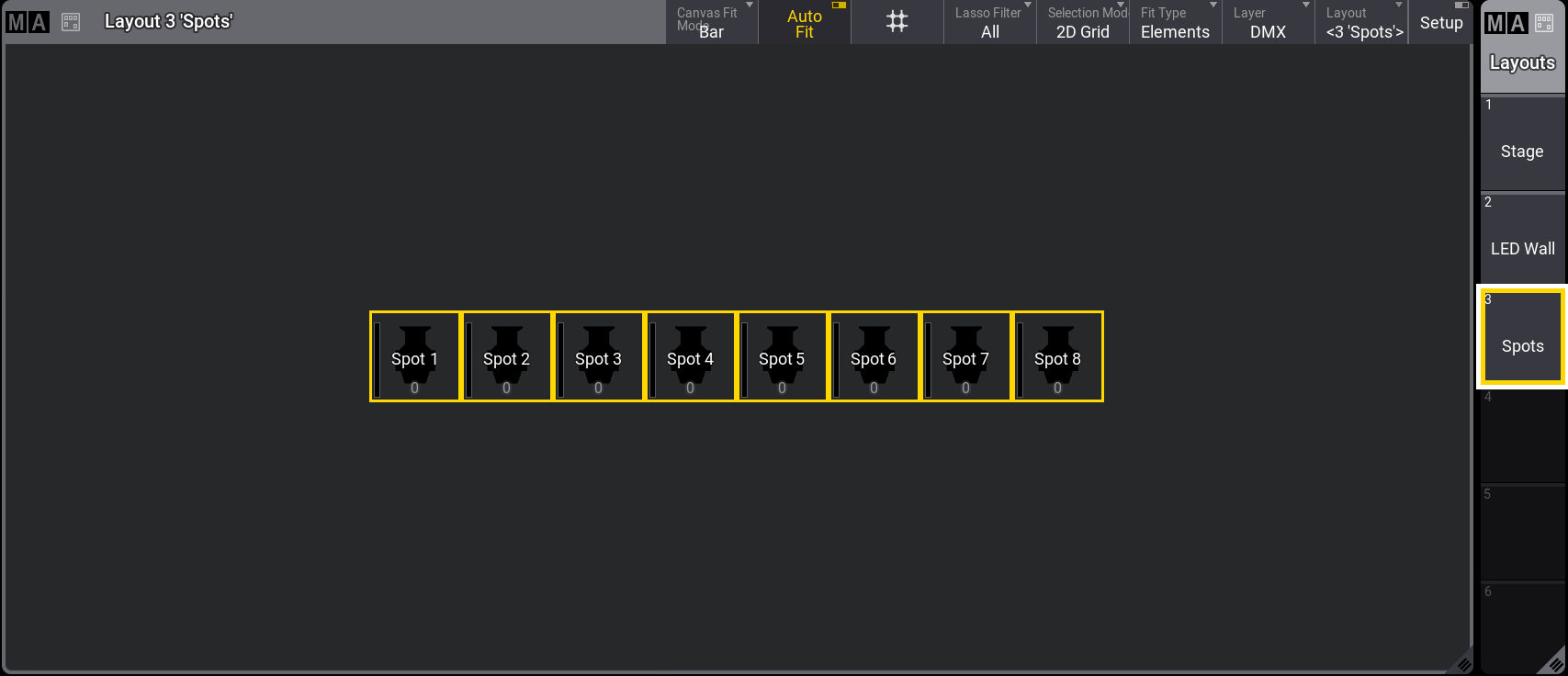
- Tap the Spots pool in the Layout Pool window. The Spots layout is shown in the Layout Viewer window as shown in the image below:
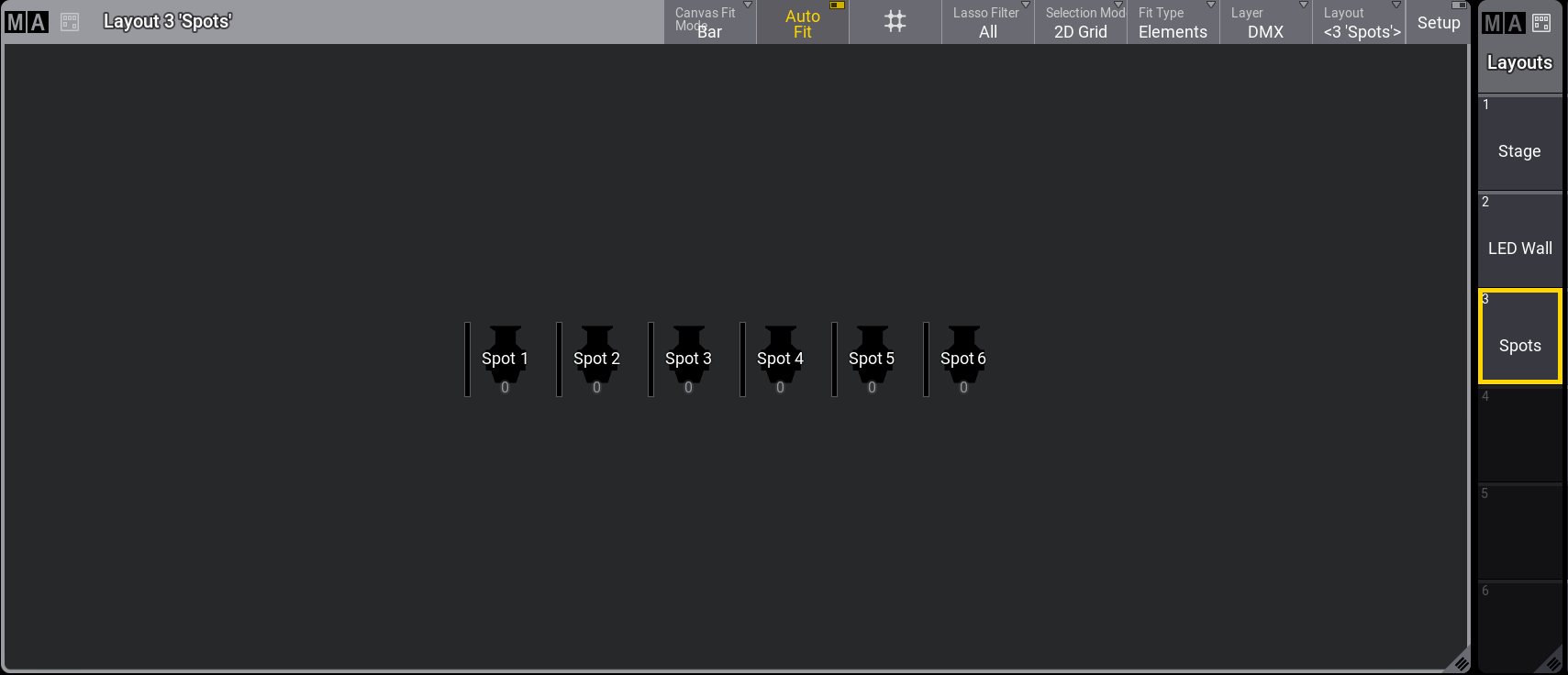
Layout Viewer - Spot pool
- To clone new fixtures into the first layout pool, type the following command into the command line:
|
|
User name[Fixture]>Clone Fixture 1 Thru 6 At Fixture 7 Thru 12 If Layout 3 |
- The Clone pop-up appears, offering the choices of Low Priority, High Priority, Overwrite, and Cancel. Press Please. To learn more about the clone priority options, see Clone Keyword.
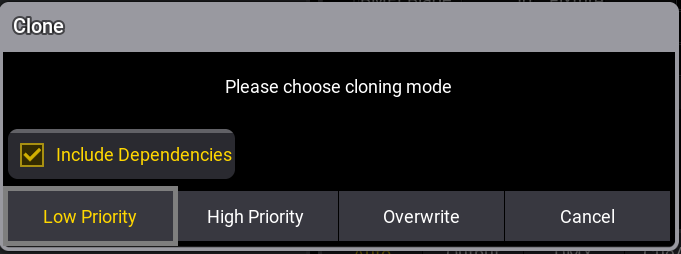
Clone pop-up
- The new layout elements will be placed with a slight offset to the existing layout elements. All settings of the layout element will be cloned, too:
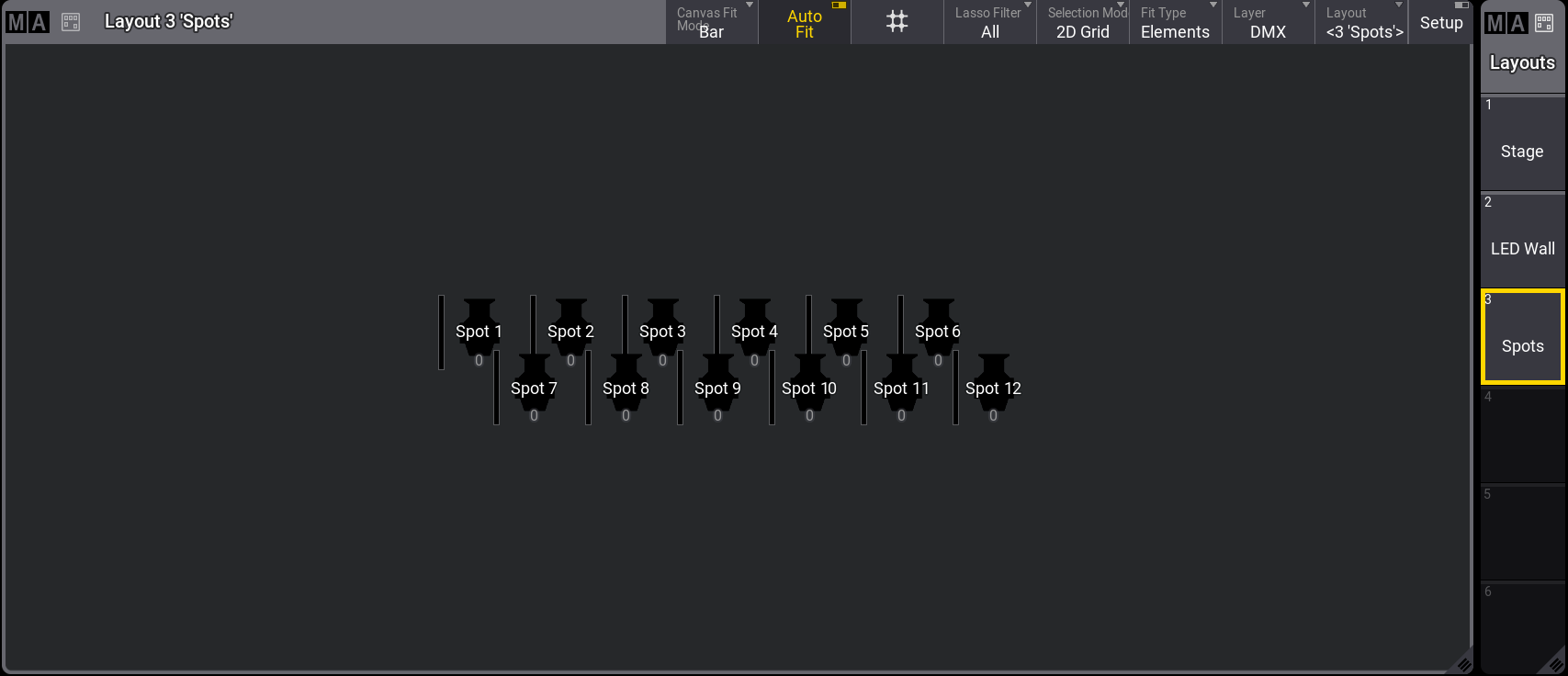
Fixtures are placed with an offset in the Layout Viewer window