grandMA3 User Manual Publication
Clone Fixtures in the Patch
|
grandMA3 User Manual » Operate Fixtures » Clone » Clone Fixtures in the Patch
|
Version 2.3
|
The cloning feature is a useful tool for duplicating existing fixtures and their data to new fixtures in the Patch menu for immediate use. The copy and paste functions automatically create a complete clone of the show data for the corresponding fixtures.
The following topics offer additional information:
- For general information about cloning, see Clone Function.
- To understand the Patch menu, see Patch and Fixture Setup and Add Fixtures to the Show.
- To position fixtures in the 3D viewer, see Position Fixtures in the 3D Space.
Take a look at the following example to get a better understanding of cloning fixtures.
Example of Cloning Fixtures in the Patch
Tap the video below to see the example.
Requirements:
- Load the grandMA3 demo show file and enter the Patch menu.
-
Tap and hold FID 2 and drag it downwards to FID 7. Fixtures 2 through 7 are selected.
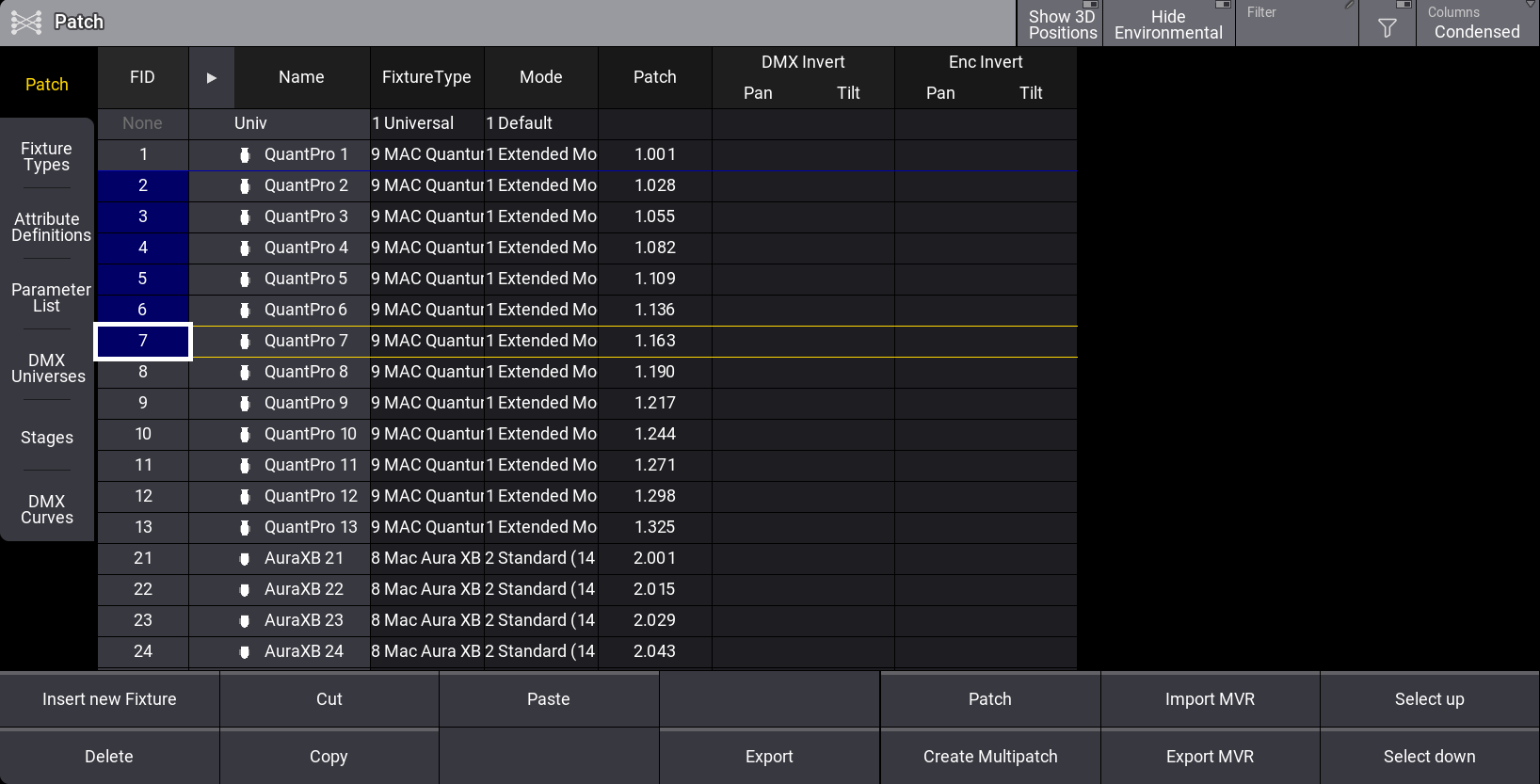
- Tap Copy.
-
Tap LED Backwall and then tap Paste. The copied fixtures are cloned to the specified location and can be processed.
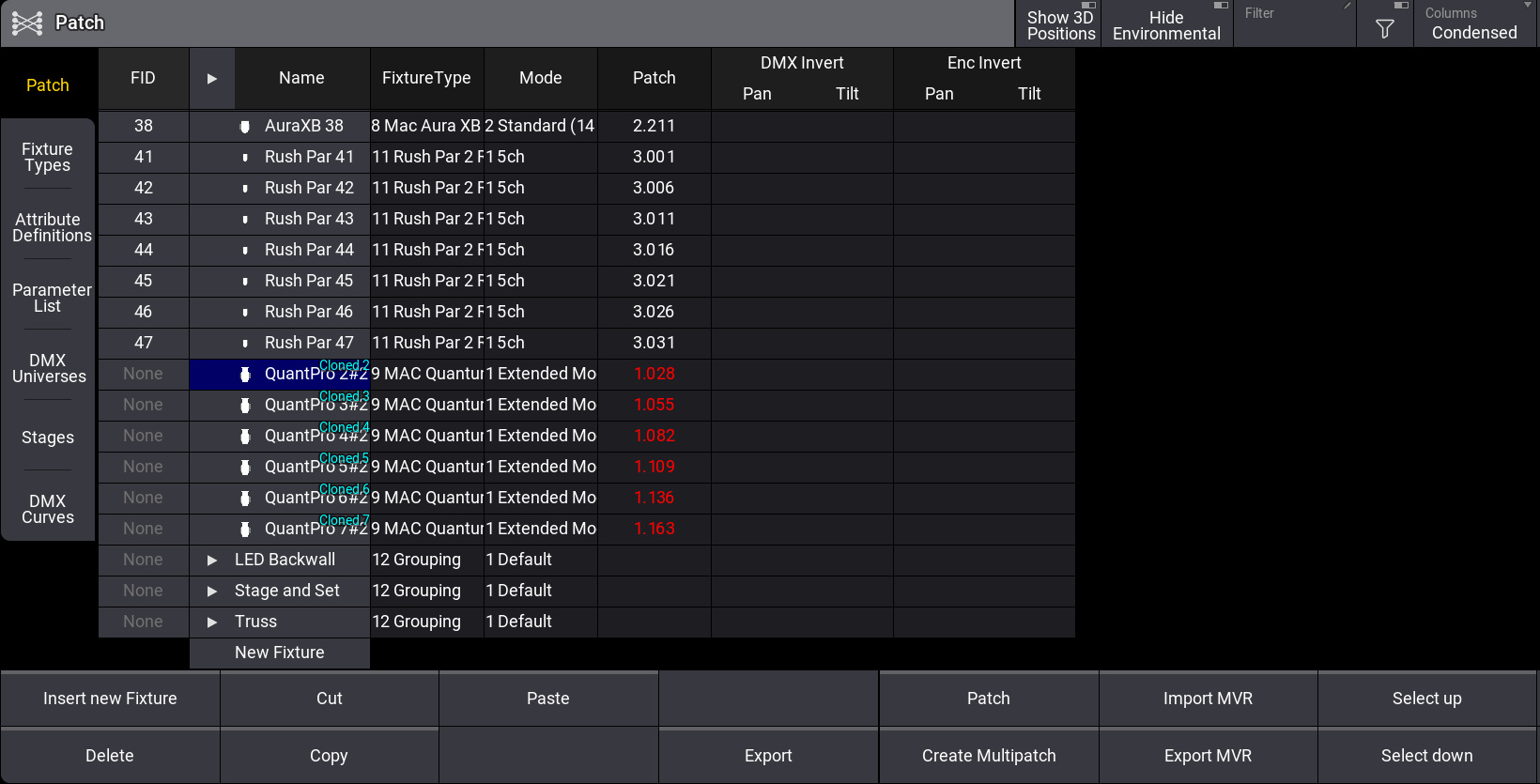
- After copying and pasting fixtures into the Patch, the pasted fixtures get a cyan text (Cloned <FID>) on the right side of the Name cell.
- The number indicates the source fixtures. In the example above, the fixtures 2 through 7 were the source fixtures.

|
Hint: |
| The show data will be cloned when leaving the Patch. After closing and reopening the Patch menu, the cyan text is no longer displayed. |
Example of Cloning Fixtures to a Different Stage
Requirements:
- Load the grandMA3 demo show file
- A second stage is created.
- Press
 and then tap Patch. The patch menu opens.
  Paste to Command Line
 - Select fixtures 1 thru 5 in the patch menu.
- Tap Copy.
- Tap Stage to change the stage.
- Tap Paste. The selected fixtures are cloned to the stage.