grandMA3 User Manual Publication
grandMA3 net duct
|
grandMA3 User Manual » Update the Software » grandMA3 net duct
|
Version 2.3
|
The grandMA3 net duct forms the basis of the MA-Net3 connection between grandMA3 devices and external tracking systems or media servers. In order to connect a tracking system or media server to your grandMA3 system via MA-Net3, the grandMA3 net duct must be installed in the third-party software, which must have the same version as your grandMA3 devices.
Requirements:
- Download the latest grandMA3 net duct software version from www.malighting.com. For more information, see update the software.
- Have an external tracking system or media server ready that supports the grandMA3 net duct.
Install and Update grandMA3 net duct
Install and Update per USB Stick

|
Hint: |
| For the first initialization and also to update, the external device must be running in the update mode. For more information, see the manual of the external device. |
|
|
Hint: |
|
To establish a connection, the external device has to be updated to match the current version of the
grandMA3 device.
|
- Extract the zip file grandMA3_viz_key_net_duct_vx.x.x.x.zip and copy the the ma folder into the root directory of the USB flash drive.
- Insert the USB flash drive in the grandMA3 onPC or console USB port.
Follow the next steps from point 4.
Install and Update via the Local Hard Drive
- Extract the zip file grandMA3_viz_key_net_duct_vx.x.x.x.zip.
- Open the folder ma.
- For Windows systems, copy the files from the ma folder into the directory C:\ProgramData\MALightingTechnology\installation_packages. For macOS systems, copy the files from the ma folder into the directory ~/MALightingTechnology/installation_packages. For more information, see Folder Structure.
-
To access Software Update, tap
 .
.
- Tap Settings.
- Tap Software Update. The Software Update window opens.
-
Tap Select and Import Update Files. The Select Update pop-up opens.
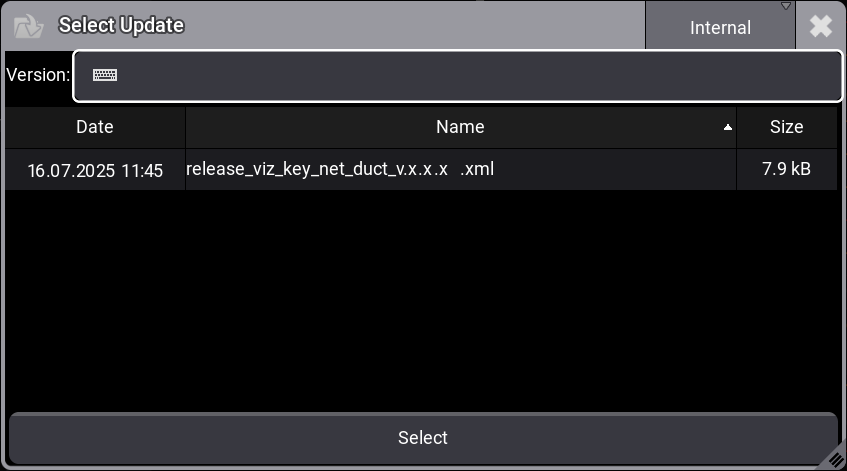
Select Update pop-up - Select the location that contains the update files (internal or any plugged-in external device). Select the release_viz_key_net_duct_vx.x.x.x.xml file.
- Tap Select. The pop-up closes and the End User License Agreement (EULA) opens.
-
Confirm the End User License Agreement (EULA) by scrolling down and then tapping I
agree.
Hint: The currently selected update file is displayed at the title bar of the software update window. -
In the device list, tap the external device you want to install grandMA3 net duct. The selected devices turns into
bright
blue.

Important: Only devices with the Type "TrackingServer" or "MediaServer" can be updated. The devices are listed in the NetworkNode category. - Tap Update Devices. The software update starts copying files.
-
After the files are transferred you might need to restart the external device and follow the manual of the external device.
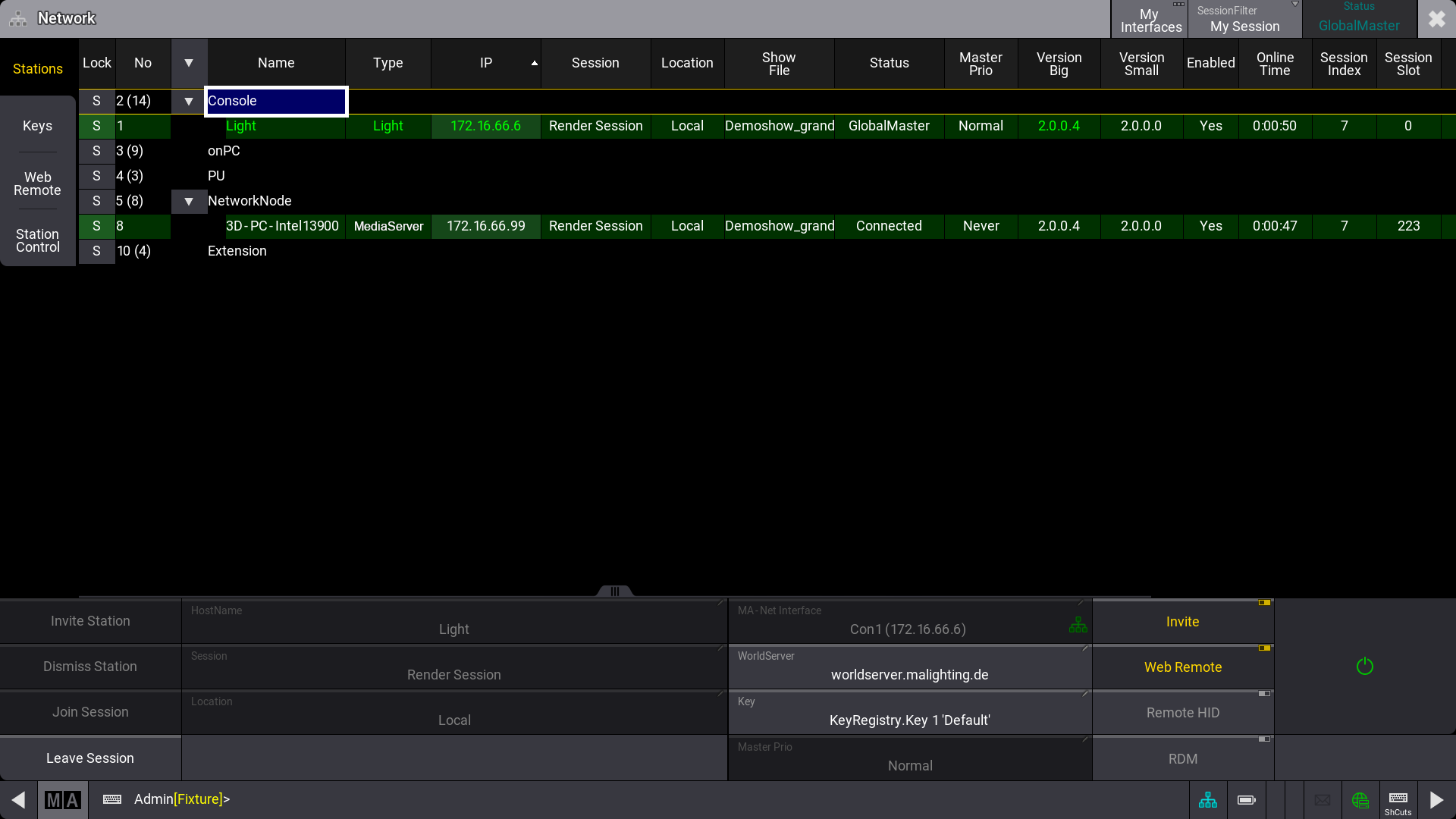
Network menu