|
grandMA3 User Manual » Workspace » Oops Menu
|
Version 2.3
|
The Oops menu displays the history of completed actions. Completed actions are displayed as a list and in chronological order. The action at the bottom shows the latest entry.
The latest action or multiple actions can be Oopsed. It is also possible to use Oops filters for different kinds of actions.
For more information about Oops, see Oops keyword and Oops hardkey.

|
Important: |
|
All Oops entries are cleared when changing the Patch or loading a show file.
|
To get a first impression of the Oops menu, watch the video below:
To open the Oops menu:
- Press and hold Oops.
or
-
Execute the command Menu "OopsOverlay".
 Paste to Command Line
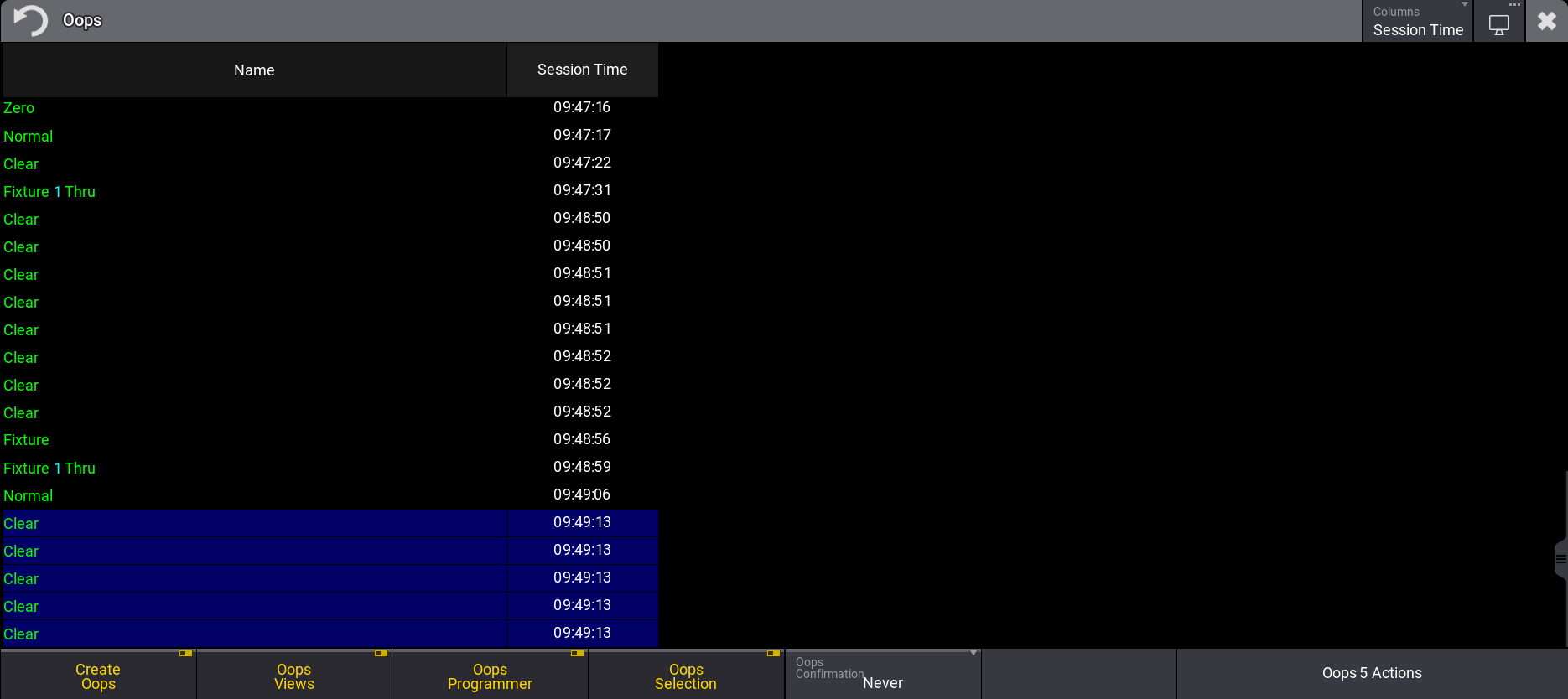
The menu is separated into two columns:
-
Name: Shows the executed command or the action that has been done.
- Elapsed Time / Session Time: Shows the bygone time since the action has been executed.
To toggle between different time units, tap Columns in the title bar:
- Elapsed Time: Shows the passed time since the command has been executed.
- Session Time: Shows the time off the day the command has been executed.
Oops Actions
Only the last action or a coherent amount of actions can be Oopsed. A selection of actions always include the latest one.
A blue background indicates the selected action.
Requirements:
- Change at least two values in the show file to create Oops events, for example, by setting dimmer, position and color values for fixtures.
To undo the last action:
- The action at the bottom is selected, when opening the Oops menu.
- Tap Oops Last Action located the bottom right corner in the Oops menu. The latest action is undone and is vanished.
To undo multiple actions:
- Use 2 Finger Scroll or the scrollbar to scroll to a particular event in the Oops menu.
- Tap on any listed event to undo it. This selects the latest event and all other events up to and including the selected event.
- Tap Oops x Actions. The x stands for the selected number of actions.
- The selected actions are undone and are vanished from the menu.
Toggle Oops Filters
The following Oops elements in the list can be filtered/hidden:
- Create Oops
- Oops Views
- Oops Programmer
- Oops Selection

|
Hint: |
| The four filters operate the corresponding settings of the User Configuration. For more information, see User Settings. |
|
|
Hint: |
| /NoOops does not generate oops events when executing commands. For more information, see /NoOops Option Keyword. |
- To create no events at all, disable Create Oops. Oops View, Oops Programmer and Oops Selection are grayed out.
Oops Confirmation
The setting Oops Confirmation defines when an Oopsed event has to be confirmed via a pop-up.
Oops Confirmation can be set to the following options:
- Always: Any Oopsed event needs to be confirmed.
- Main: Important actions needs to be confirmed, for example, storing, moving, or deleting objects.
- Never: No confirmation is needed. Oops Configuration is set to Never by default.
To change the Oops Confirmation to Always:
- At least one Oops event is created.
- Press and hold Oops. The Oops menu opens.
- Tap, hold and swipe Oops Confirmation. A dropdown menu opens.
- Select Always. The dropdown menu closes.
- Close the Oops menu.
- Press Oops. A Oops pop-up appears:
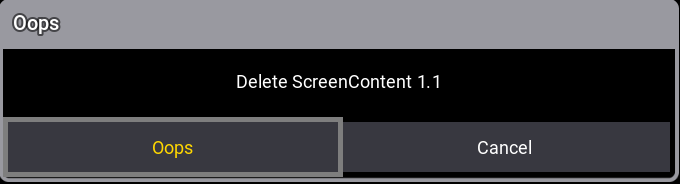
- Tap Oops to confirm. The last action is undone.
Oops in a Session
Oopsing an action is possible in a session with multi-users. For more information about multi-users in sessions, see Multi User Systems and Session.
Oops could fail while changes to the show file are being made via another station. If so, an error message will appear on the station where Oops is being used:
