Command Line Interaction
|
grandMA3 User Manual » Macros » Command Line Interaction
|
Version 2.5 |
Command-line interaction is part of the Macros and Quickeys pool. For more information about Quickeys CLI, see Quickeys and Command Line Interaction below.
Commands can be written as Macros or Quickeys to interact directly with the Command Line. Macros can be basic or more complex. For example, you can write a macro that will enter the Edit keyword in the command line. That's CLI.
Tapping a macro with CLI disabled in the Macro Pool will execute its command directly and will not interact with the command line.
CLI can be enabled or disabled in the Macro Editor. To edit the CLI property of macro 5, type:

|
User name[Fixture]>Edit Macro 5 Property ''CLI'' |
To open the macro editor, use the swipey command on a pool object or press Edit. To open the macro editor for macro 5, type:
|
|
User name[Fixture]>Edit Macro 5 |
The Macro editor opens:
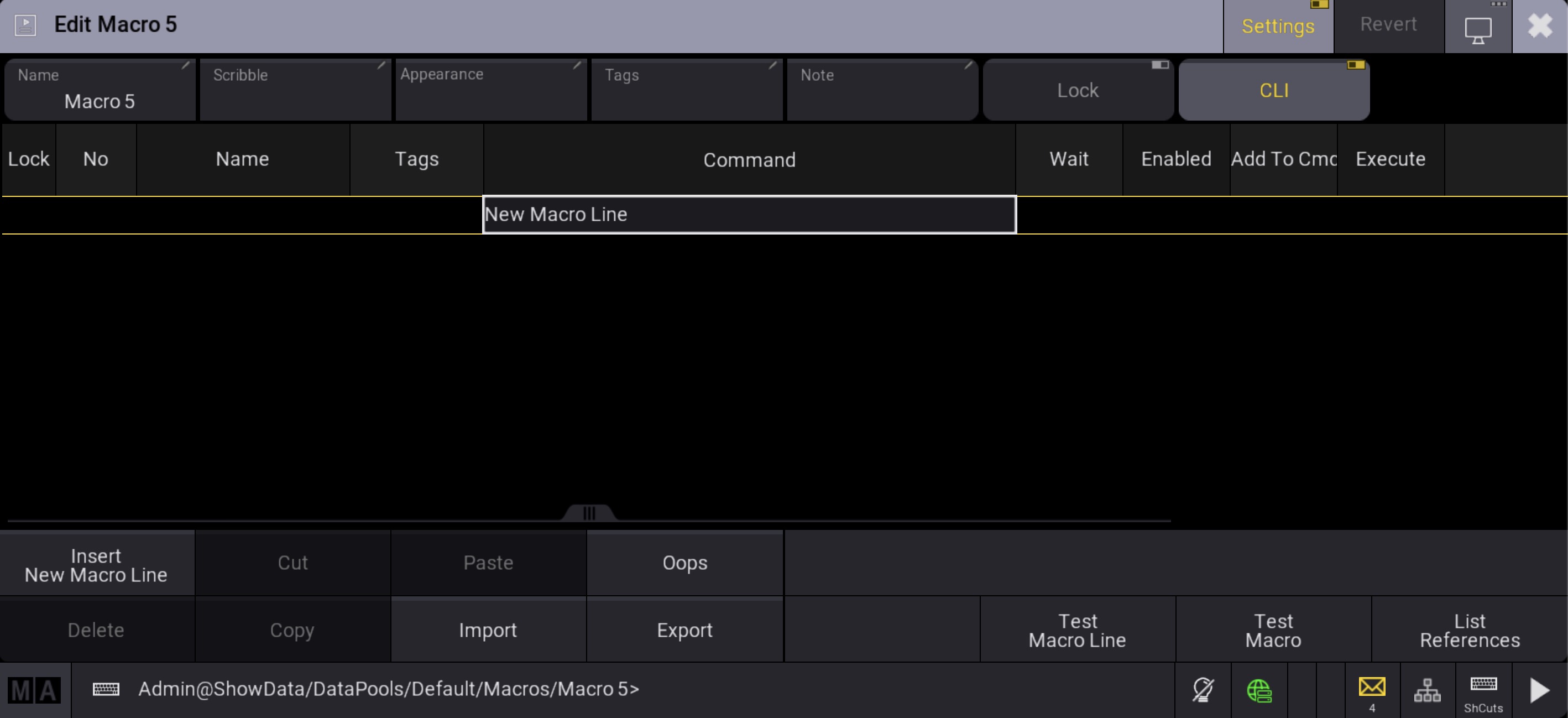
Tap CLI in the top right corner of the editor to enable it.
Macros with CLI disabled are displayed with CLI in red on the pool object.

To Edit, Move, or Delete a macro with CLI disabled, you need to type the macro number or the macro name in the command line, for example:
|
|
User name[Fixture]>Edit Macro 5 |
Edit X14 | Macro 5
Quickeys and Command Line Interaction
When CLI is disabled, pool objects, when tapped, behave like the actual hardware keys on the desk.
To edit Quickeys when CLI is disabled, for example, Quickey 1, type Edit Quickey 1:
|
|
User name[Fixture]>Edit Quickey 1 |
Edit X14 | Macro X14 | Macro X14 | Macro 1
To enable CLI, tap the MA logo of the Quickey Pool to open the Quickey Pool Settings, then tap CLI to enable it.
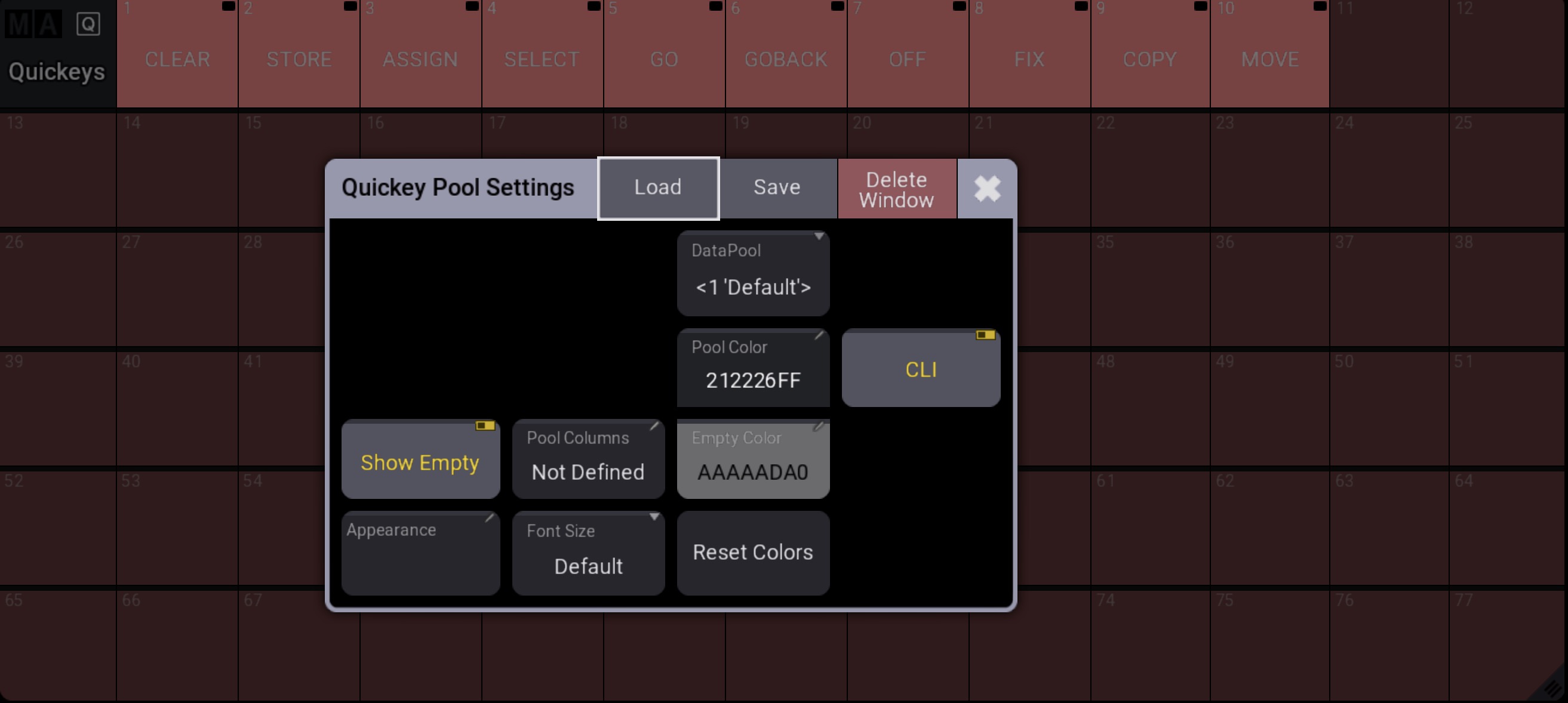 Quickey Pool Settings
When CLI is enabled, the pool objects have a light pink background and can be edited using the following methods:
- Open the swipey commands on a pool object and choose Edit. For more information, see Pool Windows.
- Press Edit, then tap a pool object.
- The Edit pop-up opens.
For more information, see Quickeys.