|
grandMA3 User Manual » Cues and Sequences » Sequence Settings
|
Version 2.5 |
Each sequence has several settings. The settings can be accessed from the title bar of each sequence sheet or the executor assign menu. Tap Edit Settings or Settings to open the sequence settings.
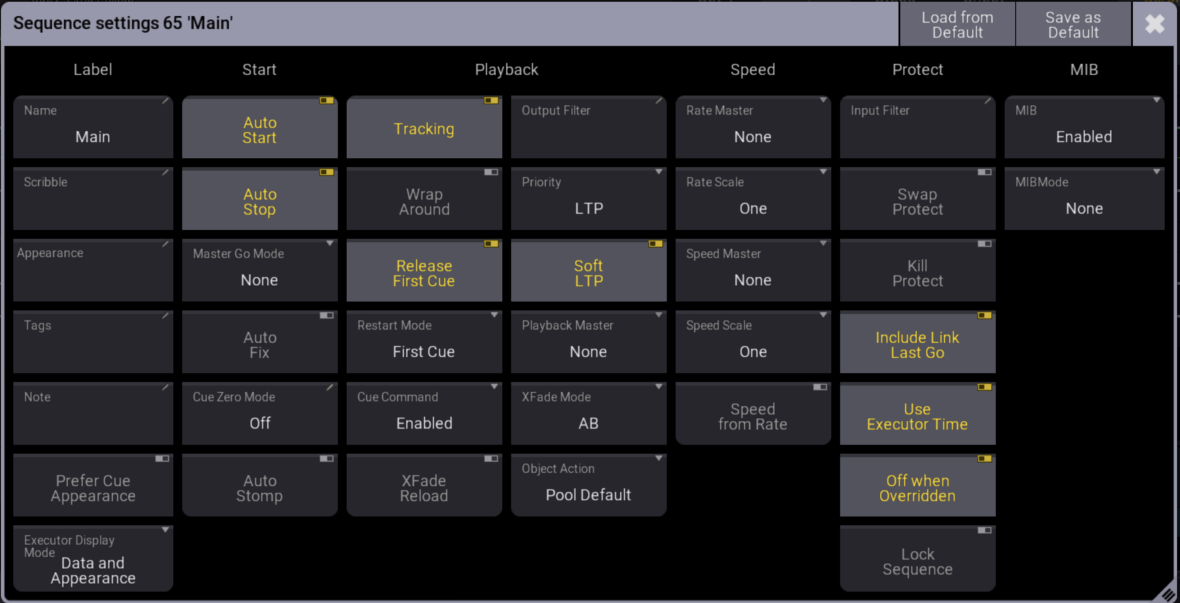
The settings are divided into Label, Start, Playback, Speed, Protect, and MIB sections. The sections and their settings are described below.
Each user profile has default sequence settings. These settings are used when a new sequence is created. Load the default settings or save the current settings as the default from this pop-up.
The title bar has two relevant buttons. The left one is Load from Default. Tapping this loads the stored sequence defaults. Next to this is Save as Default. Tapping this stores the current settings as the new default.
Label
This group is about the name and look of the sequence.
Name
Edit this input field to change the name of the sequence.
Scribble
This scribble field can be used to select or create a scribble for the sequence. This scribble is visible in the sequence pool and on the executor label.
Appearance
This appearance field can be used to select or create an appearance for the sequence. This appearance is visible in the sequence pool and on the executor label.
Tags
A tag can be added to the sequence. For more information, see Tags.
Note
This input field can be used to add a note to the sequence.
Prefer Cue Appearance
When this option is enabled and the current cue has an appearance, the cue appearance will be displayed on the executor or in the layout instead of the sequence appearance.
Executor Display Mode
The executor display mode defines how the sequence will be displayed on an executor:
-
Data:
Only the cues with their appearances will be displayed. The cue appearance is only displayed in the line of the cue and not in the background. -
Appearance:
Only the sequence or cue appearance will be displayed. No cue names, fade bar, etc., will be displayed. This can be handy for sequences with only one cue, color cues, or gobo cues. -
Data and Appearance:
Each cue line displays its cue appearance, and the sequence appearance or the appearance of the current cue will be displayed in the background of the executor.
Start
The settings in this section are about starting and stopping the sequence.
Auto Start
The Auto Start feature switches the playback 'On' when the master is moved from zero.
Auto Stop
The Auto Stop feature switches the playback 'Off' when the master is moved down to zero.
Master Go Mode
The selected Master Go Mode is applied only when Auto Stop is Off. When Auto Stop is On, the setting remains available but has no effect.
Tap this button to open the Select Master Go Mode pop-up. The selected value takes effect when the master fader is moved up from zero.
The following values are available:
-
None:
Performs no playback action. -
Go:
Executes a Go. -
On:
Reloads the current cue and fades it in again. -
Top:
The first cue is activated.
Auto Fix
Auto Fix automatically fixes active executors and keeps them visible when changing pages. For more information, see Fix.
The executor is automatically unfixed when it is switched off.
Cue Zero Mode
This setting defines which values are automatically stored in Cue Zero. The following values are available:
-
Off:
No attributes are automatically stored in Cue Zero. This is the default value.
-
All Used Attributes:
Stores the default values of all attributes used by fixtures in the sequence.
-
Only Used Dimmers:
Stores the default values of the dimmer attributes used by fixtures in the sequence.
Auto Stomp
If Auto Stomp is On, an absolute value from a cue will stomp a phaser running from a different playback.
Playback
The playback settings are about running the cues. Running or playing back cues is described in Play Back Cues.
Tracking
This turns On or Off value tracking in the sequence. For more information, see What is Tracking.
Wrap Around
Wrap Around allows the sequence to return to the first cue when a Go+ is performed after reaching the last cue. Wrap Around is automatically disabled if the OffCue has a trigger.
Release First Cue
This setting defines whether the first cue releases tracking values. These tracking values can come from the last cue if Wrap Around is active. If Release First Cue is On then it adds a <Yes> to the Release column in the first cue of the sequence. Learn more about the different columns in Look at Cue and Sequences. The first cue can manually be set to release by editing the field in the sequence.
Restart Mode
There are three different restart modes:
-
First Cue:
This always restarts the sequence with the first cue. -
Current Cue:
This restarts the sequence with the cue where it was when the sequence was turned Off. -
Next Cue:
This restarts the sequence with the next cue based on where it was when the executor was turned Off.
Cue Command
The stored commands remain unchanged.
- Enabled:
Cue command execution follows the value in the Command Enabled column of each cue. - Force No:
Disables cue command execution for the entire sequence. The Command Enabled column header displays Force No.
The values stored for individual cues remain unchanged and are displayed between exclamation marks. - Force Yes:
Enables cue command execution for the entire sequence. The Command Enabled column header displays Force Yes.
The values stored for individual cues remain unchanged and are displayed between exclamation marks.

|
Hint: |
| Temp fader and crossfader actions do not execute cue commands, even when Cue Command is set to Force Yes. |
XFade Reload
When this option is enabled, the Xfader needs to be pulled back to 0 after completing a crossfade to do the next crossfade.
Output Filter
The output filter can have a Filter or World assigned. Tapping the button opens the Assignment Editor pop-up:
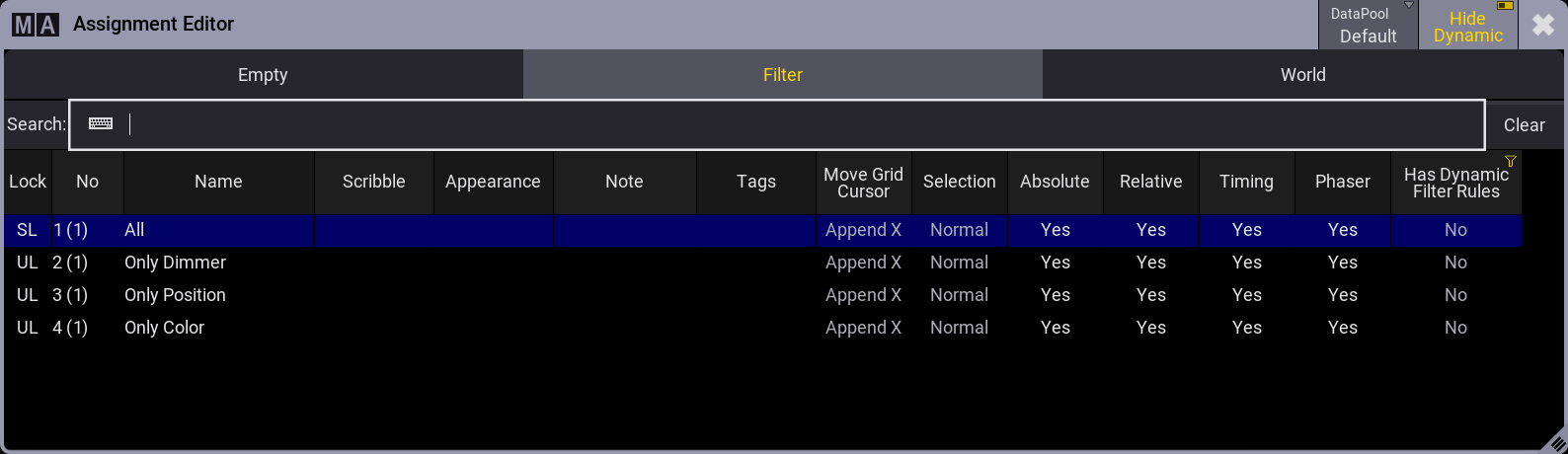
The editor has three tabs. Select Empty to remove the output filter. The Filter and World tabs list the available filters and worlds. Tap the desired filter or world to apply it.
The fixtures and attributes included in the assigned world or filter can pass through the output filter and be output by the sequence. When the same sequence is assigned to multiple executors, all executors use the output filter assigned to that sequence. To play back the same cue data using different output filters, create a sequence with shared data and assign a different output filter to each sequence. For information about sequences with shared data see Cues and Sequences.
If the sequence has an output filter applied, there is a small output filter icon ( ) in the sequence pool button.
Priority
This is the priority of the sequence. The priorities are described in Play Back Cues.
Soft LTP
The Soft LTP function is described in Play Back Cues.
Playback Master
Select a Playback Master. The selected Playback Master acts as an inhibitive master for this sequence and all other sequences assigned to it.
XFade Mode
This is used to set how the two CrossfadeA/XFadeA and CrossfadeB/XFadeB faders work. There are two crossfade modes:
-
Split:
The dual crossfaders work as masters for the current/next cue. -
AB:
The dual crossfaders work as crossfaders for increasing/decreasing values.
Object Action
An object action can be assigned to the sequence. The action is performed when the sequence is tapped in the pool. Use Object Action must be enabled in the pool settings for the assigned action to be performed. A large icon on the pool object indicates the assigned action.
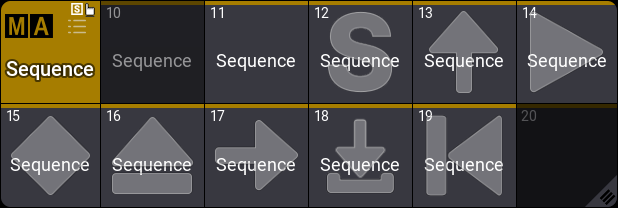
The following values are available:
- None:
Performs no action when the pool object is tapped. - Pool Default:
Uses the action defined for the pool. - Select:
Selects the sequence. - Flash:
Flashes the sequence while the pool object is pressed. - Go+:
Performs a Go+ action. - Temp:
Performs a Temp action while the pool object is pressed. - Toggle:
Toggles the sequence On or Off. - Goto:
Opens a pop-up to select a cue and perform a Goto action. - Load:
Opens a pop-up to select a cue and perform a Load action. - Top:
Activates the first cue after Cue Zero.
Speed
Speed and rate can be used to adjust the stored times without reprogramming the show. For instance, a cue can have a fade time of 5 seconds. A rate master can adjust the fade time live while playing it back. All sequences have their own individual rate and speed, but they can be linked to a global master. This master can then adjust the timing for multiple sequences simultaneously. For more information, see Speed Masters.
Rate Master
The sequence has a rate master. It can be linked to a shared global speed master, or it can have an individual rate master. Tapping this button will open the Select Rate Master pop-up.
Select None to use the individual rate master of the sequence, or select a global speed master.
Rate Scale
Enabling this binds the rate to defined steps instead of a variable value. Tapping this button opens the Select Rate Scale pop-up.
Select a step to apply the corresponding multiplier or divider. This multiplies or divides the rate by the selected factor.
Speed Master
The sequence has a speed master. It can be linked to a shared global speed master, or it can have an individual speed master. Tapping this button will open the Select Speed Master pop-up.
Select None to use the individual speed master of the sequence, or select a global speed master.
Speed Scale
If a sequence is assigned to a global speed master (read above), it can be useful to adjust a speed scale. Tapping this button will open the Select Speed Scale pop-up.
Select a multiplier or divider to scale the speed by the corresponding factor.
Speed from Rate
This links the speed to follow the rate.
Protect
This group of settings is used to protect the sequence from different actions.
Input Filter
The playback filter is described in more detail in Cues and Sequences. Tapping this button opens the Assignment Editor pop-up: See above about the output filter.
The fixtures and attributes in the world or filter are allowed to pass the filter and can be stored in the sequence.
Swap Protect
Activating this option protects this sequence from the Swap playback action. For more information see Swap Keyword.
Kill Protect
Activating this option protects this sequence from the Kill playback action. For more information see Kill Keyword.
Include Link Last Go
This setting is On as default. When it is set to Off, playing back a sequence will not trigger the LinkLastGo functionality in the Sequence Sheet.
Use Executor Time
This makes the executor playback cues using the stored timing. If this is turned on, it is affected by the Exec Time master fader, who overwrites the timing.
Off when Overridden
The Off when Overridden function allows a sequence to be automatically turned Off if another sequence has taken control with all the attributes in the sequence = this executor does not control any attributes.
Lock Sequence
The sequence is locked against changes when this is On. It can still be played back.
MIB
This group is about MIB settings for the sequence. For more information see Move In Black.
MIB
When a forced value is selected, the MIB settings of individual cues and cue parts are ignored.
-
Enabled:
MIB follows the settings of each cue and cue part. -
Never:
Disables MIB for the entire sequence.
The MIB settings of individual cues and cue parts are ignored.
-
Force Early:
Performs MIB as soon as the dimmer closes for all cues that can perform MIB.
The MIB settings of individual cues and cue parts are ignored. -
Force UponGo:
Performs MIB during the next cue transition after the dimmer closes for all cues that can perform MIB.
The MIB settings of individual cues and cue parts are ignored. -
Force Late:
Performs MIB as late as possible before the dimmer opens again for all cues that can perform MIB.
The MIB settings of individual cues and cue parts are ignored.
MIB Mode
This setting defines which MIB mode is used for the sequence. It applies only when MIB Mode is set to Default in the cue or cue part.
The following values are available:
-
None
No MIB mode is applied by the sequence setting.
-
Early
Performs MIB as soon as the dimmer closes.
-
UponGo
Performs MIB during the next cue transition after the dimmer closes.
-
Late
Performs MIB as late as possible before the dimmer opens again.