|
grandMA3 User Manual » Macros » Example Macros
|
Version 2.5 |
This topic has some example macros. They are meant as inspiration for other macros. In addition, they show some of the possibilities with macros.
Calling Macros by Macros
This example shows how macros triggered by other macros can have different results.
- Create two Macros as shown below:
Macro 1
| Lock | No | Name | Command | Wait | Enabled | AddToCmdline | Execute |
|---|---|---|---|---|---|---|---|
| 1 | MacroLine 1 | Macro 2; Echo "Macro 1 Line 1 - Trigger Macro 2" | Follow | Yes | No | Yes | |
| 2 | MacroLine 2 | Echo "Macro 1 Line 2" | Follow | Yes | No | Yes | |
| 3 | MacroLine 3 | Echo "Macro 1 Line 3" | Follow | Yes | No | Yes | |
| 4 | MacroLine 4 | Echo "Macro 1 Line 4" | Follow | Yes | No | Yes | |
| 5 | MacroLine 5 | Echo "Macro 1 Line 5 - Last" | Follow | Yes | No | Yes |
Macro 2
| Lock | No | Name | Command | Wait | Enabled | AddToCmdline | Execute |
|---|---|---|---|---|---|---|---|
| 1 | MacroLine 1 | Echo "Macro 2 Line 1" | Follow | Yes | No | Yes | |
| 2 | MacroLine 2 | Echo "Macro 2 Line 2" | Follow | Yes | No | Yes | |
| 3 | MacroLine 3 | Echo "Macro 2 Line 3" | Follow | Yes | No | Yes | |
| 4 | MacroLine 4 | Echo "Macro 2 Line 4" | Follow | Yes | No | Yes | |
| 5 | MacroLine 5 | Echo "Macro 2 Line 5 - Last" | Follow | Yes | No | Yes |
- Tap Macro 1. As a result, all lines except line 5 of macro 2 are executed.
- Disable lines 3 and 4 of Macro 1. As a result, Lines 1, 2, and 5 of Macro 1 are executed, and Lines 1 and 2 of Macro 2 are executed.
Macros triggered by other macros in this way will also stop when the first macro stops. In order to overcome this, Call Macro X command should be used.
Change User
This macro opens the login window where you can enter a new username and password.
| Lock | No | Name | Command | Wait | Enabled | AddToCmdline | Execute |
|---|---|---|---|---|---|---|---|
| 1 | MacroLine 1 | LogIn | Follow | Yes | No | Yes |
World Is Selection
This predefined macro will create a temporary world for the selected fixtures.
| Lock | No | Name | Command | Wait | Enabled | AddToCmdline | Execute |
|---|---|---|---|---|---|---|---|
| 1 | MacroLine 1 | Delete World 999 /NoConfirmation | Follow | Yes | No | Yes | |
| 2 | MacroLine 2 | Store World 999 | Follow | Yes | No | Yes | |
| 3 | MacroLine 3 | World 999 | Follow | Yes | No | Yes |
The following examples demonstrate how to write a macro that will ask the user for input.
Block Sequence
This macro will prompt you for a sequence number and a cue number to block.
| Lock | No | Name | Command | Wait | Enabled | AddToCmdline | Execute |
|---|---|---|---|---|---|---|---|
| 1 | MacroLine 1 | Block Sequence (Sequence #) Cue (Cue #) | Follow | Yes | No | Yes |

|
Hint: |
| If no cue number is entered, the entire sequence will be blocked |
OffCue Fade Sequence
The following predefined macro sets the OffCue timing for a specific sequence.
Requirement:
Stored Sequence 1
For this example, import the ''Off Cue Fade Sequence'' macro:
- Edit an empty macro pool object. The Macro Editor opens:
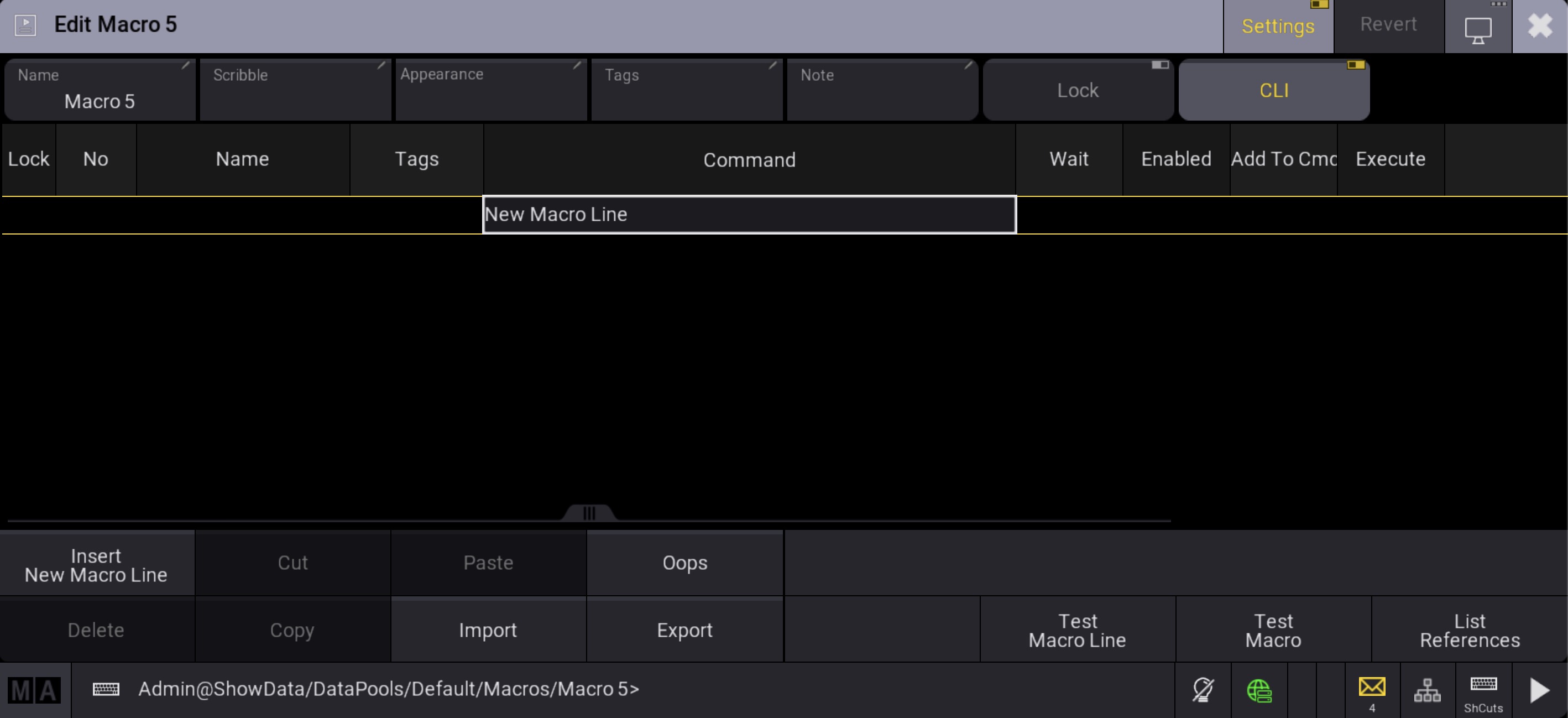
- Tap Import at the bottom of the window, the import menu opens. In the filter area, type: ''off cue''
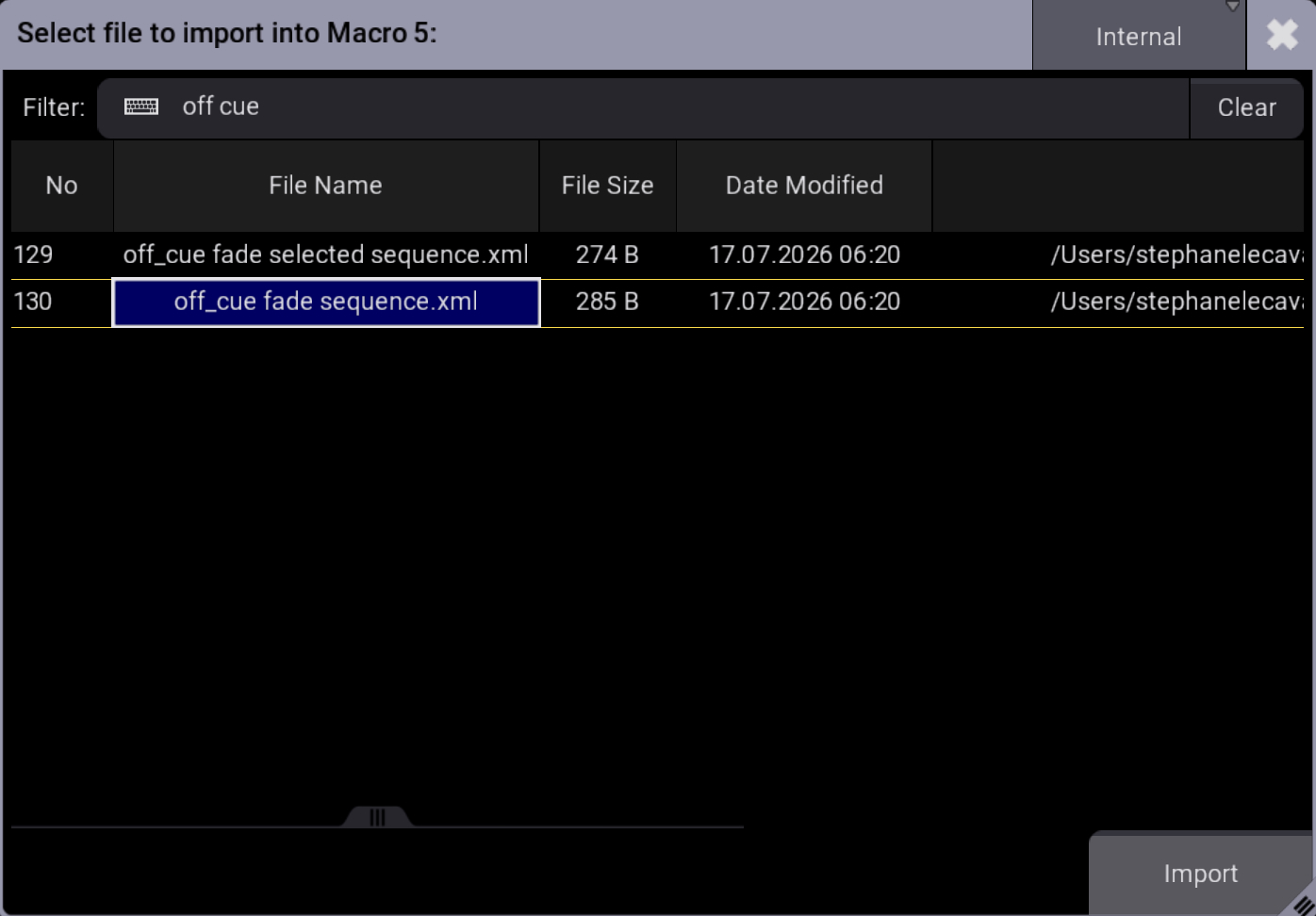
- Select: ''off_cue fade sequence.xml'' then tap Import. The macro is imported. The macro editor should look like this:
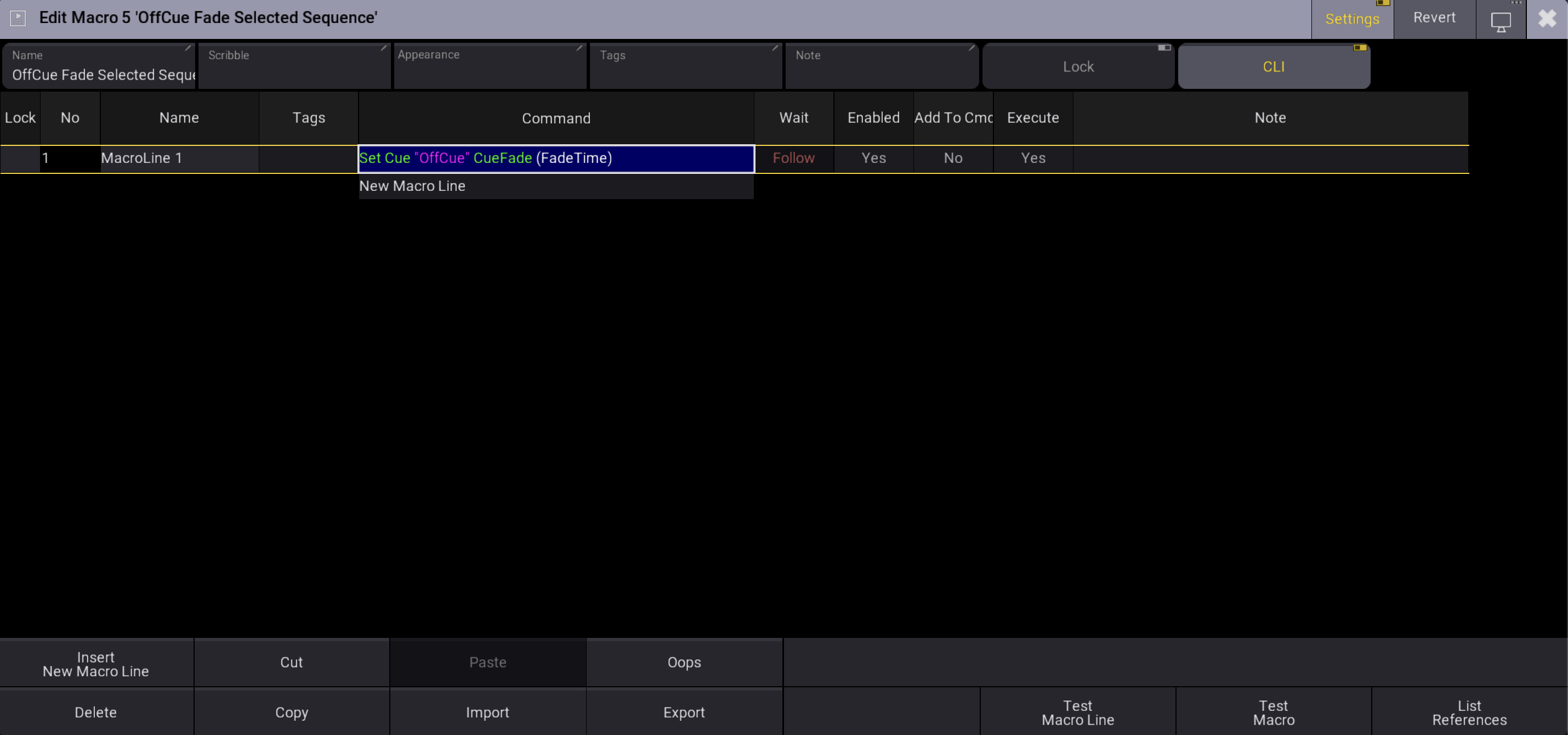
- Close the editor and tap the macro labeled ''OffCue Fade Sequence'' in the Macro Pool. The Command Editor opens, asking to enter the sequence number:
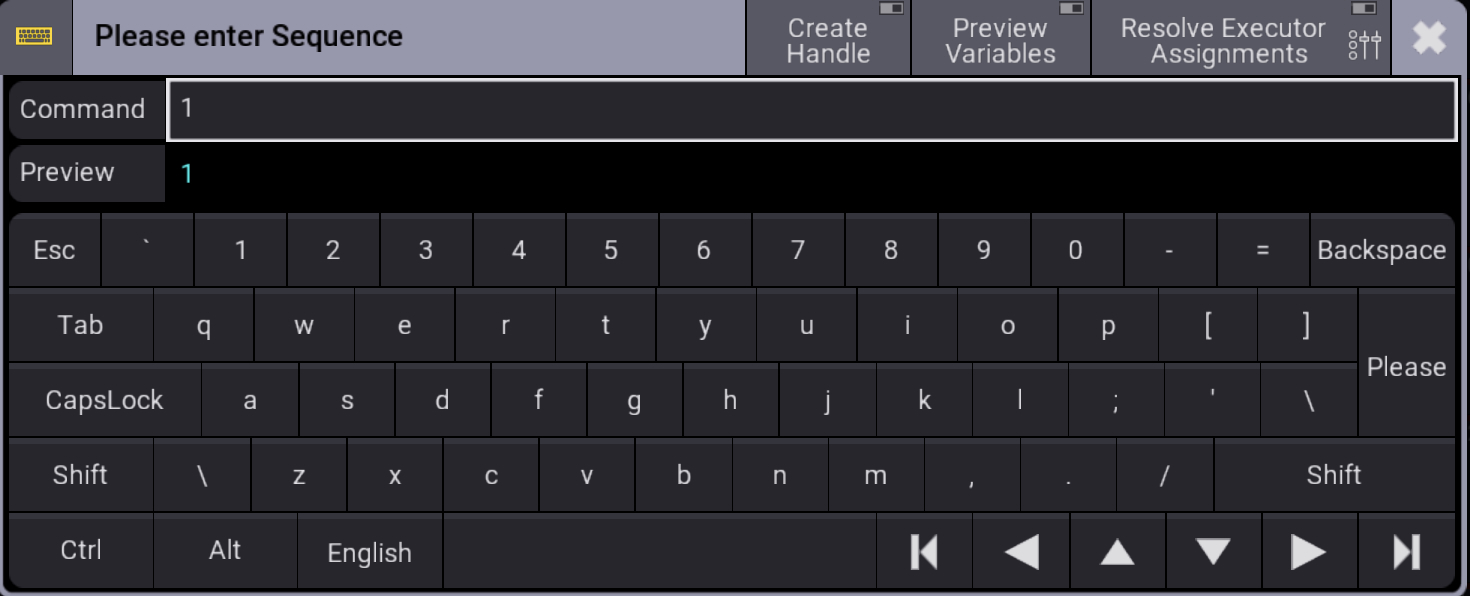
- Type 1 in the command area, then tap Please. A new Command Editor opens, asking to enter the Fade Time:
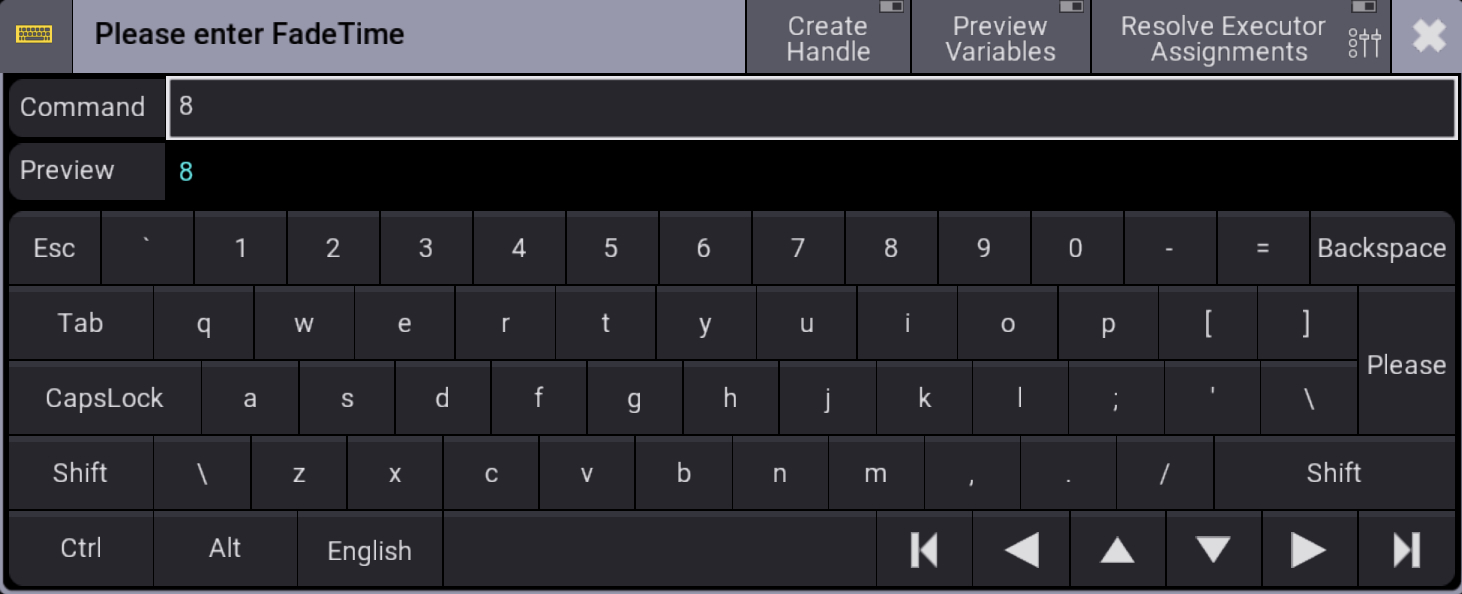
- Type 8 in the command area, then tap Please.
Sequence 1 OffCue Fade Time is now set to 8.