|
grandMA3 User Manual » Meshes
|
Version 2.5 |
Meshes are stored in the Mesh Pool. Meshes 1 thru 9 are locked and cannot be edited.

|
Important: |
| The total size of the media pools is limited to 300 MB. For more information on Meshes, see Build fixture types. |
Open a Mesh Pool window. For information, see the Add window topic.

In the Add Window pop-up, tap Pools, then in the Media column, tap Meshes.
Edit a mesh pool object using one of the following options:
- Press Edit and then tap the desired pool object.
- Open the swipey commands on the pool object and choose Edit.
The Edit Mesh pop-up opens:
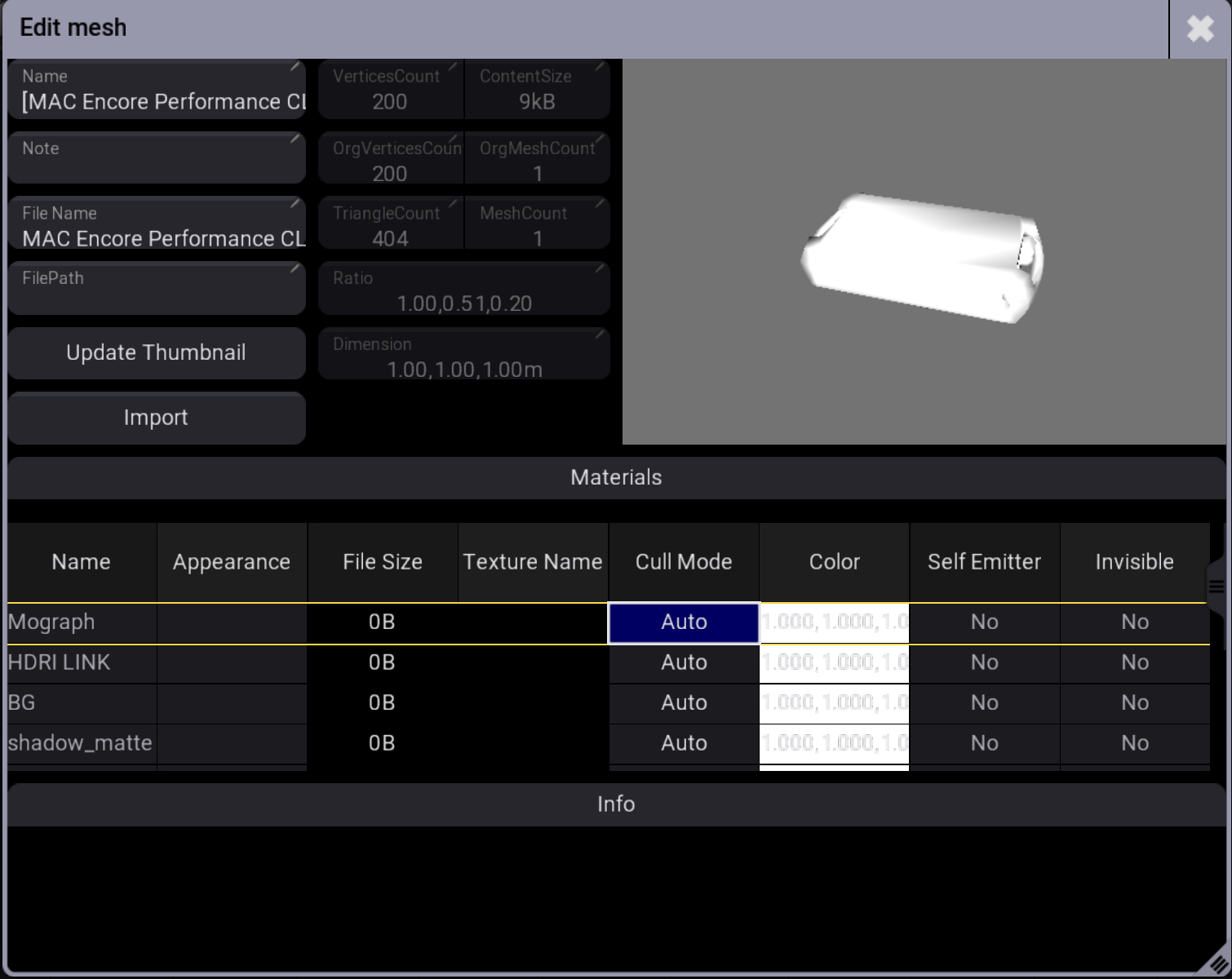
Change the mesh material's color in the appearance column or assign an appearance to the pool object. See Appearances.
Cull Mode Options: Front hides the mesh's outside faces. Back hides the mesh's inside face. None displays both the inside and outside faces of the mesh. Auto detects the mesh orientation and switches between Back and None.
Import Meshes
To import meshes:
- Repeat option 1 or 2 above.
- In the Edit Mesh pop-up, tap Import. The Import mesh pop-up opens.
- Select the source from the title bar, for example, Internal.
- Select the mesh to import.
- Tap Import.
The new mesh pool object is imported.
Tap the video below to see the example.