Message Center
|
grandMA3 User Manual » System » Message and Status Center » Message Center
|
Version 2.5 |
The message center displays messages produced by the system.
The envelope icon ( ) on the right side of the command line changes color to indicate new messages in the message center.
The icon is displayed in the color of the new message with the highest priority.
A number underneath the envelope icon indicates the number of new messages, excluding information messages.
The categories for messages are:
- System
- Command Line
- Power
- MA-Net
- USB
- Chat
USB and chat messages are specific to the device. They are not displayed on other devices in the session.
Messages have different priorities.
- Information (green): Information about internal system processes that generally don't require user activity or input.
- Warning (yellow): Information that is important and should be taken care of.
- Error (brown): Information on invalid actions and malfunctions in the software.
- Alert (red): Information on critical events. Messages in the alert category generally require immediate action.
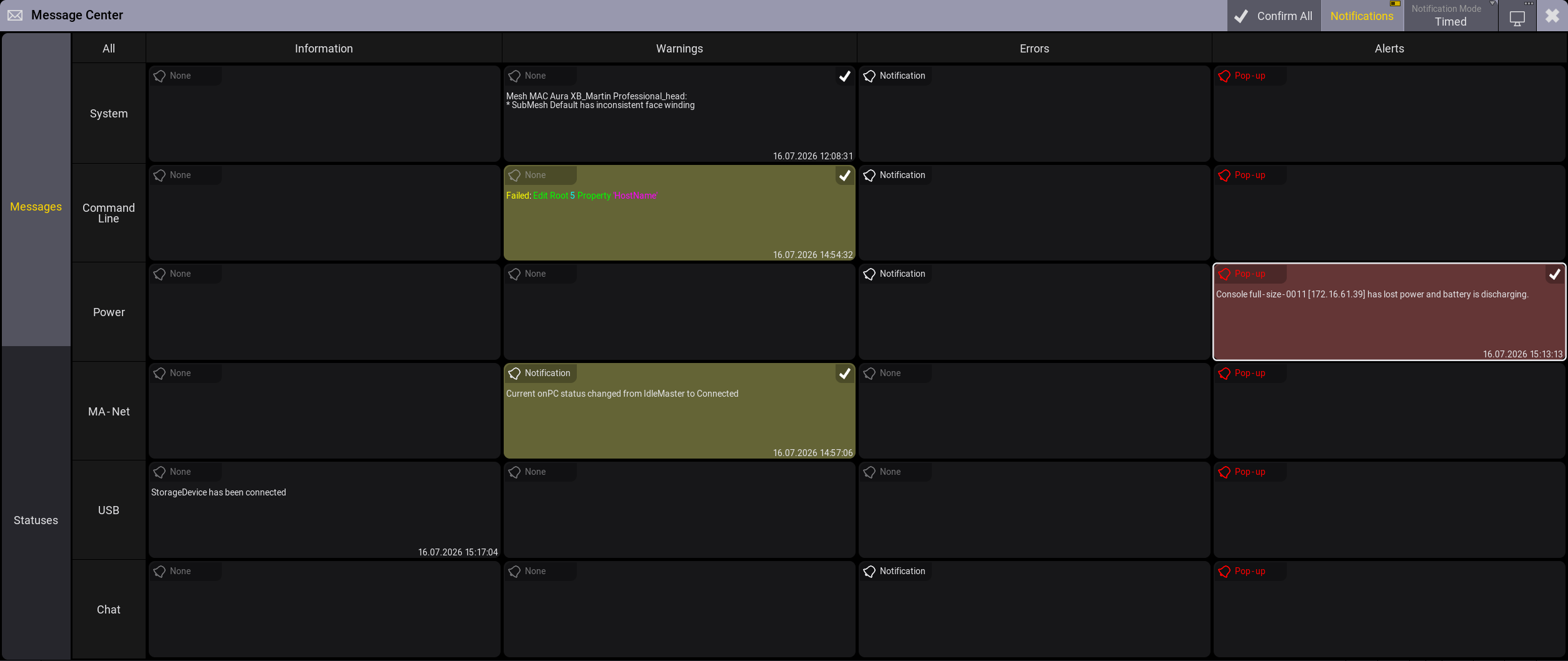
The timestamp of the latest message is displayed in the lower right corner of the cell. It is displayed in the format dd.mm.yyyy hh:mm:ss.
When a new message is received, the background of the cell flashes in the color of the priority.
Messages
Expand the sections below for more information on the messages that are displayed for the different priorities.

|
Important: |
|
The following lists of messages are an excerpt of the messages that are displayed in the message center. Not all messages are listed here.
|
|
Message
|
Explanation |
|---|---|
|
Mouse has been connected
|
A device such as a storage device or a mouse was connected to the station. No action is required.
|
|
StorageDevice has been disconnected
|
A device such as a storage device or a mouse was disconnected from the station. No action is required.
|
|
Message
|
Explanation |
|---|---|
|
Current onPC status changed from Connected to IdleMaster |
The master station was disconnected from the session and the onPC is now alone in the session. If this is unexpected, check the station that previously was the master station in the session. |
|
Disconnected from session
|
The local station left the session. This message is displayed if the station was dismissed from the session for example by tapping Dismiss Station or Leave Session. If the station was dismissed intentionally, no action is required. |
|
Console disconnected unexpectedly.
|
The local station left the session without a user actively removing it. Please check the network |
|
Stage bounding box is irregular: Do all fixtures have the correct positions?
|
The extension of positions is unusual. This could for example be a fixture with position values that are too high. This can lead to problems in the 3D viewer. Check the positions of your fixtures and environmental objects and correct them if necessary. |
|
Message
|
Explanation |
|---|---|
|
Failed to perform an initialization during a showfile load.
|
The data in your show file is likely corrupted. Please try to load the show file again. If the show file does not load, load a backup version of the show file. |
|
No world server connection.
|
The station does not have a connection to the world server. This means that some services are not available, such as import of files from the GDTF share and the grandMA3 share. |
| Device has a faulty battery. | The battery of your device does not load properly. Please get in contact with your local support. |
|
Console has lost power and battery is discharging.
|
The device is not connected to a power source anymore and running on battery. Please save your show file and check your power cables and power plugs. |
|
Message
|
Explanation |
|---|---|
|
Out of video memory. Please save your show file and restart the software as soon as possible.
|
The software uses more VRAM than expected and might close unexpectedly. Please save your show file and restart the software to deallocate video memory. If the problem persists, try closing the 3D viewer in the software. |
|
Station with IP address [IP address] does not work in session.
|
There is a problem with your device. Please get in contact with your local support and provide the serial number.
|
Notifications for Messages
Messages in the message center can be displayed as notifications in the software.
To enable or disable notifications, toggle Notifications in the title bar or window settings of the message center.
Notifications are enabled by default.
A bell icon ( ) and corresponding notification type is displayed in the upper left corner of each cell in the main view of the message center.
The color of the icon changes depending on the type of notification.
The three options are:
- None (gray): No notification is displayed.
- Notification (white): A notification is displayed in the upper right corner of all big screens.
-
Pop-up (red): A pop-up is displayed in the middle of all screens.
- Tap OK to close the pop-up but still display the message as new in the message center.
- Tap Confirm Message to close the pop-up and mark the message as read in the message center.
To select the type of notification for a category, tap the bell icon to toggle through the options or swipe the icon to display a drop-down list with all three options.
The notification type for the Information category is always set to None and cannot be changed.
The background color of notifications matches the color of the priority. Additionally, an icon is displayed in the notification, indicating the priority.
-
Warning:
 and yellow background
-
Error:
 and brown background
-
Alert:
 and red background
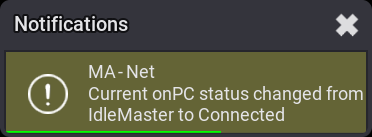
Select how long a notification is displayed using Notification Mode in the title bar or the window settings.
The two options are:
- Timed: Notifications are displayed for 5 seconds.
- Permanent: Notifications are displayed until you close them.
List of Messages
All messages in the message center can be displayed in a list.
- To display a list of all messages in the message center, tap All in the upper left corner of the grid in the main view.
- To open the list of messages for a category or priority, tap the header of the category or priority.
- To display a list of messages for a category and priority, tap on the corresponding cell in the grid in the main view.
A window opens, displaying a list with information about Time, Sender, Category, Priority, and the message itself.
The Sender column displays the name and IP of the device that sent the message.
The width of the time, category, priority, and message column in the list of messages of a category can be adjusted. To do so, tap and drag the separating line in the title bar of the list.
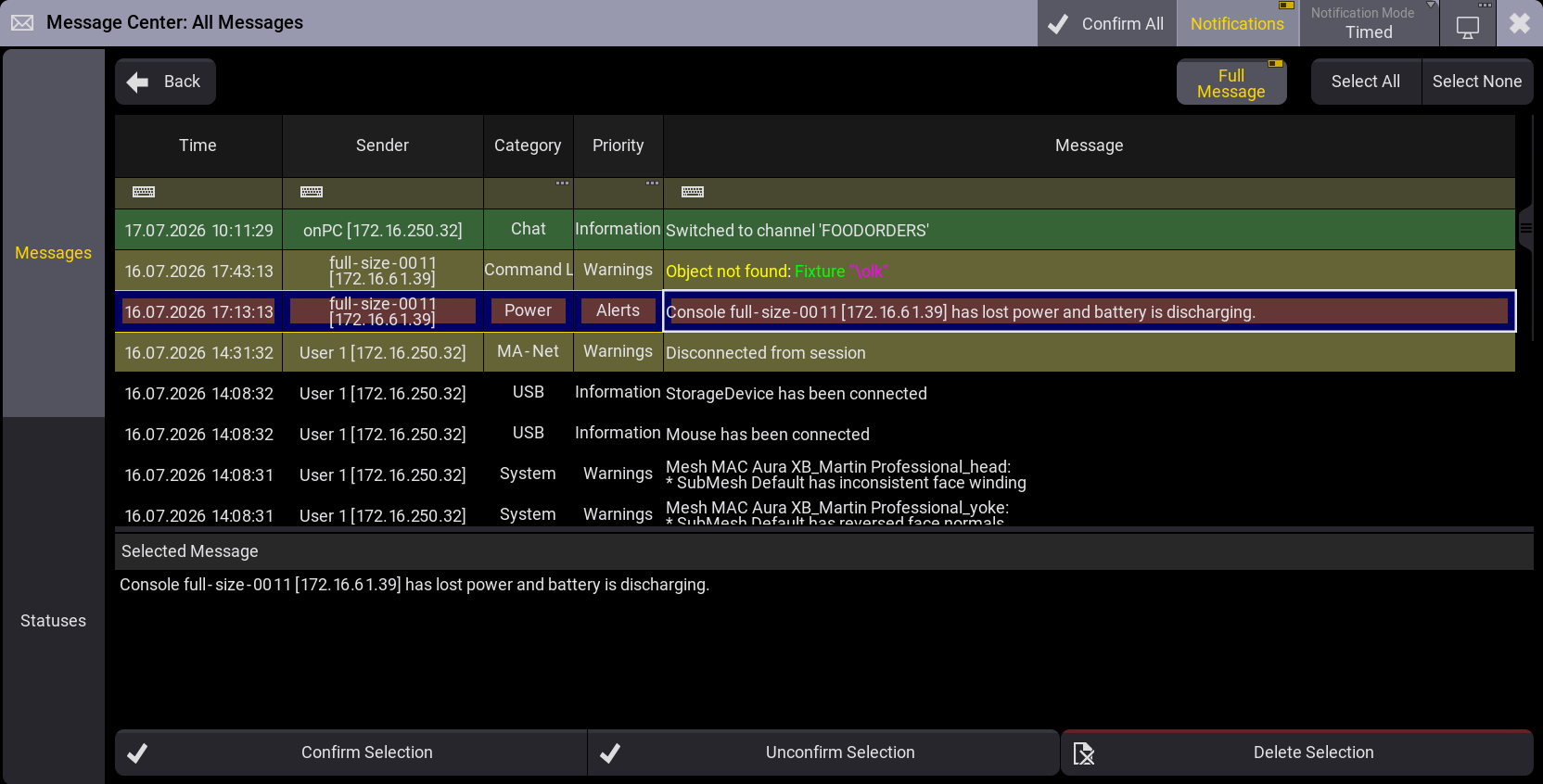
The list of messages can be modified using the yellow filter row in the grid. In the category and priority column, <No Filter> deactivates the filter, Undefined displays messages that are not part of any category or priority.
For more information on filtering, see Temporary Filtering.
There are three buttons in the upper right corner of the list of messages:
-
Full Message
Display the selected message in full below the list of messages.
-
Select All
Select all messages in the list. -
Select None
Deselect all selected messages in the list.
Confirm and Delete Messages
Confirm messages to mark them as read in the message center. Messages that are not confirmed are indicated with a colored background in the color of the priority. Once a message is confirmed, the colored background disappears.
Messages in Information are marked as confirmed by default.
-
To confirm all messages in the message center, tap
 Confirm All in the title bar of the message center.

Hint: Confirm All always applies to all messages in the message center, even if a filtered list of messages is displayed.
-
To confirm all messages of a category, tap
 in the upper left corner of the corresponding cell in the main view of the message center. The icon is only displayed if there are new messages in that category.
-
To confirm a selection of messages or single messages, tap on a cell in the message center to open the list of messages. Then select the messages you want to confirm and tap Confirm Selection at the bottom of the list.
- For information on how to confirm messages using the command line, see MessageCenter Keyword.
Unconfirm messages to mark them as unread and display their background color again. To do so, open the list of messages, select the messages you want to mark as unread, then tap Unconfirm Selection at the bottom of the list.
To delete messages from the message center, select the messages you want delete in the list of messages, then tap  Delete Selection at the bottom of the list. Deleted messages are no longer displayed in the list.
|
|
Important: |
| It is not possible to oops the actions Confirm, Unconfirm, and Delete. |