grandMA3 User Manual Publication
macOS® Installation
|
grandMA3 User Manual » grandMA3 onPC » macOS® Installation
|
Version 2.5 |
To install grandMA3 onPC on macOS:
- Download the installation file from https://www.malighting.com/downloads/.
- On the left side of the web page, select the grandMA3 series.
- Click Software + Release Notes.
- Click grandMA3 onPC Software for macOS, x.x.x.x to download the installer.
-
The EULA and Third-Party Acknowledgments pop-up opens:
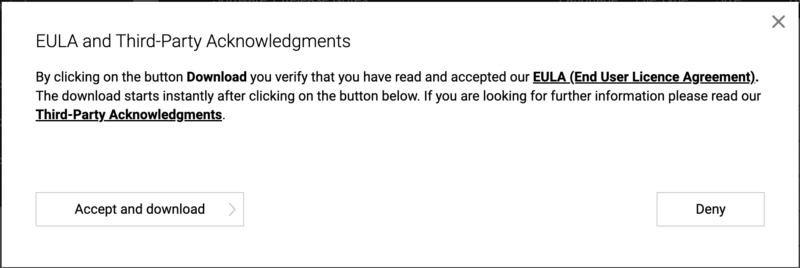
- Click Accept and download.
-
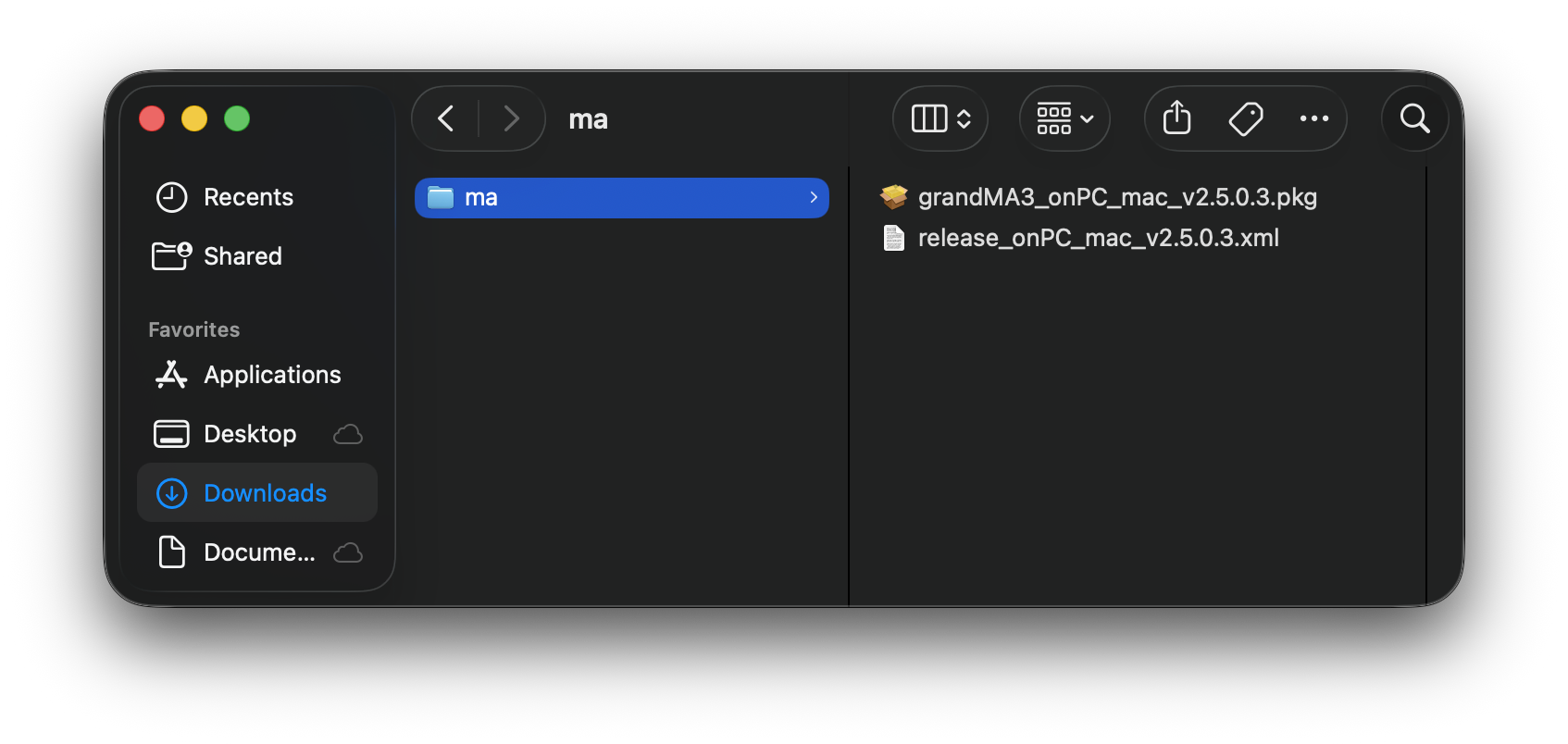
Open the Downloads folder, then double-click grandMA3_onPC_mac_vx.x.x.x.zip. macOS extracts the archive and creates the ma folder.
-
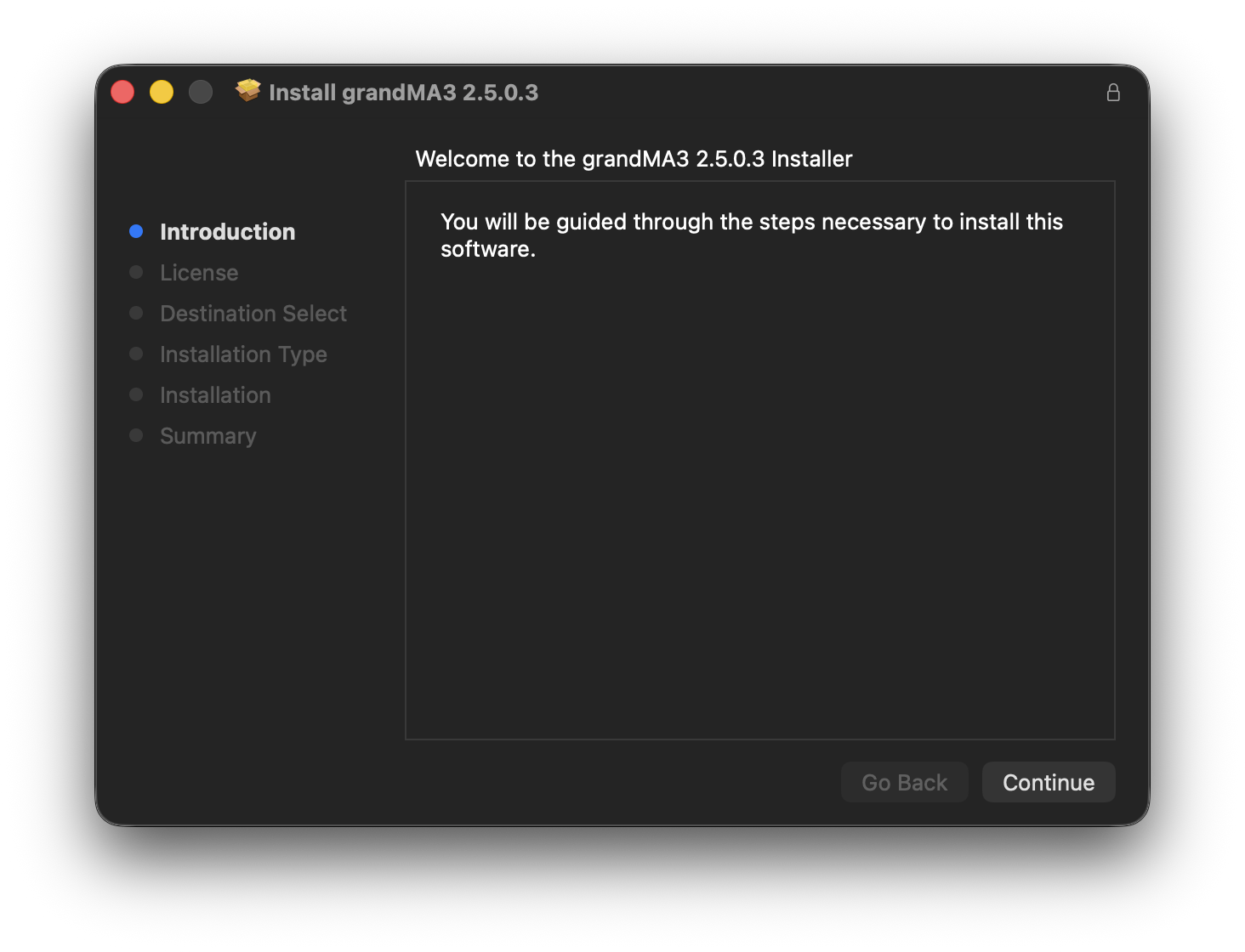
Open the ma folder, then double-click grandMA3_onPC_mac_vx.x.x.x.pkg. The Installer
opens.
-
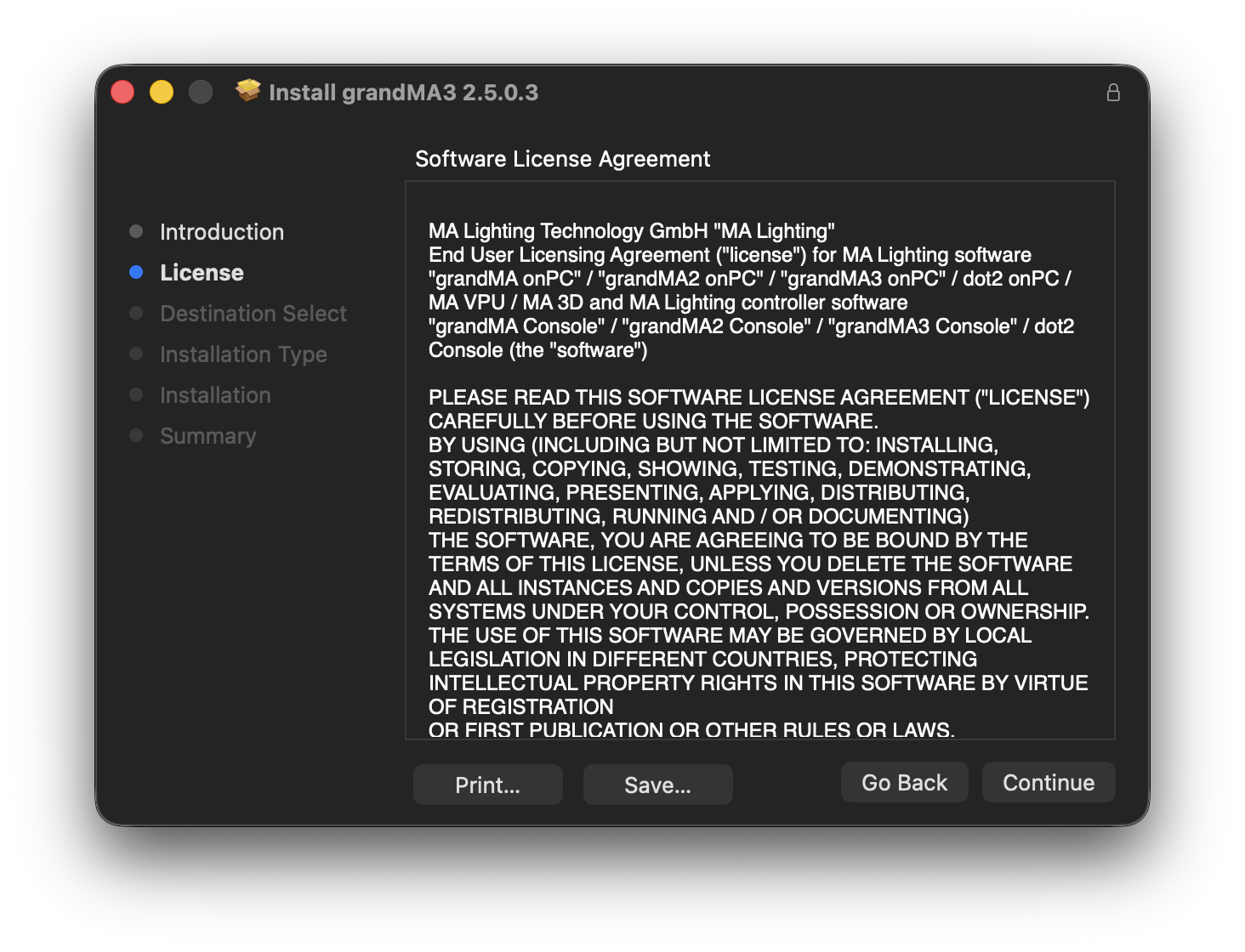
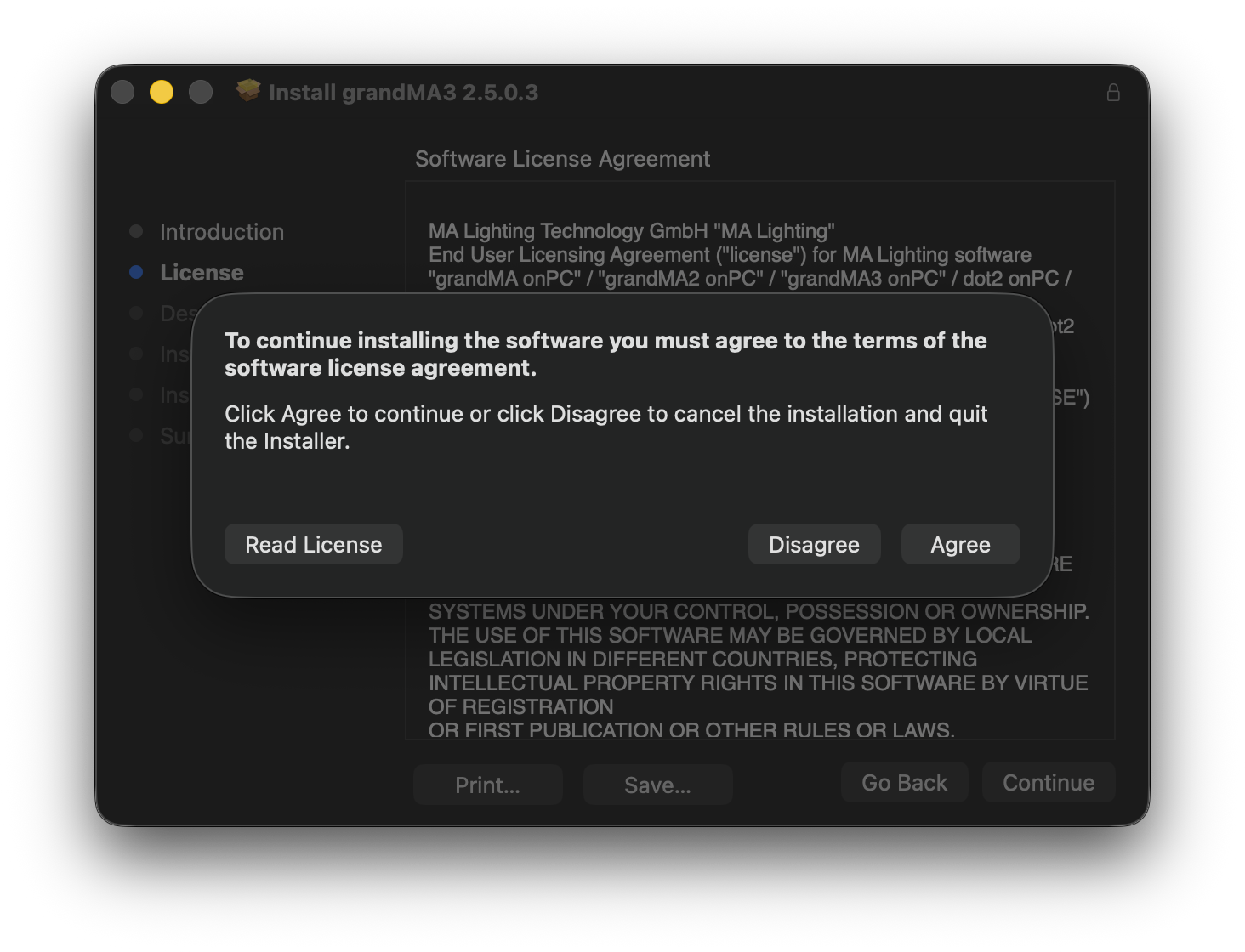
Click Continue. The software license agreement opens.
-
Click Continue.
-
Click Agree.
-
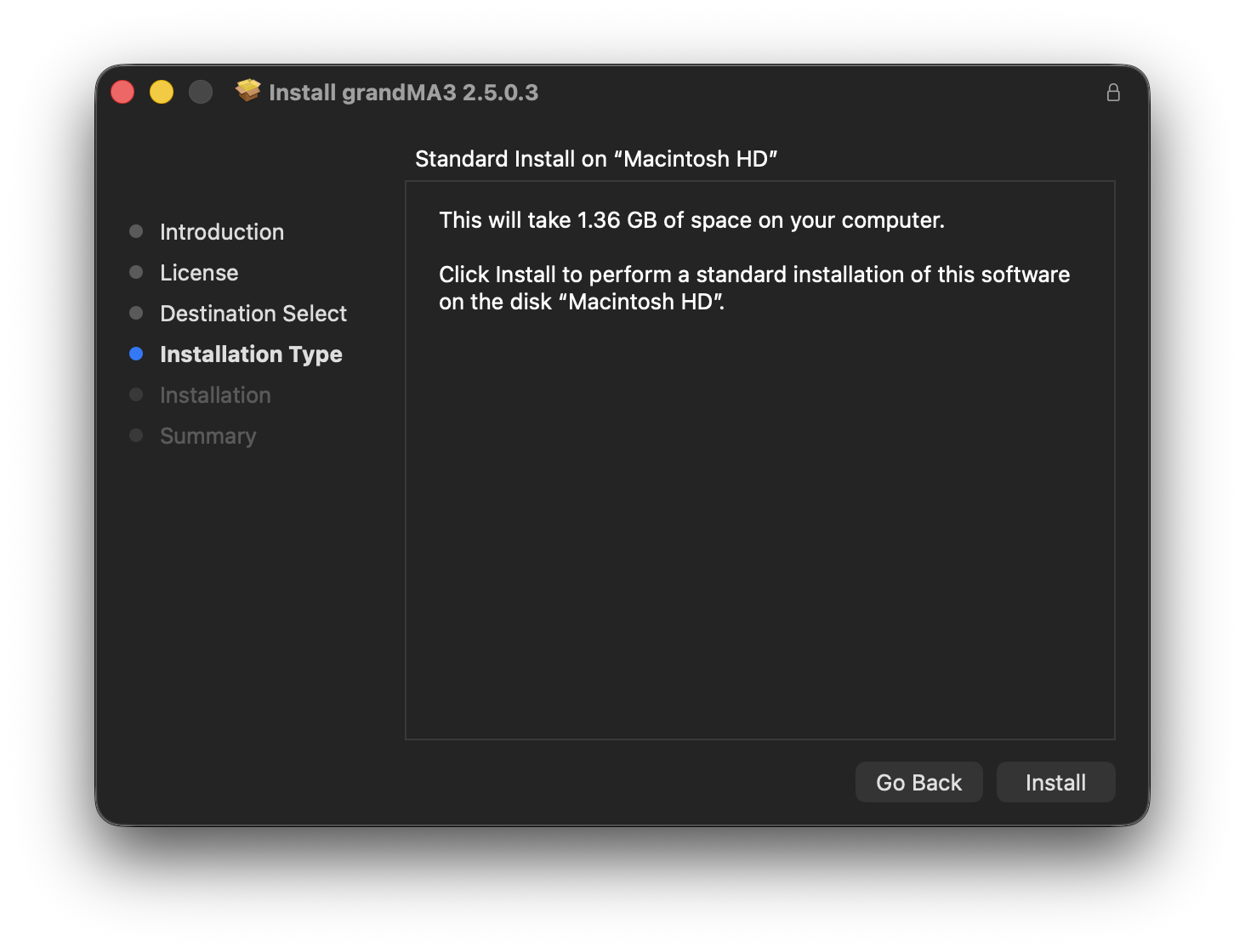
Click Install.
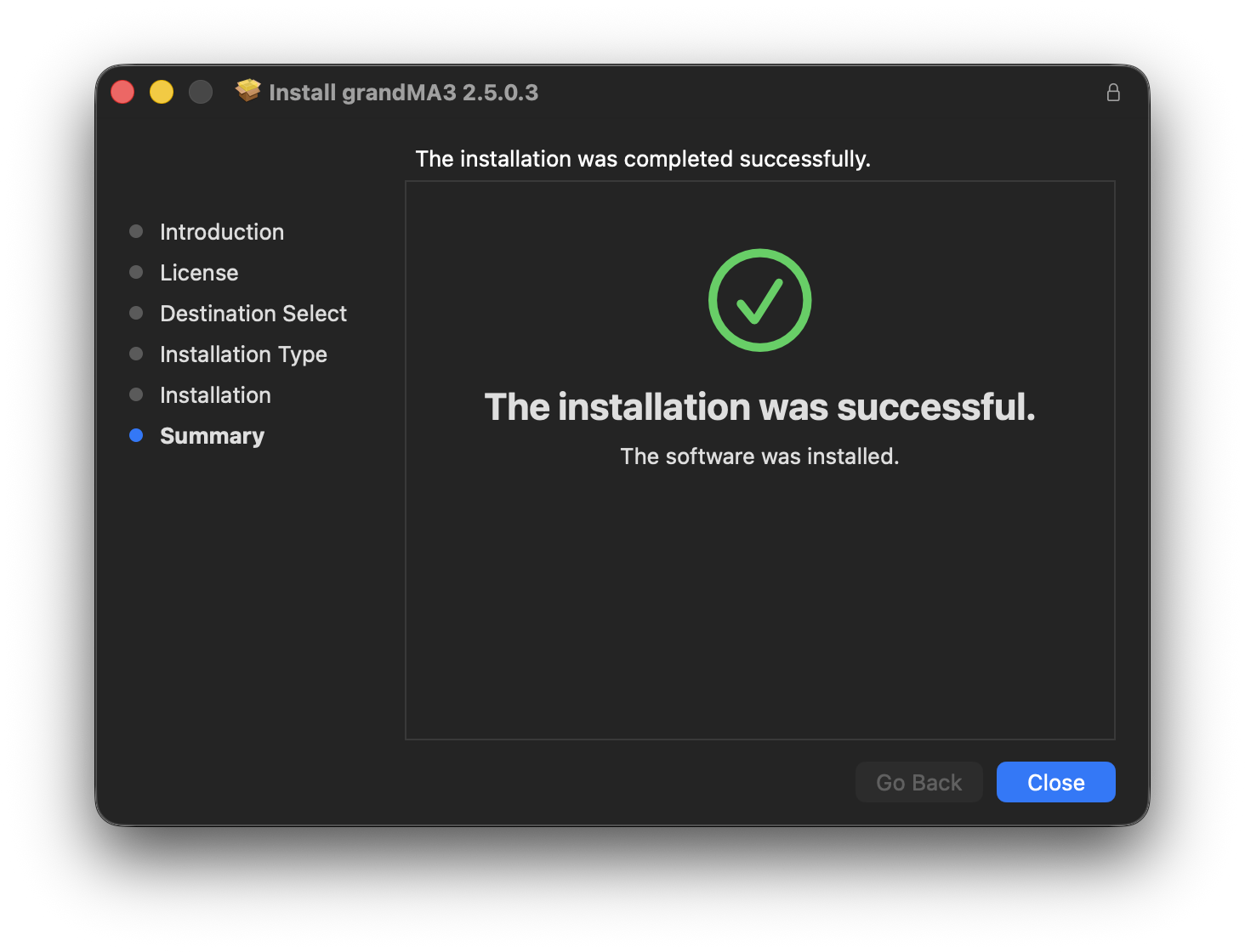
- Click Close.
-
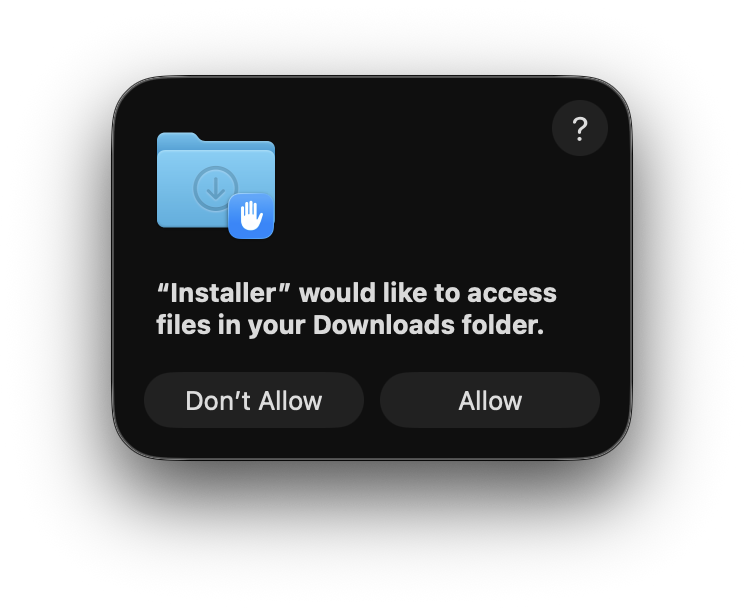
A pop-up asks for permission to access files in the Downloads folder.
-
Click Allow.
- The Installer asks whether to move the installer package to the Trash or keep it in its current location.
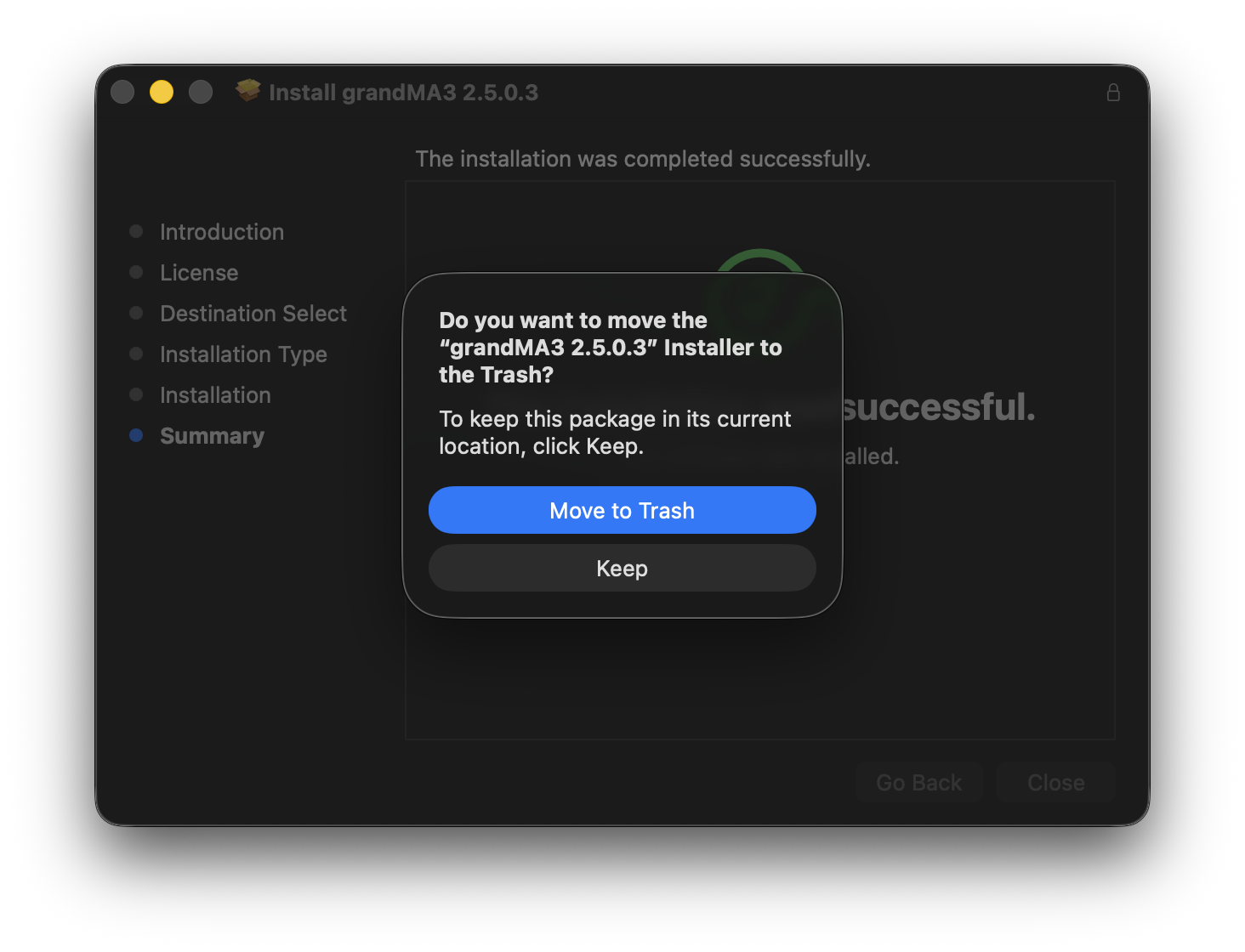
- Click Move to Trash.
grandMA3 onPC is installed in the Applications folder.
Install Location Options
When macOS detects two or more eligible disks or drives, the Installer allows you to select another installation location.
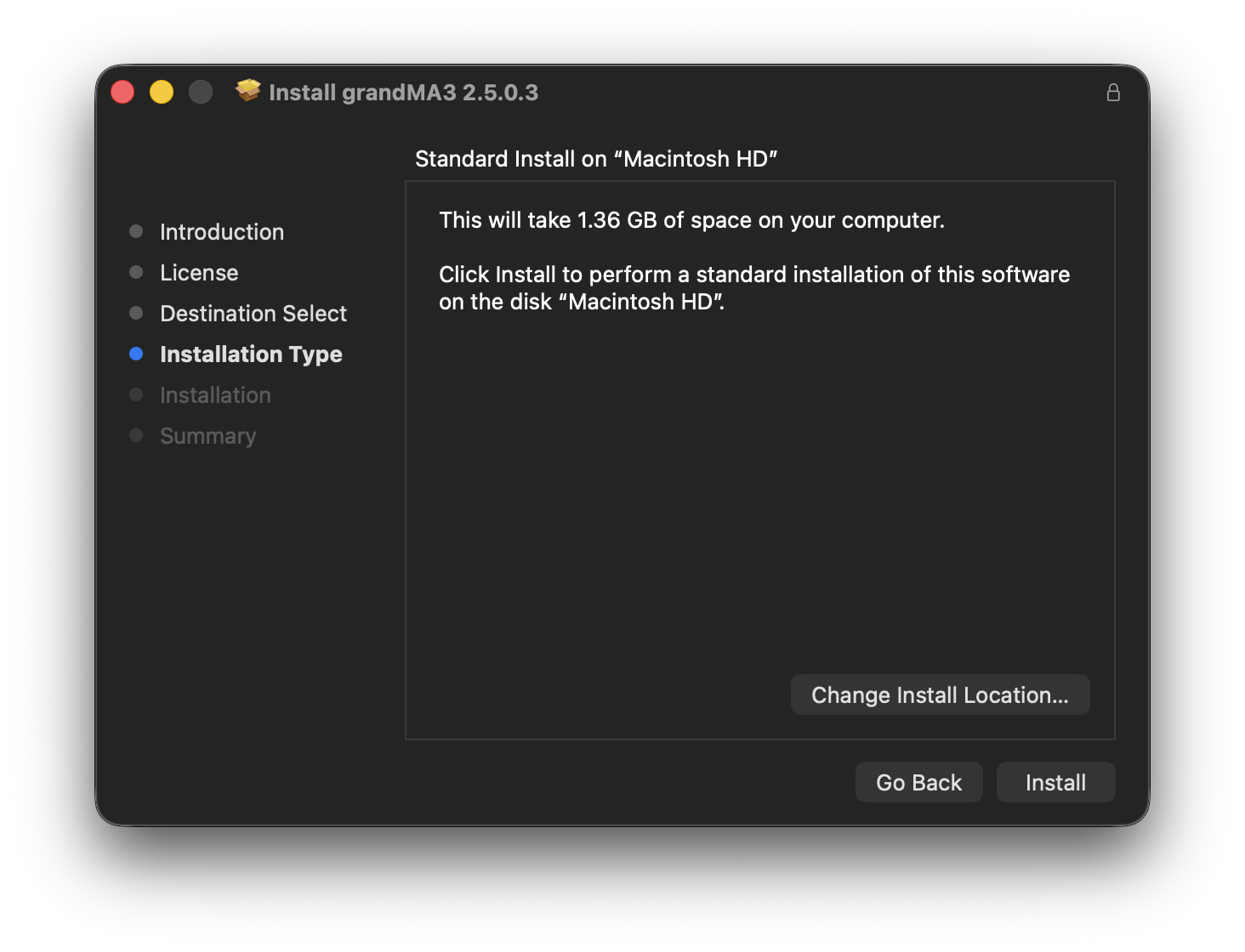
- Click Change Install Location, then select a location.
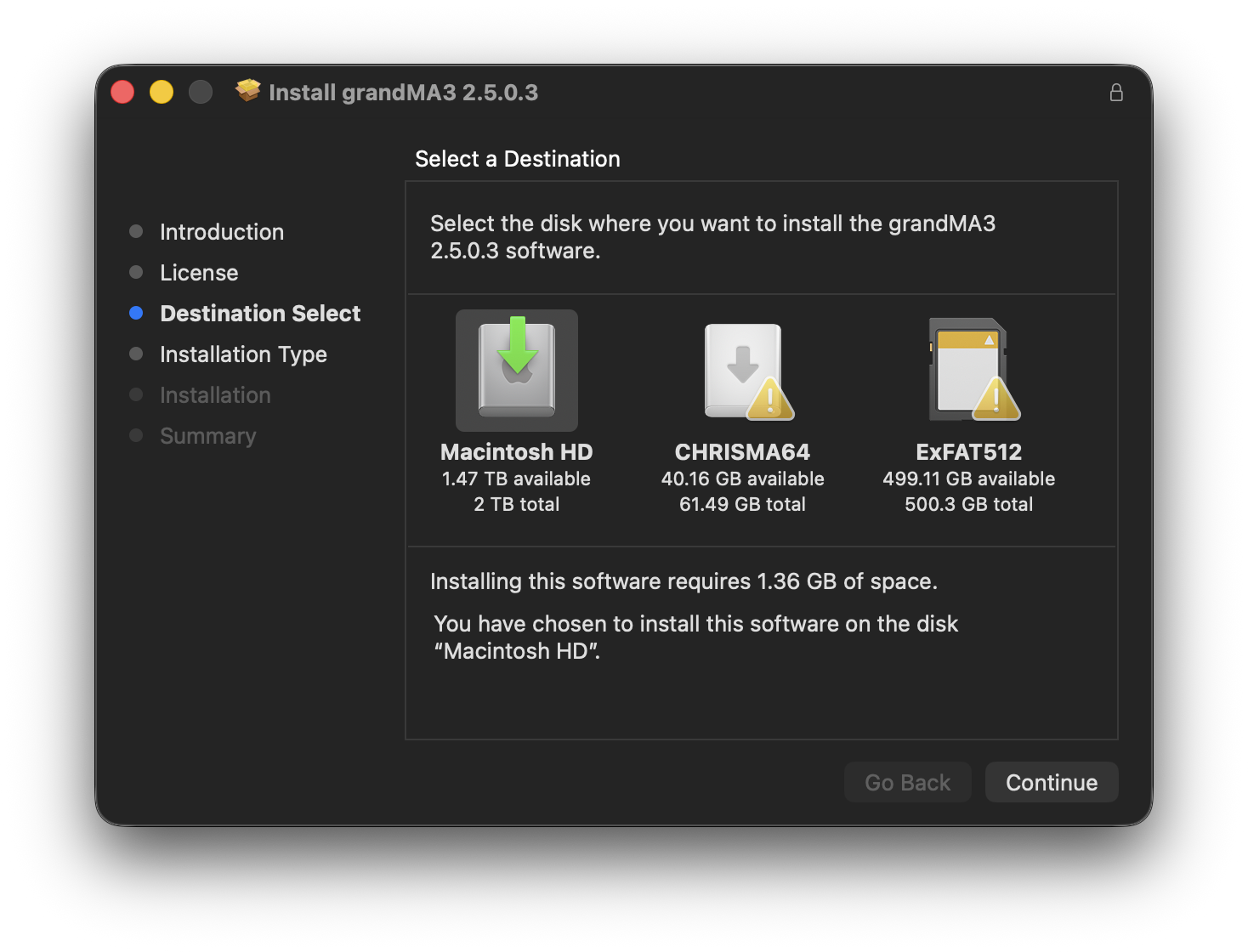
- Click Continue, and continue with the installation.

|
Hint: |
|
If the message Installation failed appears, move the ma folder from the Downloads folder to another
location, such as the Desktop, then run the installer again.
|
Start grandMA3 onPC
- In Finder, open the Applications folder.
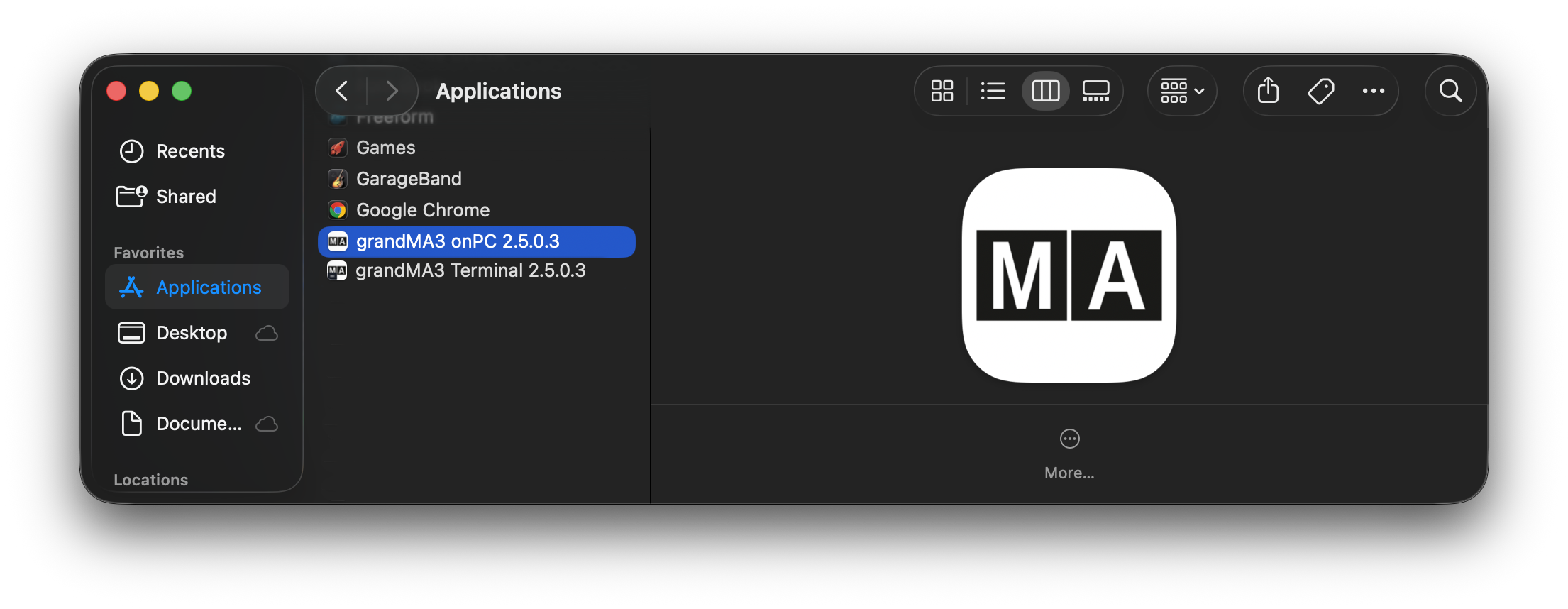
- Double-click the grandMA3 application for the version you want to start.
The startup splash screen appears while grandMA3 onPC is loading. The software version is displayed in the upper section of the application icon in the Dock.
Each installed grandMA3 onPC software version has a separate application, allowing multiple versions to remain installed and start independently.
|
|
Hint: |
| To ensure full functionality of grandMA3 onPC, grant access to Local Network, External Media (USB drives), and Microphone permissions when prompted by macOS. |
Start Another Instance or grandMA3 Terminal
Up to five grandMA3 onPC instances can run simultaneously on the same device.
To start another grandMA3 onPC instance, use one of these methods:
- Right-click the grandMA3 application icon in the Dock, then select New onPC Instance.
- In grandMA3 onPC, select File > New onPC Instance.
- Press Command+N.
To start grandMA3 Terminal:
- Right-click the grandMA3 application icon in the Dock, then select Open grandMA3 Terminal.
- In grandMA3 onPC, select File > Open grandMA3 Terminal.
- Press Command+T.
|
|
Hint: |
The new grandMA3 application can still be started from the legacy grandMA3 Launcher. The first time the legacy Launcher is opened after installing a new version, it starts the newly installed version. The next time the Launcher is opened, it starts the version that was previously selected in the Launcher. |
Allow macOS Permissions
When grandMA3 onPC first accesses certain macOS services, macOS may ask for permission. Grant the requested permissions to ensure that the related grandMA3 onPC functions are available.
Local Network: Allows grandMA3 onPC to communicate with grandMA3 devices and other network participants on the local network. If access is denied, network communication is unavailable.
External Media: Allows grandMA3 onPC to access files on removable storage devices, such as USB drives. If access is denied, the software is unable to load from or save to these devices.
Microphone: Allows grandMA3 onPC to use audio input for features that use the Mac microphone or another audio input device. If access is denied, audio input is unavailable to grandMA3 onPC.
If Local Network access was denied:
- Quit grandMA3 onPC.
- Open System Settings > Privacy & Security.
- Select Local Network.
- Enable access for grandMA3.
- Start grandMA3 onPC again.
If External Media access was denied:
- Quit grandMA3 onPC.
- Open System Settings > Privacy & Security.
- Select Files & Folders.
- Expand grandMA3, if necessary.
- Enable access to Removable Volumes.
- Start grandMA3 onPC again.
If Microphone access was denied:
- Quit grandMA3 onPC.
- Open System Settings > Privacy & Security.
- Select Microphone.
- Enable grandMA3.
- Start grandMA3 onPC again.