Status Center
|
grandMA3 User Manual » System » Message and Status Center » Status Center
|
Version 2.5 |
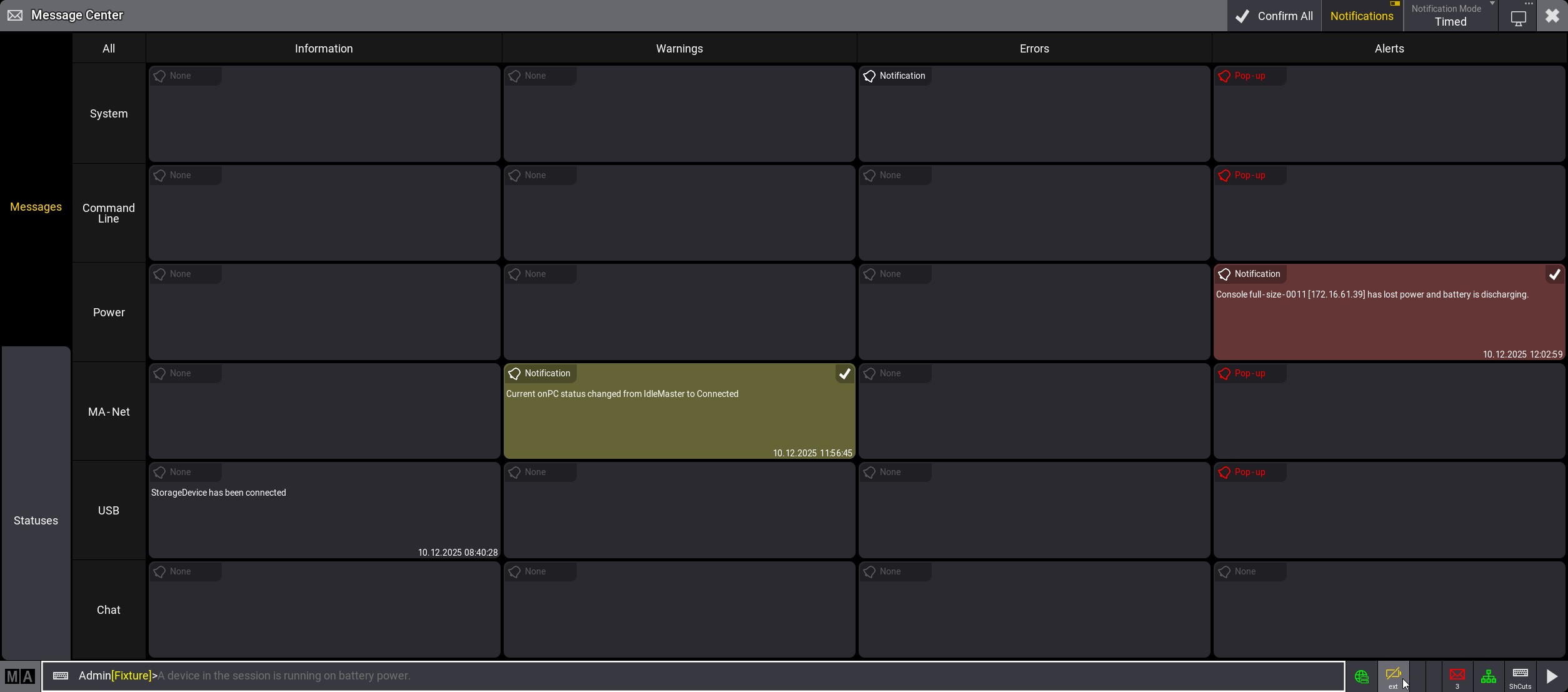
Status icons indicate activities and statuses in the software. They are displayed on the right side in the command line next to the command line input field.
All status settings are set per user profile. For some statuses you can choose to see the corresponding status for all user profiles.
To select whether to display a status icon in the command line, swipe the status in the message center window.
A drop-down
displays
the
following options:
- Never: Nothing is displayed if the function is active.
- On Activity: Displays the icon when a setting or function is active.
- Always: The icon is always displayed in the command line. If the setting or function is not active, the icon is grayed out.
In the status center, the icon and title bar of a status light up in the corresponding color if the status is active.
Most statuses additionally have three Blink options:
- None: The background of the status in the command line does not blink when the status is active.
- Once: The background of the status blinks red once when the status is activated.
- Always: The background of the status blinks red continuously while the status is active.
For some statuses (Highlight; Lowlight; Solo; Timecode Record) you can select different sources for the status in the drop-down:
-
My: The status is active if triggered by the current user profile. If My is selected as user profile,
 is displayed in the status cell.
-
All: The status is active if triggered by any user profile. If All is selected as user profile,
 is displayed in
the status cell.
is displayed in
the status cell.

|
Hint: |
| If the user profile is set to All and highlight, lowlight, solo, or a timecode record is triggered by another user profile, ext or my+ext is displayed below the icons. ext is displayed if the function is only triggered by another user profile. my+ext is displayed if the function is triggered by both the current and another user profile. If the function is triggered by the currently active user profile, no text is displayed below the icon. |
Statuses
The following statuses are available:
Programmer:
-
Highlight (
 ):
):
Highlight is active. Tap the icon to open the temporary masters window in the master controls tab.
-
Lowlight ():
If Lowlight is active, the icon is blue. Tap the icon to open the temporary masters window in the master controls tab.
-
Solo (
 ):
):
Solo is active. Tap the icon to open the temporary masters window in the master controls tab.
-
Blind (
 ):
):
Blind is active. Tap the icon to open the temporary masters window in the master controls tab.
-
Preview (
 ):
):
If Preview is active, the icon is orange.
-
Timecode Record (
 ):
):
A timecode recording is active. Tap the icon to open the off menu in the timecodes tab.
-
Recipe Editing (
 ):
):
If the edit recipe mode is active, the icon is green.
-
Grand Master (
 ):
):
Grand master is not at full. Tap the icon to open the temporary masters window in the master controls tab.
-
World Master ():
One or more world masters are not at full. The affected world masters are indicated by their numbers below the icon. The master that was last set to a different value than 100 % is displayed first. Tap the icon to open the temporary masters window in the world masters tab.
-
Group Masters ():
One or more group masters are not at full. The affected group masters are indicated by their numbers below the icon. The numbers are sorted in ascending order. Tap the icon to open the temporary masters window in the group masters tab.
-
Grand Rate ():
Grand rate master is not at 1:1. Tap the icon to open the temporary masters window in the master controls tab.
-
Pause at End (
 ):
):
Pause at End is active in the recipe editor.
Filter:
-
Filter (
 ):
):
A filter other than Filter 1 is called or selected.
-
World (
 ):
):
A world other than World 1 is selected. The selected world is indicated by its number below the icon.
Universe/Patch:
-
Parked (
 ):
):
If fixtures are parked, the icon is blue.
-
DMX Tester (
 ):
):
The DMX tester generates output.
-
Not Enough Parameters (
 ):
):
The limit of parameters is exceeded. If the system is in overload and the DMX output refresh rate is slowing down, Overload is displayed below the icon.
-
No Fixtures Patched (
 ):
):
No fixtures are patched in the current show.
-
Patch Open (
 ):
):
The patch is open. If the patch is open on a different station, ext is displayed below the icon.
More:
-
World Server (
 ):
):
Station is connected to the world server.
-
Encoder Bar (
 ):
):
A different encoder bar than the default encoder bar is selected.
-
Phasers:
Graphically indicates the current processing workload dedicated to phaser calculation in a bar in the command line. A green indicator rises with the number of parameters with actively running phasers. The exact value is displayed as a tooltip in the command line.
-
Flow Control:
Graphically indicates the current workload of the network with a green indicator in the bar next to the envelope icon ( ) in the command
line. The exact intensity of the flow control is displayed on a scale of 0 to 255 as a tooltip in the
command line. The flow control level is also displayed in the network menu. For more information, see Session.
) in the command
line. The exact intensity of the flow control is displayed on a scale of 0 to 255 as a tooltip in the
command line. The flow control level is also displayed in the network menu. For more information, see Session.
Hardware:
-
Battery (
 ):
):
Displays the power status of the device. On full-size, light, full-size CRV, and light CRV consoles, the icon is displayed by default. Tap the icon to open the battery status pop-up. For stations with no battery, the icon is crossed ( ).
).
If a device runs on battery, the system differentiates between the battery status of your own device and those of other devices in the session. Depending on the configuration, ext or my+ext is displayed below the icons to indicate which device is affected. ext is displayed if a different device is affected, my+ext is displayed if the current device and a different device are affected. If the current device is affected, no text is displayed below the icon. The tooltip in the command line and alert message in the message center provide further information. For more information on the battery and power status, see UPS Battery.
-
USB Network (
 ):
):
USB network is active. This status is not available in the onPC software. For more information, see USB Network.
-
ShowData (
 ):
):
Displays the memory usage in MB below the status icon.
-
CPU (
 ):
):
Displays the CPU usage as a percentage below the status icon.
-
Memory (
 ):
):
Displays the working memory usage in percent below the status icon.
-
CPU Temperature ():
Displays the CPU temperature in °C below the status icon.
-
GPU Temperature (
 ):
):
Displays the GPU temperature in °C below the status icon.
-
Fan Speed (
 ):
):
Displays the fan speed as a percentage below the status icon.
-
Disk Space (
 ):
):
Displays the available free space in GB of the HDD below the status icon.
Toggles:
-
Keyboard Shortcuts (
 ):
):
If keyboard shortcuts are active, the icon is yellow.
Defaults
These are the default settings for the statuses.
Programmer
|
Status
|
Display Mode
|
Blink
|
User Profile |
|---|---|---|---|
|
Highlight
|
On Activity
|
Always | All |
| Lowlight | On Activity |
Always
|
All |
|
Solo
|
On Activity
|
Always | All |
| Blind |
On Activity
|
Always |
-
|
| Preview |
On Activity
|
None | - |
| Timecode Record |
On Activity
|
Always | All |
| Recipe Editing |
On Activity
|
None |
-
|
|
Grand Master
|
On Activity
|
Always |
-
|
|
World Master
|
On Activity
|
Always | - |
|
Group Masters
|
On Activity
|
Always | - |
| Grand Rate | On Activity | None | - |
| Pause at End |
On Activity
|
Always
|
- |
Filter
|
Status
|
Display Mode
|
Blink
|
User Profile |
|---|---|---|---|
|
Filter
|
On Activity
|
None | - |
|
World
|
On Activity | None | - |
Universe/Patch
|
Status
|
Display Mode
|
Blink
|
User Profile |
|---|---|---|---|
| Parked | On Activity |
None
|
- |
| DMX Tester | On Activity | Always | - |
| Not Enough Parameters |
On Activity
|
None | - |
|
No Fixtures Patched
|
On Activity
|
None | - |
| Patch Open |
Never
|
Always | - |
More
|
Status
|
Display Mode
|
Blink
|
User Profile |
|---|---|---|---|
| World Server |
Always
|
- |
-
|
| Encoder Bar |
On Activity
|
None | - |
| Phasers |
Always
|
-
|
-
|
| Flow Control |
Always
|
-
|
|
Hardware
|
Status
|
Display Mode
|
Blink
|
User Profile |
|---|---|---|---|
| Battery |
On Activity
|
-
|
-
|
| USB Network |
On Activity
|
Always
|
- |
| ShowData |
On Activity
|
None
|
-
|
|
CPU
|
On Activity
|
-
|
-
|
| Memory |
Never
|
-
|
-
|
|
CPU Temperature
|
Never
|
-
|
-
|
| GPU Temperature |
Never
|
-
|
-
|
|
Fan Speed
|
Never
|
-
|
-
|
|
Disk Space
|
Never
|
None
|
-
|
Toggles
|
Status
|
Display Mode
|
Blink
|
User Profile |
|---|---|---|---|
| Keyboard Shortcuts |
Always
|
None
|
- |