grandMA3 User Manual Publication
Update grandMA3 Consoles
|
grandMA3 User Manual » Update the Software » Update grandMA3 Consoles
|
Version 2.5 |
This topic describes the software update and its additional options, such as factory reset.
For a simple software update via the user interface, see Network Update.
For a processing unit, the following update process is also valid.

|
Important: |
| - The folders EFI, ma, and the update.scr file have to be directly accessible on the flash drive and must not be located in an extra folder. - The USB flash drive's data system has to be FAT32. |
Download the Software Package
- To update a grandMA3 device, download the latest software version from www.malighting.com.
The required installer is called grandMA3 Software x.x.x.x. - Extract the zip file "grandMA3_stick_v.x.x.x.x.zip" and copy the folders EFI, ma, and the update.scr file into the root directory of your USB flash drive.
Turn off the console
- Press the power key on the front panel.
A warning pop-up appears: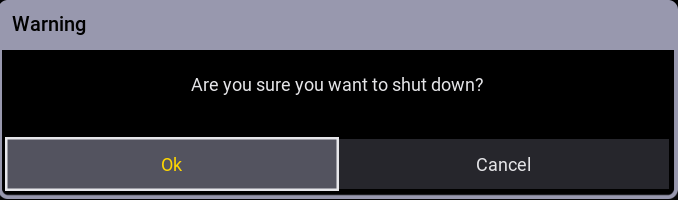
- Tap OK.
The grandMA3 console shuts down. - Turn off the power switch on the rear panel
Install the Software Package on the Console
- Turn on the power switch on the rear panel.
- Insert the USB flash drive in a USB port.
- For devices without an integrated keyboard (e.g., grandMA3 compact console), connect an external keyboard with a USB port.
- Press the power key on the front panel. The grandMA3 device starts.
- Press the 8/F8 key on the internal or external keyboard several times.
The Boot Manager opens. - Scroll down to EFI USB Device using the arrow keys.
- Press Enter on the (external) keyboard.
The console starts to boot. The EULA screen opens. - Accept the EULA.
|
|
Important: |
| If the USB flash drive contains more than 1 version, select the version you would like to install first. |
The Install Selector dialog appears:
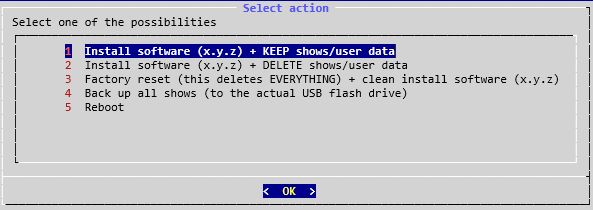
- Select option 1 to keep the shows and user data.
- Select option 2 to delete the shows and user data.
- Select option 3 for a complete factory reset to clean the system before installing the software.
- Select option 4 to save the shows on the USB flash drive.
- Select option 5 to reboot the grandMA3 device.
- Press Enter on the (external) keyboard.
Wait for completion. The grandMA3 device reboots. - Remove the USB flash drive.
The Mode Selection dialog appears.
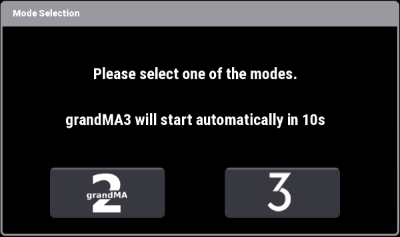
- Select one of the modes. For more information about grandMA3 mode2, see Mode2 in grandMA2 User Manual.
If no selection is made, the device automatically starts in grandMA3 mode. - Screens 1, 2, and 3 are initializing.
The letterbox screens enter self-test mode (red, green, blue, white, and black color changers).
The command screens stay black.
It can take several seconds for them to start initializing. - The installation is complete.