Programmer Layers
|
grandMA3 User Manual » Operate Fixtures » What Is the Programmer » Programmer Layers
|
Version 2.3
|
Values for the selected layer can be displayed in the Sequence Sheet, the Content Sheet, and the Fixture Sheet.
Layers can be set from the Encoder Bar, the Layer Toolbar, or by typing the corresponding layer keyword. For more information, see General Keywords.
To enable the Layer Toolbar in the fixture sheet, see Fixture Sheet Settings.

Fixture sheet layer toolbar
The CueAbs layer displays each attribute's sequence, cue, and part numbers with an absolute value originating from a running playback. The displayed information refers to the playback that defines the current output value for the attribute. For more information, see CueAbsolute keyword. Typical values, such as a selected static position, are displayed in the absolute value layer.
The CueRel layer displays each attribute's sequence, cue, and part numbers with a relative value originating from a running playback. The displayed information refers to the playback that defines the current output value for the attribute. For more information, see CueRelative keyword. A mauve marker indicates relative values.
The Fade layer can be used to adjust and see individual fade times. Individual fade times are indicated with a green marker.
The Delay layer can be used to adjust and see individual delay times indicated by an orange marker. The Sequence Sheet in Track Sheet mode best looks at these values. Learn more about Individual Attribute Timing in the Cues and Sequences topic.
The fixture sheet DMX layer provides valuable information.
Open a fixture sheet and tap DMX in the Layer Toolbar. For more information, see Fixture Sheet Settings.
The fixture name cells for fixtures/attributes with active values from the DMX tester are displayed with a white marker in the fixture sheet. For more information, see the DMX Sheet.
The DMX values are indicated by the same color as the DMX tester background color.
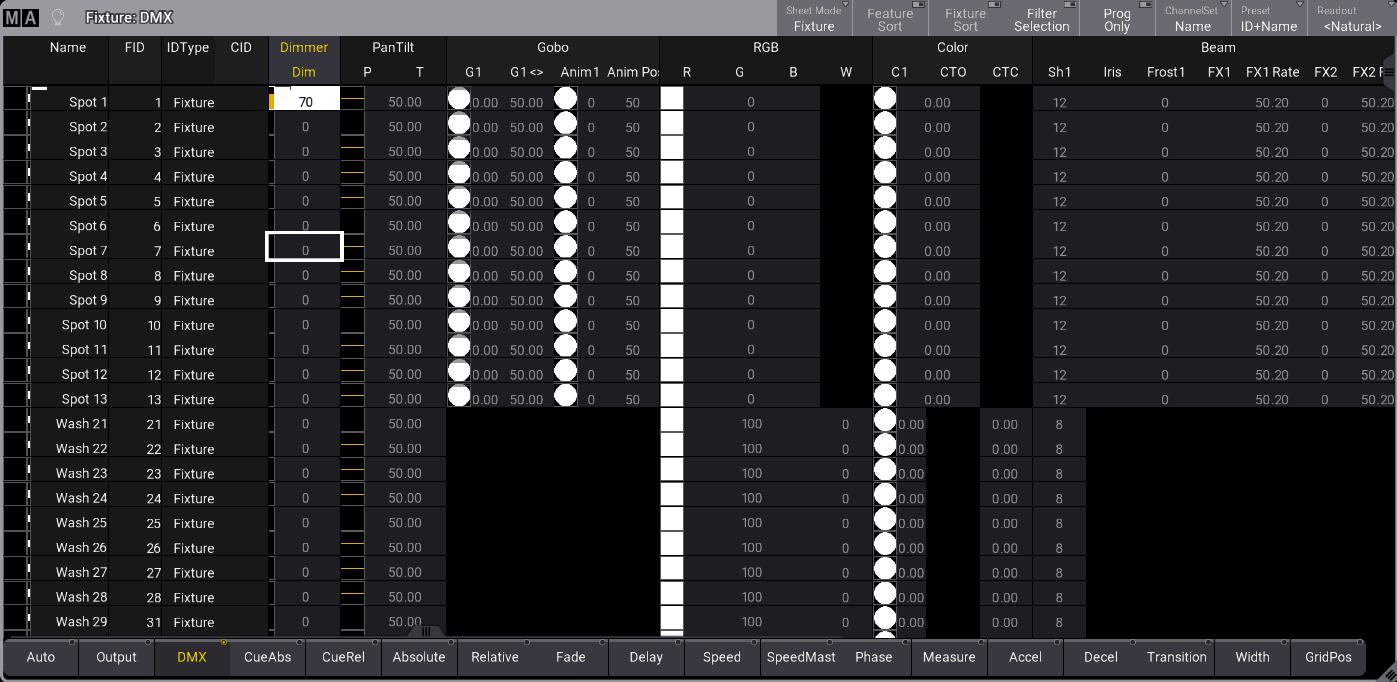
Fixture sheet with DMX layer selected
You can mask what you see in the fixture sheet by using filter objects or adjusting the settings. For more information on adjusting what is displayed in the fixture sheet, see Sheet Masking and Fixture Sheet Settings.