grandMA3 User Manual Publication
Notes in Pool Objects
|
grandMA3 User Manual » Notes » Notes in Pool Objects
|
Version 2.3
|
The following example shows how to add a note to a macro. For more information about macros, refer to the Macros topic.
- Requirement: The grandMA3 demo show is loaded.
For an overview of the example below, have a look at this video:
To add a note to a macro, follow these steps:
- Open the Add Window dialog, tap the Data Pools and then tap Macros. The Macro Pool window opens.
- Press Edit and then tap the first macro pool object called Select EncoderBar. The macro editor opens.
- Enable Settings in the title bar.
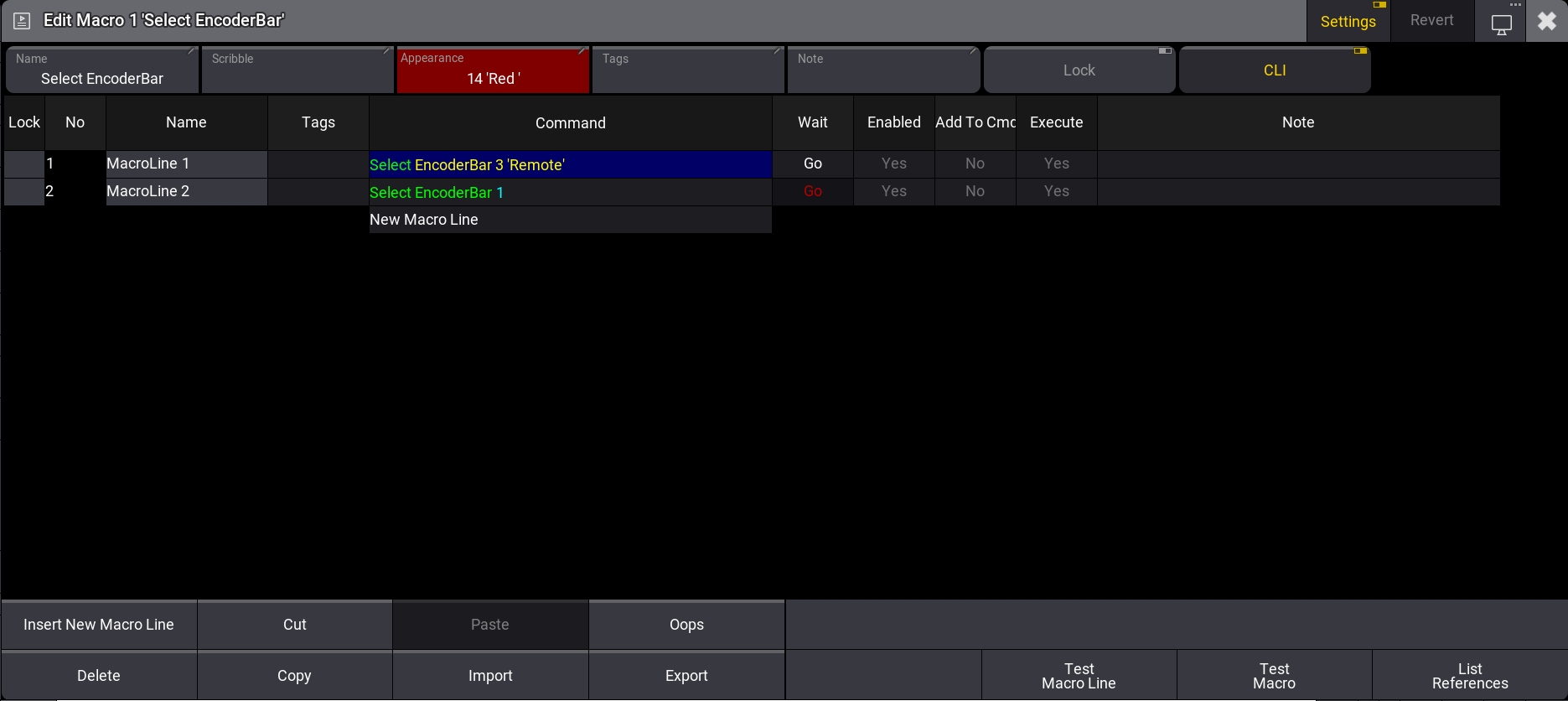
- Tap Note in the Settings bar at the top in the macro editor. The text input editor opens.
- Type "Macro" into the text field and then tap Save in the top right corner. The text input editor closes and the text is saved.
-
Tap
 , to close the macro editor.
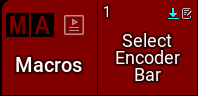
The pool object displays a note symbol in the top right corner:
To edit the note in a note cell, for example, a macro line, follow these steps:
- Type Edit Macro 1 into the command line and press Please. The editor opens.
-
Right-click the Note cell of MacroLine 1.
The text input editor opens. - Follow the steps 4 and 5 from above.
Text Input Editor
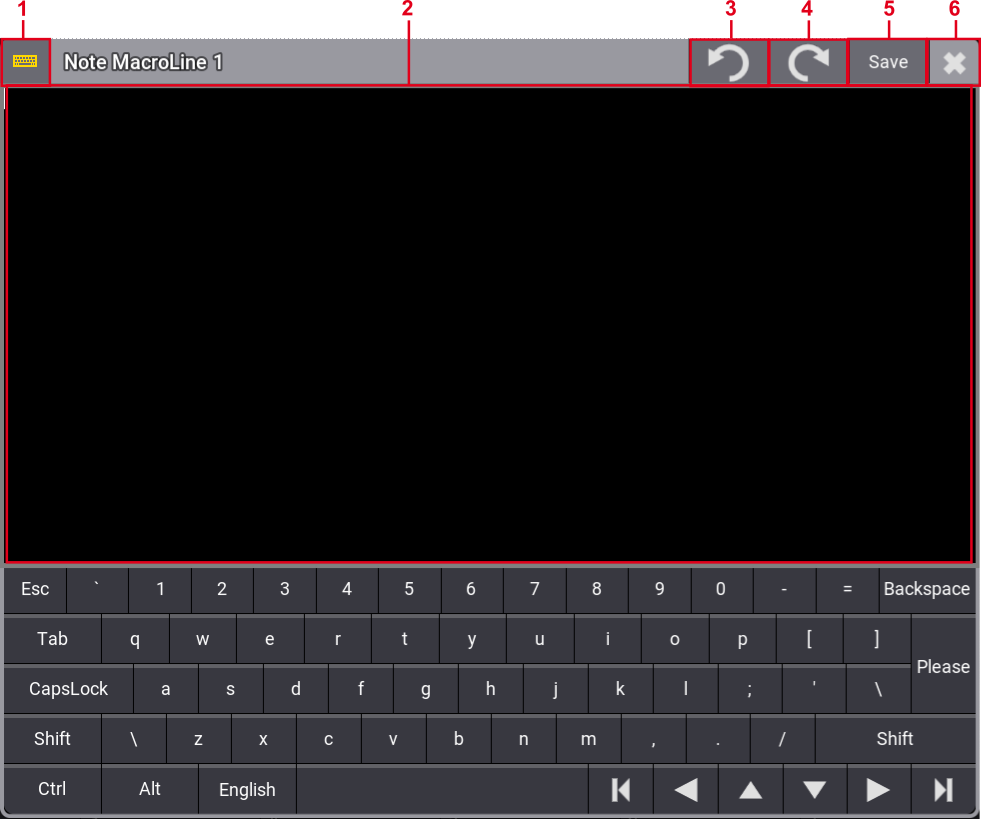
The text input editor has the following features:
- Shows or hides the virtual keyboard.
- Text field.
- Undoes last changes.
- Redoes last changes.
- Saves the changes and closes the input dialog. Alternatively, press Please on the console.
- Closes the input dialog. A pop-up opens, if changes are unsaved.
For more information about the virtual keyboard, refer to the Command Line topic.

|
Hint: |
|
Press MA + 8, 2, 4, or 6 to move the cursor inside the text field.
|
|
|
Hint: |
|
When editing notes, the numeric keypad on the grandMA3 hardware can be used to enter values, and Oops can be used as a backspace.
|