Command Line
|
grandMA3 User Manual » Workspace » User Interface » Command Line
|
Version 2.3
|
The following categories are highlighted in this topic:
- Show or Hide the Control Bar
- Open the Command Line History
- Open the Virtual Keyboard
- Information in the Command Prompt
- Change the Default Keyword
- Set the Cursor in the Command Line
- Session Status and Quick Access to the Network Menu
- Hidden Progress Bar
- Message Center
The main purpose of the command line is to display active command syntax as it is entered and to display any errors generated by failed syntax. The command line also includes several helpful status indicators and quick-access buttons to frequently used features.
By default, the command line is located at the bottom of screen 1. It can also appear at the bottom of screens 2, 3, 4, 5, 6, and 7.

Show or Hide the Control Bar
Tap the left arrow at the left edge of the command line to show or hide the control bar along the left edge of the screen.
Open the Command Line History
To open a temporary window showing the Command Line History:
- Tap MA on the left side of the command line
The Command Line History opens.
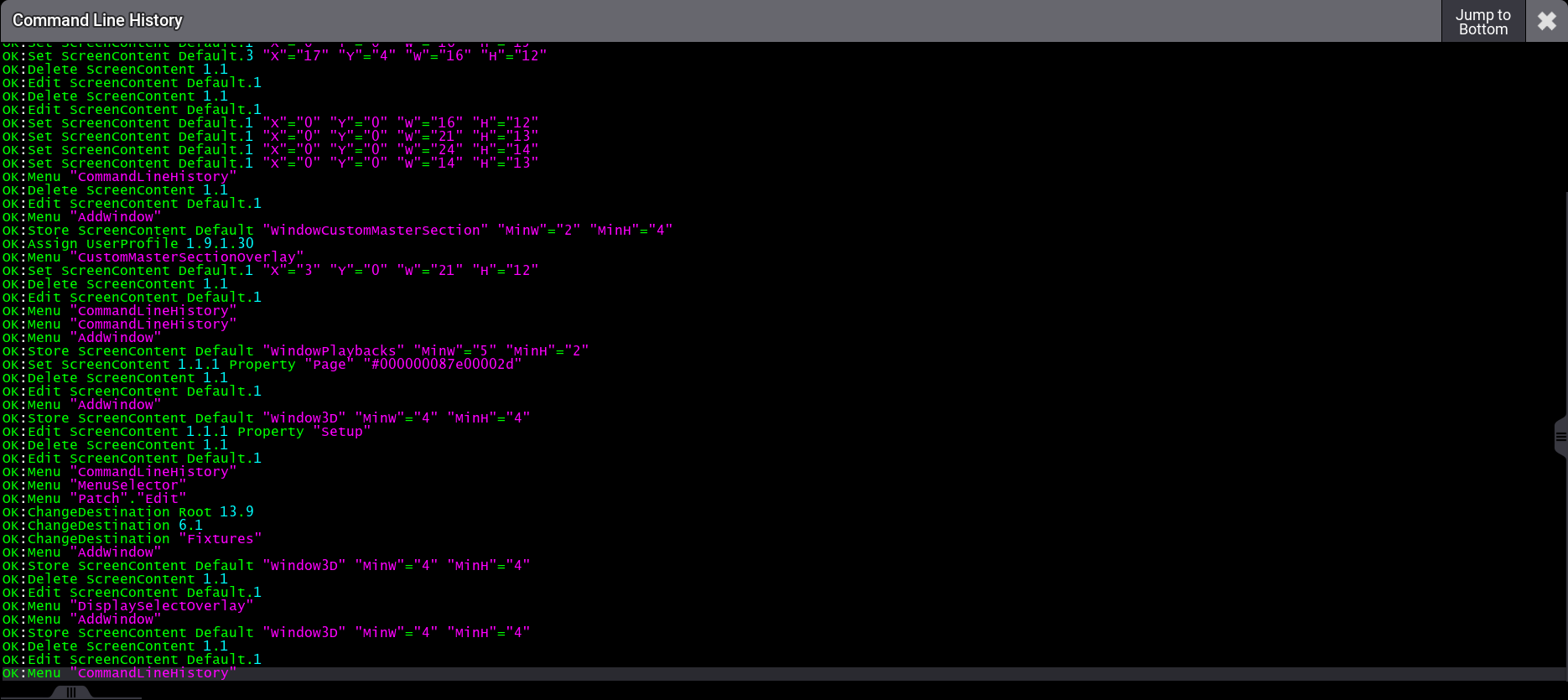
To close the window:
- Tap MA once again
-or-
-
Tap
 in the upper right corner of the window
To open the window version of the Command Line History:
- Open the Add Window dialog
- Tap Common + Command Line History.
To show or hide the Command Line in the Command Line History window:
- To open the Command Line History Window Settings, tap MA.
- Enable Show Command Line.

|
Hint: |
| The content of the command line is synchronized across all visible command line inputs at the very same station. To synchronize the command line between a station and a connected web remote, see Linked Command Lines. |
To select a recent command in the command line history:
- Tap and hold a recent command in the history. The command gets selected, a pop-up opens, and the Command Line History background turns red.
-
Select one of the following options from the pop-up:
- Copy: Copies the command in the clipboard.
- Execute Again: Executes the command again.
- Copy and Overwrite to Command Line: Copies the command into the command line. Existing command line content will be discarded.
- Add to Command Line: Copies the command to the end of existing command line content.
- Tap Jump To Bottom to set the Command Line History to the latest entry.
The Command Line History can display a maximum number of 2 048 lines.
For more information, see Add Window.
Open the Virtual Keyboard
To open a temporary command line window with a virtual keyboard:
-
Tap
 on the left of the command line.
The window opens with a virtual keyboard.
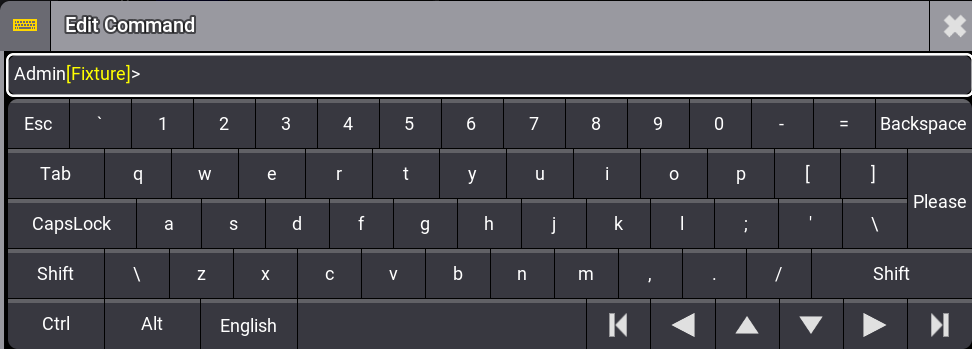
To minimize the virtual keyboard:
-
Tap .
To close the virtual keyboard:
- Execute a command by tapping Please.
- Tap in the upper right corner of the window.
To change the language on the keyboard:
- To cycle through the languages, tap the key that displays the language, for example, English, on the keyboard. For more information, see Keyboard Keyword.
Information in the Command Prompt
The command prompt is the point where the entered syntax appears. The prompt ends with the '>' symbol, but it contains two pieces of helpful information before the symbol.
-
User Name
The user name of the logged in user appears first in the command prompt. -
Default Keyword
The default keyword appears in square brackets in yellow text after the user name. The console uses the displayed default keyword for any numerical syntax entered without a specified object keyword.
Change the Default Keyword
Possible default keywords of the command line can include:
|
|
Hint: |
| Some of the listed keywords can be customized. For more information, see Custom ID. |
To change the default keyword:
- Enter the desired keyword into the command line. For example, press the Channel key.
- Press Please.
Set the Cursor in the Command Line
When entering command line syntax using a keyboard, it is necessary to bring the keyboard focus to the command line.
To set the cursor in the command line:
- Tap the command line
- or -
- Press Esc one or more times. Once all open menus and pop-ups are closed, the keyboard focus returns to the command line.
- or -
- Press and hold MA and subsequently press Please
The cursor is set and starts blinking after the prompt and a white box surrounds the command line.
|
|
Hint: |
A triangle symbol ( ) appears if the prompt is longer than the command line. ) appears if the prompt is longer than the command line.
|
For more information, see Command Syntax and Keywords.
Session Status and Quick Access to the Network Menu
An indicator of network session status appears on the right side of the command line. Tapping the indicator toggles the network menu open or closed. The color of the network icon indicates one of the following session states:
- Red: Standalone
- Black: Startup
- Gray: IdleMaster
- Light Blue: GlobalMaster
- Green: Connected
For more information about networking, see the Networking topic.
Show or Hide the View Bar
Tap the right arrow at the right edge of the command line to show or hide the bar of view buttons along the right edge of the screen.
Hidden Progress Bar
The process, e.g. when sending an update from a grandMA3 onPC station to a grandMA3 console, is indicated by a circle with a number in it on the right side of the command line. The number inside the circle indicates how many processes are running in the background.

Message Center
Depending on their status in the message center, other icons may appear in the command line as well.
Tapping  in the command line opens the message center window. For more information, see the Message Center topic.