Store Cues and Use Executors
|
grandMA3 Quick Start Guide » 10 - Store Cues and Use Executors
|
Version 2.3 |
There are different terms that you need to learn before we continue.
Cue
A Cue stores different values from fixture attributes. They can contain more than just the attribute values; it is all about the output of the fixtures. Cues also have information on how to transition between different cues.
Each cue has a unique cue number.
Cues actually consist of Cue Parts. This means that if we store values in cue 5. Then, the values are actually stored in cue 5 part 0. We often just talk about this as cue 5 and only mention the parts when they are relevant, and there is more than just part 0.
Sequence
The cues are stored in a Sequence. The sequences have a list of cues sorted by the cue number. This means that cue number 4 cannot be before cue number 3.
The grandMA3 can handle an almost unlimited number of sequences and many cues for each sequence.
The sequences are stored in a sequence pool. When we playback (or "run") a cue, it is actually played back from the sequence pool.
There is always a selected sequence. A thick yellow frame is the default color for indicating a selected pool object.
If we do not specify a sequence, the grandMA3 assumes that a sequence command is for the selected sequence.
Executors
Executors are used to controlling different objects. One of the objects is the sequences.
Executors can also be called Playbacks. Different executor hardware exists: Executor Buttons, Executor Faders, and Executor Knobs.
All faders and knobs have a button attached. Not all buttons have a fader or knob attached.
On the grandMA3 onPC, you can open an on-screen version of the executor hardware by pressing F5.
It is important to know that the sequences are not playing back from the executors. The executor sends control commands to the sequences running from the sequence pool.
This also means that if several executors control the same sequence, they share the sequence status.
Create Some Cues
We will create some cues, but first of all, we need a window where we can see the sequence. Click the default view called "Sequence Sheet". It is a starting point; you can modify it if you want.
The window you need is called Sequence Sheet, and if you want to create one from scratch, it can be found in the "Tools" tab in the Add Window pop-up.
The sequence sheet shows the selected sequence. We have not created a sequence yet, but the first sequence pool object is already selected.
The lower part of the sequence sheet displays the Recipe information for the cue. We are looking at recipes in Chapter 17. The Recipe area can be hidden by entering the window settings (tapping the MA logo in the upper left corner of the window). In the "Mask" tab, disable "Show Recipe" by tapping it.
Start by clearing the programmer completely. Then select group 1 and give the fixtures a value of 100%.
Press Store and then Please.
Now, we have stored the active programmer values into Cue 1 in Sequence 1.
When we did not specify a location, the selected sequence was used, and it stores the values in the first available cue.
You can see the cue in the sequence sheet.
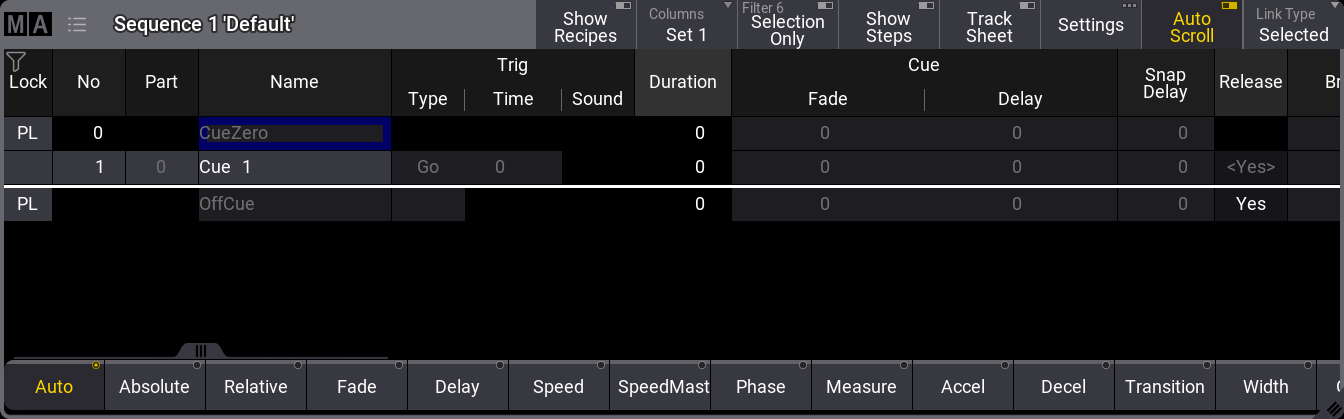
A sequence always contains two default cues: CueZero and OffCue. The OffCue controls different timings when the sequence is turned Off.
Cues are rows in the sheet. The different columns represent different settings for the cue.
There are many columns in the sequence sheet - let us look at some of the most important ones.
No is the cue number.
Part is the cue part number.
Name is the cue (part) name.
In the group of three Trig columns, there is one called Type. It describes what triggers the cue.
If you look at Cue 1, the type is "Go". This means that to execute the cue, you must press a 'Go' key or perform a "Go" action on the sequence.
Cue Fade defines the time it takes to fade to the stored values in the cue. Cue Delay defines if there should be a delay between the trigger and the fade start.
Run the Cue
We want to trigger the cue. We will do this using a combination of the command line and the Sequence Pool.
If you do not have a visible Sequence Pool, please make room for one and create it in the user-defined area.
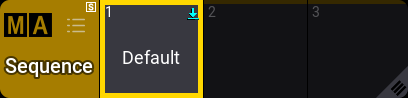
Write Go in the command line and tap the sequence in the pool.
Now, the sequence is outputting the stored values in cue 1.
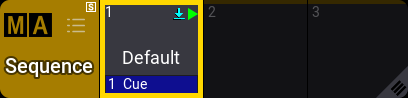
Notice that the pool object shows the active cue and a green playback icon in the upper right corner.
An easier way to control the sequence is the executors and Master Area.
On the grandMA3 hardware, the master area is the two long faders and the three dedicated buttons for 'Go+', 'Go-' and 'Pause'. Some hardware also has some extra buttons and knobs above the faders.
On the grandMA3 onPC, we can open an on-screen version of the master area by pressing F7 on a keyboard - here, it is the middle part of the pop-up.
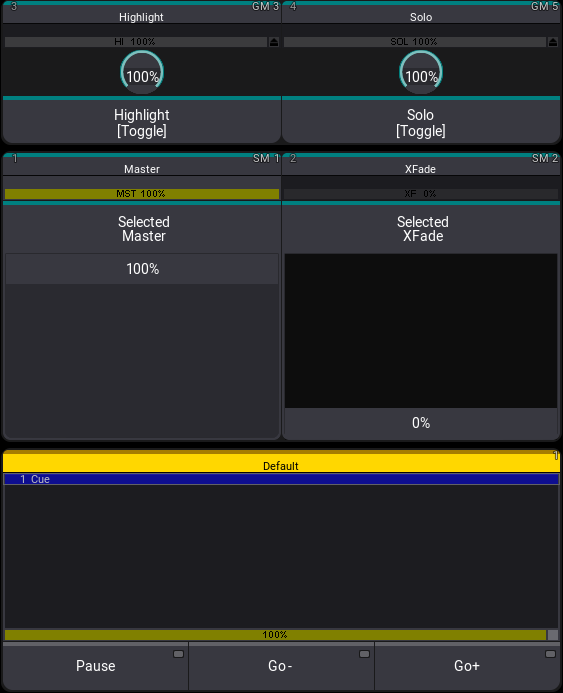
The master area always controls the selected sequence. The default function for the left fader is an output master. Moving it up and down adjusts the output level of the sequence.
Assign Sequence Control to Executors
We can also assign sequence controls to other executors.
Sequence 1 is already assigned to an executor, as a default in a new show.
The on-screen version of the executors can be opened by pressing F5 on a keyboard.
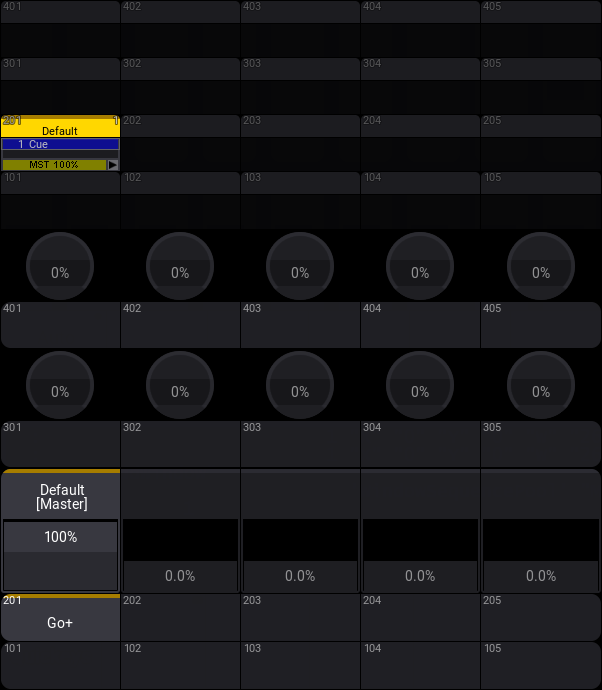
The on-screen executors can be created as a window. It is called Playbacks and is in the 'More' tab.
I have created a window with the playbacks for the next step. If you are on the onPC, I suggest you do the same.
On the grandMA3 hardware, these executor buttons are not numbered as they are in the software. They have small horizontal lines on the buttons indicating the hundreds number.
The leftmost column of executors are the first. This means that the bottom executor in the lower-left corner is executor 101. It has one horizontal line.
The button above this is 201; it is connected to the fader.
The button above the fader is 301, and it got a rotating knob.
The top button is 401, and it also got a rotating knob.
The next column is the second's executors for each hundred: 102, 202, 302, and 402.
Each executor is its own and can send control commands to different objects. But they can also be grouped together.
With sequence 1 already assigned to executor 201, we can move the left executor fader, and it also controls the master intensity for the sequence. Notice that the master in the Master Area also moves. Both faders do the same thing for Sequence 1.
Create More Sequences
Now, we are going to create more sequences.
Clear your programmer and select group 2.
Give the fixtures 100% intensity.
Press the Store Quickey and then the executor button 202.
Now we have two faders, each controlling their own fixtures.
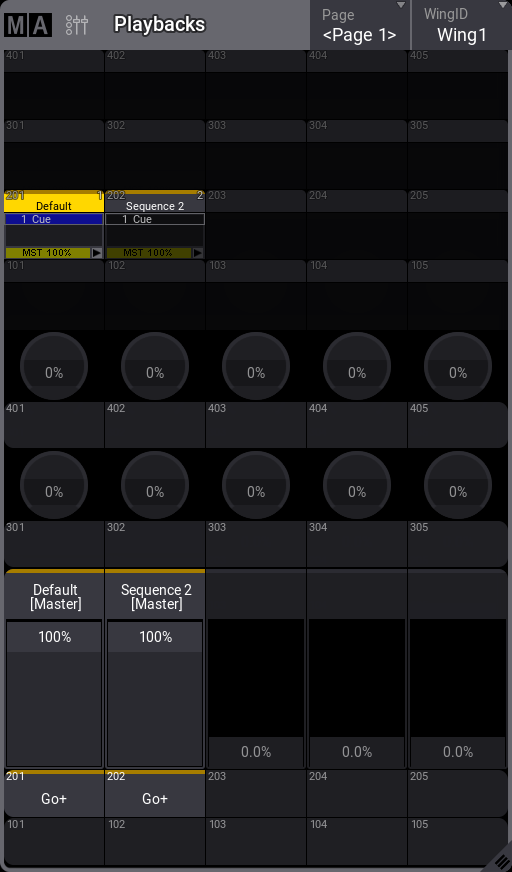
When we pressed the executor button, the grandMA3 software automatically created a new cue 1 in a new sequence and assigned the sequence as the object on executor 202.
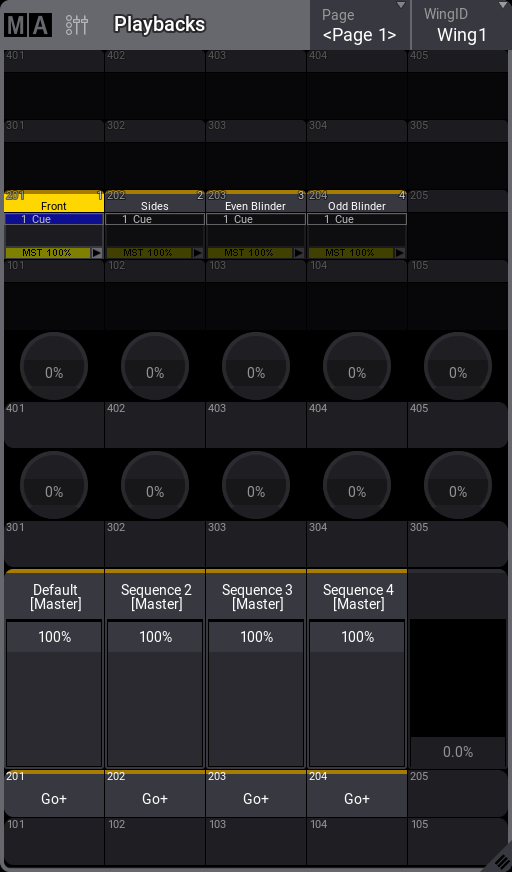
Clear the programmer, repeat the steps above for group 4 (Even Blinders), and store them to executor 203. And finally, store group 5 at 100% on executor 204.
We should name/label the four sequences in the sequence pool to match the group names.
Now, you have four faders that each control some of the fixtures.
Modify the Executors
Let us try to modify the controls to give us some more buttons. We would like to use the 101, 102, 103, and 104 as flash buttons for the sequences above.
We could make these buttons separately control the sequences and just have a flash button on them, but we could also expand the executor and group the executors for each sequence.
Press Assign and press executor 201.
This opens the Assign Menu:
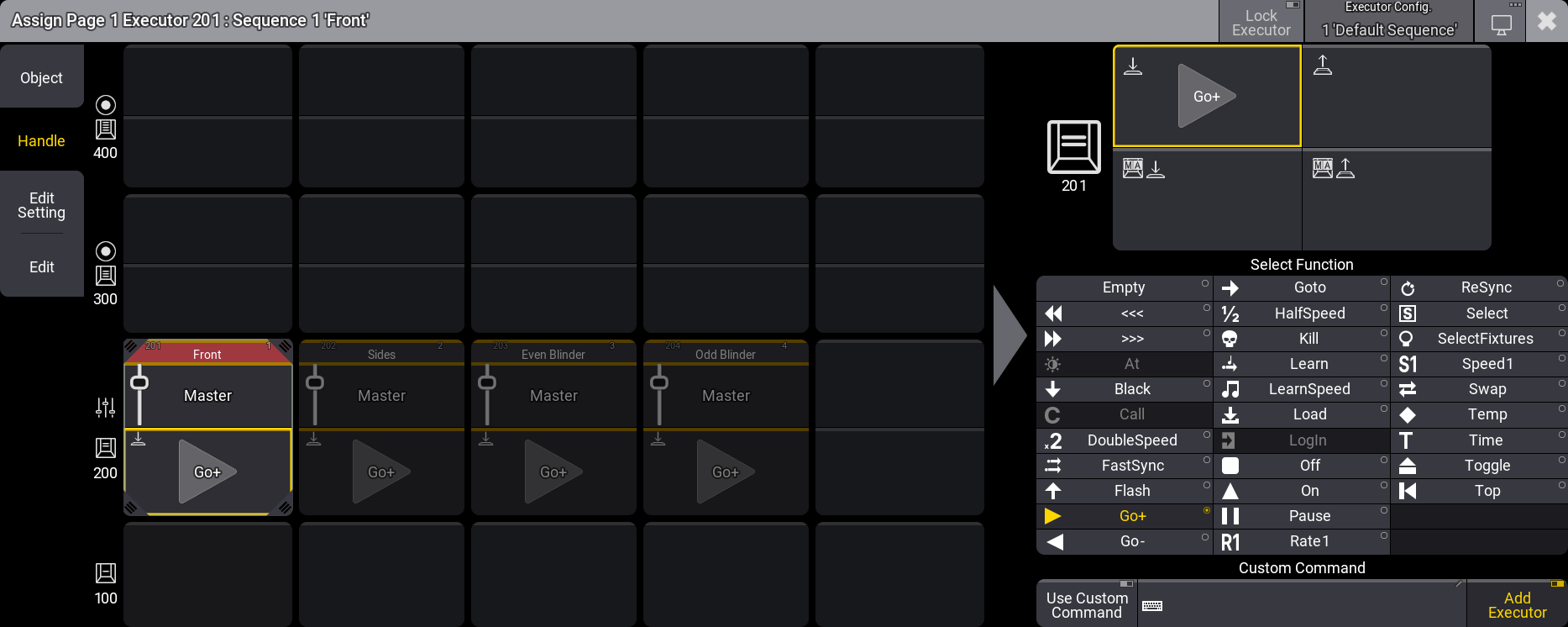
This menu can be used to adjust the height and width of the assigned objects, in this case, sequences. It is also used to change the functions assigned to the buttons, faders, and rotating knobs.
In the center part, we can use the four corners to change the size. Pressing and holding the object title (in the image above the red "Front") can be used to move the object to other available executors.
Tapping a button, fader, or knob in the center part gives it focus (a brighter yellow frame), and the right side can be used to assign a function to the selected button, fader, or knob.
We wanted to add the 101 to our control. Press and hold one of the lower corners of the highlighted Go+ button. Now move it down to include the 101.
Select the 101 button and select 'Flash' on the right side.
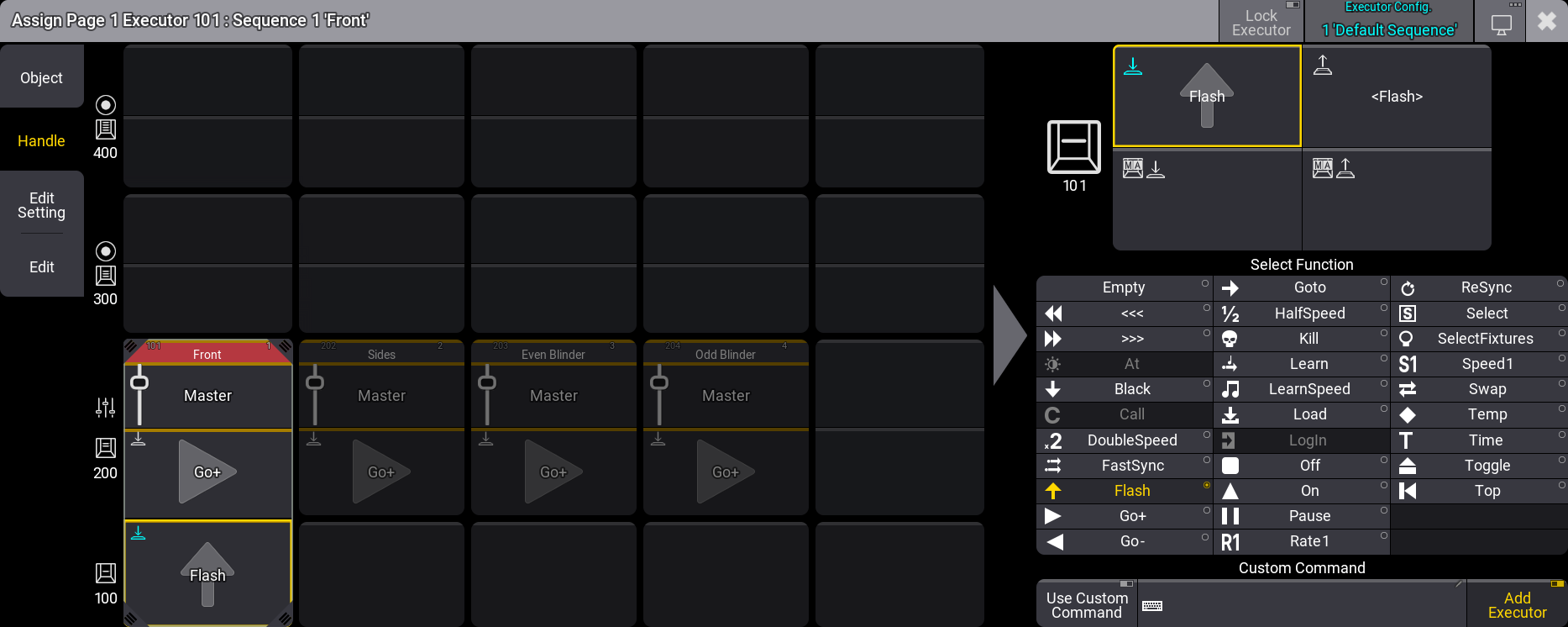
This has now changed the function (or command) assigned to the button. It has a cyan icon in the top left corner to indicate that this is different from the default assignment of the executor configuration. The text in the 'Executor Config.' button in the title bar is also cyan.
We can save this change to the default configuration.
Tap Executor Config. in the title bar of the Assign Menu. This opens a pop-up where we can perform different actions on the executor configurations. Let us store the current settings to the "Default Sequence" configuration by tapping Save.
Now tap the 202 button in the menu and change the size to include the 102. Now the flash is automatically assigned to the 102 button because it is the default configuration.
Repeat this for 203 and 204.
Close the Assign Menu by tapping the  in the upper right corner.
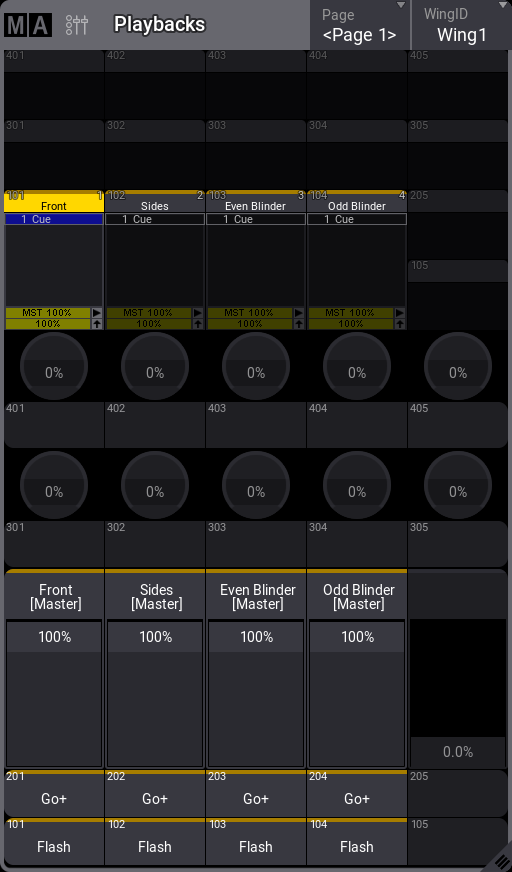
Let us try the new function. Clear the programmer. Turn down all the faders and press executor button 101. You should see the fixture flash in the 3D window and the fixture sheet.
Flash can be combined with having the faders up. If the fader is at 100%, then the flash does not have a function, but having the faders at 25% and flashing is a visible combination.
Now the executors look like this in a Playback window:
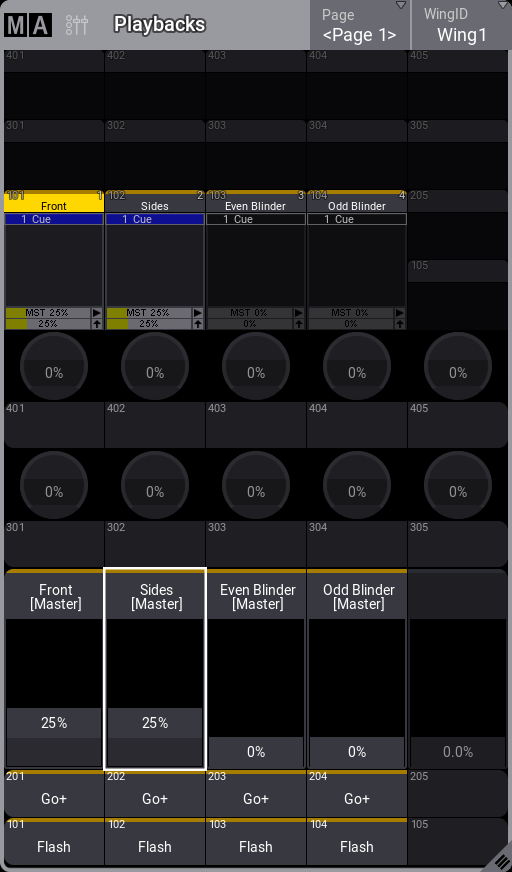
Notice that the sequence called "Front" has a yellow color in the executor label. This indicates that this is the selected sequence.
Recap
In this chapter, we stored some cues in different sequences and made some executors control the sequences. We also adjusted the executors to match our needs.
Read the Sequence Sheet topic to learn details about the Sequence Sheet window.
The Assign menu is described in detail in the Assign Object to an Executor topic.
The next chapter is about adding moving lights. Your onPC or console needs access to the internet for the best result in the next chapter.