|
grandMA3 User Manual » Executors » Assign Object to an Executor
|
Version 2.3
|
Many objects can be assigned to an executor. The executor is a physical key, fader, or encoder that controls the assigned object. The physical devices can also be represented as on-screen controllers.
 |
Quick Steps: |
These are the simplest steps to assign something to an executor - read below for details. |
Assigning Objects Using Keys and Pools
It is easy to assign something to an executor.
Press Assign followed by the desired object and then the executor to which it should be assigned.
Here are three variations on how it works. The examples use sequences, but it can be any of the allowed types:
Example 1
Using only the keys to assign sequence 3 at executor number 105 on the current page, type:
Assign Sequ 3 At MA + X16 | Exec 1 0 5 Please
Example 2
It is also possible to use a combination of keys and pools.
Having a pool visible on one of the screens makes it possible to combine key presses with pool selection.
- Tap and swipe out of the sequence pool object that should be assigned.
- Swipe to the Assign option and release the screen.
- Press one of the keys associated with the desired executor.
Example 3
Pressing the keys puts keywords into the command line. This means it can also be typed as a command line input.
 |
User name[Fixture]>Assign Sequence 4 At Page 2.301 |
This command will assign sequence 4 to executor 301 on executor page 2. The page keyword needs to be used when addressing executors on specific pages. The page needs to exist before it can be addressed.
|
|
Hint: |
| The process for assigning special executors and Xkeys is the same as the process described for executors. |
Assign Objects Using the Assign Menu
The Assign menu offers a visual approach to assigning something to the executors. Use the assign menu by selecting the executor first and then selecting the object.
There are three main ways to open the Assign Menu:
- Press Assign followed by any of the keys associated with the desired executor.
- Tap the executor label in the Mini Executor Bar (do not do a long press - it opens the editor instead).
- Tap on the desired executor in the the Playbacks Window or the Playback Controls menu.
This is the Assign menu:

The title bar has a toggle button called Lock Executor. This can be used to lock the executor from changes. It does not lock the executor from playing back or performing other functions normally; the lock only prevents making changes to the executor.
This is the Object page of the Assign menu. This page is selected by tapping Object on the right side.
The top has several tabs. One for each object type that can be assigned to the executor and a special one used to select an Empty object. The other tabs open a selection list. The list will contain the possible objects of that type.
The different types are:
Tap Sequence to open the list of possible sequences. It could look like this:
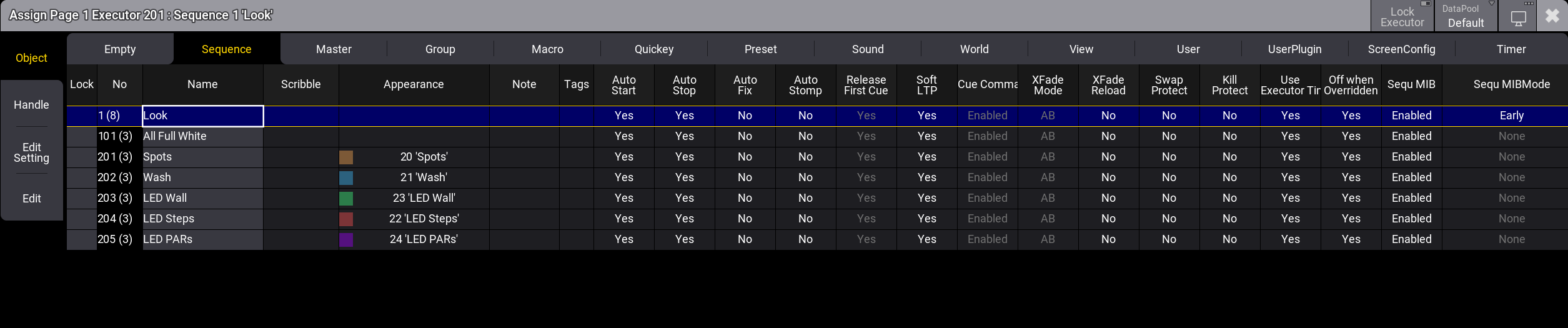
Each allowed type that can be assigned to an executor provides a list of the available objects. The DataPool in the title bar makes selecting an object from a different data pool easy.
Select the desired object by tapping it.
The default Executor Configuration for the object type is applied to the executor when assigning an object to an empty executor. When there is already an object assigned, the executor configuration is not recalled, when assigning a different object to the executor. This, including executor expansion, can be defined in the handle tab.
Change Key Function and Executor Size Using the Handle Tab
When the executor, special executor, or Xkey has something assigned, changing the functions assigned to the executor keys, faders, and encoders is possible.
It is also possible to assign functions using keys or commands. For more information, read below.
If continuing to work in the Assign menu, tap Handle on the left side.
It could look like this:
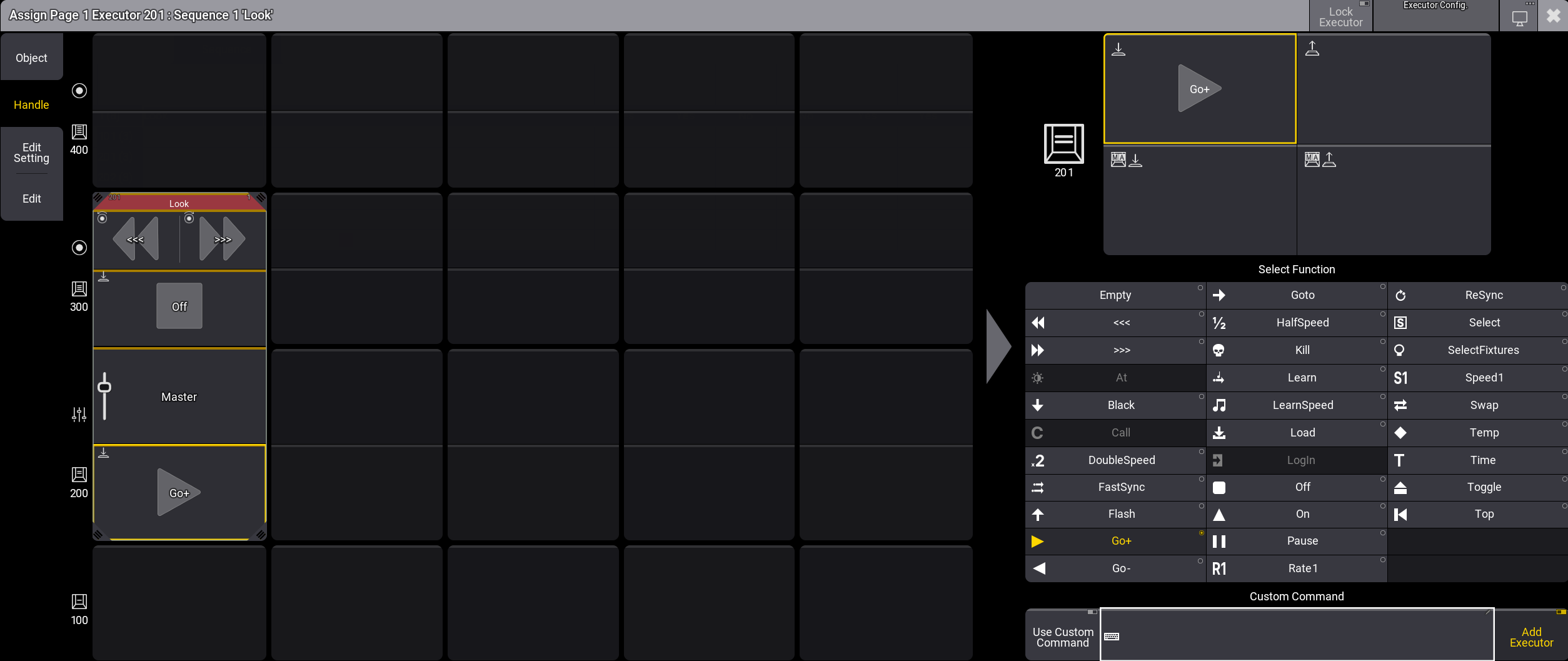
The handle tab of the assign menu is split up in two sides. On the left hand side of the menu a table represents the executors of of the same section. The assign menu of the special executors displays all special executors. The right side of the menu is designed to set different options for the selected executor.
The executor section is displayed on the left. The selected executor button is indicated by a yellow frame and is brighter compared to executors that are not selected. The title bar is blinking in red. The name of the assigned object is displayed in the middle of title bar. The starting number of the executor is on the left and the number of the assigned pool object on the right.
The example image above shows executor 201 with space above and to the right. The size of the selected executor can be extended using any of the four resize corners ( ). Executors can be expanded if there are empty executors next to them. Depending on whether the resizing or moving of an executor was successful or not, the border of the executor will shortly flash green or red. To move the entire executor, tap, hold, and drag in the executor's title bar. Tapping an executor with a less saturated appearance will select this executor.
The elements (key, fader, or encoder) of the selected executor are indicated by icons in the upper left corner. The selected function, except fader functions, with the corresponding icon is displayed in the center. The color of the bar at the top of the executor button indicates the assigned object category (Sequence, Master, Group, etc.). The rest of the button will be the same color as the appearance color of the object if the button is not selected. If a button has more than one trigger option assigned to it, the button will split to display the multiple options.
If executors have multiple functions assigned, and the assigned objects have individual appearances, then it could look like this:
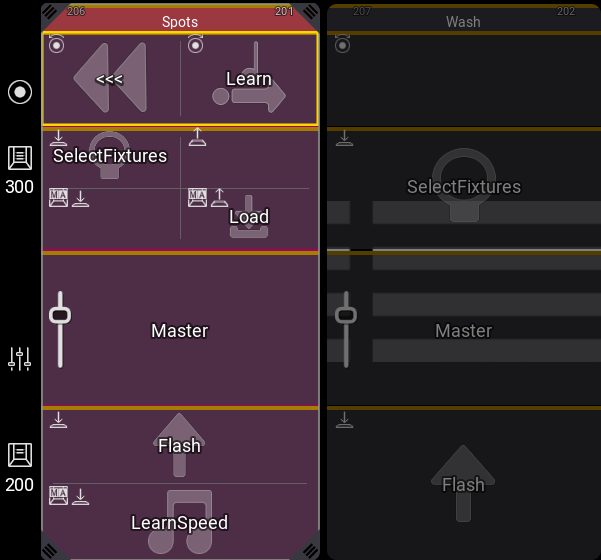
The keys, faders, and encoders have different functions. The available functions depend on the object assigned to the executor and the executor itself. Different functions are available when using a key, fader, or encoder.
Set different options for the selected executor, on the right side of the handle tab. Depending on whether a key, fader or encoder is selected, the menu on the right changes.
At the top, choose how to trigger the key, fader, or encoder.
A key can have up to four different trigger options:
 : Press the key to trigger the selected function.
 : Release the key to trigger the selected function.
 : Press and hold MA and press the key to trigger the selected function.
- : Release MA and the key to trigger the selected function.
An encoder has six different trigger options:
 : Rotate the encoder to the left to trigger the selected function.
 : Rotate the encoder to the left to decrease the value of the selected function and to the right to increase the value.
 : Rotate the encoder to the right to trigger the selected function.
- : Press and hold MA and rotate the encoder to the left to trigger the selected function.
- : Press and hold MA and rotate the encoder to the left to decrease the value of the selected function and to the right to increase the value.
- : Press and hold MA and rotate the encoder to the right to trigger the selected function.
A fader has one trigger option:
 : Move the fader up or down to use the selected function.
Change Functions in the Assign Menu
Below the trigger options there is a list of all functions that can be selected for the key, fader, or encoder. It is also possible to tap and hold a trigger option above to open a drop-down list of all actions possible. By tapping and holding an executor on the left, you can change its function. For buttons, the press function, and for encoders, the encoder function can be changed.
Change Key, Encoder Left, and Encoder Right Functions
The functions that can be assigned to keys, MA + keys, encoder left and encoder right, and MA + encoder left and MA + encoder right (, , , , , , , ) with their specific icons displayed in the Playback window are:
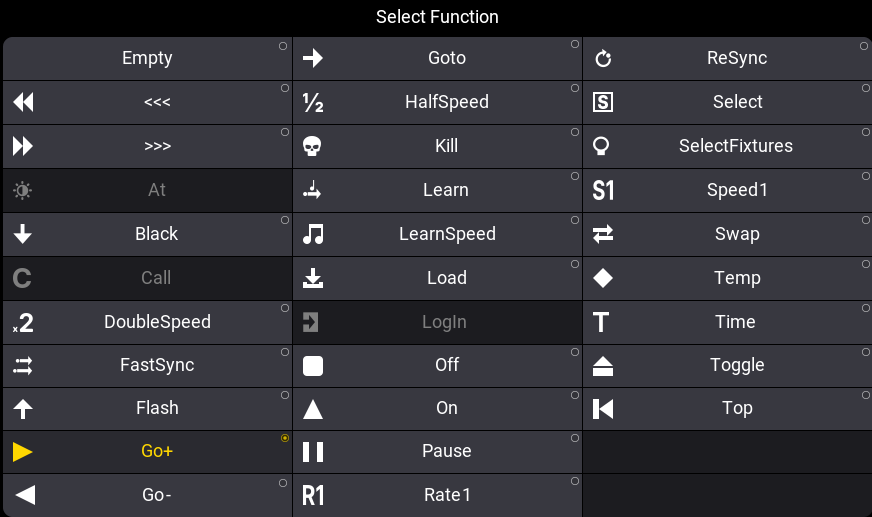
- Empty:
The key has no function. - <<< (GoFastBackward):

This jumps one cue back without cue timing. - >>> (GoFastForward):

This jumps one cue forward without cue timing and will not trigger other cues. - At:

Used with presets. Performs an At command on the assigned preset. Learn more about presets on executors in the Use Presets topic. - Black:

This turns off the intensity of the executor as long as the button is pressed. - Call:

Used with screen configurations and macros. Performs a Call command on the assigned screen configuration. - DoubleSpeed:

Pressing this doubles the resulting speed of the speed master, sequences, and presets. - FastSync:

This determines the starting point of the phaser. The first step of the phaser is immediately started. - Flash:

This turns the executor on and sets a virtual intensity master at 100, as long as you have the button pressed. When the button is released, it will return to the status before it was pressed. - Go+:

This executes a "Go+". It uses fade and delay times. - Go-:

This executes a "Go-". It goes back to the previous cue, using the normal fade time of the previous cue. - Goto:

This opens a pop-up where a cue can be selected. Tapping a cue in the pop-up immediately performs a Goto command on that cue. This means that the selected cue is now active. - HalfSpeed:

Pressing this halves the resulting speed of the speed master, sequences, and presets. - Kill:

This sequence playback action turns this sequence On and all other sequences Off. Sequences using the same Playback masters can be protected from the Kill action in the Sequence Settings. - Learn:

This determines the starting point and the speed of a phaser at the same time. It is a combination of LearnSpeed and ReSync. - LearnSpeed:

This sets the speed. By pressing it at least two times, it automatically adjusts the speed. - Load:

This opens a pop-up that lists the cues in the sequence. Tapping a cue performs a Load command on the cue, which will perform a go to the selected cue when the next "Go+" or "Go-" command. - LogIn:

Used when a user is assigned. Performs the LogIn command for the assigned user. - Off:

This turns the assigned object Off. - On:

This turns the assigned object On. - Pause:

This holds an active fade and/or delay and phasers are paused. - Rate1:

This resets rate fader. - ReSync:

This gradually adjusts the starting point of a phaser to synchronize phasers. - Select:

This selects the assigned object. - SelectFixtures:

This selects the fixtures used in the object assigned to the executor. - Speed1:

This resets the speed fader to the default speed. - Swap:

Swap temporarily overrides the master level of executors to full and sets all other master levels to zero. Executors using the same Playback masters can be protected against the Swap in the Sequence Settings. - Temp:

This turns the executor on as long as it is pressed. The temp function uses the fade times from the cues and the level set by the intensity master. - Time:

This toggles the time function for the assigned object. It overrules the stored cue part times when it is On. - Toggle:

This turns an active assigned object Off and an inactive assigned object On. - Top:

This fades to the first cue in an assigned sequence.

|
Important: |
| Depending on the assigned object and if it is assigned to a key, an encoder, or a fader, some actions are grayed out. For example, when a sequence is assigned to an encoder, Flash, Black, Temp, and Swap are grayed out for the encoder left and encoder right functions. |
These main functions are keywords - they can be found in the All keywords topics with detailed descriptions of the keywords.
Custom Commands as Functions
For all keys, MA + keys, encoder left and encoder right, and MA + encoder left and MA + encoder right, a custom command can be set as a function.
There is an additional input field for custom commands on the right side of the handle tab:

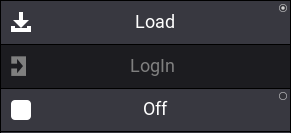
Next to the input field on the right there is an Add Executor button. Enabled, the corresponding executor is added to the custom command. When the function is executed in the command line, the executor will be added to the command.
For example, assigning sequence 1 to executor 101 on page 1 and setting the custom command to Store. With Add Executor enabled, and pressing the executor key the executed command will be Store Page 1.101. This will store a cue in the sequence that is assigned to executor 101. With Add Executor disabled, the resulting command will be Store. This will store a new cue in the selected sequence.
Change Fader and Encoder Left/Right Function
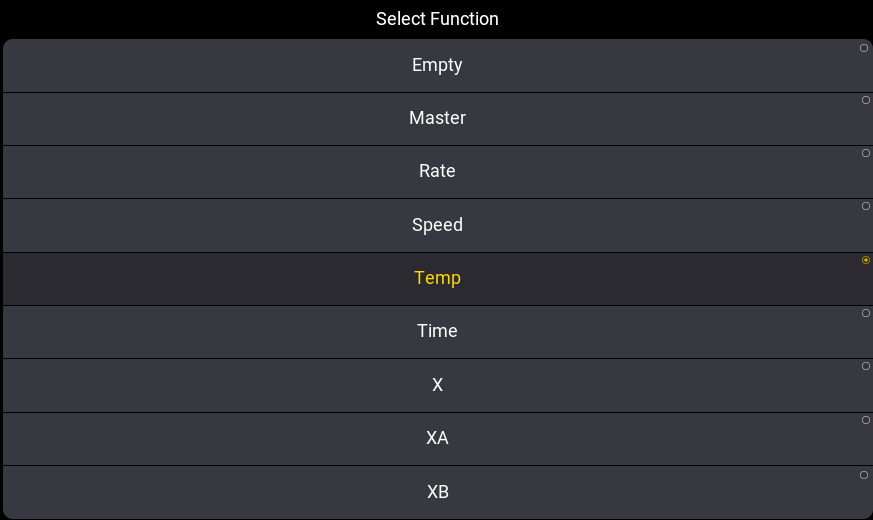
It is possible to change the function of faders, encoders, and MA + encoders (, , ). Depending on the type of object an executor has different functions can be selected.
Select Function on the right side of the handle tab lists all possible functions:
- Master:
Controls the intensity. For more information, see FaderMaster. - X (CrossFade):
Crossfades between two cues. Current cue and next cue. The current cue will change when the fader reaches the other end position from where it started. For more information, see FaderCrossFade Keyword. - XA (CrossFadeA)
Is the first of a two-fader manual crossfade between two cues. Works along with XFadeB. The crossfade function can be changed in the Sequence Settings. For more information, see FaderCrossFadeA Keyword. - XB (CrossFadeB)
Is the second of a two-fader manual crossfade between two cues. Works along with XFadeA. The crossfade function can be changed in the Sequence settings. For more information, see FaderCrossFadeB Keyword. - Temp:
Crossfades the cue on when pulled up, and off when pulled down. For more information, see FaderTemp Keyword. - Rate:
Modifies the fade and delay time in a sequence by the value of the fader. If Speed from Rate is on, it is also valid for phaser speed stored in cues - see Sequence Settings topic. For more information, see FaderRate Keyword. - Speed:
Controls the phaser speed in a cue. For more information see FaderSpeed Keyword. - Time:
Sets the time for the executor time overwrite. For more information, see FaderTime Keyword.

|
Restriction: |
| Pressing MA and triggering a fader or an Xkey is not offered as a trigger option. If an object is assigned to an Xkey, pressing MA and the Xkey will trigger the keyword printed on the Xkey. For example, if an object is assigned to X4 | Layout, MA + X4 | Layout triggers the Layout keyword. |
Change Encoder Resolution
For encoders, and MA + encoders (, ) it is possible to change the encoder resolution. The encoder resolution defines how much the value changes with each click of the encoder.
There is an additional input field on the right side of the handle tab to edit the encoder resolution:
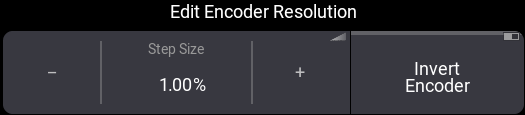
To change the resolution for an encoder, or MA + encoder, select an encoder executor in the executor selection on the left side, and tap Step Size on the bottom right side of the menu. A pop-up opens and the encoder resolution can be set ranging from 0.01% to 100%. Tap - on the left to decrease the value by 1%. Tap + on the right to increase the value by 1%. To reverse the direction of rotation of the encoder, tap Invert Encoder.
Save and Load Executor Configurations in the Assign Menu
All changes to executors can be stored in an executor configuration. This allows the configuration to be loaded again later, even on a different executor, to give it the same setup.
In the title bar, Executor Config. displays the current executor configuration and its appearance. To edit or load executor configurations, tap Executor Config.. A pop-up opens. The grid options are similar to the ones in the executor configurations pool. For more information, see the Executor Configurations topic. You can select different data pools in the title bar. There are six buttons on the bottom of the pop-up:
- Insert New Configuration: Adds a new empty executor configuration. The new configuration line is added above the previously selected one in the pop-up.
- Delete: The selected executor configuration lines can be deleted.
- List Reference: Displays referenced objects.
- Recast Config: Transfers the functions that are stored inside the executor configuration to all executors that have this executor configuration assigned. The Width and Height of the executor configuration will not be recast.
- Load: The selected executor configuration can be loaded.
- Save: The selected executor configuration is saved and loaded.
When a function of the loaded executor configuration has changed, the corresponding executor icon (encoder, fader, or button) and the text in Executor Config. turn cyan. Tap Save in the Executor Config. pop-up to save the changes to the executor configuration. The icon in the upper left corner and the text in Executor Config. turn white again.
Example
Here is a simple example how to change the size of an executor, various trigger options, functions, and save it as an executor configuration with the help of the assign menu.
- Load the demo show file.
- Open the assign menu for Sequence 1 'Look'
Assign Functions Using Keys and Commands
All functions can also be assigned using the keys or commands. Not all functions have a physical key that can be used. It can be done by writing the command using the keyboard.
|
|
Hint: |
| When assigning a new function to an encoder or key via command line (for example, Assign Go+ At Executor 201), the set unpress function will be removed. This does not happen when the user does it manually by using the Assign Menu. |
Key Example
If the desired function has a physical key, assigning it to an executor key is easy. Press Assign, the function key you want, and the executor key where the function should be.
It is also possible to assign functions to keys and MA + key via commands.
Example 1
For instance, to assign the Off function to the key associated with executor number 101, you need to press the following keys:
Assign Off – (the executor key in the lower-left corner on consoles)
Example 2
To assign Goto as an MA + key function to the key associated with executor number 205, you need to press the following keys:
Press Assign + Goto + MA + 205
Command Example
Functions can be assigned using the command line.
These are the general two syntaxes:
Assign [Function] At Page ["Page_Name" or Page_Number].["Executor_Name" or Executor_Number]
Assign [Function] At Executor ["Executor_Name" or Executor_Number]
The location must be a specific physical key associated with an Executor Page.
To assign the Pause function to the top key associated with executor 5 on executor page 8, the following command could be typed:
|
User name[Fixture]>Assign Pause At Page 8.405 |
Fader Example
The functions can also be assigned using the command line.
The syntax is the same as the key functions. Except for "empty" - see examples below.
Examples
Example 1
To assign the rate function to executor number 209 on the current page, you will need to type the following command:
|
User name[Fixture]>Assign FaderRate At Executor 209 |
Example 2
If you want to assign the "Empty" function to the executor fader, then it is necessary to use a different syntax. This example sets the left-most fader on page 1 to be empty:
|
User name[Fixture]>Set Page 1.201 Property "Fader" "Empty" |