|
grandMA3 User Manual » Worlds and Filters
|
Version 2.3
|
Worlds and filters can be used as tools for programming, playback, or filtering information in some windows and sheets. Both are Pool Windows.
Worlds are used to limit access to fixtures and attributes. This is especially useful in a multi-user session, so every user works in a designated world with specific fixtures and attributes.
Filters can be used to prevent attributes to pass a filter. Typically in store, update, and recall actions or for sheet masking.
The selected world and the selected or called filter always dictate what is possible using the programmer.
Worlds and filters can be assigned to some objects. For instance, a sequence or a preset. Additionally, worlds and filters are assignable to specific sheets for sheet masking. For more information, see the Sheet Masking section.
A small icon on the pool object, for example, the sequence pool, indicates if a world or filter is assigned as an Input Filter ( ), an Output Filter (
 ), or both (
 ). In that case, the world or filter dictates what can be played back from or stored into the object.
Learn more about Input and Output Filters for pool objects in Create New Presets and Sequence Settings.
Worlds
Worlds contain information about fixtures and attributes.
Worlds are used to prevent access. Fixtures and attributes not in the active world are removed in some windows and cannot be used in programmer actions.
They are stored in the Worlds pool. This can be created like any window using the Add Window pop-up.

There is always a selected world. The selected world has a yellow frame around it.
There is a default world from the factory. It is always world number 1 and in a new show it is called "Full". This automatically contains all fixtures and all attributes. This world is locked and cannot be edited.

|
Hint: |
|
Fixtures of different worlds can be stored in one sequence, allowing multiple users working in different worlds to program one sequence together.
|
Filters
Filters contain information about attributes, filter rules, and programming layers.
Filters are used to block values from being stored or recalled. For instance, assigning a filter that blocks dimmer values as a playback filter on a sequence prevents the dimmer values from being played back from that sequence. Assigning a filter that blocks certain ID Types to a Layout will hide these fixtures in the layout viewer.
Depending on static or dynamic filter rules ( ), filters can be used to block values or for sheet masking. Sheet masking is used in the Fixture sheet, Content sheet, and in the Tracking sheet. For more information, see Filter Rules.
Filters are stored in the Filters pool. This can be created like any window using the Add Window pop-up.
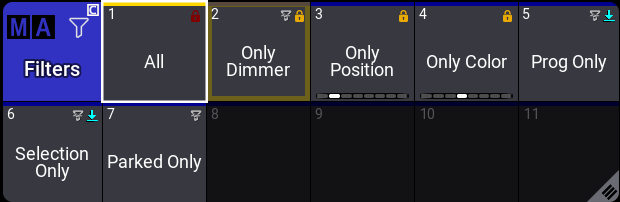
The selected filter usually has a yellow frame around it. A filter can also be called using the Call keyword. A called filter will have a yellow pulsating frame.
When the called filter is different than the selected filter or the At Filter is modified, then the selected filter is marked with a yellow line above the filter. See the example image above. Filter 2 is called, and Filter 1 is selected.
The called filter will be used for the next action (Store, Update, At, and Clone) only.
The pool action setting determines whether an object is selected or called upon tapping it. For more information, see the Preset Pools topic.
A new show will have some default filters from the factory. The first one is called "All". It contains all attributes and layers. If the attribute structure changes, then this filter is automatically updated. The filter is locked and cannot be edited.
If a different filter than number 1 is the selected or called filter, then the At key flashes to indicate that there is an active filter.
For more information about how to create a filter, see the Create a Filter section.
Feature Group Indicator Bar
This bar is visible at the bottom of the world or filter pool object when a world or filter does not have all feature groups stored.
Learn more about the bar in the Preset topic.
Subtopics