grandMA3 User Manual Publication
Load a Show File
|
grandMA3 User Manual » Show File Handling » Load a Show File
|
Version 2.3
|
Show files are separated into Shows, Backup Shows, Demo Shows, and Template Shows. For more information, see Backup, Demo, and Template Show Files.
For more information about Show History and Show Description, see Organize Show Files.
Use the search field, to filter for specific show files.
To load a show file:
- Open the Backup menu and tap Load.
- Tap the search field and start typing. The show file list is filtered
- Select a show file and tap Load.
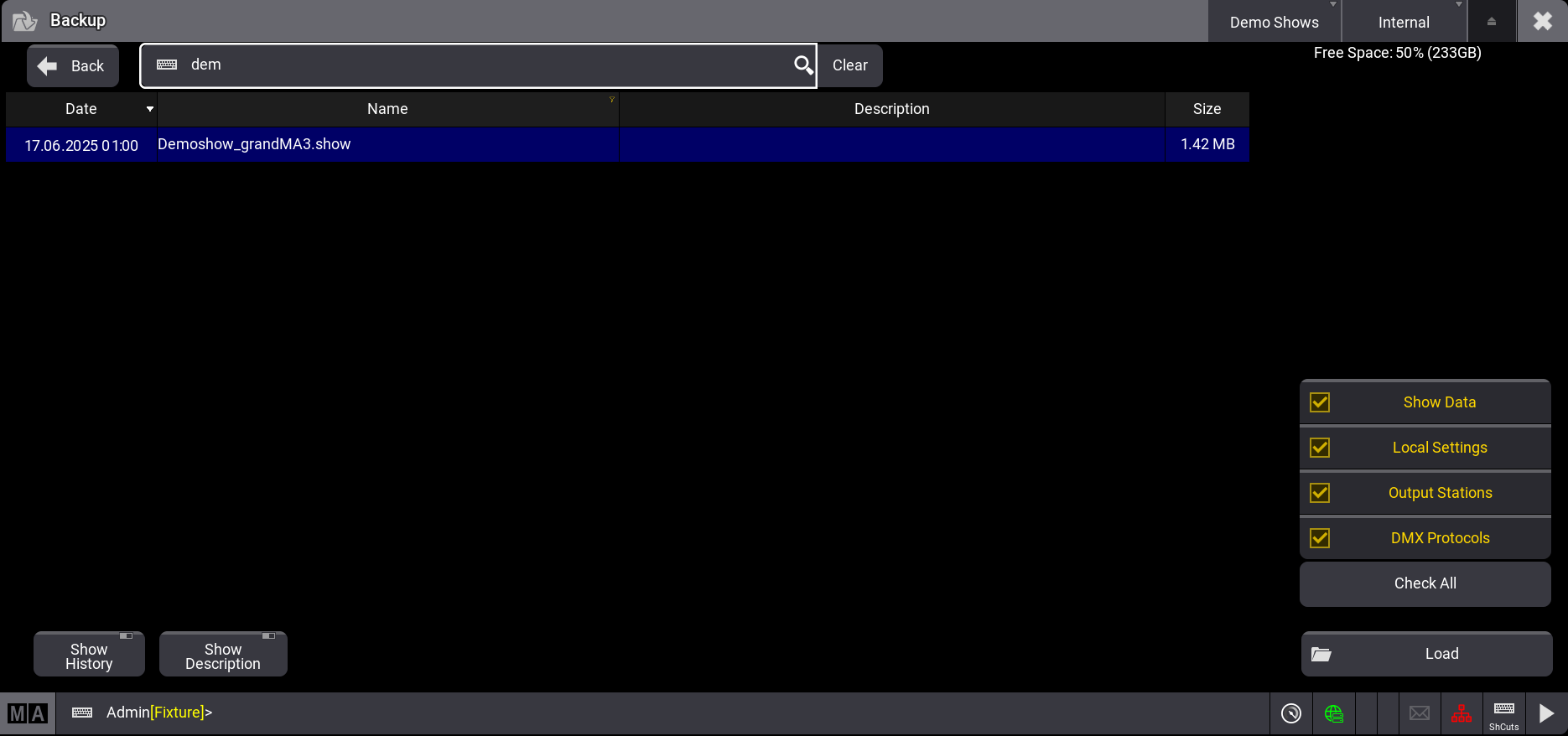
To load a show via the command line, use the LoadShow keyword.
Load Show Segments
The following checkbox buttons define which segments of a show file are loaded:
- Show Data: Loads the show-relevant data from the show file. This includes the patch, pool objects, user, and user profiles. Show Data is enabled by default.
- Local Settings: Loads the local settings. For example, this includes web remote settings and onPC settings.
- Output Stations: Includes the setup of all DMX ports, the SMPTE settings, and the MIDI settings.
- DMX Protocols: Loads the configuration of all available DMX protocols (Art-Net and sACN).
- Check All is a fast selection for all checkboxes.
- Load: The show file will be loaded. If no checkbox button is enabled, Load is disabled.

|
Important: |
| Show files that were saved with grandMA3 v1.8.8.2 or prior do not contain Local Settings, Output Configuration, and DMX Protocols saved inside. The show file needs to be saved first with grandMA3 v1.9 or higher. |
Example
Watch the video to see how to open the demo show file in grandMA3.
To load the demo show file in grandMA3:
- Press Menu. The menu opens.
- Tap Backup. The backup menu opens.
- Tap Load.
- Tap and Hold Shows, a dropdown menu opens.
- Select Demo Shows.
- Tap Demoshow_grandMA3.show.
- Tap Load. The demo show is loaded.