Organize Show Files
|
grandMA3 User Manual » Show File Handling » Organize Show Files
|
Version 2.3
|
Show File History
To display the show file history:
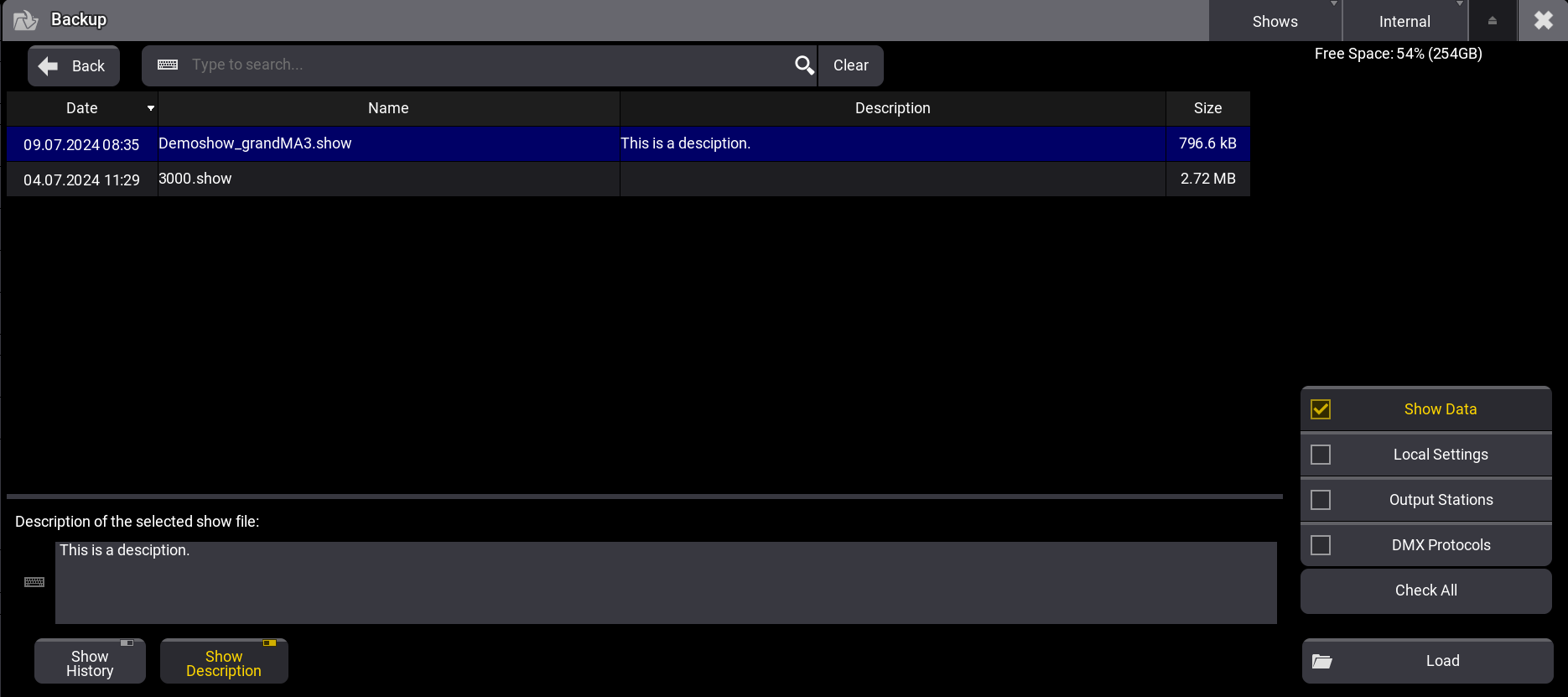
- Tap Load in the backup menu. Enable Show History in the bottom left corner of the menu.
- Select a show file. The history of the selected show file is displayed at the bottom of the backup menu.
When loading the show file, the history gives information regarding:
- Date: This shows the date and time when the show file was saved.
- Version: This shows the software version in which the show file was saved.
- Type: This shows the software type, for example, Release.
- Name: This shows the name of the show file.
- Description: This shows the description of the show file.
- TZ: This shows the time zone.
- UTC: This shows the date and time in UTC time.
A new entry within the history will be entered when the show file is saved again and one of these criteria has changed:
- Version
- Type
- Name
- Time zone
- Description
The newest entry is at the top of the history list.

Add a Description
To add a description to the current show file, use the description area at the top of the backup menu. To add another line, press Please.
Modifying or entering a description will only be applied to the show file when saving it afterward.

|
Hint: |
| When you create a new show file with kept show segments, the defined show segments are displayed in the Description area. For more information, see New Show File. |
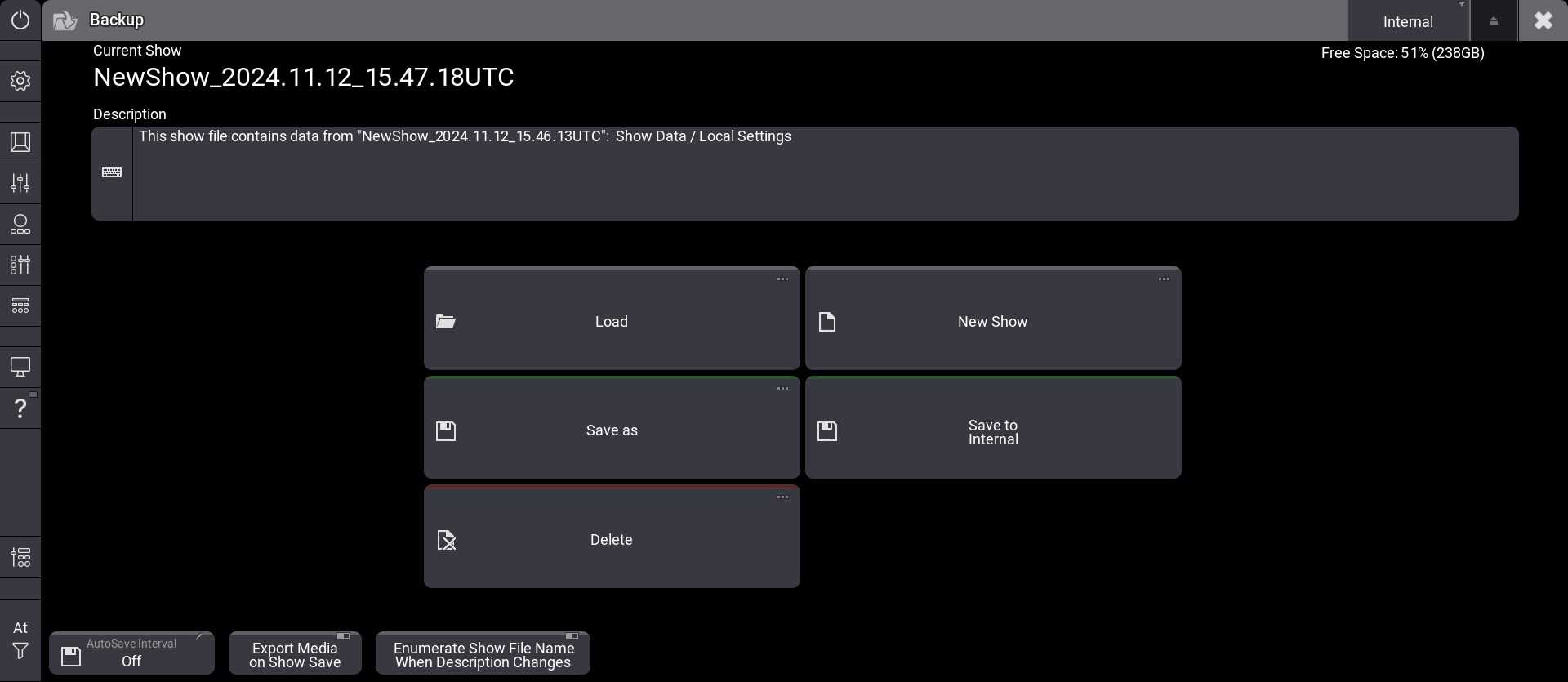
Display the Description
To see the description of a show file:
- Press Menu and then tap Backup. The backup menu opens.
- Tap Load. The first line of the description is already shown in the Description column.
- Enable Show Description and select a show file. The whole description of the selected show file is shown.
The description can also be edited via Save As and displayed via Delete in the backup menu.
Add Automatic Numbering
The setting Enumerate Show File Name When Description Changes in the backup menu provides an automatic increase of a 3-digit number. The number will be added to the end of the show file name if the description is changed when saving the show.
- To separate the show file name from the number, add a hyphen (-), an underscore (_), or any other character to separate the name from the numbers at the end of the show file name.
- Enumerating a show file can also be called with the /Enumerate option. For more information see /Enumerate option keyword.
|
|
Hint: |
| If the original show file name is too long to add the number, the command line will return an error. In this case, the former show file name will be used again. |
Example
To add a number consisting of up to three digits to the end of the show file name, follow these steps:
- Press Menu and tap Backup. The backup menu opens.
- Enable Enumerate Show File Name When Description Changes.
- Add or edit the text in the description area.
- Press 2x Menu to quickly save the show file or tap Save To in the backup menu. A three digit number has been added to the show file name.
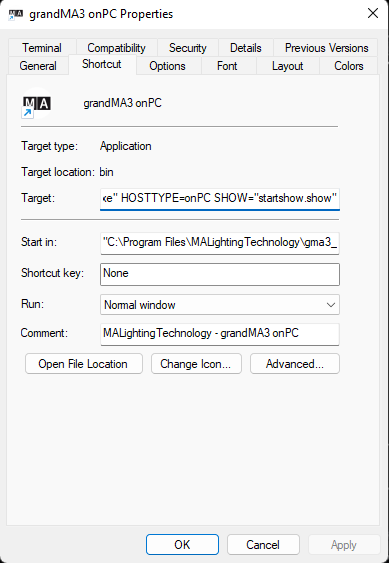
A show file or a plugin can be defined to be loaded upon starting the grandMA3 onPC application.
To do so, add the SHOW or RUNPLUGIN parameter to the shortcut that launches the onPC application:
- "C:\Program Files\MALightingTechnology\gma3_x.x.x\bin\app_system.exe" HOSTTYPE=onPC SHOW="startshow.show"
-
"C:\Program Files\MALightingTechnology\gma3_x.x.x\bin\app_system.exe" HOSTTYPE=onPC
RUNPLUGIN=\"startplugin.xml\"-y
- x represents the grandMA3 version number.
- y represents the number of the Lua component inside the plugin, that shall be started, e.g., 1.
- It is not recommended to specify a path for the plugin although the plugin may be put into a subfolder.
In addition, the optional parameters NOLOAD and CLEANSTART are also available when starting onPC.
- NOLOAD will not load the last show file but start with an empty show. Other device related configurations are kept.
- CLEANSTART will reset device related configuration back to default and come up with an empty show file.

|
Known Limitation: |
| Do not use spaces in a show file name when loading a show during startup. |
Export Media on Show Save
This is an easy way to transfer all the media files used in a show file to a USB drive, for example, when moving the show to a different station. This option ensures that all media files are transferred, especially those with the "Installed" option activated. If you only transfer the show file, the installed media files will not be included.
To export media on show save, save the media files to the gma3_library folder by activating Export Media on Show Save.
grandMA2 to grandMA3 Show File Converter
To learn more about how to convert show files from grandMA2 to grandMA3, see grandMA2 to grandMA3 Show File Converter.