Navigate in the Help
|
grandMA3 User Manual » About the Help » Navigate in the Help
|
Version 2.4 |
Multiple elements in the help window help you navigate the manual.
Buttons in the Title Bar
To increase or decrease the size of the content displayed within the help window:
-
Tap
 (plus) or
  (minus)
- Tap and hold Zoom Factor and swipe left or right
- Tap Zoom Factor and choose a percentage in the drop-down list
Tap  (left arrow) to
reverse through the history of previously viewed help topics.
(left arrow) to
reverse through the history of previously viewed help topics.
Tap  (right arrow) to
advance through the history of previously viewed help topics.
(right arrow) to
advance through the history of previously viewed help topics.
Scrolling in the Help
- Two-finger tap and swipe to scroll through a help topic.
- Use the screen encoder to scroll through a help topic. For more information on using the screen encoder see User Settings.
Topics Tab
The topics tab in the help window displays the available topics in a tree structure. Single topics are
indicated by  next to them. Multiple topics of the same category are sorted within a folder (
 ) and are called
subtopics.
) and are called
subtopics.
Tap > to the left of any topic to show or hide the related subtopics. Tap the name of any topic to display its content in the main area of the window. Subtopics are also displayed in a bullet list at the end of the topic.
If the help window is too small to display both the main area and the topics and search tabs, a burger menu
( ) appears in the
upper left corner. It contains the Topics and Search tabs.
) appears in the
upper left corner. It contains the Topics and Search tabs.
In addition to the grandMA3 User Manual, the root topics in the tree structure contain the Quick Manuals for the different products within the grandMA3 family. These main sections include:
- grandMA3 User Manual
- grandMA3 Quick Start Guide
- grandMA3 Quick Manual consoles
- grandMA3 Quick Manual processing
- grandMA3 Quick Manual Nodes
- grandMA3 Quick Manual Nodes DIN-Rail
- grandMA3 Quick Manual onPC command wing XT
- grandMA3 Quick Manual onPC command wing
- grandMA3 Quick Manual onPC fader wing
- grandMA3 Quick Manual viz-key
-
grandMA3 Quick Manual onPC Rack-Unit
- grandMA3 Quick Manual I/O Nodes
- Release Notes

|
Important: |
|
The complete grandMA3 documentation consists of the grandMA3 User Manual and the respective grandMA3 Quick
Manual with technical specifications, safety instructions, and declaration of conformity.
|
Search Tab
To find topics containing a specific search term, use the search function:
- Open the search tab in the help window.
- Tap the search field.
-
Type a search term in the search field.
To search for a specific product or search term, the brand name or the series name (for example grandMA3) is not necessary. - Press Please. The search results are displayed.
To open a virtual keyboard in the software, tap the keyboard icon on the left of the search field.
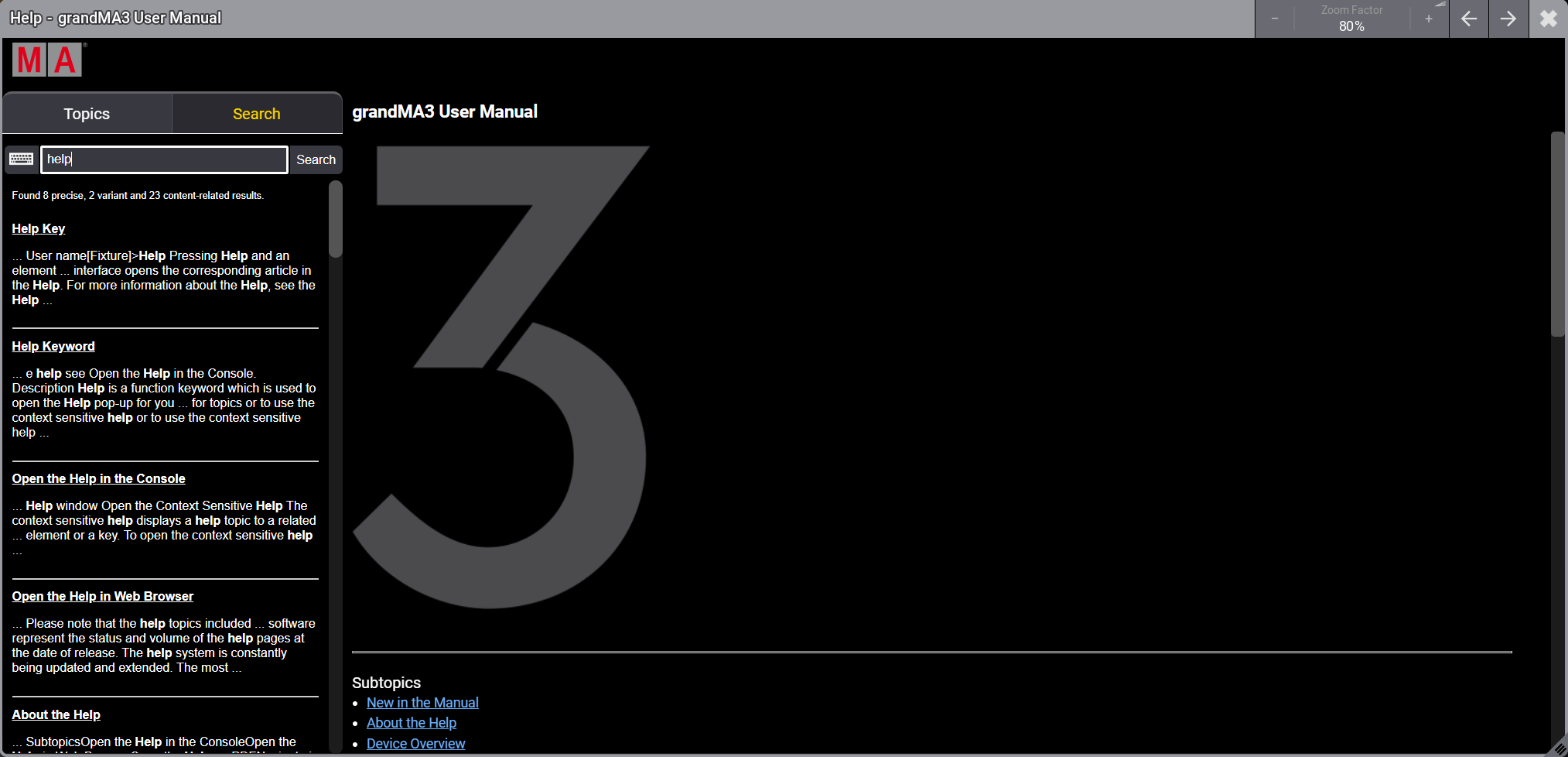
Listed Subtopics
A list of subtopics that are related to the current topic is displayed at the bottom of the help page.
To open a related topic, tap it in the list.
Breadcrumbs
Breadcrumbs are navigation elements that provide links to the related sections of the current topic and subtopics. Breadcrumbs are located at the top of each topic.
To go back to a more general topic in the hierarchy, tap the corresponding link in the breadcrumbs.

Display of Content
The user manual offers graphical assistance to add context to the content.
- Keys on the control surface of the hardware are displayed in a white font on a dark gray background, for example Please.
- Buttons on the screen are displayed in a white font on a light gray background, for example Dimmer.
- Step-by-step instructions are displayed in a numeric list:
- This is the first step.
- This is the second step.
- One-step instructions are displayed as bullet points.
- Navigation to specific menus is displayed in bold, for example Menu – Settings – User Configuration.
Syntax descriptions are displayed in monospace font, underscored, and bolded, for example Assign [Object] (At) [Object].
- Links are displayed underscored and blue.
- To display additional visualizations or information, tap
-
Pop-ups are displayed underscored, bolded, and green.
Pop-ups display short descriptions for the selected words.
- Command line input is displayed using command line formatting and icons, for example:

User name[Fixture]>1 Thru 10 At Full - System response in the command line history is displayed on black background and in the colors used in the command line history, for example:
OK : Command Line Feedback OK : Second Line Feedback

|
The warning icon indicates possible injury and hazards. |

|
Restriction: |
|
The restriction icon indicates known limitations of functions.
|
|
|
Important: |
|
The important icon indicates essential information for using the software.
|

|
Hint: |
|
The hint icon indicates useful tips for using the software.
|
Command Bot
Open elements, such as windows or settings, directly from the help window using the command bot.
You can use the bot wherever
 Paste to Command Line is displayed in
the manual.
Paste to Command Line is displayed in
the manual.
To use the command bot:
-
Tap Paste to Command Line.
The command to execute the action that is described in the manual is copied and inserted into the command line. -
Press Please.
The command is executed.
|
|
Important: |
|
If you change settings using the command bot, the changes are applied to all windows of the same type that are
open at that time.
|
|
|
Hint: |
|
To open a window using the command bot, there must be free space on your screen.
|