UPS Battery
|
grandMA3 User Manual » Device Overview » UPS Battery
|
Version 2.4 |
The grandMA3 full-size, grandMA3 light, and their CRV versions all have rechargeable lithium-ion batteries for an uninterrupted power supply (UPS).
The purpose of the battery is to enable saving the show file and shutting down the console in case of a power loss.

|
Restriction: |
|
Do not use the battery to bypass the console for a longer period! Do not move the console around while in UPS mode!
|
In case of a power loss:
- A Power Loss pop-up appears on every screen and command screen, depending on the console type.
- The power status icon in the command line turns red.
Power Status
There is an indicator of the power status on both the command line and in the Message Center.
Status indications include the following states:
 Power is connected, and the battery is full.
 Power is connected, and the battery is not full (and recharging).
 (Pulsating) Power is disconnected and the battery is discharging.
 Indicates a power disconnection for a station in a session. For example, when a grandMA3 onPC station is connected to a console and the console loses power, the icon on the grandMA3 onPC station turns yellow.
 The battery icon is crossed when the station has no battery, for example, grandMA3 onPC.

|
Important: |
| When a device runs in battery mode, the system differentiates between the battery status of your own device and those of other devices in a session. Depending on the configuration, the label beneath the status icon will show either "My", "My+Ext", or "Ext" to indicate whether which device is affected. |
Battery Status Pop-Up
Tap the power status indicator to open the Battery status pop-up.
The pop-up could look like this:
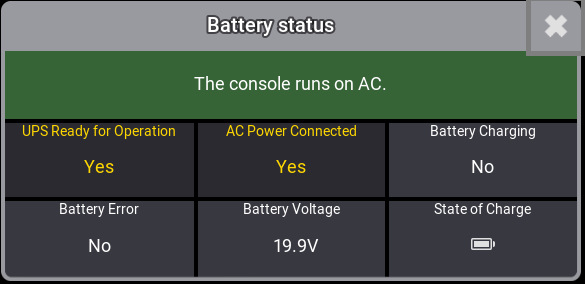
The Battery status pop-up displays multiple relevant metrics for the battery and A/C power.
Power Loss Pop-up
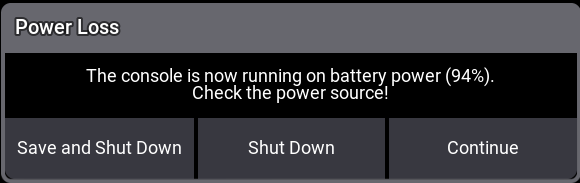
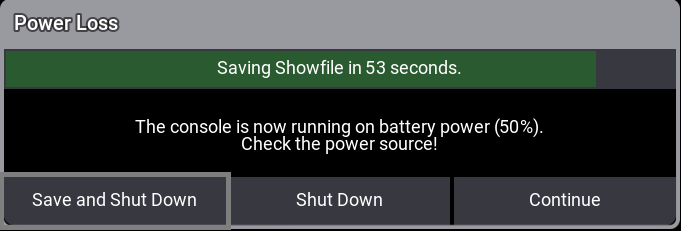
While this pop-up is open, the percentage in parentheses (X%) decreases continuously. The percentage in parentheses is linked to the battery's power status.
In the pop-up window, three commands are available to tap:
Save and Shut Down: Saves the current show file and shuts down the console properly.
Shut Down: Properly shuts down the console without saving the show file.
Continue: The console continues running on battery power. Additional Power Loss pop-ups appear during battery discharge. When continued, the console will automatically shut down, reaching (0%). The console reboots automatically when the power supply is back.

|
Hint: |
|
To reboot the console after a proper shutdown, press Power when the power supply is back.
|
Battery Status Information
To avoid deep discharge, recharge the battery to 3/4 capacity ( ) once a year.
- To check the battery status, power on the console, boot it up, and monitor the UPS battery status icon in the command line. For more information, see Message Center.
Battery Transportation
-
Follow the transportation regulations for each country. If it is necessary to discharge the battery to 1/4 capacity (
 ) for air cargo, run the console in UPS mode until the battery voltage reaches 17 V. For more transportation information, see Transport in the grandMA3 Quick Manual.
Software Check
The battery function of the grandMA3 console should be checked before every major show programming or at least every two months.
To check the battery:
- Power up the grandMA3 console and wait until the battery is fully charged.
- Load a new show file.
- To disconnect the console from the power, flick the power switch on the back of the console to off (0). The console now runs on battery.
- The Power Loss pop-up appears. To proceed with the battery check, tap Continue.
- Let the console run on battery for four minutes. After four minutes, the battery status should not be lower than approximately 1/2 capacity.
-
To connect the console back to power, flick the power switch to on (I). Let the battery charge fully (
 ) .
) .
|
|
Hint: |
|
It may take several minutes for the battery to indicate a charge after the power switch is turned on.
|
|
|
Important: |
|
The discharge speed depends on several conditions. For example, the type of console, show size, or 3D rendering.
|
|
|
Important: |
| Battery degredation can vary depending on time and charge-discharge cycles. |