grandMA3 User Manual Publication
Fixture Types Editor
|
grandMA3 User Manual » Fixture Types » Fixture Types Editor
|
Version 2.3
|
With the fixture types editor, you can build new fixture types and modify existing ones.
To access the editor:
- Press Menu and tap Patch. The patch menu opens.
- Tap Fixture Types on the left side of the window:
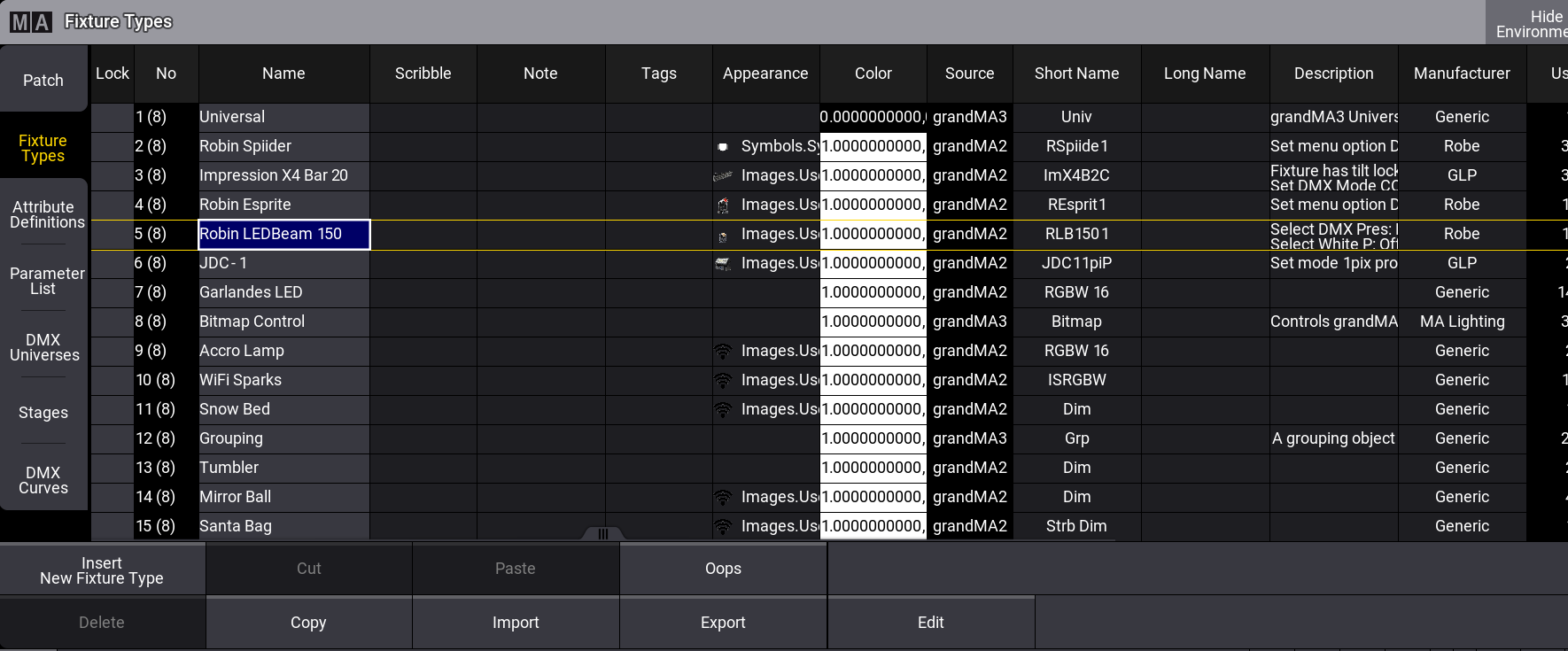
Fixture type menu
To edit an existing fixture type, follow the steps below:
- Import some fixtures. See Import Fixture Types.
- Select the fixture type you want to edit and tap Edit at the bottom of the window. The Fixture type editor opens:
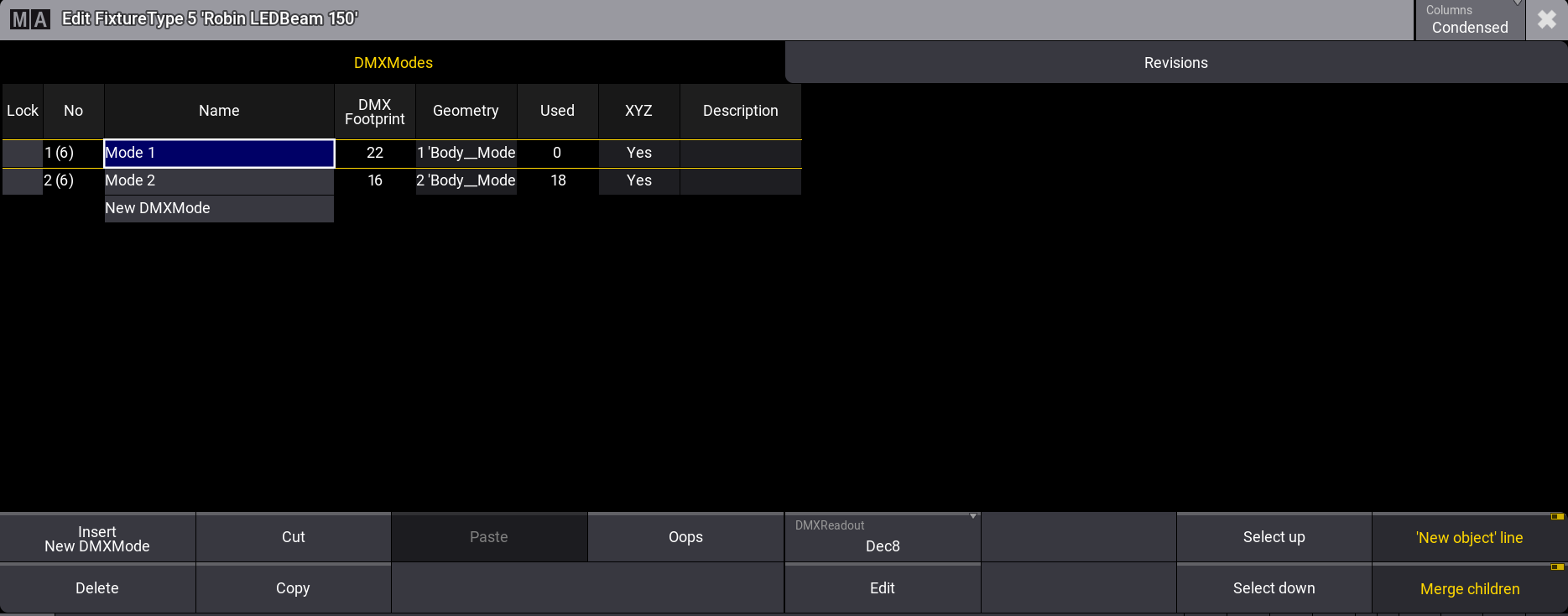
Fixture type editor
- Tap Columns in the title bar to filter the number of columns to be displayed. There are three modes:
- Condensed: For a better overview, this mode displays only essential columns.
- Full: Displays all columns and tabs used by the grandMA3.
- Extended: Displays all columns and tabs of all settings of the fixture type.
- Tap DMXModes at the top of the window.
- Select the fixture type mode you want to edit and tap Edit at the bottom of the window. The editor displays the DMXChanels for the selected fixture type.
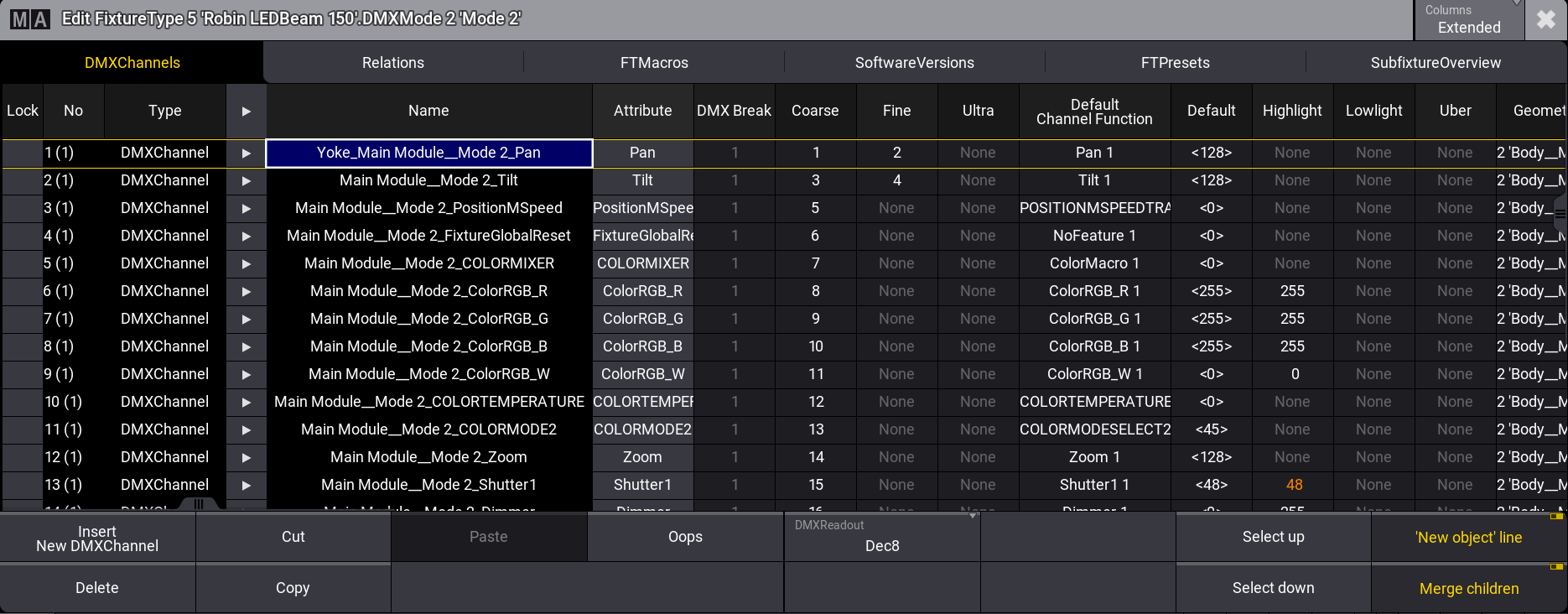
The DMX footprint for the selected fixture type is displayed in brackets in the DMXChannels tab.
When you are done with the modifications, close the window. Changes will be saved when you exit the patch menu.
The following topics guide you in building a new fixture type.