Advanced Use of Command Line Syntax
|
grandMA3 User Manual » Command Syntax and Keywords » Advanced Use of Command Line Syntax
|
Version 2.4 |
To control the input in the command line use the List keyword any time.
For more information about the command line and the Command Line History, read the command line topic.
To list all available destinations, type:

|
User name[Fixture]> List |
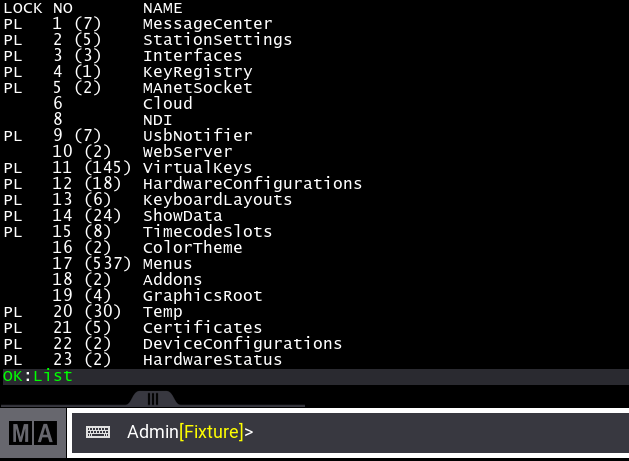
When the List command returns multiple objects of different types, the settings for those objects are not displayed. To view the settings of a specific object, include the name or number of the object with the List keyword. For more information, see List keyword topic.
To enter a directory, type ChangeDestination followed by its name or number:|
|
User name[Fixture]> ChangeDestination "ShowData" |
 Paste to Command Line
To list the contents of the current destination, type:
|
|
Admin@ShowData> List |
|
|
Admin@ShowData> ChangeDestination .. |
Paste to Command LineTo return to the destination root displayed in the image above, type:
|
|
Admin@ShowData>ChangeDestination Root |
Paste to Command LineExamples
Change the Value of a Sequence Property
The included data is categorized in directories. In order to change a directory, use the command "Change Destination".
- To change the destination to Sequence, type:
|
|
User name[Fixture]> ChangeDestination Sequence |

- To display the options in the command line feedback, type:
|
|
User name[Fixture]> List |

- To change Autostomp from Off to Prio, type:
|
|
User name[Fixture]> Set Sequence 1 Property "Autostomp" "Prio" |

- To double check the options in the command line feedback, type:
|
|
User name[Fixture]> List |
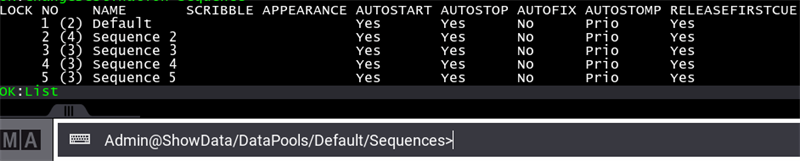
Autostomp is now set to Prio.
Use Option Keywords for Commands
Using the command line enables to combine a keyword with different options.
To overwrite cue 5 with the current programmer content and rename the cue to "Great Look" and storing the data as cue only, type:
|
|
User name[Fixture]> Store Cue 5 "Great Look" /CueOnly /Overwrite |

Use Parentheses () to open the Text Input Field
Typing a command with parentheses () in the command line opens a text input field where you can define the content between the parentheses.
The content between the parentheses will appear in the title bar of the text input field after "Please enter". The string or number entered into the text input field will then be processed by the command. Using quotes ("x"), handles the input as a string. Without quotes (x), and the input is a number, it is handled as a number. If characters are entered and there is no keyword with the same name, the input will be handled as a string.
For example, typing Fixture (the FID of the fixture) in the command line, opens the text input field to define which fixture should be selected:
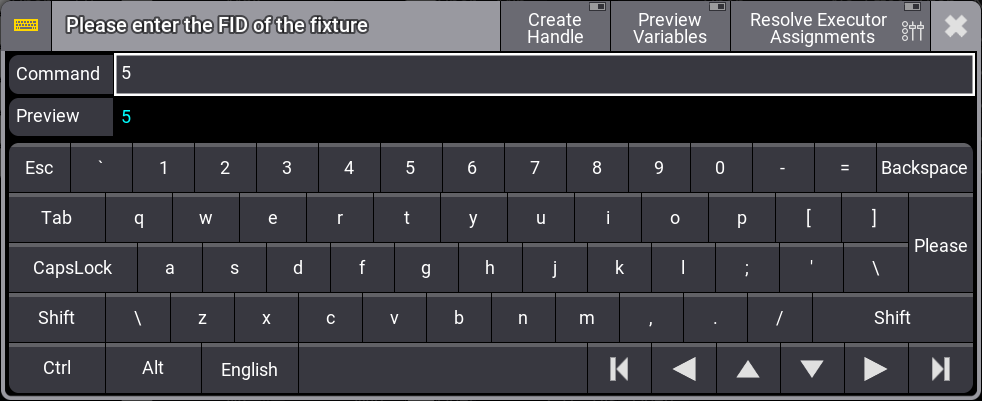
With 5 entered, Fixture 5 is selected.
This allows you to write commands with adjustable and varying content. The content outside of the parentheses stays the same, but the content between the parentheses changes, depending on what you type in the text input field. This is especially useful, for creating macros.