Connect grandMA3 extension
|
grandMA3 User Manual » First Steps » Connect grandMA3 extension
|
Version 2.4 |
The grandMA3 extension allows you to increase the number of physical executor handles for a grandMA3 full-size (CRV), grandMA3 light (CRV), or grandMA3 replay unit.
For more information about this device, please refer to grandMA3 extension in the Device Overview section.
The number of grandMA3 extensions connected to a grandMA3 console depends on the console type:
| Device | Number of grandMA3 extensions |
|---|---|
| grandMA3 full-size / full-size CRV | 1 |
| grandMA3 light / light CRV | 2 |
| grandMA3 replay unit | 3 |
Requirements:
- The grandMA3 extension needs to be in the same IP subnet as the console. For more information about the network, see Networking.
- The grandMA3 extension software version must match the console software version.
To display the software version on an extension:
- Boot the extension. The software version is displayed in the lower-left corner.
To display the extension software version on a console:
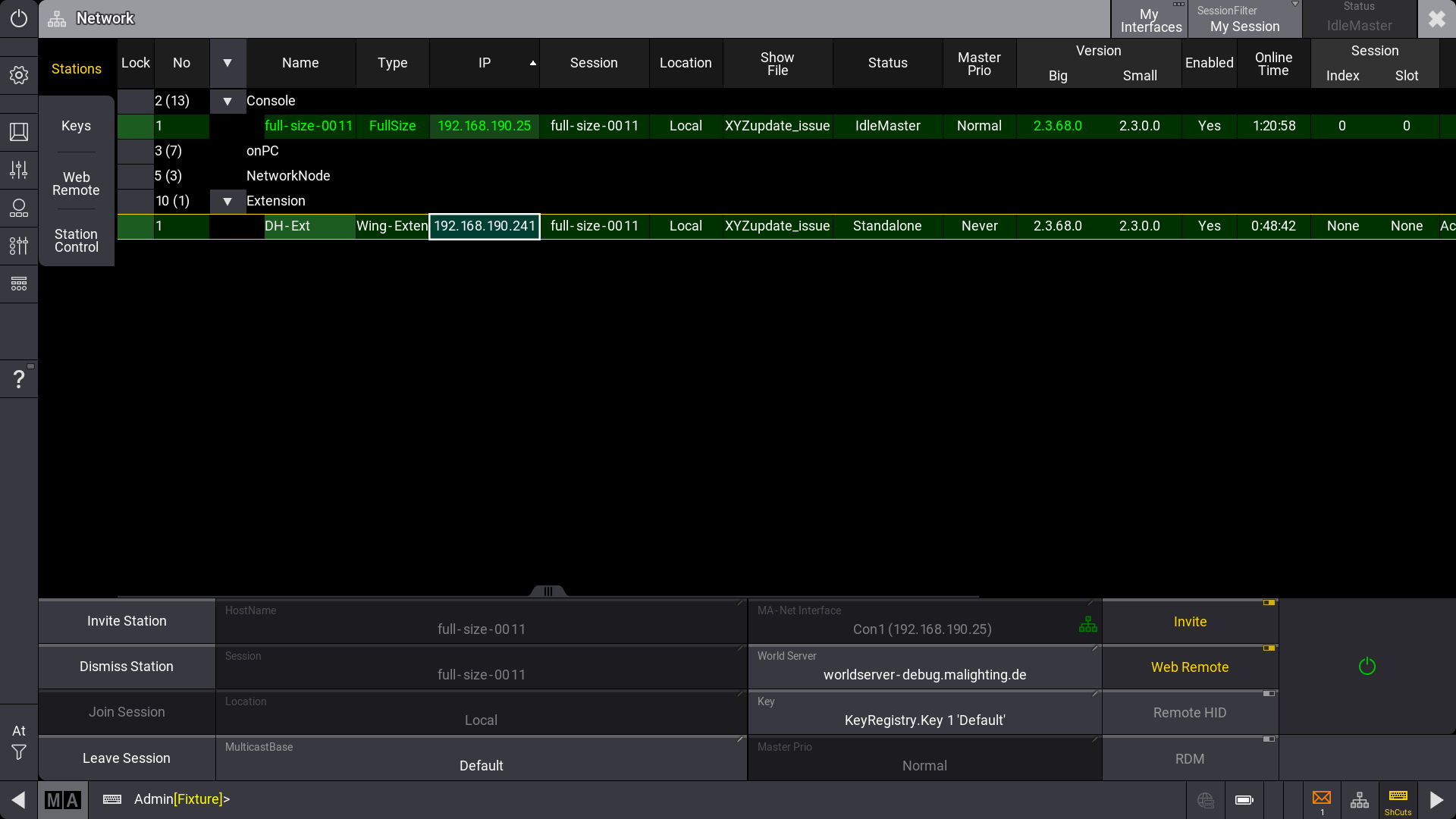
- Tap Menu and Network. The Network window opens.
- Tap on the arrow
 next to Extension. The flip-menu opens.
 - The software version is shown under Version Big in the grandMA3 extension column.

|
Hint: |
| An extension only connects to a specific console. It is not a standalone device. |

|
Important: |
| To establish a connection with an extension, the IP address of the extension must be in the same IP range as the console. |
To change the extension's IP address remotely from a console or onPC station:
- Tap Menu and Network. The network window opens.
- Select the grandMA3 extension entry, then click IP address / tap and hold it.
- Use the pop-up window to change the IP settings.
To change the IP address on the extension:
- Turn on the extension.
- Tap the gear icon
 to open the Network Interface. A network interface pop-up opens.
 - Tap on the IP address. The IP editor opens.


To establish a connection between a console and an extension:
- Select the extension in the network menu on the console,
- Tap Invite Station. The connection will be initiated.
|
|
Important: |
| It is not possible to invite the extension to a second console when it is already connected to another. |
To disconnect the extension from a console, cancel the connection on the console the extension is connected to at the moment:
- Select the extension in the network menu on the console.
- Tap Dismiss Station. The connection will be disconnected.
It can now be connected to a different console.
The Remote IP column in the network menu shows which console the extensions are currently connected to.
When an extension is successfully connected to a console, it displays the first wing of executors by default.
To display a different executor wing:
- Tap Menu - Settings - Extension Configuration. In the Extension Configuration menu, you can only change the WingID for the connected extension.

There are 2 column modes: Condensed (default) and Full.
- The condensed mode only displays information about the connection state, IP, and WingID.
- The full mode also displays the columns "Connected", "Count", and "Device Type".
- Connection State: Can be Yes or No. This cell cannot be edited by the user and indicates whether the extension is connected to the console.
- IP: Displays the extension's IP address. This cell also cannot be edited by the user.
- Wing ID: Displays the ID of the executor wing that the extension controls. This property can be changed by the user.
- Connected Count: The higher the number, the more often the extension tried to connect to the console. In a faulty network environment, the number can increase quickly due to reconnection. This value cannot be edited by the user.
- Device Type: This column displays the extension's device type. Typically, it is the grandMA3 Fader Module Encoder (MFE). This cell also cannot be edited.
The extension desk light is controlled together with the console's desk lights.
The custom section of an extension can mirror the console's Custom Area or be independent of it, depending on user settings.
To learn more about user settings, read the User settings topic.