grandMA3 User Manual Publication
Meshes
|
grandMA3 User Manual » Meshes
|
Version 2.4 |
Meshes are stored in the Mesh Pool. Meshes 1 thru 9 are locked and can not be edited.

|
Important: |
| The total size of the media pools is limited to 300 MB. For more information on Meshes, see Build fixture types. |
Open a Mesh Pool window. For information, see the Add window topic.

In the Add Window pop-up, tap Pools, then in the Media column, tap Meshes.
Edit a mesh pool object using one of the following options:
- Press Edit and then tap the desired pool object.
- Open the swipey commands on the pool object and choose Edit.
The Edit UserMesh pop-up opens:
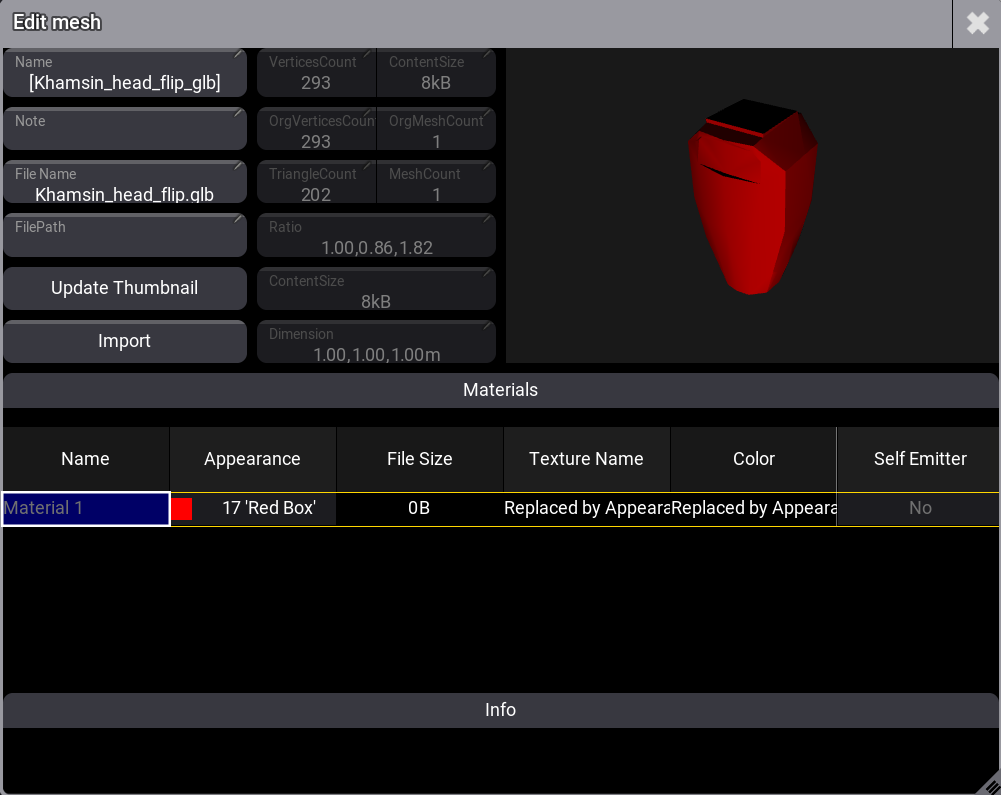
Change the mesh material's color in the appearance column or assign an appearance to the pool object. See Appearances.
Import Meshes
To import meshes:
- Repeat option 1 or 2 above.
- In the Edit UserMesh pop-up, tap Import. The Import mesh pop-up opens.
- Select the source from the title bar, for example, Internal.
- Select the mesh to import.
- Tap Import.
The new mesh pool object is imported.
Tap the video below to see the example.