Message Center
|
grandMA3 User Manual » System » Message and Status Center » Message Center
|
Version 2.4 |
The message center displays messages produced by the system.
The envelope icon ( ) on the right side of the command line changes color to indicate new messages in the message center.
The icon is displayed in the color of the new message with the highest priority.
A number underneath the envelope icon indicates the number of new messages, excluding information messages.
The categories for messages are:
- System
- Command Line
- Power
- MA-Net
- USB
- Chat
USB and chat messages are specific to the device. They are not displayed on other devices in the session.
Messages have different priorities.
- Information (green): Information about internal system processes that generally don't require user activity or input.
- Warning (yellow): Information that is important and should be taken care of.
- Error (brown): Information on invalid actions and malfunctions in the software.
- Alert (red): Information on critical events. Messages in the alert category generally require immediate action.
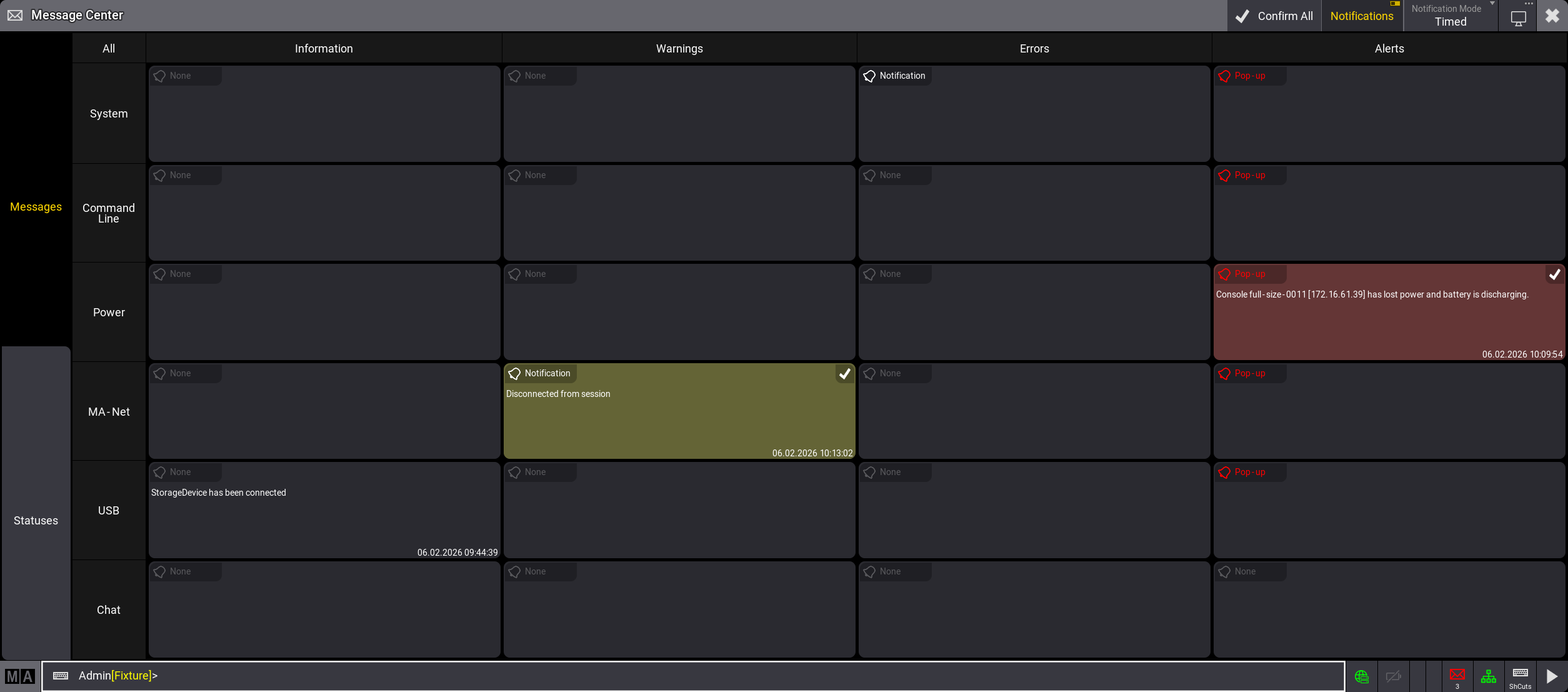
The timestamp of the latest message is displayed in the lower right corner of the cell. It is displayed in the format dd.mm.yyyy hh:mm:ss.
When a new message is received, the background of the cell flashes in the color of the priority.
Notifications for Messages
Messages in the message center can be displayed as notifications in the software.
To select whether you want notifications displayed, toggle Notifications in the title bar of the message center.
Notifications are enabled by default.
A bell icon ( ) and corresponding notification type is displayed in the upper left corner of each cell in the main view of the message center.
The color of the icon changes depending on the type of notification.
The three options are:
- None: No notification is displayed. (Gray icon)
- Notification: A notification is displayed in the upper right corner of all big screens. (White icon)
-
Pop-up: A pop-up is displayed in the middle of all screens. (Red icon)
- Tap OK to close the pop-up but still display the message as new in the message center.
- Tap Confirm Message to close the pop-up and mark the message as read in the message center.
To select the type of notification for a category, tap the bell icon to toggle through the options or swipe the icon to display a drop-down list with all three options.
The notification type for the Information category is always set to None and cannot be changed.
The background color of notifications matches the color of the priority. Additionally, an icon is displayed in the notification, indicating the priority.
- Warning:
 and yellow background
- Error:
 and brown background
- Alert:
 and red background
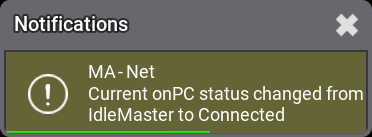
Select how long a notification is displayed using Notification Mode in the title bar.
The two options are:
- Timed: Notifications are displayed for 5 seconds.
- Permanent: Notifications are displayed until you close them.
List of Messages
All messages in the message center can be displayed in a list.
- To display a list of all messages in the message center, tap All in the upper left corner of the grid in the main view.
- To open the list of messages for a category or priority, tap the header of the category or priority.
- To display a list of messages for a category and priority, tap on the corresponding cell in the grid in the main view.
A window opens, displaying a list with information about Time, Sender, Category, Priority, and the message itself.
The Sender column displays the name and IP of the device that sent the message.
The width of the time, category, priority, and message column in the list of messages of a category can be adjusted. To do so, tap and drag the separating line in the title bar of the list.
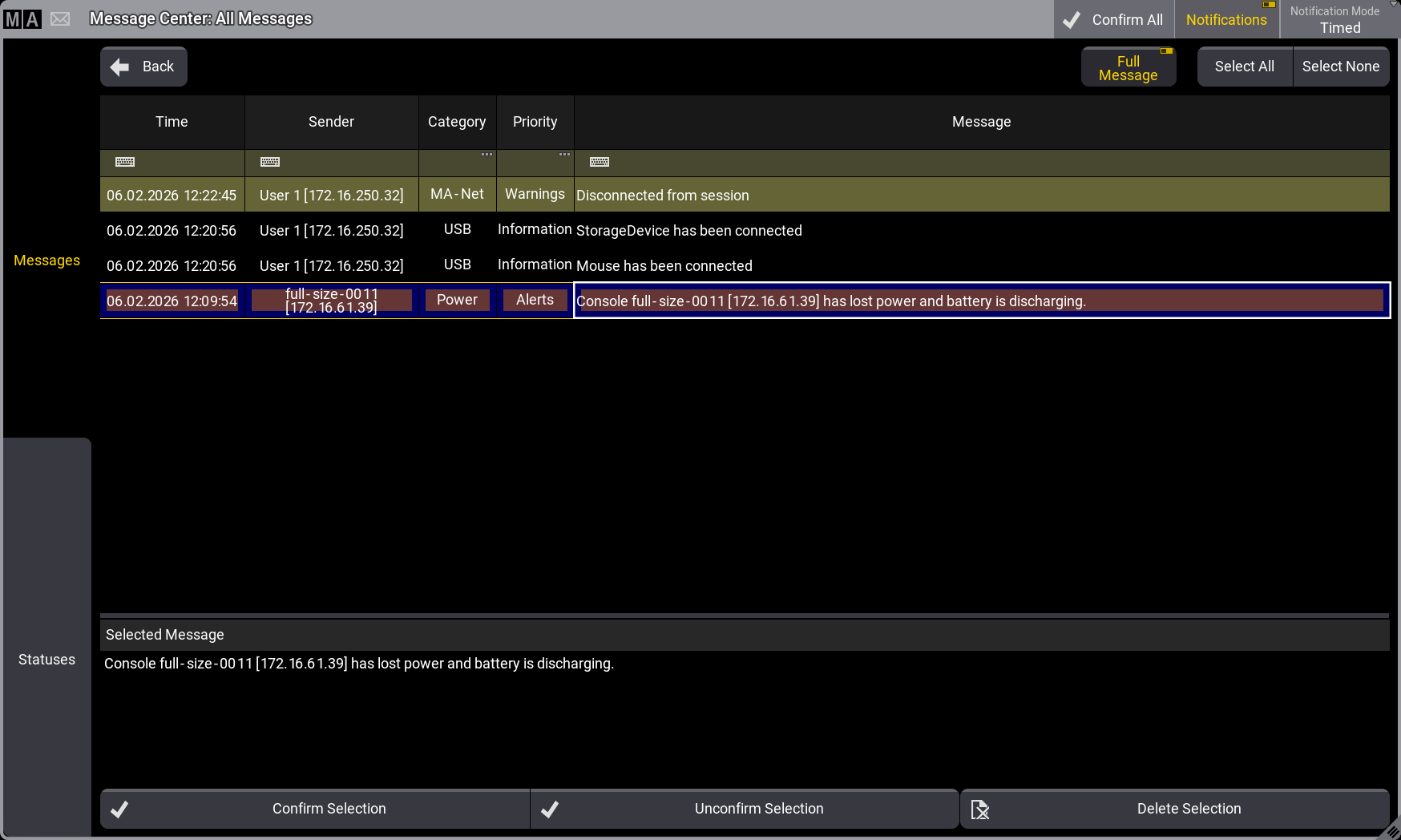
The list of messages can be modified using the yellow filter row in the grid. In the category and priority column, <No Filter> deactivates the filter, Undefined displays messages that are not part of any category or priority.
For more information on filtering, see Temporary Filtering.
There are three buttons in the upper right corner of the list of messages:
- Full Message
Display the selected message in full below the list of messages. - Select All
Select all messages in the list. - Select None
Deselect all selected messages in the list.
Confirm and Delete Messages
Confirm messages to mark them as read in the message center. Messages that are not confirmed are indicated with a colored background in the color of the priority. Once a message is confirmed, the colored background disappears.
Messages in Information are marked as confirmed by default.
-
To confirm all messages in the message center, tap
 Confirm All in the title bar of the message center.

Hint: Confirm All always applies to all messages in the message center, even if a filtered list of messages is displayed.
-
To confirm all messages of a category, tap
 in the upper left corner of the corresponding cell in the main view of the message center. The icon is only displayed if there are new messages in that category.
-
To confirm a selection of messages or single messages, tap on a cell in the message center to open the list of messages. Then select the messages you want to confirm and tap Confirm Selection at the bottom of the list.
- For information on how to confirm messages using the command line, see MessageCenter Keyword.
Unconfirm messages to mark them as unread and display their background color again. To do so, open the list of messages, select the messages you want to mark as unread, then tap Unconfirm Selection at the bottom of the list.
To delete messages from the message center, select the messages you want delete in the list of messages, then tap  Delete Selection at the bottom of the list. Deleted messages are no longer displayed in the list.
 |
Important: |
| It is not possible to oops the actions Confirm, Unconfirm, and Delete. |