Notes in Cues
|
grandMA3 User Manual » Notes » Notes in Cues
|
Version 2.4 |
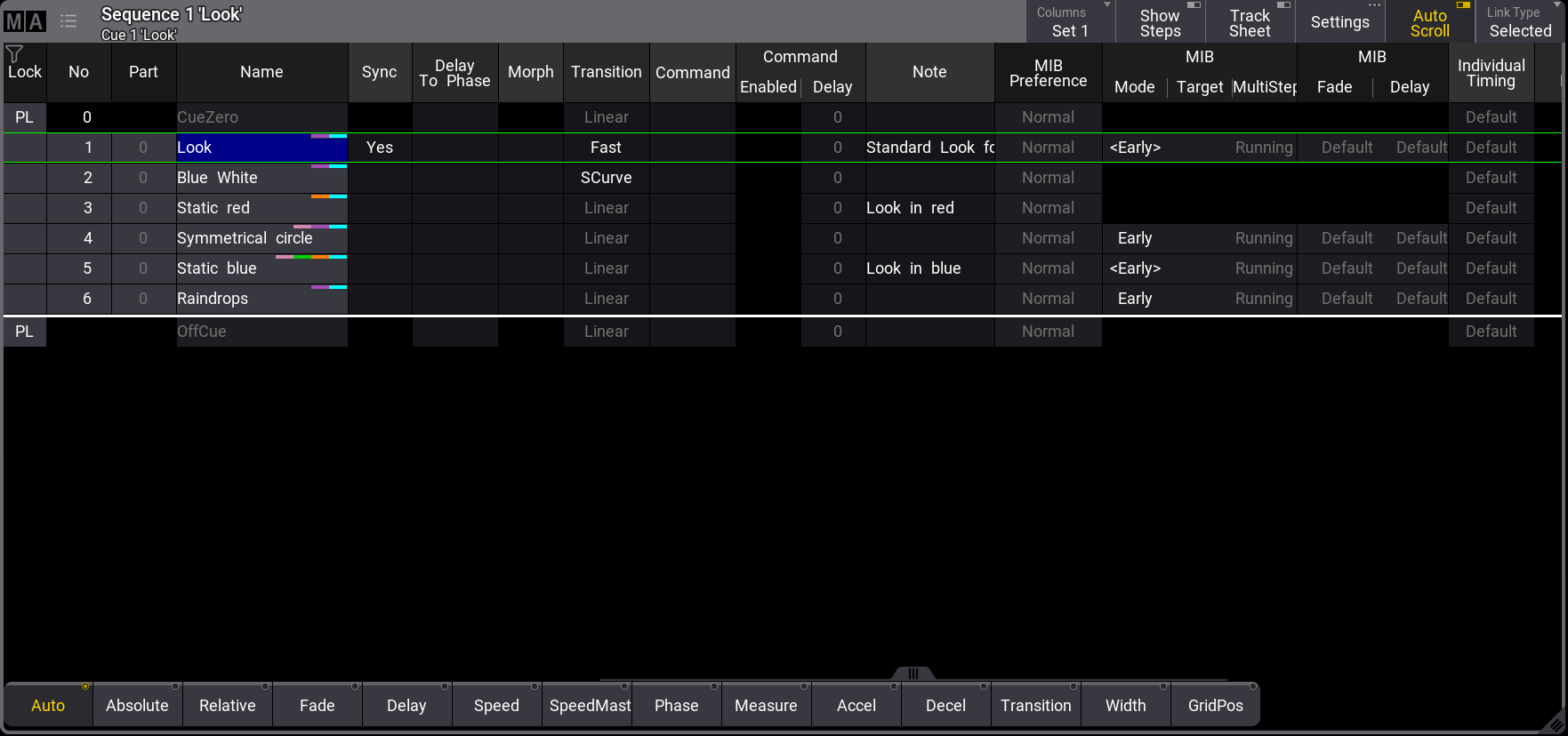
The following example shows how to add a note to a cue. Notes, for example, can inform the operator of primary on-stage procedures to trigger the next cue. For information about cues, refer to the Cues and Sequences topic. Notes can also be displayed and edited in the Info window, see Info Window.
- Requirement: The grandMA3 demo show is loaded.
To add a note to a cue:
- Open the Add window menu, tap Common, and then tap Sequence Sheet.
- Tap and hold Link Type on the sequence sheet toolbar. From the dropdown menu, tap Selected.
- Open the Sequence Pool window (See Add Window) and tap sequence 1 "Look". Sequence 1 is now selected, or type in the command line:
Or
User name[Fixture]>Select Sequence "Look"
User name[Fixture]>Select Sequence 1 - Press Edit, then tap in a note cell in a cue; the text input editor opens. After finishing typing the note, tap Save or Please on the on-screen keyboard, or press Please.
Multi-Line Editor
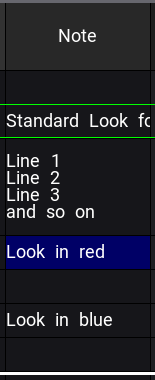
The text editor in notes is a multi-line editor. Multiple lines can be added by pressing Shift + Please when the text editor is open. For more information about the text editor, see Text Input Editor.
Changing the Line Height
To change the line height manually:
- Tap MA on the top left corner of the sequence sheet, and the Sequence Sheet Settings opens.
- Tap the Mask tab.
- Tap Line Height. The line height of the sequence sheet changes.

|
Hint: |
| When Line Height is set to Auto, the row adjusts its height based on the number of lines. For more information about the sequence sheet settings, see Sequence Sheet. |
Show Notes
Load the grandMA3 demo show for this example.
Another way of displaying notes in the Sequence Sheet or Content Sheet is via Show Notes tab. Show Notes can be enabled/disabled in the dedicated window settings. For more information about window settings, see Window Settings.
To enable Show Notes in the Sequence Sheet:
- Tap the MA logo of the sequence sheet, and the Sequence Sheet Settings open.
- Tap the Mask tab and then enable Show Notes. Close the window.
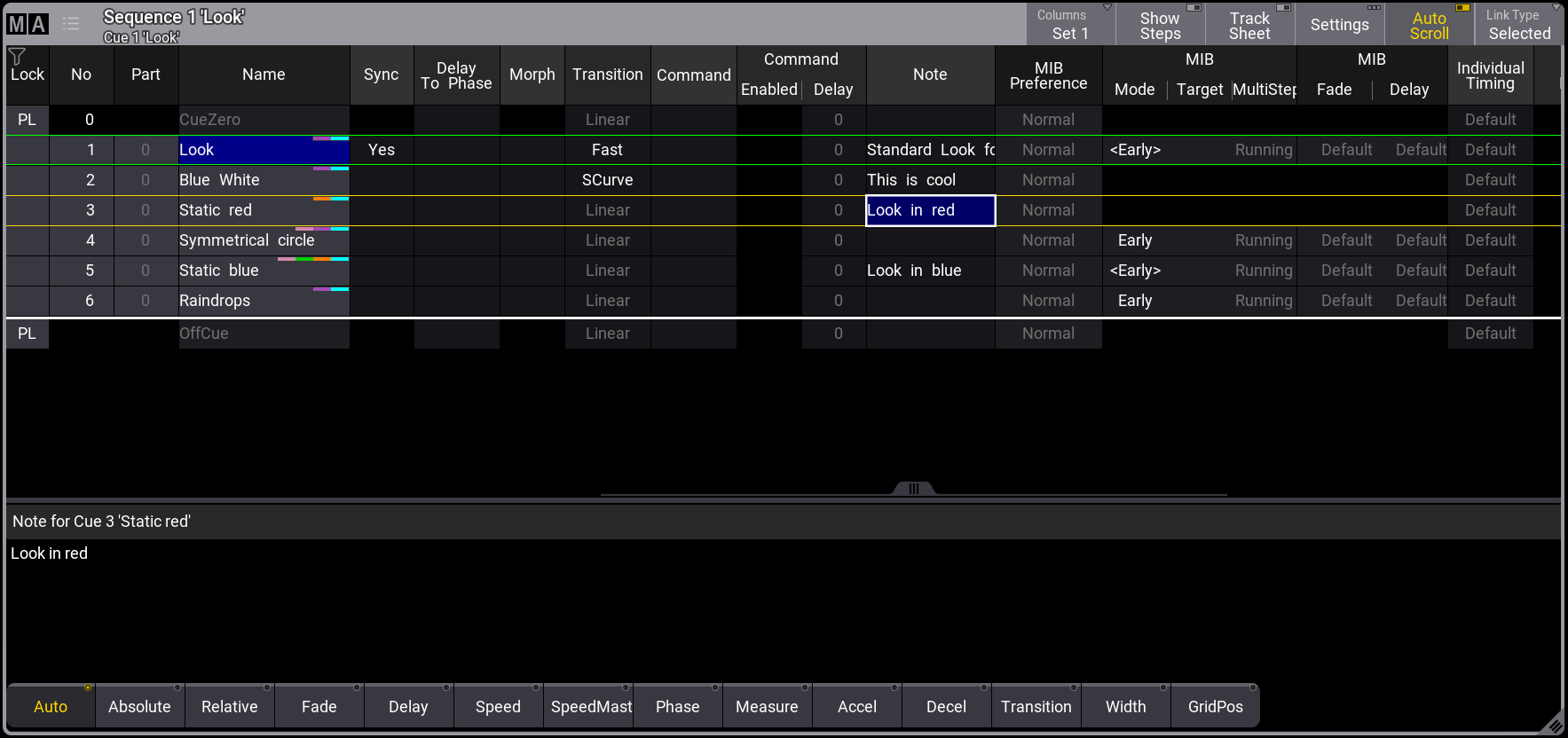
- A text field with the note of the currently selected Cue is added to the Sequence Sheet as shown below:
|
|
Hint: |
|
When Show Notes is enabled, Show Recipes is disabled.
|
Important features of Show Notes:
- The text field can be used, for example, to display notes for a currently active or selected cue.
- The text field allows live editing of notes.
- The text field shows information about the currently selected note. For example, "Note for Cue 1: Look" in the image above.