grandMA3 User Manual Publication
Optimize macOS®
|
grandMA3 User Manual » grandMA3 onPC » Optimize macOS®
|
Version 2.4 |
The grandMA3 onPC software is available for macOS™® and Windows™®.
Please refer to the system requirements topic for more information on computer specifications.
For more information about the grandMA3 onPC software and the terminal app, read the Installation of grandMA3 onPC topic.
To run the grandMA3 onPC software even more efficiently, we recommend adjusting the following settings on your computer.
Follow the following steps for the best results.

|
Hint: |
| The same settings may be available for other operating system versions. |
Apple® macOS® 26 (Tahoe)
- Open System Preferences, then click on Battery.
- Set Low Power Mode to Never.
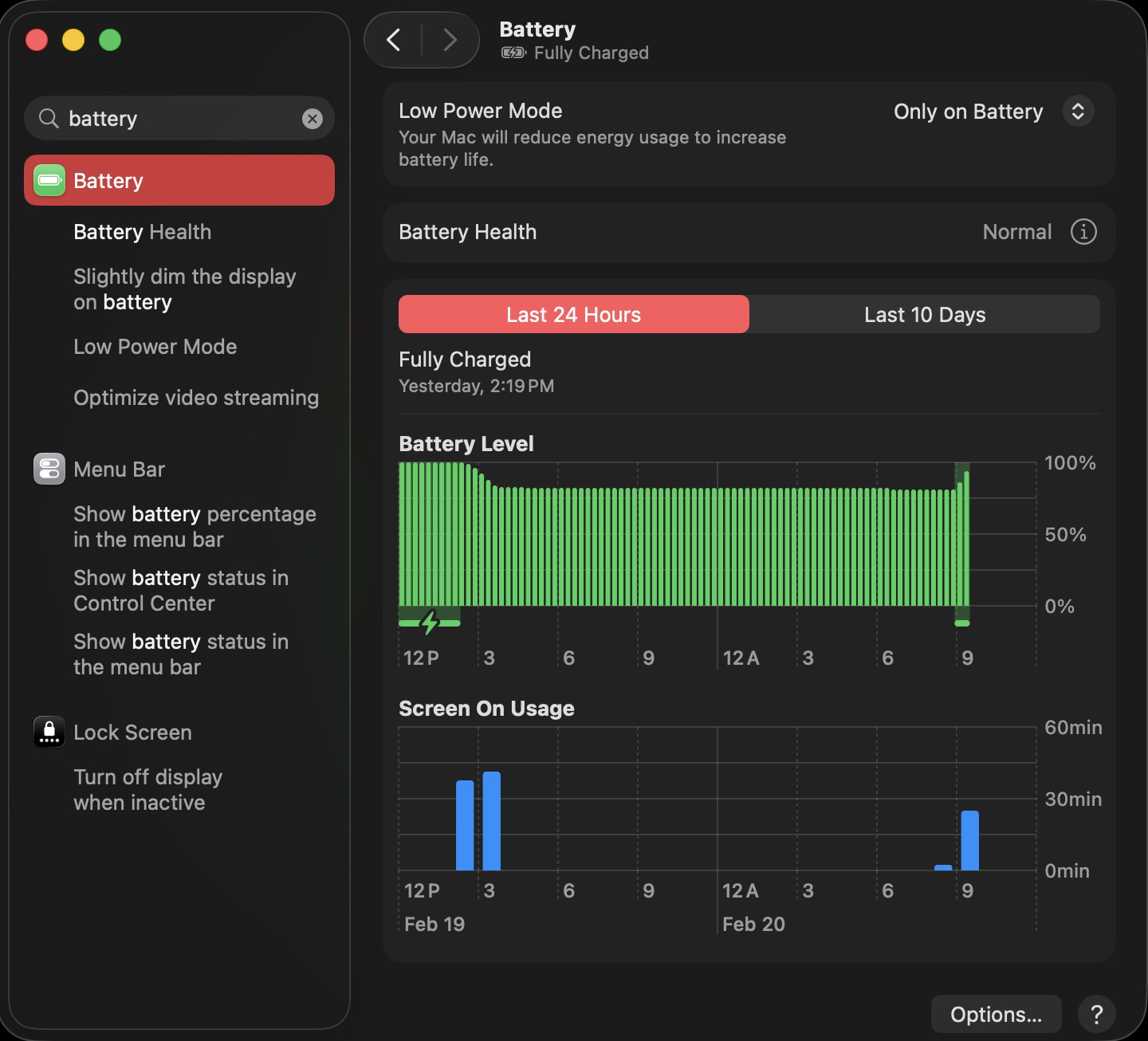
On the bottom right side of the menu, click on Options:
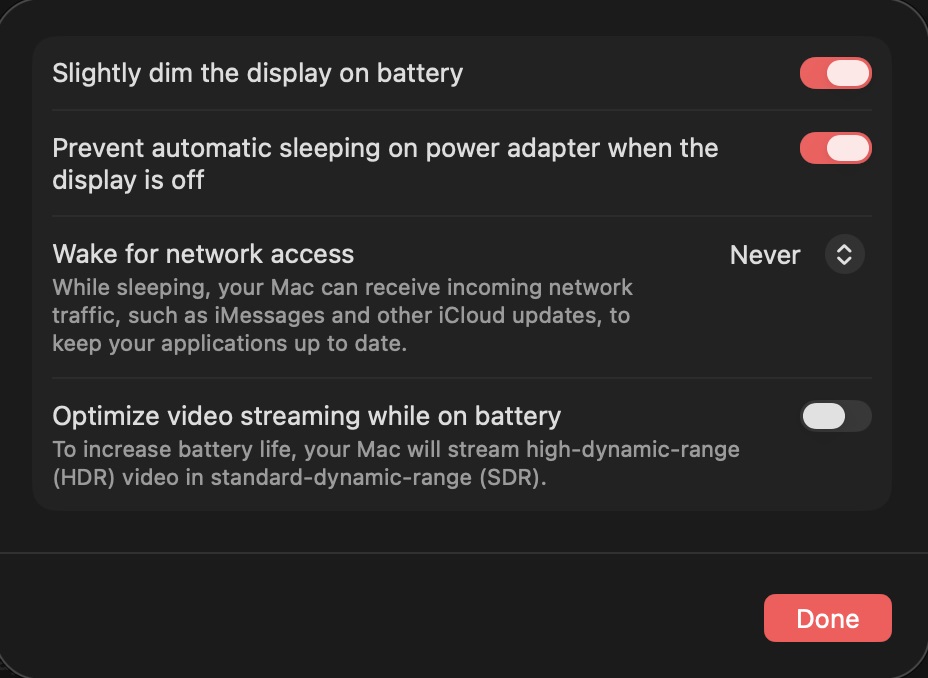
- Enable Slightly dim the display on battery.
- Enable Prevent automatic sleeping on power adapter whe the display is off.
- Set Wake for network acces to Never.
- Desable Optimise video streaming while on battery.
Lock Screen
Open System Preferences, then click on Lock Screen:
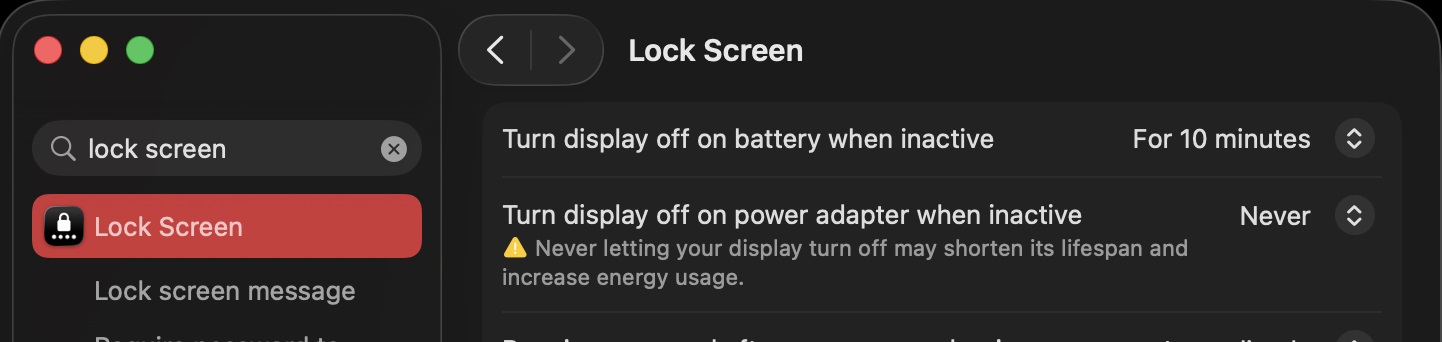
Set Turn display off on power adapter when inactive to Never.
Apple® macOS® 10.15 (Catalina)
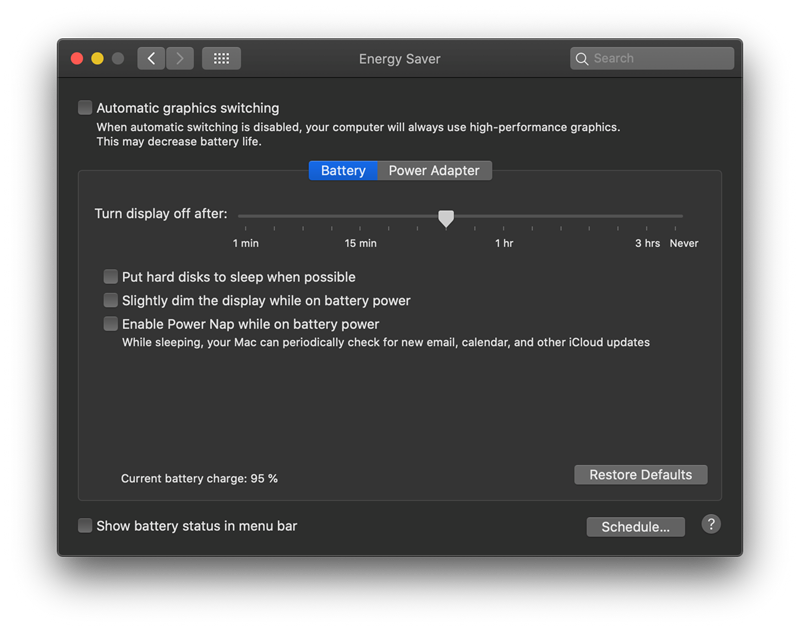
- Click Energy Saver in System Preferences.
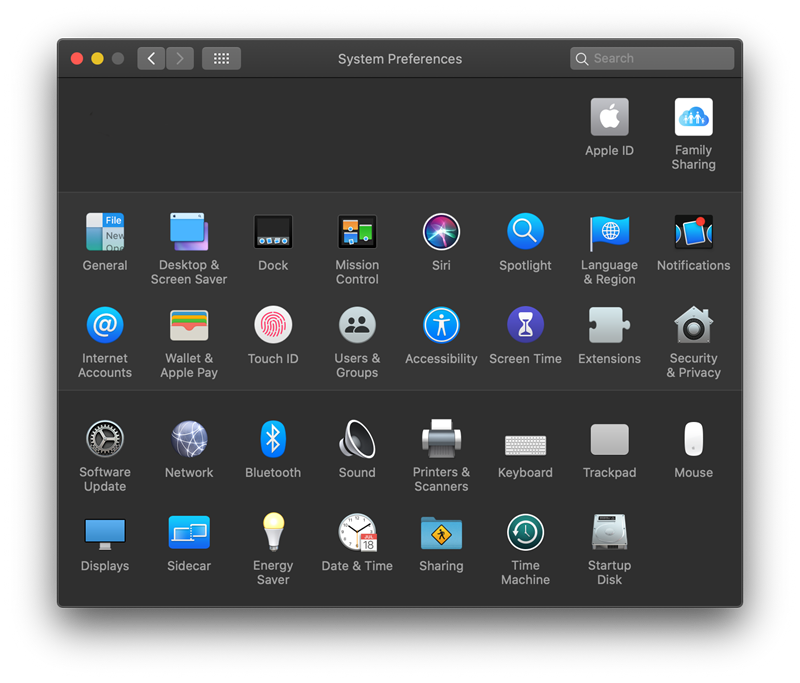
Settings for Battery
- Automatic graphics switching: Off
- Turn display off after: Any time.
- Put hard disks to sleep when possible: Off
- Slightly dim the display while on battery power: Off
- Enable power nap while on battery power: Off
|
|
Hint: |
| Working with grandMA3 onPC under MacOS® using only the battery would also require high performance settings. It is recommended to always connect the computer to the power supply. |
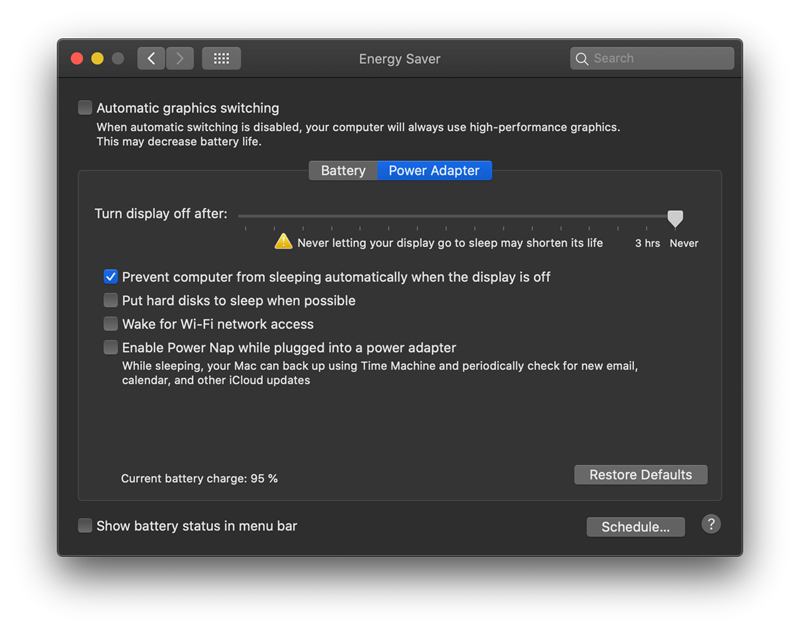
Settings for Power Adapter
- Automatic graphics switching: Off
- Turn display off after: Never.
- Prevent the computer from sleeping automatically when the display is off: On
- Put hard disks to sleep when possible: Off
- Wake for Wi-Fi network access: Off
- Enable power nap while plugged into a power adapter: Off
Apple® macOS® 13 (Ventura)
Settings for Battery
- Click Battery in System Preferences, then click Options.
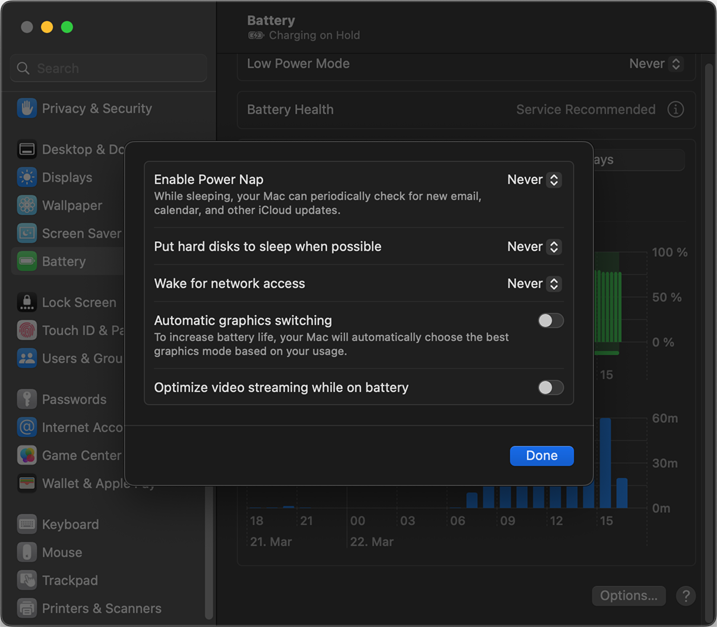
- Enable Power Nap: Never
- Put hard disks to sleep when possible: Never
- Wake for network access: Never
- Automatic graphics switching: Off
- Optimize video streaming while on battery: Off
Settings for Display
- Click Displays in System Preferences, then click Advanced.
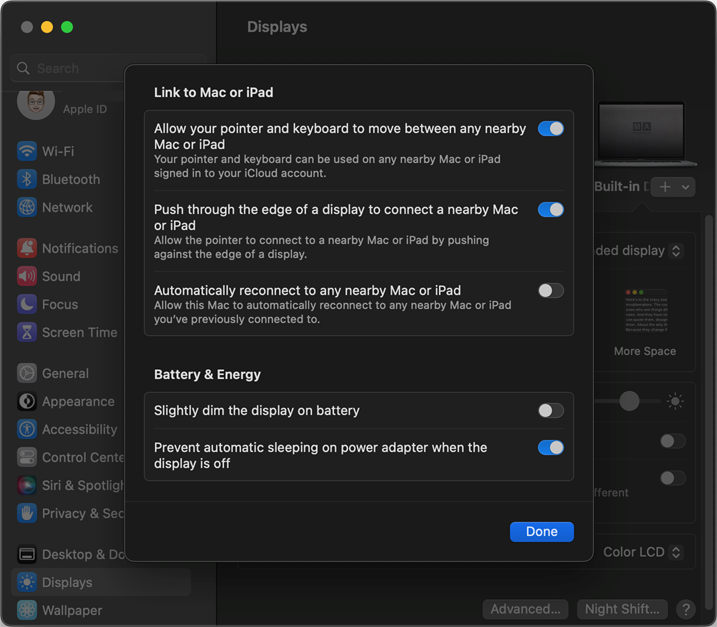
- Slightly dim the display on battery: Off
- Prevent automatic sleeping on power adapter when the display is off: On
Lock Screen settings
- Click Lock Screen in System Preferences.
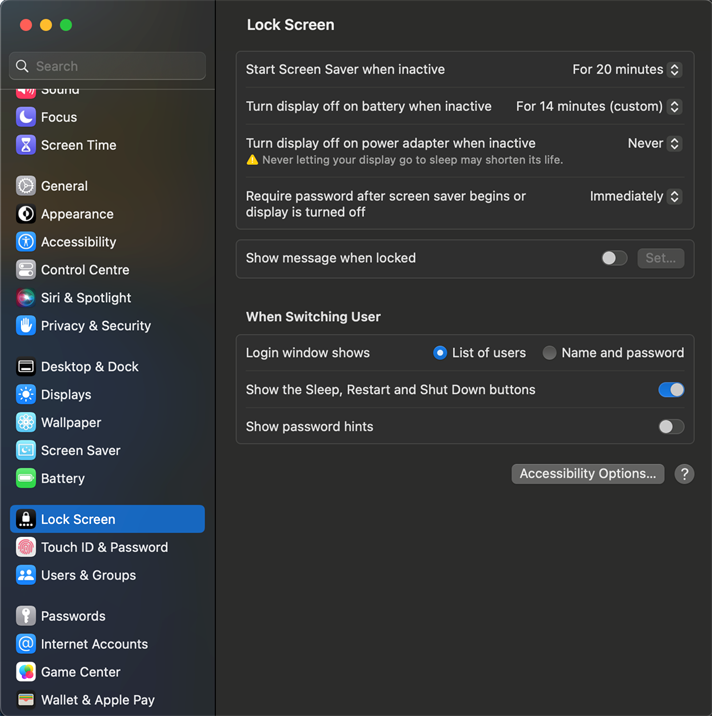
- Start Screen Saver when inactive: Any time
- Turn display off on battery when inactive: Any time
- Turn display off on power adapter when inactive: Never