Preview
|
grandMA3 User Manual » Preview
|
Version 2.4 |
In preview mode, operators can view objects without affecting the live show output. When preview is active, the programmer's content is isolated from the actual output. For example, the operator can run through a sequence in preview while the output stays unchanged.

|
Important: |
|
Preview is enabled for all users that share the same user profile. This means that in a session with multiple users a separate user profile must be used if one user wants to work in the preview environment while another user stays in the live environment.
|
To preview a sequence or cue:
- Press Prvw and tap a sequence pool object.
- Press Prvw Sequ 1 Cue 5 Please.
If other objects are loaded in the preview environment, they will be removed from the preview environment.

|
Hint: |
|
Preview of a running sequence starts the preview playback on the running cue.
|
Once preview is enabled, you can add or remove objects from the preview environment.
To do so:
- To add or remove objects, press and hold Prvw and tap a sequence pool object.
- To remove objects using keys, press Prvw Off Sequ 2 Please.
Orange flashing binoculars ( ) in the pool object indicate the primary previewed object. This is the object that is selected in preview.
White flashing binoculars ( ) indicate objects that are not selected but that are loaded in the preview environment.
If multiple objects are added to the preview environment, by default, the primary previewed object is the object that was added last.
Storing or updating objects in preview directly stores or updates them in the live environment.
|
|
Important: |
|
Storing or updating sequences or cues in preview can affect live output, for example if you update a running cue or a previous cue with tracking enabled.
|
To switch between the preview environment and the live environment, double press Prvw. To leave preview, you can also press Prvw + Off.
When you enter preview, the preview environment opens to its previous state.
|
|
Hint: |
|
The first time you enter the preview mode, you have to select a sequence or cue to be previewed. Otherwise, the preview environment will be empty.
|
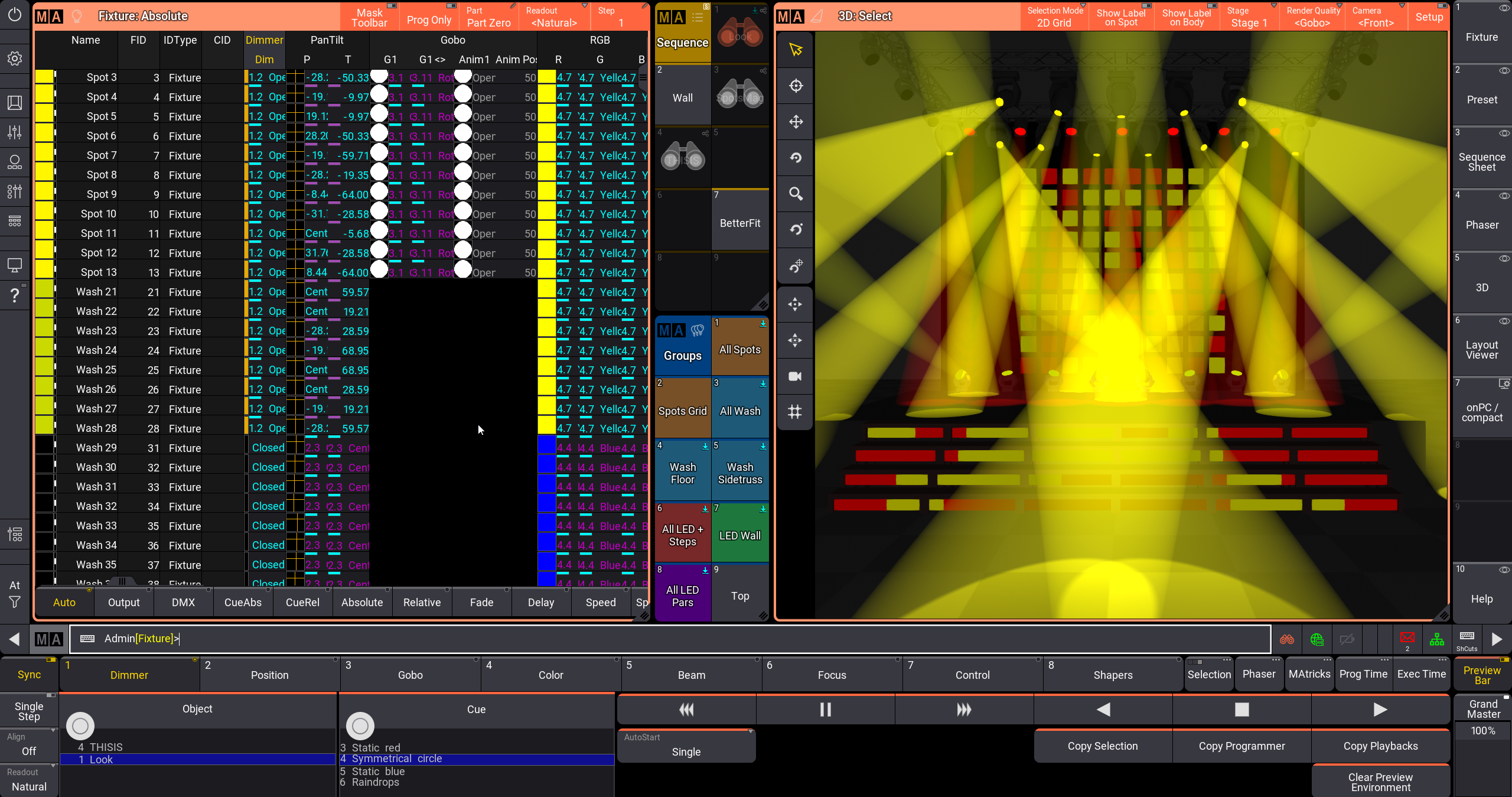
The following windows support preview mode and are visually indicated by an orange frame while preview is enabled:
-
3D Viewer
The 3D viewer can either display the previewed or the live output. To switch between the two, tap Follow Preview in the Misc tab of the 3D viewer settings. By default, Follow Preview is enabled in the 3D viewer. - Align Bar
- At Filter
- Content Sheet
-
DMX Sheet
The DMX sheet can either display the previewed or the live output. To switch between the two, tap Follow Preview in the Display tab of the DMX sheet settings. By default, Follow Preview is disabled in the DMX sheet.
- Fixture Sheet
- Layout Viewer
- MAtricks Editor
- Off Menu
- Phaser Editor
- Recipe Editor
- Running Playbacks
- Selection Bar
- Selection Grid
- Sequence Sheet
- sMArt
- Special Dialog
- Step Bar
Preview mode uses its own data pool located in Data Pool Object 128.
All actions performed in preview mode are displayed in the command line history.
|
|
Hint: |
|
Command line feedback is not displayed in the system monitor.
|
The master section is for live output only.
Using highlight, lowlight, and solo while you are in preview only affects the preview environment, not the live output.
Preview Encoder Bar
The preview encoder bar is displayed in the same orange color as the frames around previewed windows. It has two different modes - the preview preparation bar and the preview encoder bar that is displayed in the preview environment.
To access the preview preparation bar, press Prvw once.

- Transfer Selection: When enabled, it copies the live selection into the preview environment when entering preview.
- Transfer Programmer: When enabled, it copies live programmer values into the preview environment when entering preview.

As soon as you enter the preview mode by double pressing Prvw or preview an object, the preview encoder bar has the following controls:
-
Object: Selects the primary previewed object using Encoder Wheel 1. Pressing the encoder opens a drop-down to select a primary previewed object. In this selection drop-down, sequences that are running in preview are indicated with a green arrow (
 ) on the right.
- Cue: Selects the currently previewed cue using Encoder wheel 2. Pressing the encoder opens the Goto Cue po-up to select a cue.
- <<<: Select previous cue.
- II: Pause current cue.
- >>>: Select next cue.
- <: Trigger Go-.
-
 : Trigger Toggle.
- >: Trigger Go+.
-
AutoStart: Selects an auto start mechanism for sequences
- Off: When selecting multiple sequences, none will be started.
- Single: When selecting multiple sequences, it starts the last one. For example, Preview Sequence 1 Thru 3 starts sequence 3.
- Multi: When selecting multiple sequences, all of them will be started.
- Copy Selection: Copies the selection from the live environment into the preview environment.
- Copy Programmer: Copies data from the programmer of the live environment into the programmer of the preview environment.
-
Copy Playbacks: Copies active playbacks from the live environment
into
the
preview environment.
-
Clear Preview Environment: Removes all objects from the preview environment.
- Preview Bar: Toggles the preview encoder bar.
If a cue is selected, the sequence is displayed next to the encoders in the preview encoder bar.