MSC (MIDI Show Control)
|
grandMA3 User Manual » Remote In and Out » MSC (MIDI Show Control)
|
Version 2.4 |
MIDI Show Control (MSC) is a method for remotely controlling the system. To read more about MSC in general and the MSC command structure, visit https://midi.org.
grandMA3 devices can be controlled by other devices via MSC, and vice versa. To determine whether MSC can be transmitted or received, adjust the MIDI Data Mode setting in the output configuration. The default is In & Out. MSC is transmitted via MIDI 5pin cable. For more general information on how to connect MIDI, read Connect MIDI.
 |
Important: |
|
MSC uses the Remote user profile for remote input and output. For more information about user profiles, see Create User.
|
MSC Menu
The MSC menu is located in Menu – In & Out – MSC.
The menu is divided into three areas (Input, Output, and Executor Mapping) with multiple input fields and a monitor field:
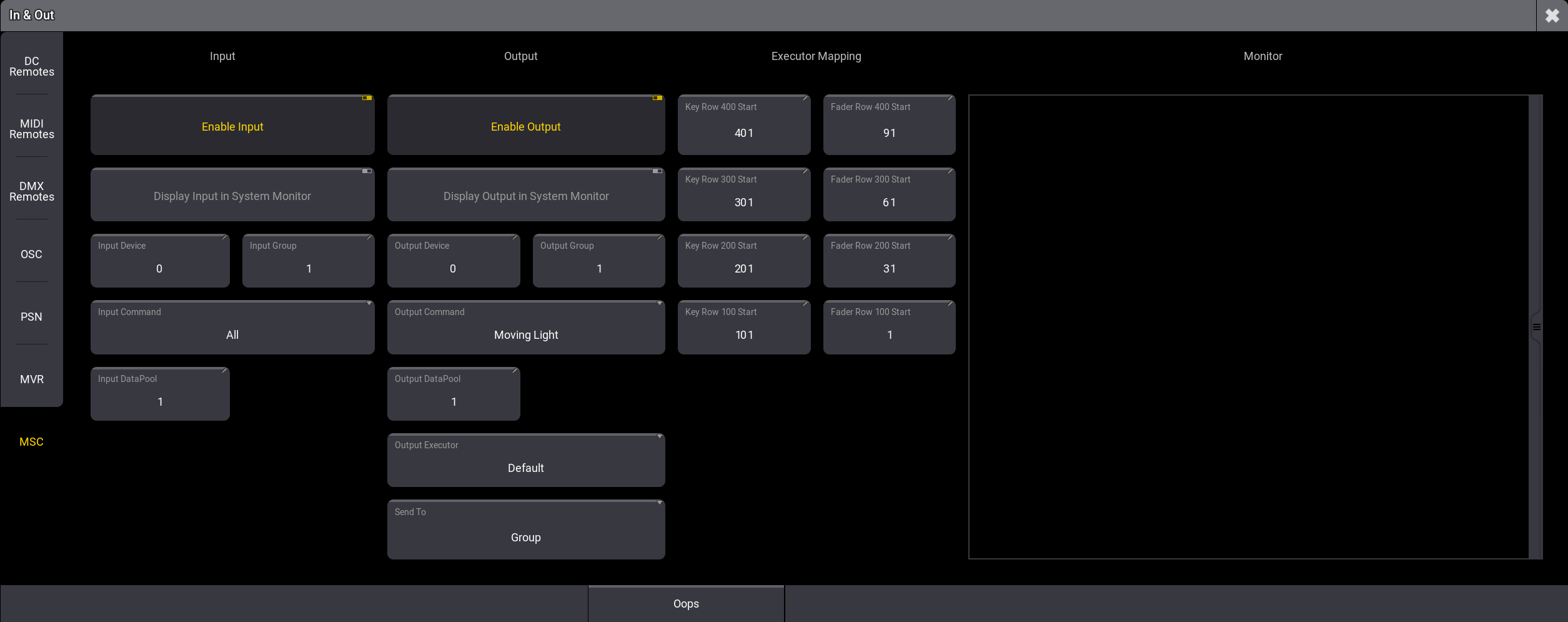
Input:
-
Enable Input:
The device can receive MSC from other devices. -
Input Device:
Set the input device ID number.
-
Input Group:
Set the input group ID number. -
Input Data Pool:
The input data pool is linked to the selected data pool of the remote user by default. This is indicated by brackets <> around the number. To set an individual pool ID, tap and hold Input Data Pool and use the calculator. To link it again, tap Link Remote in the calculator. -
Input Command:
Select the command format to receive MSC.
- Extensions:
Extensions command format (hex 00). -
General Light:
General lights command format (hex 01). - Moving Light:
Moving Light command format (hex 02).
-
All:
All type command format (hex 7F).
- Extensions:
- Display Input in System Monitor:
The system monitor displays accepted MSC messages that match with MSC input settings.
Output:
-
Enable Output:
If enabled, the device can send MSC to other devices. -
Output Device:
Set the device ID number that MSC is transmitted to. -
Output Group:
Set the group ID number that MSC is transmitted to.
-
Output Data Pool:
The output data pool is linked to the selected data pool of the remote user by default. This is indicated by brackets <> around the number. To set an individual pool ID, tap and hold Output Data Pool and use the calculator. To link it again, tap Link Remote in the calculator. -
Output Command:
Select the command format to transmit MSC.- Extensions:
Extensions command format (hex 00).
-
General Light:
General lights command format (hex 01). - Moving Light:
Moving Light command format (hex 02).
-
All:
All type command format (hex 7F). All equipment should respond to this format.
- Extensions:
- Display Output in System Monitor:
The system monitor displays all transmitted MSC messages. -
Output Executor:
-
Default:
MSC commands go to and from the selected executors on the master station only. -
Executor.Page:
MSC commands are sent to a specific executor. The page and executor number must be separated by a "period" character (hex = 2E) -
Executor Page:
MSC commands are sent to a specific executor. The page and executor number must be separated by a "NULL" character (hex = 00).
-
Default:
- Send To:
- Group:
The station transmits MSC to the specified group number (1 to 15). -
Device:
The station transmits MSC to the specified device number (0 to 111). -
All:
The station transmits MSC to all connected devices.
- Group:
Executor Mapping:
-
Key Row 400 Start - Key Row 100 Start:
The start index can be separately defined for each executor row. For example, tap Key Row 100 Start to open the calculator and set a value between 0 and 1 000 to define the starting point of the corresponding executor row. If multiple rows have the same input index value, the highest executor row will be addressed. The priority of the other rows becomes secondary. -
Fader Row 400 Start - Fader Row 100 Start:
The start index can be separately defined for each row of fader executors. For example, tap Fader Row 100 Start to open the calculator and set a value between 0 and 127 to define the starting point of the corresponding fader row. If multiple rows have the same input index value, the highest fader row will be addressed. The priority of the other rows becomes secondary.
Monitor:
- The monitor field displays MSC data feedback.
- The messages inside the monitor are displayed in different colors depending on their status. Incoming commands are displayed in yellow, transmitted commands are displayed in green.
- The system monitor window also displays MSC data. Use the buttons Display Input in System Monitor and Display Output in System Monitor to determine which data to display in the system monitor.
Commands
grandMA3 supports seven different command types:
-
Go (01):
This is the same as the Go+ command in grandMA3. It is usually followed by a cue number.
- Stop (02):
This is the same as the Pause On command in grandMA3. This can be followed by a cue number.
-
Resume (03):
This is the same as the Pause Off command in grandMA3. This will restart a cue that was paused. If a specific cue is paused, the number of the cue will have to be specified with this command. -
Timed_Go (04):
This can be used to perform a Goto with a specific fade time. Use both, the time and the cue number, exactly in that order. -
Set (06):
Set can be used to set the position of faders. Use fader number and page followed by position. Adding an optional time in MSC standard time format allows you to fade the fader to the given position at the given time.
-
Fire (07):
This can be used to trigger macros. The macro number has to follow the command. Only macro 1 to 127 can be triggered. Macro 1 is mapped to FIRE 01.

Known Limitation: The command type Fire (07) is only implemented for MSC input.
-
Go_Off (0B):
This command can be used to "Off" (disable) a sequence. This has to be followed by a cue number.
Hint: In preview mode, the device does not transmit or receive MSC.
| |
Important: |
| Without a specific number followed by a command, the selected object of the remote user is executed if the object is linked to the data pool and assigned to an executor. If no page is set in the input, the MSC Monitor will display page 0 which is mapped to the selected page of the remote user. |