Partial Show Read (PSR)
|
grandMA3 User Manual » Show Creator » Partial Show Read (PSR)
|
Version 2.4 |
The Partial Show Read menu transfers objects, especially those containing fixture data, from another show to the currently loaded show file.
For more information, see PSR.
 |
Important: |
| The show file to be PSR'ed must have been saved to the same software version as the running show
file on the station where you performed the PSR. |

|
The partial show read can't be oopsed; it is strongly recommended that the loaded show file be renamed before proceeding with PSR. |

|
Restriction: |
| Phaser recipes will lose the link to referenced shapes when performing PSR |
To access the PSR menu:
- Press Menu, tap Show Creator, tap Partial Show Read on the bottom left side of the menu. The PSR menu opens:
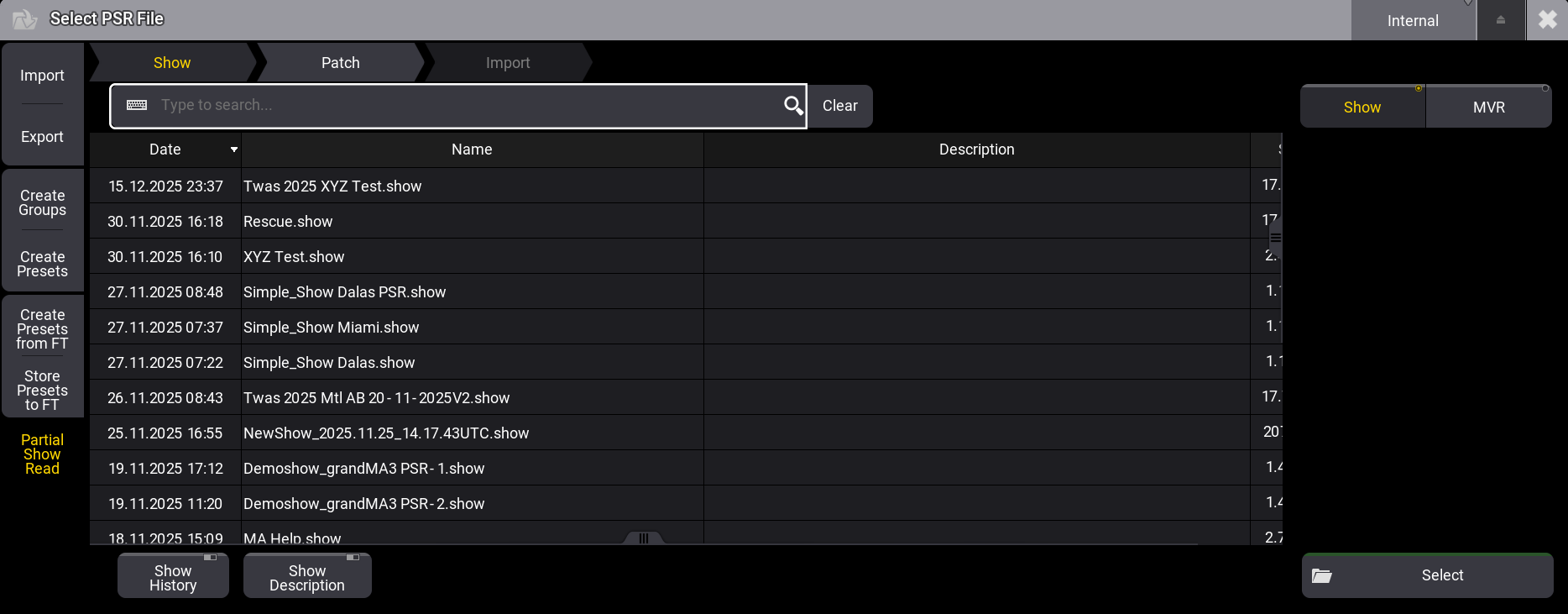
The arrow-shaped tabs at the top will guide you through the different steps.
- Tap Show at the top-right side of the menu.
- Select a drive (on the right side of the title bar)
- Select a show file.
- Tap Select at the bottom of the window or tap Patch in the arrow shape tab bar on top.
The Rename Show File pop-up opens:
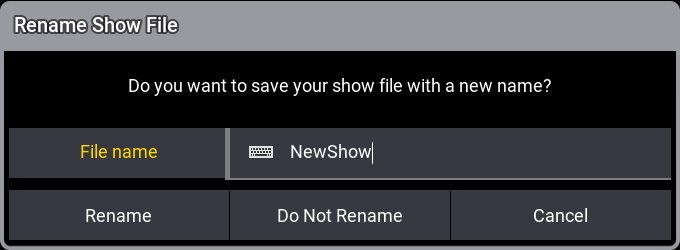
Enter the new name and tap Rename. Tap Do Not Rename if
you don't want to rename the show file.
If you don't enter a new name, tapping Rename will result in the same outcome as tapping Do Not
Rename.
PSR Prepare Menu
If the selected file is suitable, the PSR Prepare menu will open:
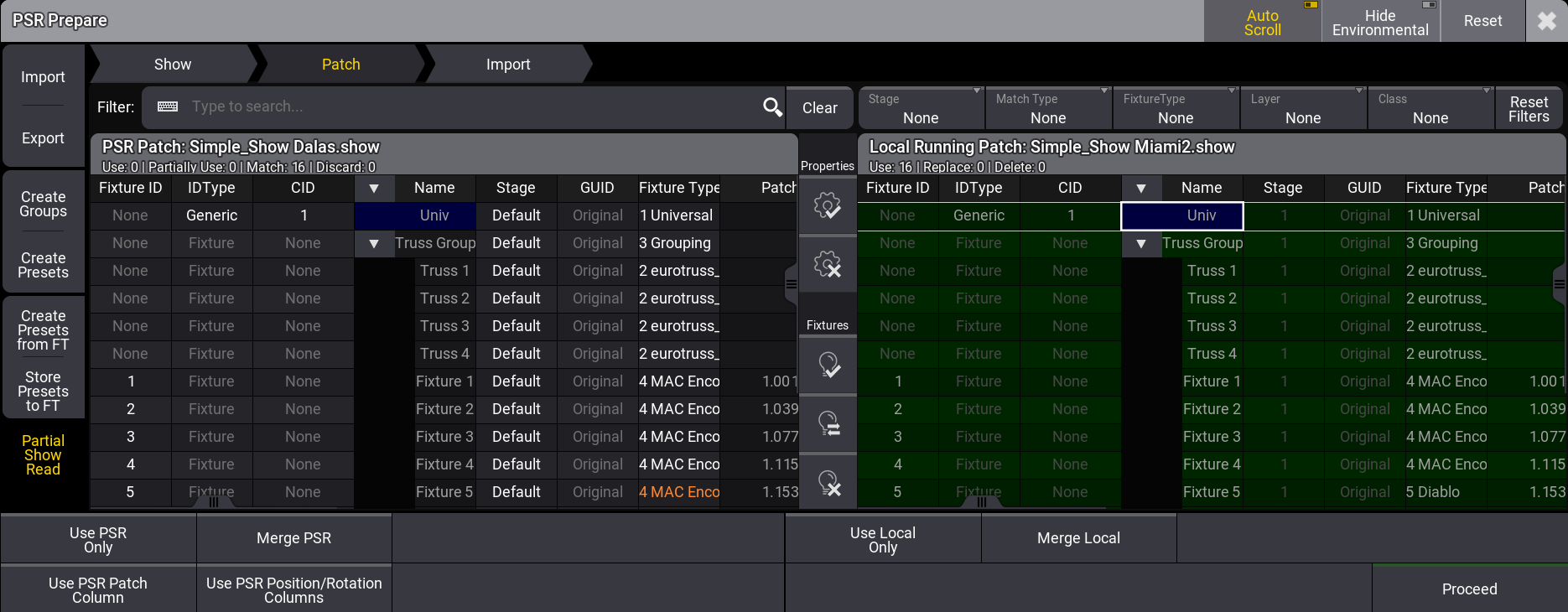
When entering the PSR Prepare menu, the software matches the fixtures in the following order:
- Fixture ID
- Channel ID
- GUID
- Name
The menu is divided into two areas:
- On the left, PSR Patch displays the patch for the show file to be imported, along with its name in the title bar.
- On the right, Local Running Patch displays the currently loaded show file and its name in the title bar.
Editing the corresponding cell of the PSR Patch allows you to change the properties for
Stage, FixtureID, IDType, and CID.
Changed properties are
displayed in a cyan font. Cells that cannot be edited have a darker background color.
When an IDType is renamed in the PSR Show, two names may appear in one cell of the IDType of the PSR Patch. They are displayed with this naming scheme: Name in PSR Show (Name in Local Show). The names of the IDTypes in the PSR Show can't be carried over to the Local Show.
When fixtures are not set to the same IDType/CID combination, or one has no Fixture ID, they will be set to the new IDType PSR and get a consecutive CID.
Rows with corresponding fixtures on both sides are called matched.
Patch, Position, and Rotation properties can be imported individually. Define which properties will be used by using the buttons between the two patches:
 Use the
selected property in the resulting patch.
Use the
selected property in the resulting patch. Remove the selection from property.
Use the buttons between the two patches to define which fixtures will be used in the resulting patch:
 Use the selected fixtures in the resulting patch.
  Use the fixtures from the opposite patch in the resulting patch.
 Remove the selected fixtures in the resulting patch.
Marked fixtures have a green background. After the PSR Prepare process, they will exist in the currently loaded
show file with their respective fixture types.
Different fixtures can be used from the right and left
sides, but not fixtures on the same row.
Fixture types can be exchanged from the PSR Prepare menu. Select the fixtures to be exchanged in the Fixture Type column (PSR Patch on the left side). The Insert New Fixture Type pop-up opens. Select a fixture type and tap Select. The fixture types are now exchanged in the PSR Patch and are indicated in the Fixture Type column in cyan font:
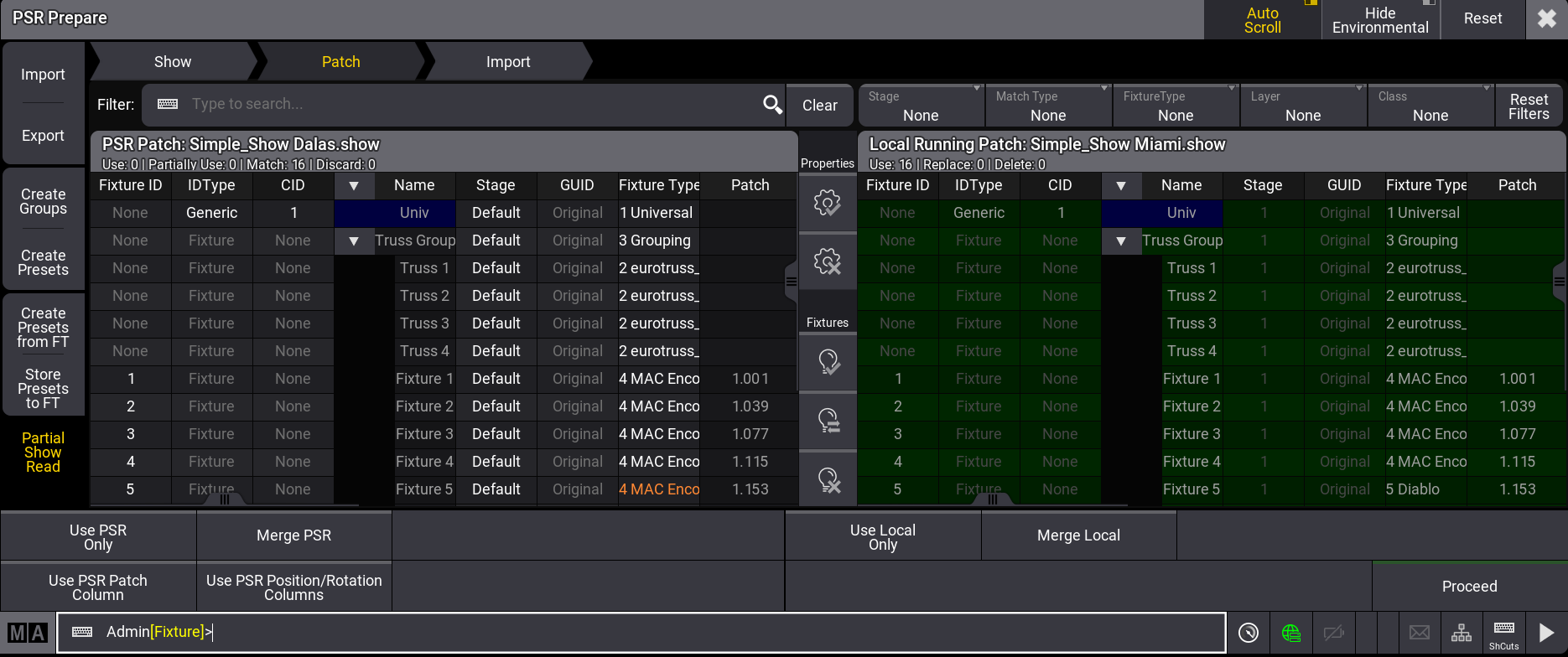
Changes to a single property for matching fixtures are highlighted in orange on the left.
To add data from the patch column to the resulting patch, tap Use PSR Patch Column.
To add data of the position and rotation columns to the resulting patch, tap Use PSR Position/Rotation Columns.
Environmental fixtures can be hidden by tapping Hide Environmental in the title bar.
To perform a partial show read where fixtures in the PSR Patch and fixtures on the Local Running Patch need to be kept, edit a cell in the GUID column of the fixtures in the PSR Prepare menu. The selection pop-up opens:
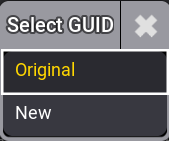
Tap New.
Use the search field to filter the patches by fixture names.
Other filters are available:
- Stage: Displays the fixtures of the selected stage.
- Match Type: Displays the fixtures depending on their matching state:
- None: No filters applied.
- Matched: Displays only fixture pairs that are matched together.
- Unmatched: Displays only fixtures that do not match together.
- Conflicted: Displays the conflicting fixtures.
Here's an example of Conflicted fixtures:
Having 3 fixtures with IDs 1 through 3 and changing all IDs to 1 in the PSR Patch, these IDs are now conflicting and will be displayed in the Match Type Conflicted filter.
- Fixture Type: Displays only the fixtures of the selected fixture type.
- Layer: Displays only the fixtures of the selected layer.
- Class: Displays only the fixtures of the selected class.
- Reset Filters: Resets all filters.
For a fast selection of fixtures to be taken, tap one of the four buttons at the bottom of the window:
- Use PSR Only: The resulting patch contains only fixtures from the PSR show file.
- Use Local Only: The resulting patch contains only fixtures from the Local show file.
- Merge PSR: Add all unmatched or unselected fixtures from the PSR show list to the resulting patch.
- Merge Local: Add all unmatched or unselected fixtures from the Local show list to the resulting patch.
Tap Reset in the menu title bar to reset all changes and filters.
When done, tap Proceed in the bottom-right corner of the window, or Import at the top of the menu, the Patch Summary pop-up opens:
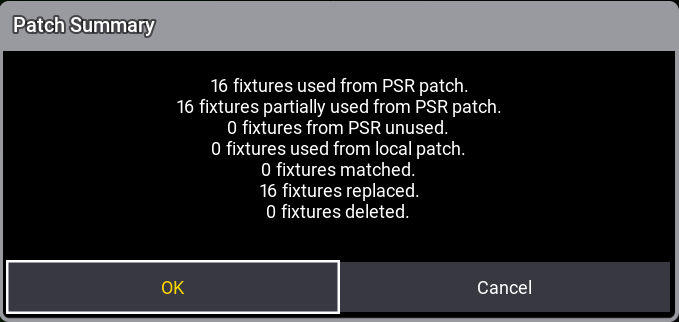
Tap OK to proceed with the PSR Import menu or Cancel.
PSR Import Menu
PSR Import Menu
The menu is divided into three areas:
- The left area (PSR) shows the different pools of the show file to be PSR'ed, and the title bar displays the name of the show file. Navigate the object tree to the objects you want to import. Tap
 to
unfold a level in the tree. Tap the checkboxes for the objects to be imported. Selected
objects
get a yellow checkmark and are displayed in the center area. Parent objects get a gray check mark to
indicate that some child objects are selected. When selecting an object with a reference, the reference is also marked for import and receives a purple checkmark. A number behind the checkbox indicates the hierarchy level of an object.
to
unfold a level in the tree. Tap the checkboxes for the objects to be imported. Selected
objects
get a yellow checkmark and are displayed in the center area. Parent objects get a gray check mark to
indicate that some child objects are selected. When selecting an object with a reference, the reference is also marked for import and receives a purple checkmark. A number behind the checkbox indicates the hierarchy level of an object.
The colors of the indicator bar indicate the following states:
- Green: This element contains newer data than the local show file.
- Orange: The children of this element are a mixture of older and newer data in the PSR show file.
- Red: This element contains only older data in the PSR show file.
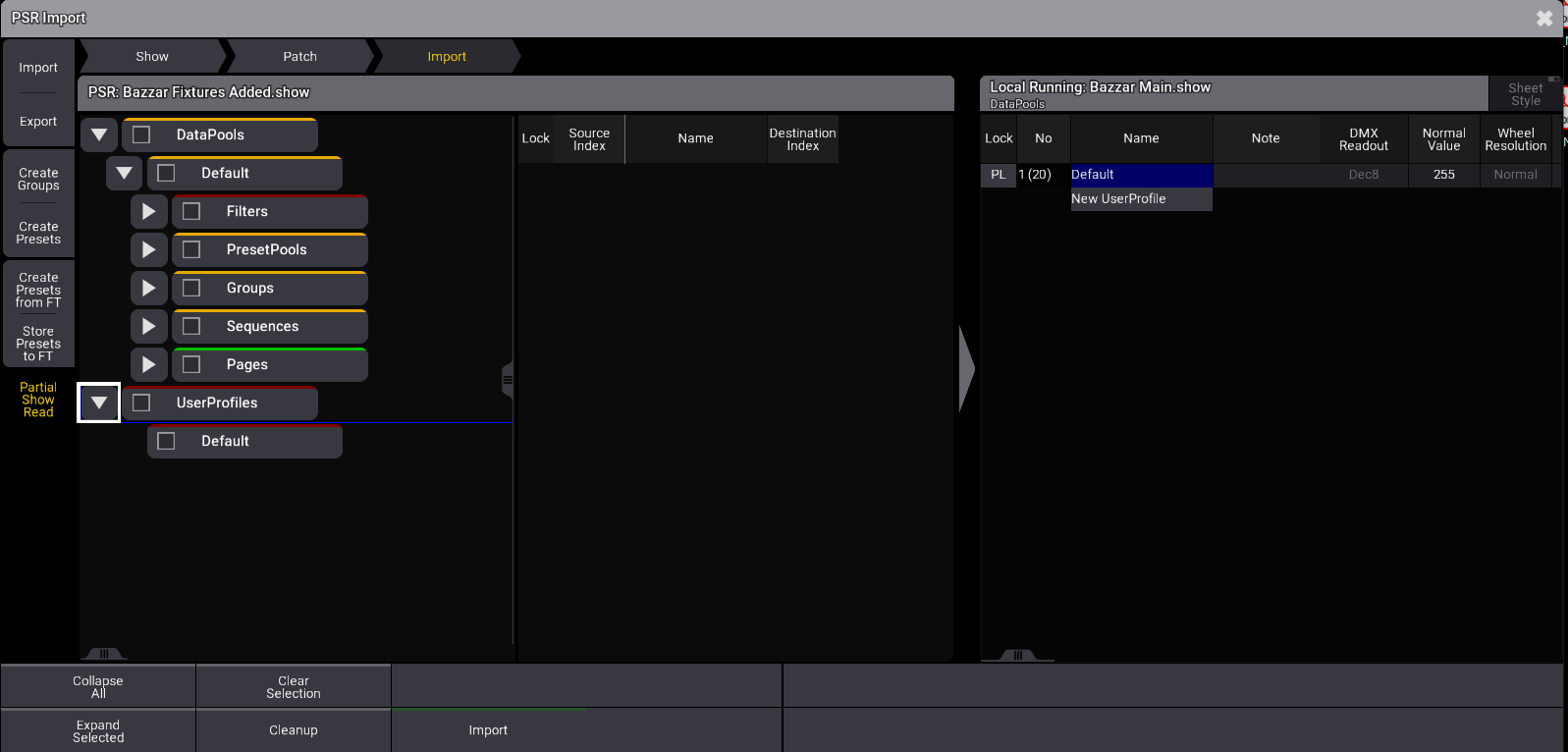
PSR
Import menu
- The center area displays the last selected object type in the left area and allows you to define the Import Index (the spot in the pool where it will be imported). Edit a cell in the Import
Index column or tap a pool object in the right area (Local). When the Import Index is set to
<Auto>, the same object exists in both show files, and the object will be merged with the matching
object in the locally running show file.
- The right area (Local Running) displays the corresponding pool in the local show file. The title bar also displays the show file's name. The orange collected frames indicate where the objects will be imported. When tapping into the pool in the Local Running area, only selected objects in the PSR area will be imported.
Import non-default DataPool
To import a data pool other than the default one, select a non-default data pool by tapping its checkboxes. Then tap on the referring parent DataPools object in the tree structure. The right area (Local Running) now displays DataPools.
Select a tree pool object in the right area. A pop-up window appears:
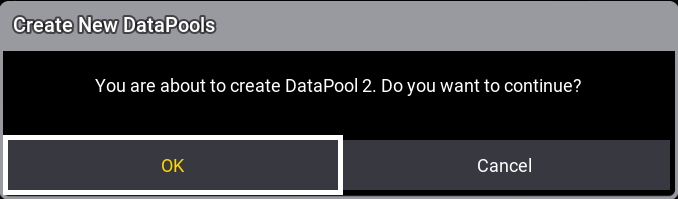
Confirm by tapping OK. A new DataPool, using the non-default DataPool of the PSR, has been created in the locally running show file.
Tap Import to transfer the selected object into the local show file. Objects that were imported are marked as imported in the object tree.Tap Cleanup to remove imported items from the PSR.
System-locked objects, for example, world 1 or filter 1, can't be imported.
An error message is added to the command line when a data pool is missing.
|
|
Known Limitation: |
|

|
Hint: |
|
Use the PSR keyword in the programmer to select fixtures of the ID type PSR. For more information, see PSR keyword. |
The Partial Show Read menu also supports MVR Integration.
| |
Important: |
| MVR integration via Partial Show Read will clear the programmer. |
Open the PSR menu, press Menu, tap Show Creator, tap Partial Show Read on the bottom left side of the menu. The PSR menu opens:
- Tap MVR at the top right side of the menu, and the PSR menu displays options for the MVR integration:
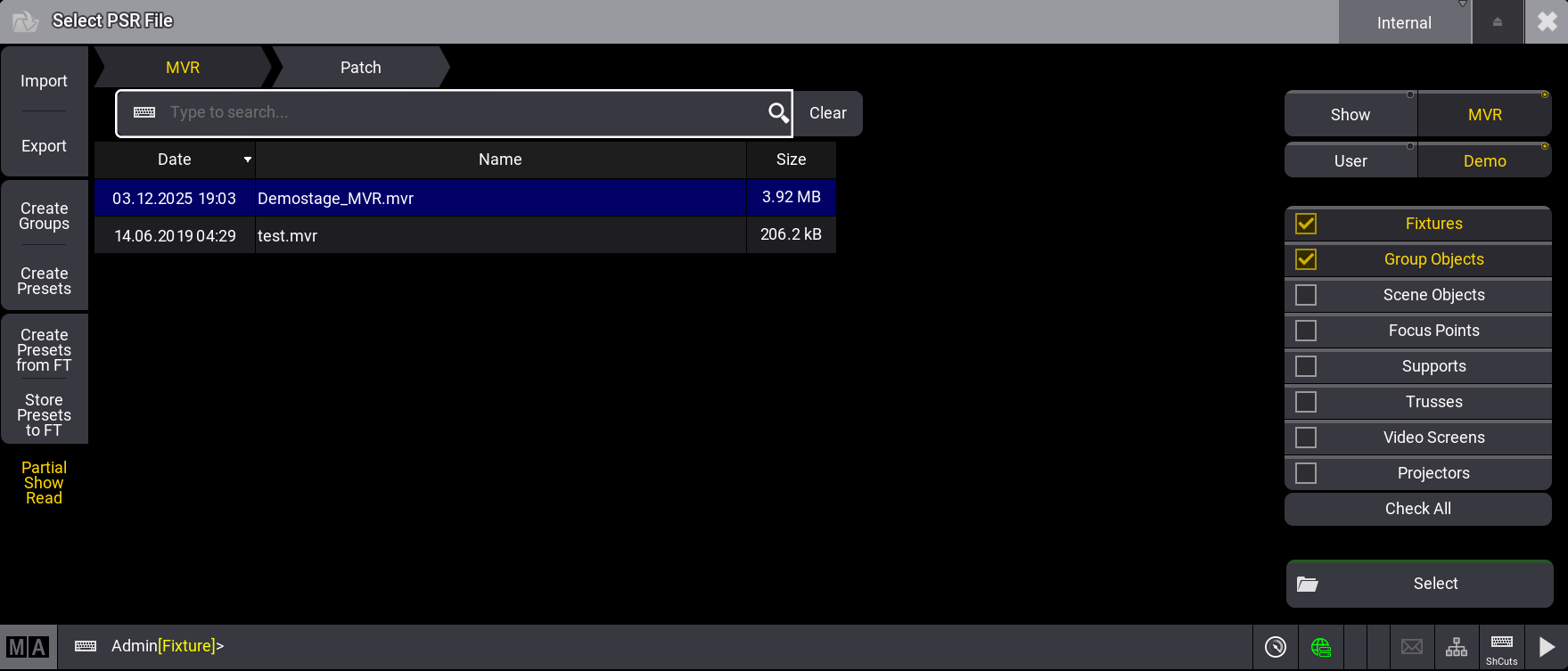
- Select between User or Demo MVR files in the top right corner of the menu.
- Select the MVR file on the left side of the menu.
- Check the MVR object types to be integrated on the right side of the menu. Fixtures and Group Objects are checked by default.
- Tap Select at the bottom right corner of the menu.
The Rename Show File pop-up opens:
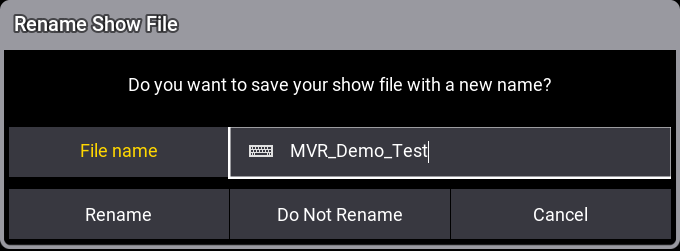
Enter the new name and tap Rename. Tap Do Not Rename if you don't want to rename the show file.
If you don't enter a new name, tapping Rename will result in the same outcome as tapping Do Not Rename:
The PSR Prepare menu opens:
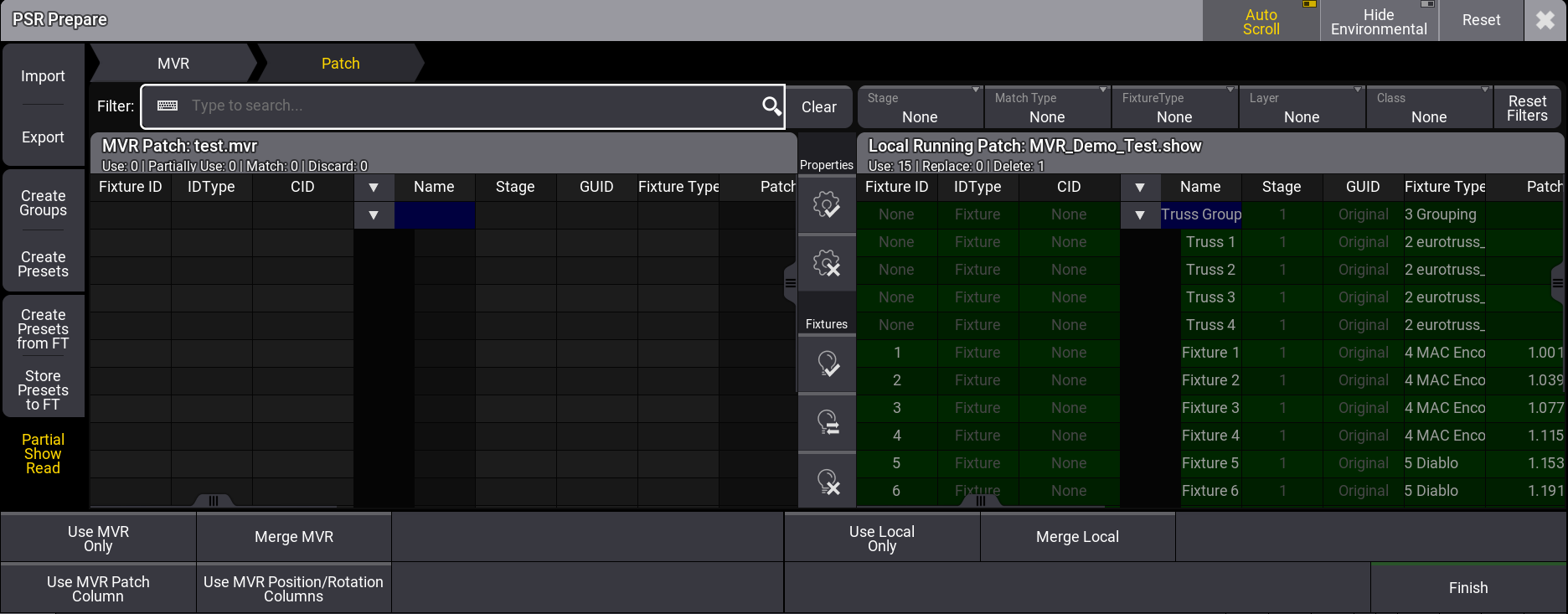
The menu is divided into two areas:
- On the left, MVR Patch displays the patch for the MVR file to be imported, along with its name in the title bar.
- On the right, Local Running Patch displays the currently loaded show file and its name in the title bar.
Editing the corresponding cell of the MVR Patch allows you to change the properties for Stage, FixtureID, IDType, and CID.
Changed properties are displayed in a cyan font. Cells that cannot be edited have a darker background color.
When an IDType is renamed in the local show, two names may appear in one cell of the IDType of the MVR Patch. They are displayed with this naming scheme: Name in MVR Show (Name in Local Show). The names of the IDTypes in the MVR Show can't be carried over to the Local Show.
Rows with corresponding fixtures on both sides are called matched.
Patch, Position, and Rotation properties can be imported individually. Define which properties will be used by using the buttons between the two patches:
- Use the selected property in the resulting patch.
- Remove the selection from property.
Use the buttons between the two patches to define which fixtures will be used in the resulting patch:
- Use the selected fixtures in the resulting patch.
- Use the fixtures from the opposite patch in the resulting patch.
- Remove the selected fixtures in the resulting patch.
Marked fixtures have a green background. After the PSR Prepare process, they will exist in the currently loaded show file with their respective fixture types.
Different fixtures can be used from the right and left sides, but not fixtures on the same row.
Fixture types can be exchanged from the PSR Prepare menu. Select the fixtures to be exchanged in the Fixture Type column (MVR Patch on the left side). The Insert New Fixture Type pop-up opens. Select a fixture type and tap Select. The fixture types are now exchanged in the MVR Patch and are indicated in the Fixture Type column in cyan font:
Changes to a single property for matching fixtures are highlighted in orange on the left.
To add data from the patch column to the resulting patch, tap Use MVR Patch Column.
To add data of the position and rotation columns to the resulting patch, tap Use MVR Position/Rotation Columns.
Environmental fixtures can be hidden by tapping Hide Environmental in the title bar.
To perform a partial show read where fixtures in the MVR Patch and fixtures on the Local Running Patch need to be kept, edit a cell in the GUID column of the fixtures in the PSR Prepare menu. The selection pop-up opens:
Tap New.
Use the search field to filter the patches by fixture names.
Other filters are available:
- Stage: Displays the fixtures of the selected stage.
- Match Type: Displays the fixtures depending on their matching state:
- None: No filters applied.
- Matched: Displays only fixture pairs that are matched together.
- Unmatched: Displays only fixtures that do not match together.
- Conflicted: Displays the conflicting fixtures.
- Fixture Type: Displays only the fixtures of the selected fixture type.
- Layer: Displays only the fixtures of the selected layer.
- Class: Displays only the fixtures of the selected class.
- Reset Filters: Resets all filters.
For a fast selection of fixtures to be taken, tap one of the four buttons at the bottom of the window:
- Use MVR Only: The resulting patch contains only fixtures from the MVR show file.
- Use Local Only: The resulting patch contains only fixtures from the Local show file.
- Merge MVR: Add all unmatched or unselected fixtures from the MVR show list to the resulting patch.
- Merge Local: Add all unmatched or unselected fixtures from the Local show list to the resulting patch.
Tap Reset in the menu title bar to reset all changes and filters.
When done, tap Finish in the bottom-right corner of the window, the Patch Summary pop-up opens:
Tap OK to finish the MVR Import or Cancel.