|
grandMA3 User Manual » Scribbles » Create Scribbles
|
Version 2.4 |

|
Hint: |
| Editing and creating scribbles follows the same steps. |
Scribbles can be edited in the scribbles pool or in the label pop-up.
Create Scribbles in the Scribbles Pool
Scribbles are stored in the scribbles pool.

To edit an object in the scribbles pool, use one of the following options:
- Press Edit and then tap an object in the scribbles pool.
- Open the swipey commands on the pool object and select Edit.
- Use the 2-finger edit or right mouse click.
- Use the command line. For more information on editing an object using the command line, see Edit Keyword.
The pop-up Edit Scribble opens.
Editing a pre-existing pool object opens the editor to the current state of the scribble.
To scribble, move your finger across the scribble pad on the left of the pop-up.
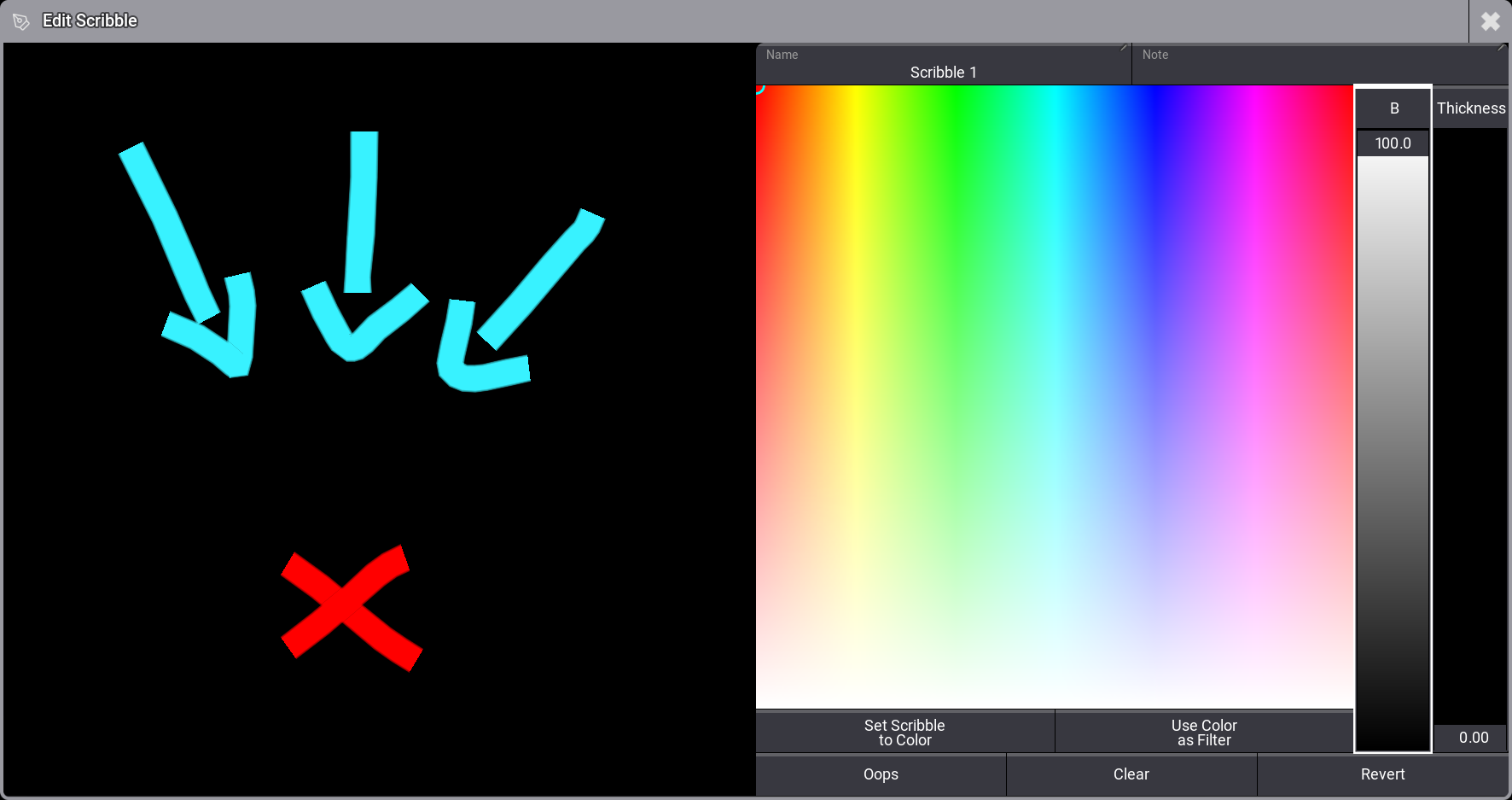
Pop-up Edit Scribble
Changes in the scribble editor are immediately applied to the scribble pool object.
Create Scribbles in Other Objects
There are two ways to create scribbles directly in other objects:
- Open the Label pop-up and tap
 in the title bar.
 - Tap Scribble in the settings of the object and select New in the dropdown
The scribble created in the object is automatically saved to the first free position in the scribbles pool and applied to the object.
Set a Color
You can select a color before drawing a scribble or change the color of the scribble after drawing.
To select a color for the scribble:
- Tap somewhere in the color picker to select a color.
- Move the B fader to increase or decrease the color's brightness.
If you start scribbling, the scribble will appear in the selected color. Different lines in the scribble can have different colors.
Select a color, then tap Set Scribble to Color to set the entire scribble to that color.
Select a color and tap Use Color as Filter to apply the selected color as a filter to the colors used in the scribble.
Move the Thickness fader to control the thickness of newly drawn lines.
|
|
Hint: |
| The software saves the scribble's color and thickness settings. |
Revert Changes
There are multiple ways to revert changes.
- Oops: Tap to revert the latest change.
- Clear: Tap to start from scratch.
- Revert: Tap to return the scribble to the state before you opened the editor.
Label the Scribble
To edit the name, use the Label keyword or tap Name in the Label Scribble pop-up.
Scribbles can be labeled like any other pool object.