grandMA3 User Manual Publication
Network Update
|
grandMA3 User Manual » Update the Software » Network Update
|
Version 2.4 |
Use Software Update to update one or more stations on a network.

|
Important: |
| Make sure that all devices are in the same network (check network adapter). To learn more about network settings, read the Networking, Interfaces and IP topic. |
Preliminary Procedures
- Connect all grandMA3 devices to a network with an etherCON/RJ45 connector.
- Download the required installation packages from www.malighting.com, Downloads.
- Copy all installation packages for grandMA3 software into the root directory of your USB flash drive. For more information, see Update the Software. Insert the USB flash drive in the device's USB port.
- Or on Windows, copy the zipped files from the ma folder to C:\ProgramData\MALightingTechnology\installation_packages.
- Or on macOS, copy the files from the ma folder to the directory ~/MALightingTechnology/installation_packages.
Procedure
To update the grandMA3 device, follow the onscreen instructions that appear during the update.
To access Software Update:
- Press Menu or tap
 .
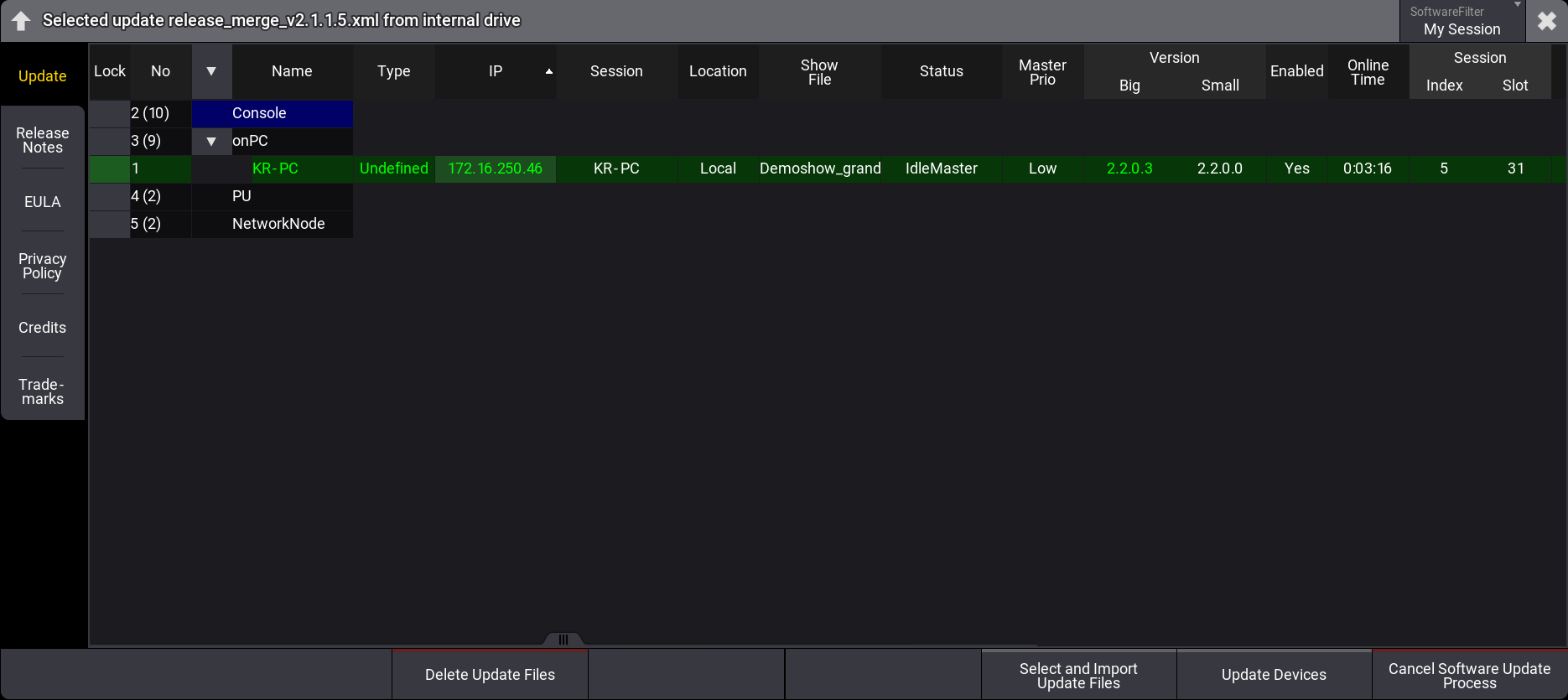
. - Tap Settings and then tap Software Update. The Software Update window opens, as shown in the image below:
- To select a file, tap Select and Import Update File. The Select Update pop-up opens:
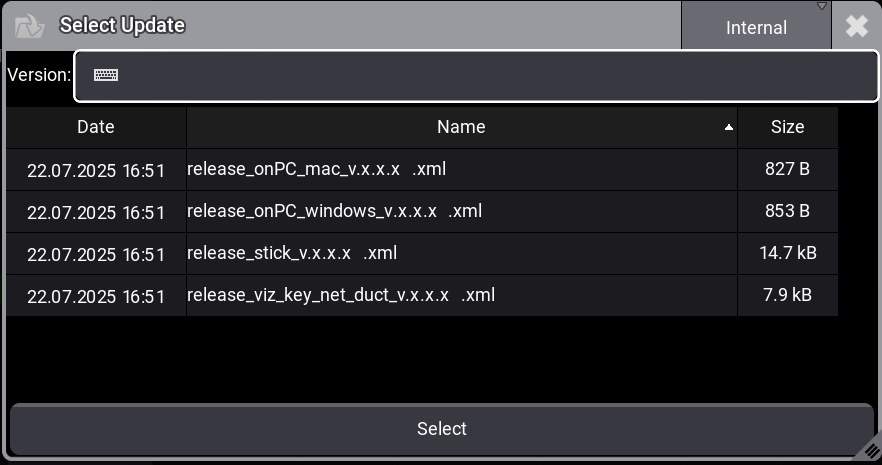
- Make sure the correct update file location is selected (Internal or external device). Select the desired update file.
- Tap Select. The pop-up closes, and the End User License Agreement (EULA) opens.
- Scroll down to read the complete EULA. The I agree button in the upper-right corner of the pop-up turns white. To close the EULA, tap I agree.
- Select the desired device(s). The selected devices are marked in blue.
- Tap Update Devices. The software update starts copying files.

|
Hint: |
| The selected update file will be displayed in the title bar of the software update menu. |
- Cancel Software Update Process: Tap to cancel the current update process. For more information, see CancelSoftwareUpdate keyword.
|
|
Important: |
| It is also possible to update the grandMA3 onPC, consoles, xPort Nodes, onPC command wing XT, processing unit, and onPC rack-unit directly. Select the correct XML file for each device. For more information on which XML file to use for which device, see Update the Software. |
Update Confirmation
After copying the files to the grandMA3 device, a warning pop-up will appear:
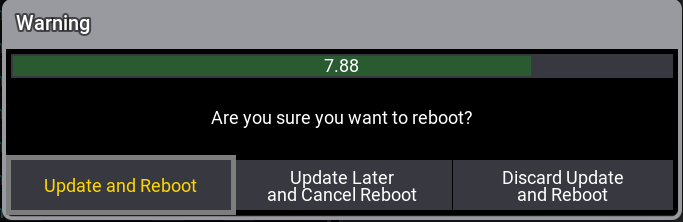
- Update and Reboot: Updates and reboots the device.
- Update Later and Cancel Reboot: Delays the update and leaves a red indicator in the control bar
 .
. - Discard Update and Reboot: Aborts the update and reboots the device.
|
|
Hint: |
| The update will start automatically when the countdown in the pop-up window expires. |
Tap in the Shutdown Menu to install delayed updates. This will open a second warning pop-up.
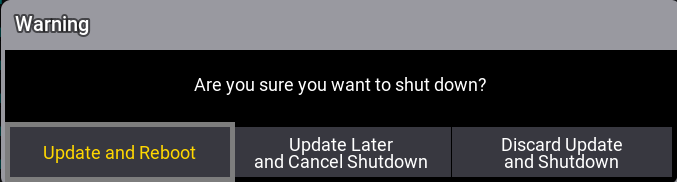
- Update and Reboot: Updates and reboots the device.
- Update Later and Cancel Shutdown: Delays the update and leaves a red indicator in the control bar .
- Discard Update and Shutdown: Aborts the update and shuts down the device.
|
|
Hint: |
Tapping  (Restart) in the Shutdown Menu opens an Update Confirmation pop-up as well. (Restart) in the Shutdown Menu opens an Update Confirmation pop-up as well. |
For more information about shutting down, see Shut Down the System.