The grandMA3 onPC software includes the grandMA3 viz-key software. There is no additional installation required to use the grandMA3 viz-key. In case that the grandMA3 onPC software is not installed on the computer that is running the visualizer, the separate grandMA3 viz-key software needs to be installed.
Hint:
If the grandMA3 viz-key hardware is connected to a grandMA3 onPC station or visualizer, the running software version is sent to the grandMA3 viz-key hardware.
Download the latest grandMA3 viz-key software version from www.malighting.com. For more information, see update the software.
The required installer is called grandMA3 Software x.x.x.x for grandMA3 viz-key.
Update Standalone Third-Party Visualizer Using a USB Stick
Requirement: The USB flash drive's file system must be FAT32.
Extract the zip file grandMA3_viz_key_net_duct_vx.x.x.x.zip. and copy the ma folder into the root directory of the USB flash drive.
Insert the USB flash drive in the grandMA3 onPC or console USB port.
Follow the next steps from point 3.
Update Standalone Third-Party Visualizer Using the Local Hard Drive
Extract the zip file grandMA3_viz_key_net_duct_vx.x.x.x.zip.
For Windows systems, copy the files from the ma folder into the directory C:\ProgramData\MALightingTechnology\installation_packages.
For macOS systems, copy the files from the ma folder into the directory ~/MALightingTechnology/installation_packages. For more information, see Folder Structure.
To access Software Update, tap .
Tap Settings.
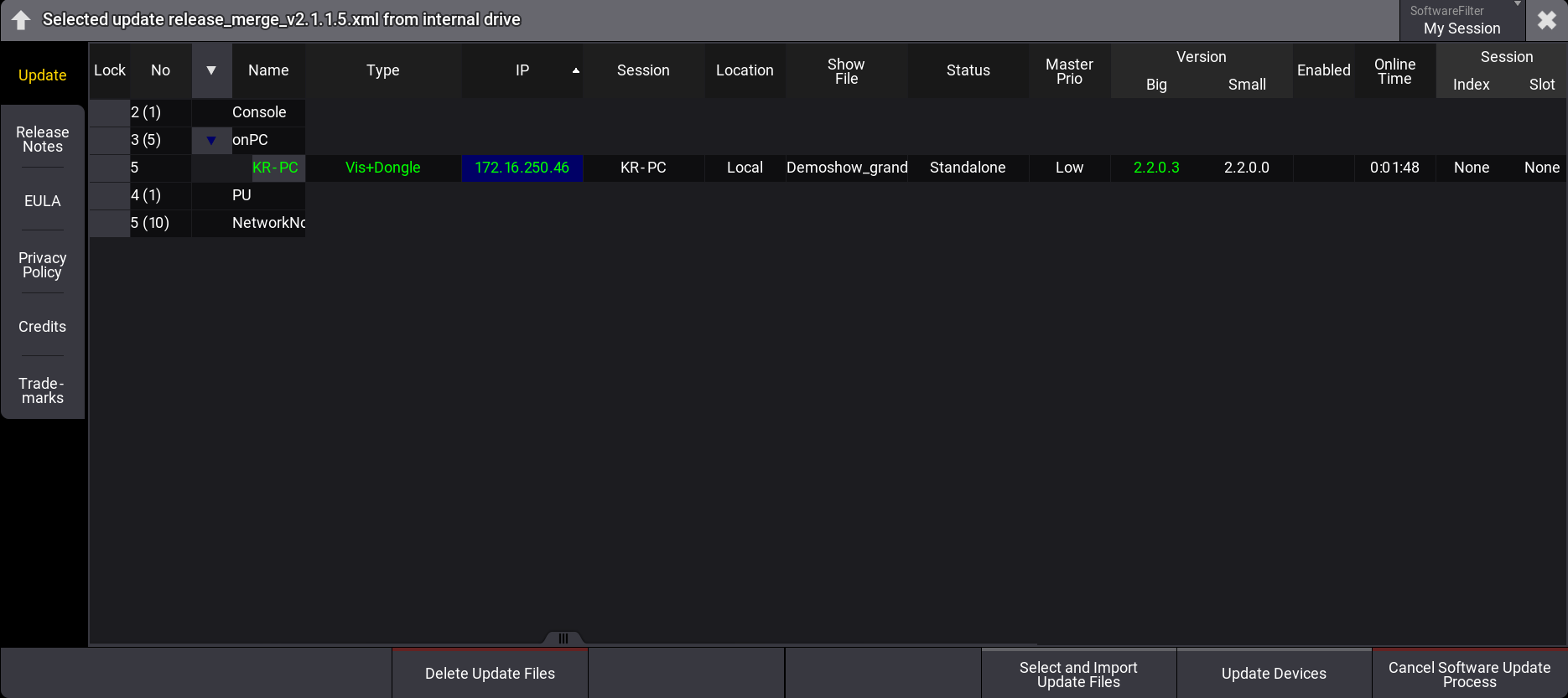
TapSoftware Update. The Software Update window opens:
Important:
The third-party visualizer must be running in the update mode. For more information, see the manual of the third-party software.
Software Update Window with selected update file
Tap Select and Import Update Files.
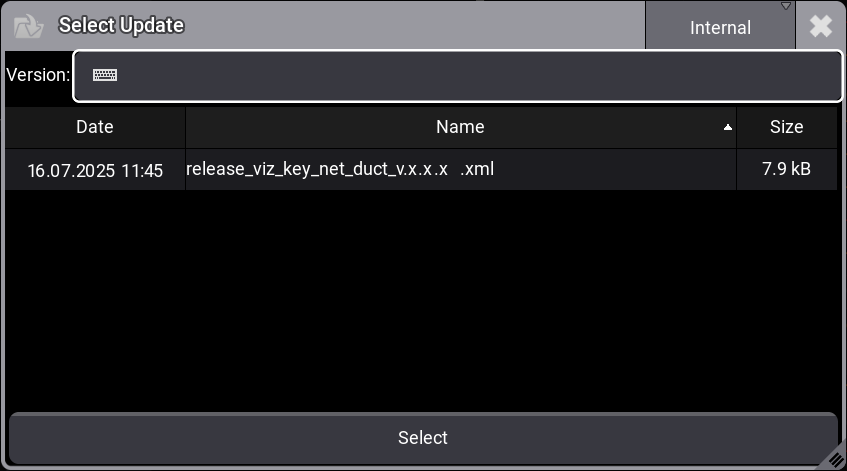
The Select Update window opens.
Select Update pop-up
Select the location that contains the update files (internal or any plugged-in external device). Select the release_viz_key_net_duct_vx.x.x.x.xml file.
Tap Select.
The pop-up closes, and the End User License Agreement (EULA) opens.
Confirm the End User License Agreement (EULA).
The selected update file is displayed in the title bar of the software update window.
Select the third-party visualizer that supports viz-key. The selected devices turn into bright blue.
Tap Update Devices.
The software update starts copying files.
Once the file has been transferred, restart the third-party visualizer using the viz-key support software.


 .
.