Data Pools
|
grandMA3 User Manual » Data Pools
|
Version 2.5 |
Much of the data belonging to a show file is stored in pools. Many of these pools exist as children of a Data Pool parent object.
A new show file creates a default Data Pool. The Data Pool object contains the other pools.
New Data Pool objects can be created, giving an entirely new set of pools.
This can be very useful if several shows or acts use the same patch; for instance, each song in an extensive band catalog can be in its own data pool.
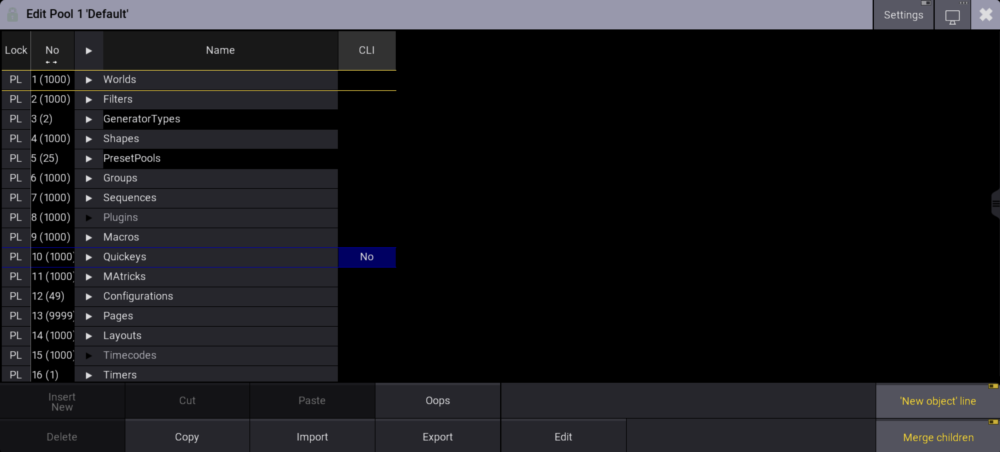
These are the pools inside the Data Pool objects:
- 1. Worlds
- 2. Filters
- 3.1 Bitmaps
- 3.2 Generators - Random
- 4. Shapes
- 5. Preset Pools
- 6. Groups
- 7. Sequences
- 8. Plugins
- 9. Macros
- 10. Quickeys
- 11. MAtricks
- 12. Executor Configurations
- 13. Pages
- 14. Layouts
- 15. Timecodes
- 16. Timers

|
Important: |
| In grandMA3 version 2.5, Shapes moved from destination 16 to destination 4 within each data pool. This changes the numbered structure of the data pool. Check and update macros that reference data pool destinations by number. Macros that reference destinations by name are not affected. |
Each pool window can be linked to the selected data pool or a specific data pool. For more information, see Common Window Settings.
Data Pools Window
The best way to see the different data pools is in the Data Pools window. The Data Pools window can be created like any other window. For more information, see Add Window.

Tap a data pool object in the Data Pools window to select the corresponding data pool. The following data pool operations can be performed using the corresponding keyword together with the Data Pools window or by entering the DataPool keyword in the command line.
The data pools can also be found in Menu / Settings / User Configuration / Pools. This is a list of the data pools.

|
Hint: |
| Data Pool 128 is reserved for the Preview feature. It should not be used for anything else. For more information, see Preview. |
Create a New Data Pool Object
A data pool object is created by storing it. Use one of the following methods:
- Press Store and then tap an empty pool object.
- Open the swipey commands on an empty pool object and choose Store.
- Using the command line: Store DataPool [DataPool_number]
Executing the Edit command on an empty pool object also creates a data pool object.
Copy a Data Pool Object
A data pool can be copied. This makes a copy of all the elements in the data pool. The copies are not linked, but objects inside the copy might be referencing objects in the source data pool. For instance, a copy of a sequence might contain links to presets in the source data pool - the presets are not copied automatically, and the references are not changed in the copy.
Changing the source or copied data pool after the copy operation does not change the other data pool.
- Press Copy, tap the source pool object, and then an empty pool object.
- Open the swipey commands on the source pool object, choose Copy, then tap an empty pool object.
- Using the command line: Copy DataPool ["DataPool_Name" or DataPool_Number] At ["DataPool_Name" or DataPool_Number]
|
|
Hint: |
|
Objects inside a data pool can be copied from one pool to another using the normal Copy and Paste commands.
|
Edit a Data Pool Object
Editing a data pool object opens an editor with a structured list of the elements in the data pool. Unfolding the elements in the list shows the settings for the elements.
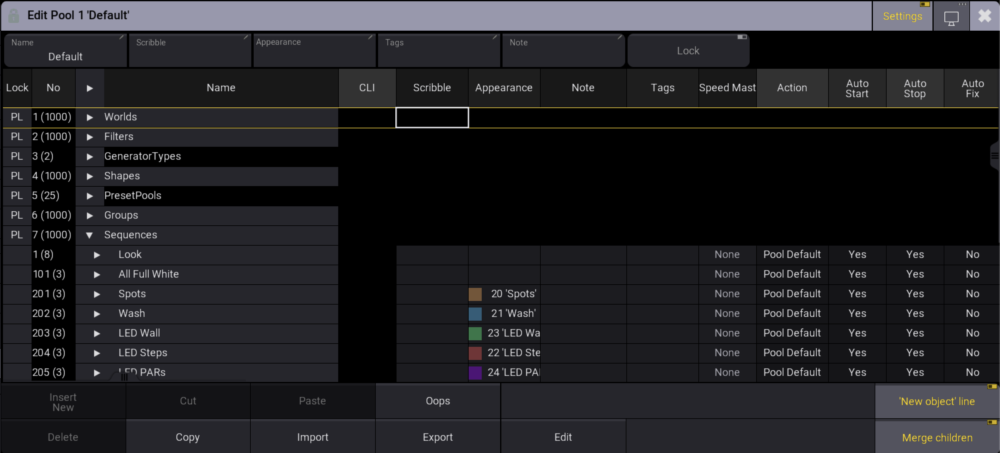
This editor provides access to the complete data pool structure.
Changing a setting here changes the setting for the object.
Edit a pool object using one of these methods:
- Press Edit and then tap the desired pool object.
- Open the swipey commands on the pool object and choose Edit.
- Using the command line: Edit DataPool ["DataPool_Name" or DataPool_Number].
Reference Data Pool Objects from a Different Data Pool
Other data pools can reference a pool element stored in another data pool.
For instance, imagine a repertory theater. All default elements are stored in the data pool 1, including a sequence that controls the house lights. The show for tonight is programmed in data pool 2. The sequence can be copied from data pool 1, but if changes are made to it later, it would need to be copied again into the second data pool. Instead, the original sequence can be assigned to an executor in data pool 2.
The image of the edit menu above shows that the structure in the data pool is numbered. So sequence 1 in this data pool is data pool object 1.7.1. The first number is the data pool number. The second number specifies that it is a sequence. The third number specifies that it is sequence number 1. If this element needs to be assigned somewhere, the data pool object must be included in the assign command. This can be done using the data pool object number or simply by adding the data pool information before the object - see the example below.
Example
Data pool 1 has sequence 1. This needs to be used in data pool 2 on (page 1) executor 201.
Make sure data pool 2 is the selected pool.
The example can be achieved using the command line: Assign DataPool 1 Sequence 1 At Page 1.201.
Now the sequence in data pool 1 can be controlled by the executor in data pool 2.
Some menus allow you to select the data pool. In the title bar of the menus, there is a button called DataPool that can toggle between the different data pools.
Delete a Data Pool Object
|
|
Important: |
|
Deleting a data pool object also deletes everything inside the data pool!
|
Unlocked data pools can be deleted using any of the following methods:
- Press Delete and then tap the pool object.
- Open the swipey commands on the relevant pool object and choose Delete.
- Using the command line: Delete DataPool ["DataPool_Name" or DataPool_Number].