|
grandMA3 User Manual » Show File Handling » Backup and Template Show Files
|
Version 2.5 |
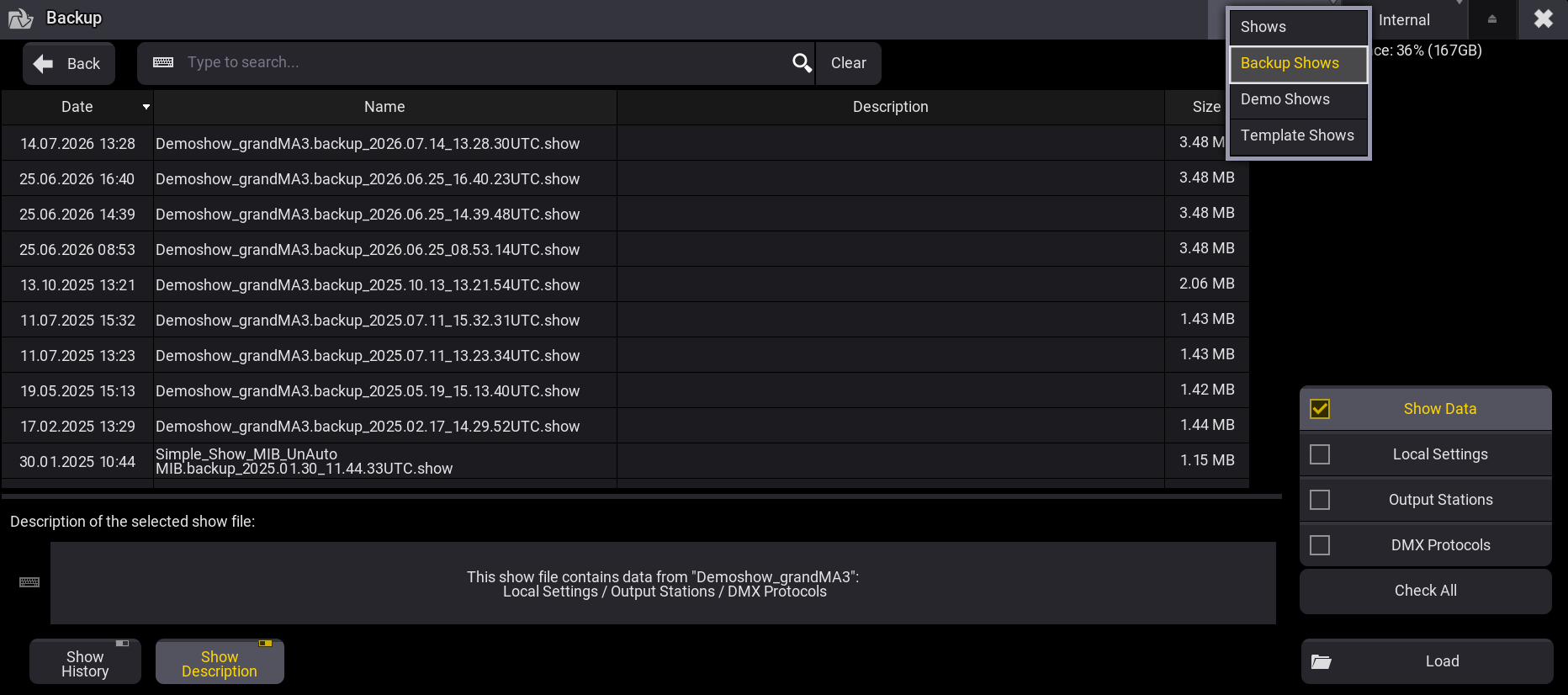
Show files are categorized into multiple folders. Shows is where the regular saved show files are stored, in Backup Shows a show file is automatically generated when saving a show file. In Template Shows predefined show files can be added by the user. Demo Shows are the predefined show files by MALighting. For more information, see Demo Shows.
To load a backup file, a demo show file, or a template show:
- Open the Backup Menu and tap Load.
- Tap Shows to toggle between Shows, Backup Shows, Demo Shows and Template Shows.
- You can load a previously saved backup or a demo show.

|
Restriction: |
| It is not possible to save or create a new show file in the Backup Shows, Demo Shows, or Template Shows folder. |
- Up to 10 backup files can be stored from the same show file. A backup is automatically generated when a show file is saved.
- The name of a backup show file contains:
- Showfile Name
- Backup
- Date and Time in UTC format
Template Shows
To display show files in the Template Shows folder, the show file must be manually placed in a specific folder in the local device's library. For more information, see Folder Structure.
To place an already saved show file into the template show folder on a grandMA3 console, use an external SFTP client. For more information, see SFTP Connection to a Console .
Example
Requirements: A show file that can be used as a template is stored.
To add a show file to the template shows folder on grandMA3 onPC for Windows:
- Open the desktop.
- Open C:\ProgramData\MALightingTechnology\gma3_2.2.1\shared\shows on your Windows machine.
- Select a show file you want to use as a template and copy this show file.
- Open C:\ProgramData\MALightingTechnology\gma3_library\templateshows and paste the copied show file into the folder. The show file has been added to the template shows and can be selected in the backup menu.