The Masters window provides access to master controls, group masters, world masters, speed masters, playback masters, and timing masters. It provides an overview of the current master values and indicates which masters are not at their default values.
To open the Masters window:
Tap in the control bar on the left of screens 1 to 7 or press F4 on a keyboard.
Tap the screen to open the Add Window pop-up and then tap More - Playback - Masters. The window opens with the Master Controls tab selected.
To open a temporary Masters window, press and hold Group. The temporary window opens with the Group Masters tab selected.
Type Menu MasterOverlay into the command line. The window opens with the previously selected tab.
User name[Fixture]>Menu MasterOverlay
Masters Window Tabs
The Masters window is divided into six tabs:
Master Controls
Group Masters
World Masters
Speed Masters
Playback Masters
Timing Masters
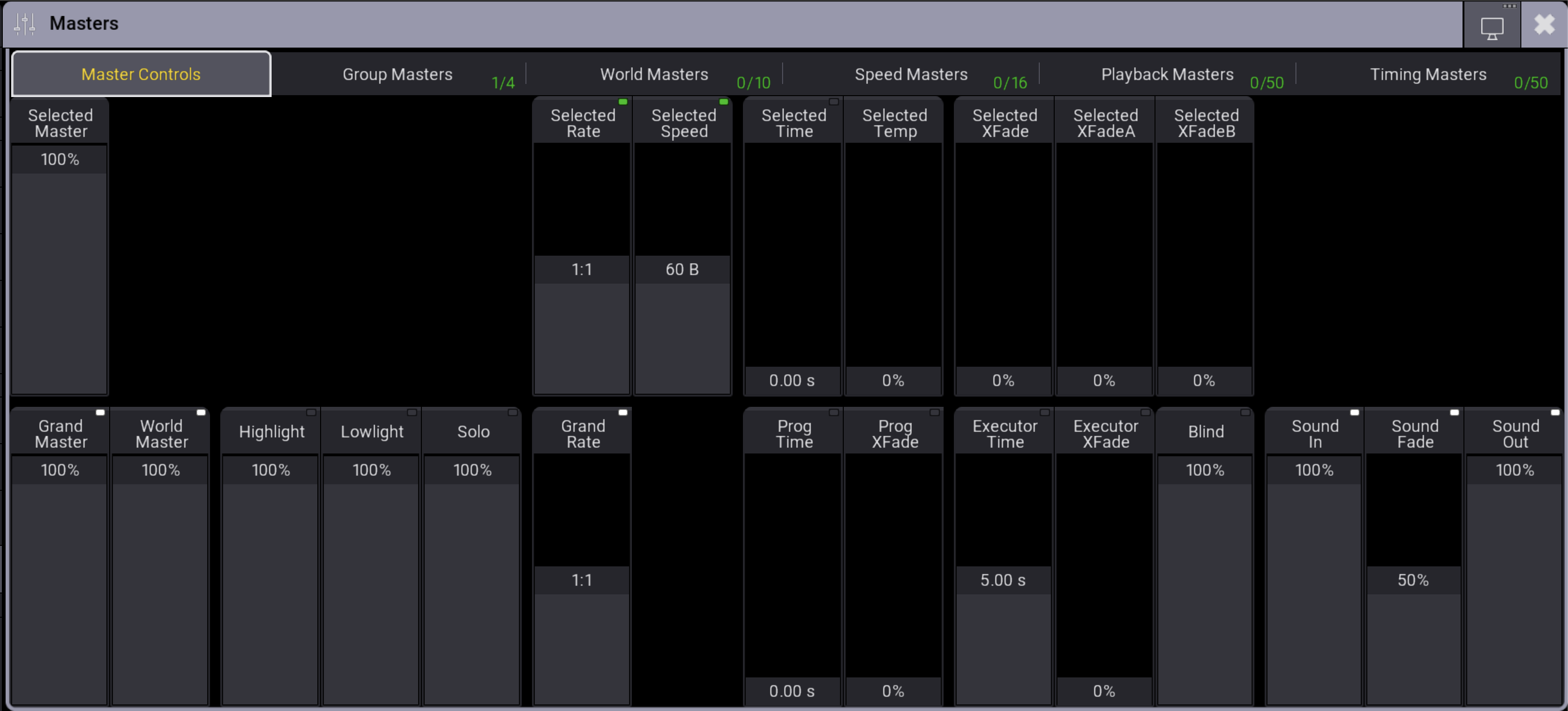
The Master Controls tab displays selected and global master controls. Each of the other tabs displays all masters of one type.
Groups are displayed in the Group Masters tab with their respective icon when their Mode is set to a value other than None.
All created worlds are displayed in the World Masters tab. All speed masters, playback masters, and timing masters are displayed in their corresponding tabs. Masters Window - Master Controls
A green number in the lower-right corner of each tab shows the number of masters that are not at their default value, followed by the total number of masters in that category.
Example:
"1/4" means that 1 of 4 masters in that category is not at its default value. Masters Window - Green Numbers
Master Display Each master is displayed with its label in the title bar.
Below the title bar is a fader used to change the value of the master.
Each master also has buttons to quickly change or influence its value. The available buttons depend on the type of master.
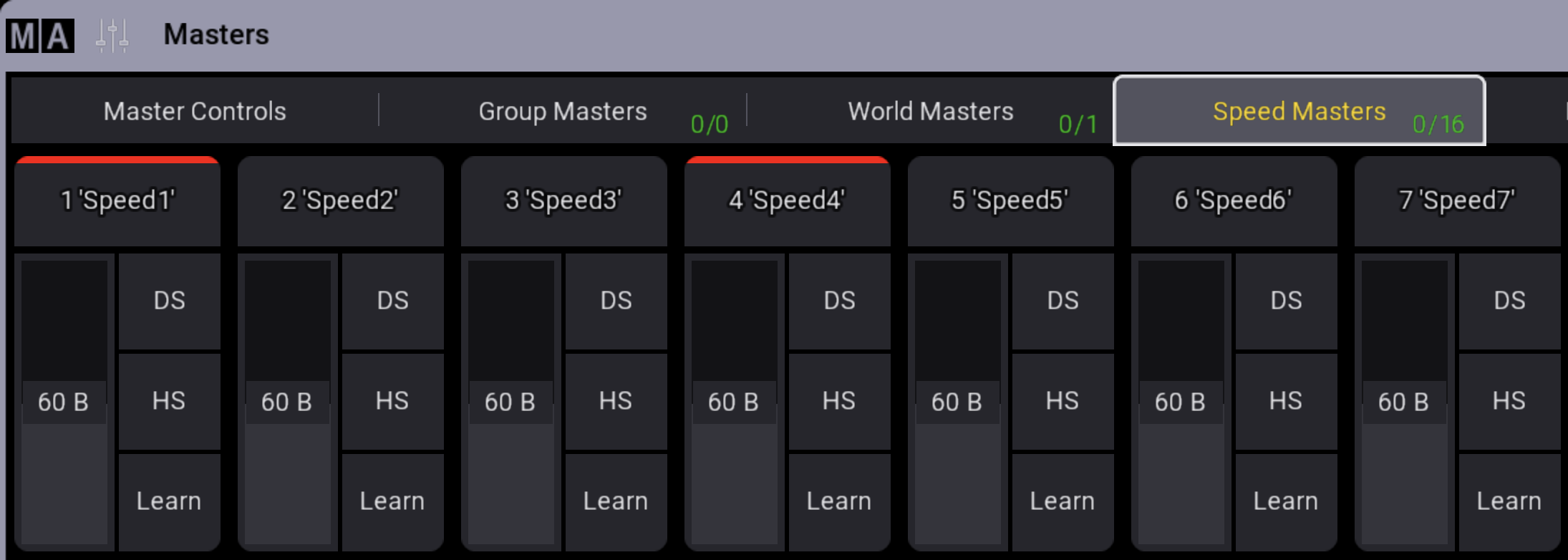
For speed masters, playback masters, and timing masters, a disabled master is indicated by a red bar above the label. Masters Window - Speed Masters Speed1 and Speed4 disabled
Master Controls
The upper section displays on-screen faders for the selected sequence.
The lower section displays on-screen faders with indicators in the upper-right corner of the title bar for global settings.
For more information on changing modes, see Masters.
To adjust values, tap and slide upward or downward.
Group Masters
Two button modes are available for group masters:
Full / Zero
Flash / Black
To select the button mode, tap Button Mode in the title bar.
The selected button mode applies to both the Group Masters tab and the World Masters tab.
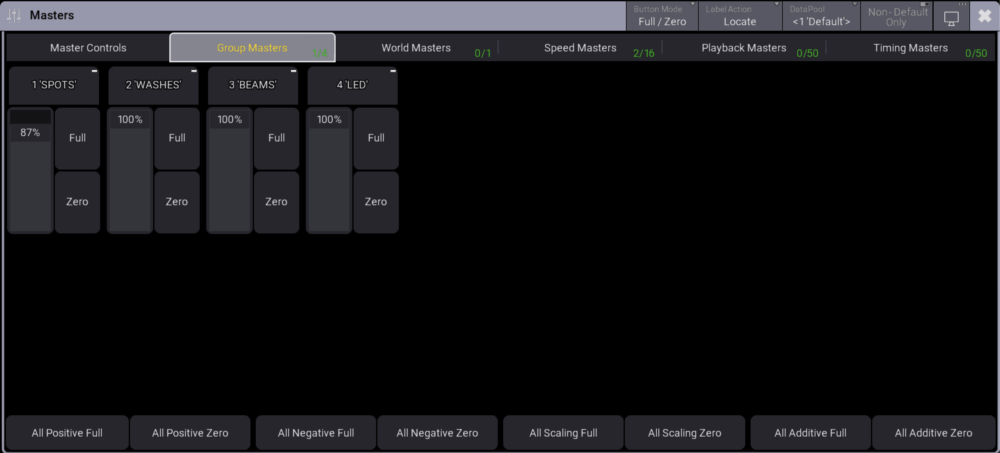
In Full / Zero mode, tap Full to set the master to 100 %, or tap Zero to set the master to 0 %.
In Flash / Black mode, tap and hold Flash to temporarily set the master to 100 %, or tap and hold Black to temporarily set the master to 0 %. Masters Window - Group Masters
Group Masters Button Bar
The buttons in the Group Masters tab depend on the mode of the group master.
All Positive Full
Sets all group masters with the mode Positive to 100 %.
All Positive Zero
Sets all group masters with the mode Positive to 0 %.
All Negative Full
Sets all group masters with the mode Negative to 100 %.
All Negative Zero
Sets all group masters with the mode Negative to 0 %.
All Scaling Full
Sets all group masters with the mode Scaling to 100 %.
All Scaling Zero
Sets all group masters with the mode Scaling to 0 %.
All Additive Full
Sets all group masters with the mode Additive to 100 %.
All Additive Zero
Sets all group masters with the mode Additive to 0 %.
These actions can also be executed using the FaderMaster keyword together with the /Type option keyword.
Use this syntax:
FaderMaster Group ["Group_Name" or Group_Number] At [Value] /Type ["Type_Value"]
Example:
To set all groups with the mode Positive to 100 %, type:
User name[Fixture]>FaderMaster Group * At 100 /Type "Positive"
Restriction:
When setting group masters, world masters, speed masters, playback masters, or timing masters from the command line, the value is applied, but the specified fade time is ignored.
Important:
Pressing All Additive Full immediately sets the output of all fixtures affected by additive Group Masters to 100 %.
World Masters
Two button modes are available for world masters:
Full / Zero
Flash / Black
To select the button mode, tap Button Mode in the title bar.
The selected button mode applies to both the World Masters tab and the Group Masters tab.
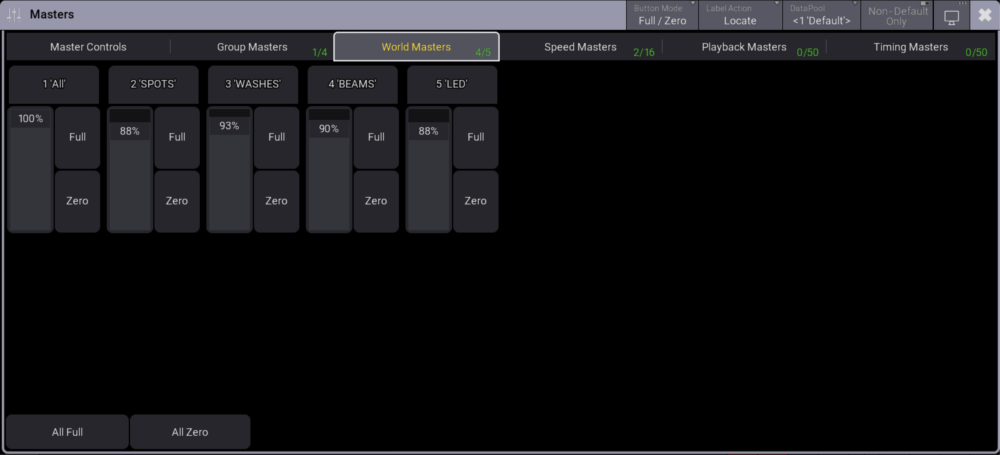
In Full / Zero mode, tap Full to set the master to 100 %, or tap Zero to set the master to 0 %.
In Flash / Black mode, tap and hold Flash to temporarily set the master to 100 %, or tap and hold Black to temporarily set the master to 0 %. Masters Window - World Masters
World Masters Button Bar
All Full
Sets all world masters to 100 %.
All Zero
Sets all world masters to 0 %.
Speed Masters
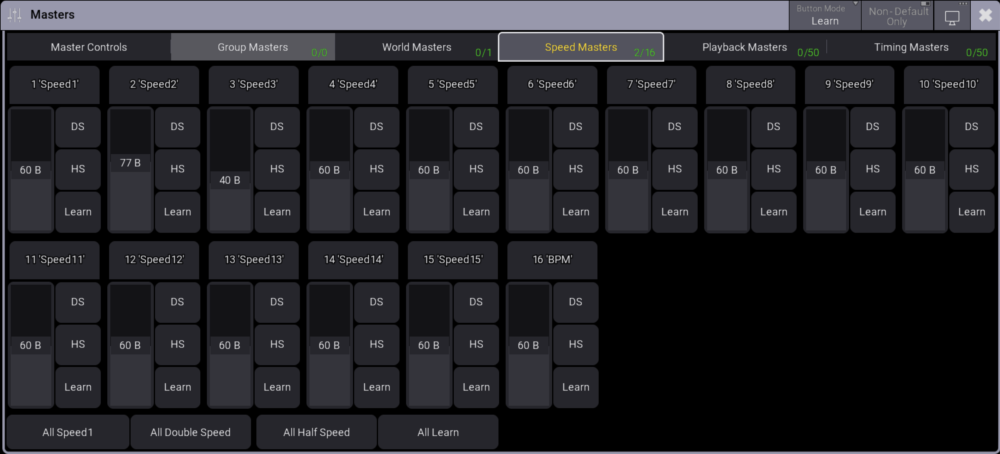
Two button modes are available for speed masters:
Learn
Speed1
To select the button mode, tap Button Mode in the title bar.
The selected button mode only applies to the Speed Masters tab.
Speed masters have the DS and HS buttons, along with either Learn or Speed1, depending on the selected button mode.
Tap DS to double the speed master value.
Tap HS to halve the speed master value.
Tap Learn repeatedly at the desired tempo to apply the Learn function to the speed master.
Tap Speed1 to set the speed master to 60 BPM, 1.00 Hz, or 1.00 s, depending on User Speed Readout. Masters Window - Speed Masters in Button Mode Learn
Speed Masters Button Bar
All Speed1
Sets all speed masters to 60 BPM, 1.00 Hz, or 1.00 s, depending on User Speed Readout.
All Double Speed
Doubles the speed of all speed masters. The new speed value is displayed in the fader of each speed master.
An asterisk (*) indicates that a speed multiplier was applied to the speed master. The maximum is 57600 BPM, 960.00 Hz, or 0.00 s, depending on User Speed Readout.
All Half Speed
Halves the speed of all speed masters. The new speed value is displayed in the fader of each speed master.
An asterisk (*) indicates that a speed divisor was applied to the speed master. The minimum is 0.00 BPM, 0.00 Hz, or Stop, depending on User Speed Readout.
All Learn
Applies the Learn function to all speed masters. Tap the button repeatedly to the desired speed.
Playback Masters
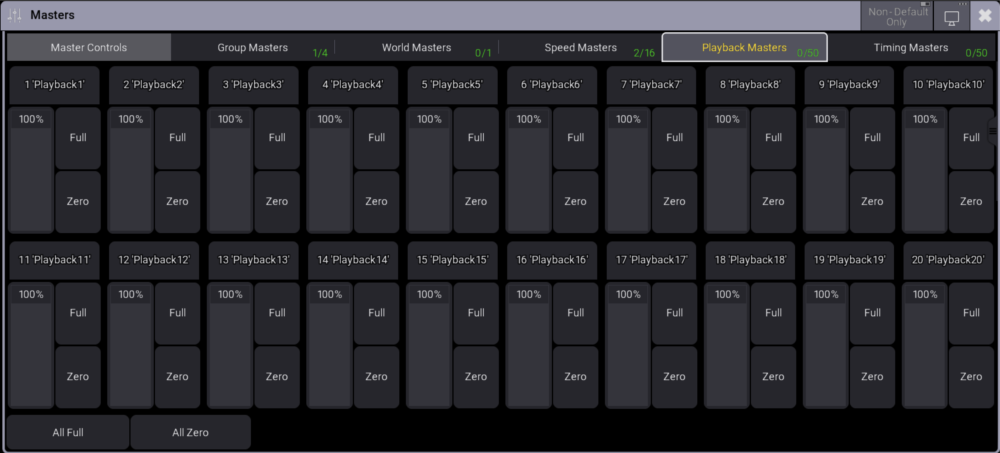
Playback masters have Full and Zero buttons.
To set the master to 100 %, tap Full.
To set the master to 0 %, tap Zero. Masters Window - Playback Masters
Playback Masters Button Bar
All Full
Sets all playback masters to 100 %.
All Zero
Sets all playback masters to 0 %.
Timing Masters
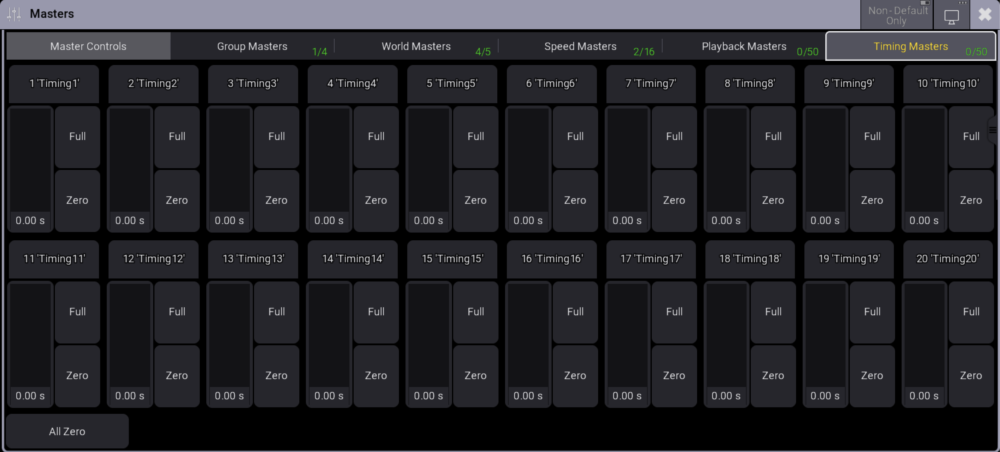
Timing masters have Full and Zero buttons.
To set the master to 10.00 s, tap Full.
To set the master to 0.00 s, tap Zero. Masters Window - Timing Masters
Timing Masters Button Bar
All Zero
Sets all timing masters to 0.00 s.
Label Action
The Label Action setting determines what happens when the title bar of a master is tapped.
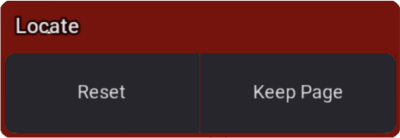
If Label Action is set to Locate, tap the title bar of a master to execute the Locate function. The page and pool containing the master are indicated with a red background, the word Here, and a red outline.
In the temporary pop-up, choose Reset or Keep Page:
Tap Reset to deactivate Locate and close the pop-up.
Tap Keep Page to deactivate Locate, close the pop-up, and the playback bar stays on the currently selected page. Reset or Keep Page
If Label Action is set to SelectFixtures, tap the title bar of a group master or world master to execute the SelectFixtures keyword for the fixtures assigned to the respective master.
Label Action is only available in the Group Masters and World Masters tabs. Locate is the default setting.
Hint:
When Label Action is set to SelectFixtures, the grid order of the selected fixtures is not applied to the selection.
Button Bars
At the bottom of each tab, except Master Controls, buttons are available to set all masters of the selected type to the same value or to apply a common action. The Button Bar can be enabled or disabled in the Masters Window Settings.
Window Settings
The title bar of the Masters window contains the following settings and buttons:
Non-Default Only When enabled, only masters that are not at their default value are displayed. The default value depends on the master type.
DataPool Link Selected is the Default This defines what data pool the pool window shows data from. This makes it possible to have pools showing objects from different data pools. For instance, a group pool window from the default data pool can be shown next to a different group pool window showing groups from a different data pool.
Label Action Locate is the default setting.
Available in the Group Masters and World Masters tabs of the Masters window. Selects the action of the master title bar. The available options are:
Locate
SelectFixtures
Button Mode Group / Worlds
Available in the Group Masters and World Masters tabs.
Tap and hold and select Full/Zero or Flash/Black. To set the master to 100 % or 0 % respectively, tap Full or Zero. To temporarily set the master to 100 % or 0 %, tap and hold Flash or Black.
Button Mode Speed Master
TapLearn repeatedly at the desired tempo to apply the Learn function to the speed master.
Tap Speed1 to set the speed master to 60 BPM, 1.00 Hz, or 1.00 s, depending on User Speed Readout.
Move Display Icon
Available when the temporary Masters window is opened by pressing and holding Group.
Moves the temporary window to another screen.
Hint:
You can enable or disable theHighlight, Lowlight, Solo, and Blindfunctionsusing Highlt, MA + Highlt, Solo, and Blind on the console. The on-screen faders remain operable when these functions are disabled.
 in the control bar on the left of screens 1 to 7 or press F4 on a keyboard.