|
grandMA3 User Manual » Operate Fixtures » Clone » Use Clone to Transfer Values
|
Version 2.3
|
For more general information about Clone, read the Clone topic first.
Clone Menu
The clone menu lets you transfer values from fixtures to fixtures throughout the show file, including sequences, groups, presets, worlds, and layouts.
To open the clone menu:
- Press MA + X1 | Clone and then press Please.
- Type Clone into the command line and press Please.
- Type Clo into the command line and press Please.
For more information, see Clone Keyword.
The clone menu opens:
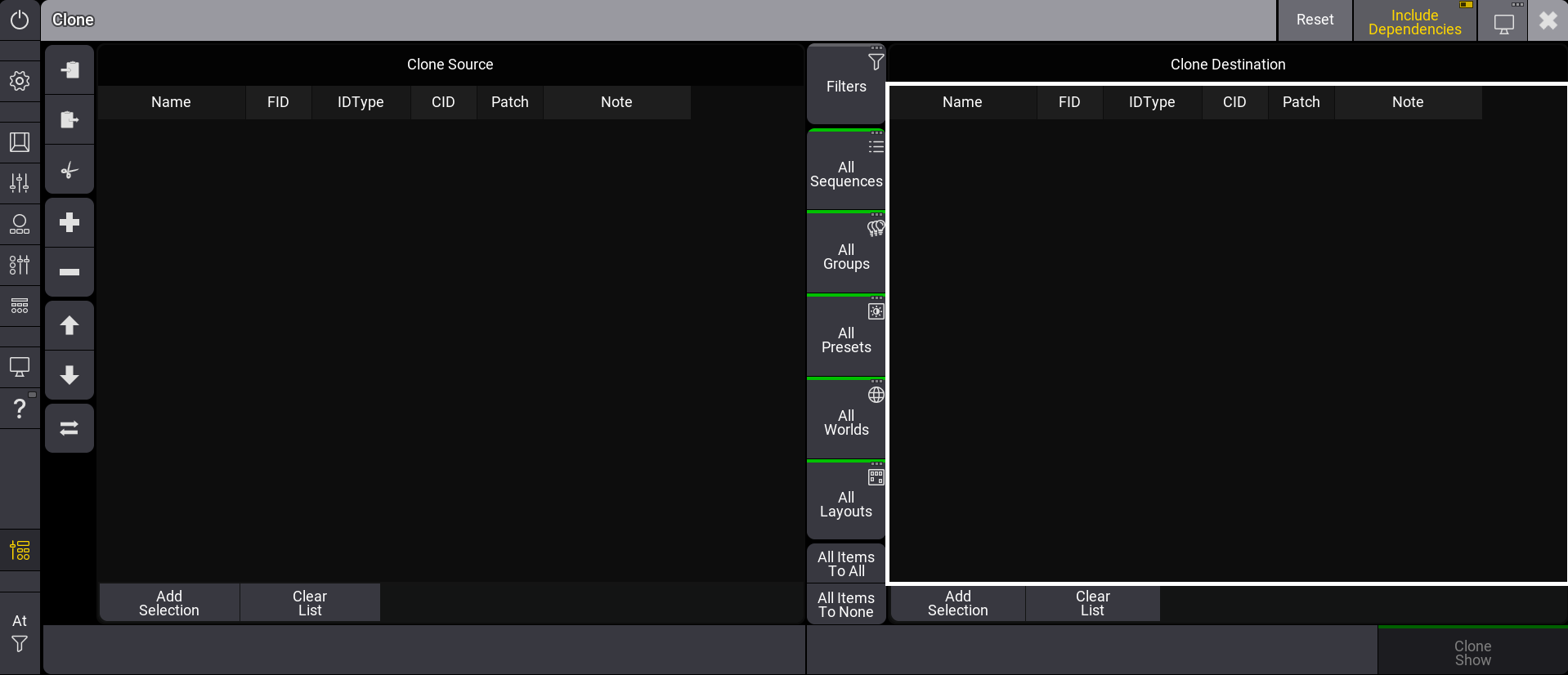
The clone menu is separated into the following areas:
- Left: Clone Source.
- Right: Clone Destination.
- Middle: Object button bar. For more information, see Cloning Show Data.

|
Important: |
|
Each area can be focused separately by tapping the screen in the corresponding area. A white frame
indicates the currently focused area.
|
To organize the fixtures in the selection, use the following tools located on the left side of the clone menu:
-
 : Copies the selected fixtures from the focused side.
 -
 : Pastes the selected fixtures to the focused side.
 -
 : Cuts the selected fixtures from the focused side.
 -
 : Opens the Add Fixtures pop-up.
 -
 : Deletes the selected fixtures from the focused side.
 -
 : Moves the selected fixtures up from the focused side.
 -
 : Moves the selected fixtures down from the focused side.
The fixture selection is synchronized in line on both sides of the clone window, meaning that the first line of the clone source uses the first line of the clone destination target.
Object buttons are displayed in form of a bar in the middle of the menu. The object buttons use filters to restrict the current cloning process for the following objects:
Depending on the selected items of an object, the color of the indicator bar of the object buttons changes.
- Green: All object items will be cloned.
- Yellow: Only selected object items will be cloned. The Clone Show button changes to Clone Selected Objects.
- Gray: No object items will be cloned.
 |
Hint: |
| If an object does not contain any items, the object's indicator bar will be colored in gray. |
Cloning Show Data
The cloning process can be restricted to specific objects, for example, to clone the data only in some objects, and not throughout all objects in the show file.
- Tap an object button, for example, All Sequences. A pop-up opens.
- Select a Sequence and then tap Select. The pop-up closes.
The cloning process has been restricted to the selected object.
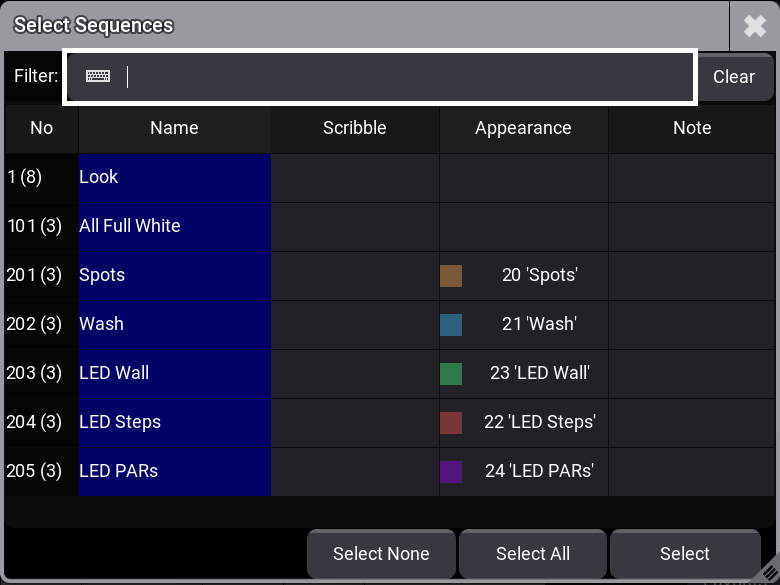
- To disable all items for a specific object, tap Select None in the pop-up.
- To enable all items for a specific object, tap Select All.
- To select all items for all objects, tap All Items To All in the Object bar. Tap Clone Show to execute the clone command.
- To disable the selection of all items, tap All Items To None. Tap Clone Programmer to execute the clone command.
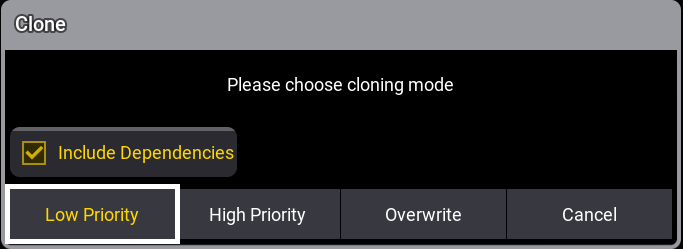
After tapping Clone Show or Clone Programmer, a pop-up opens:
| |
Hint: |
| Dependencies can only be included when cloning objects via Clone Show. When cloning only the programmer, the Include Dependencies button will not show up. |
The following options are available:
- Low Priority: For more information, see /MergeLowPriority Option Keyword.
- High Priority: For more information, see /MergeHighPriority Option Keyword.
- Overwrite: For more information, see /Overwrite Option Keyword.
- Cancel: Cancels the clone operation.
Examples
Tap the video below to see how to clone show data using the user interface.
Example 1
|
|
Hint: |
|
The steps below work similarly for setting
fixtures into the Clone Destination.
|
To set fixtures into the Clone Source:
- Select fixtures in the programmer. For more information on selecting fixtures, see Select Fixtures.
- Tap Add Selection in Clone Source. Fixtures are set. The total number of fixtures on each side is indicated by the number in parentheses.
or
- Tap the source area. The area is focused.
-
Tap the in the tool area on the left. A pop-up opens.
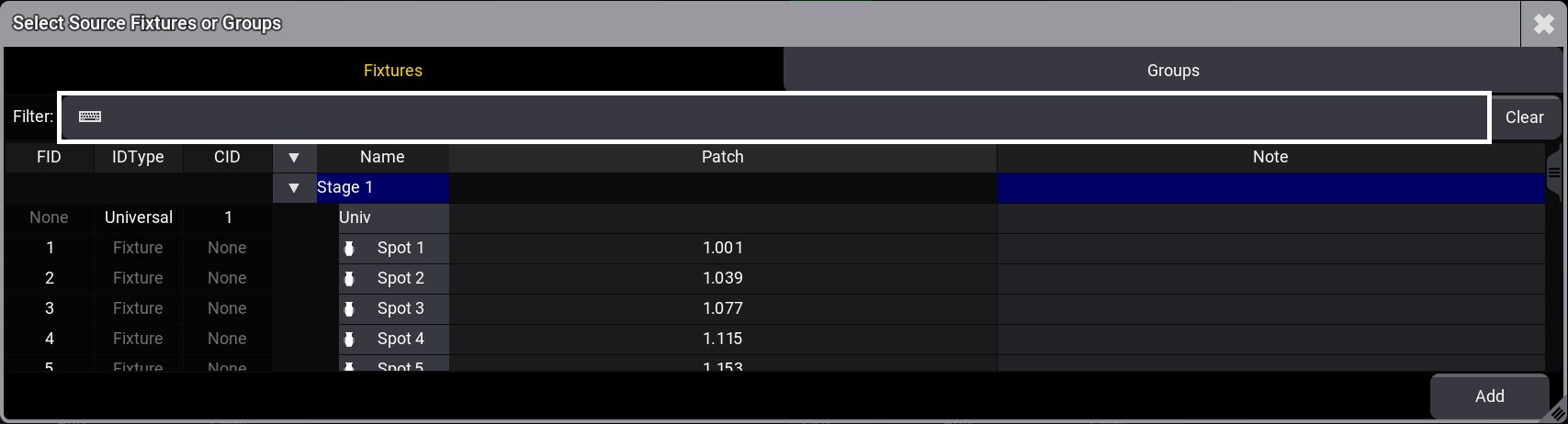
Clone - Select Source Fixtures or Groups - Select fixtures or groups in the pop-up.
- Tap Add. Fixtures are set.
|
|
Hint: |
| On the console, use the 2 Finger Edit gesture to add fixtures. For more information, see Gestures. |
To replace fixtures in the Clone Source or Clone Destination:
- Tap, hold, and drag a finger over the fixtures you want to replace. The selected fixtures will be highlighted in blue.
- Edit the selected fixtures. This opens the Selected Fixtures or Groups pop-up.
- Select the replacing fixtures in the pop-up. The selected fixtures will be highlighted in blue.
- Tap Replace. The selected fixtures are replaced.
To clear the complete clone list, tap Clear List.
Example 2
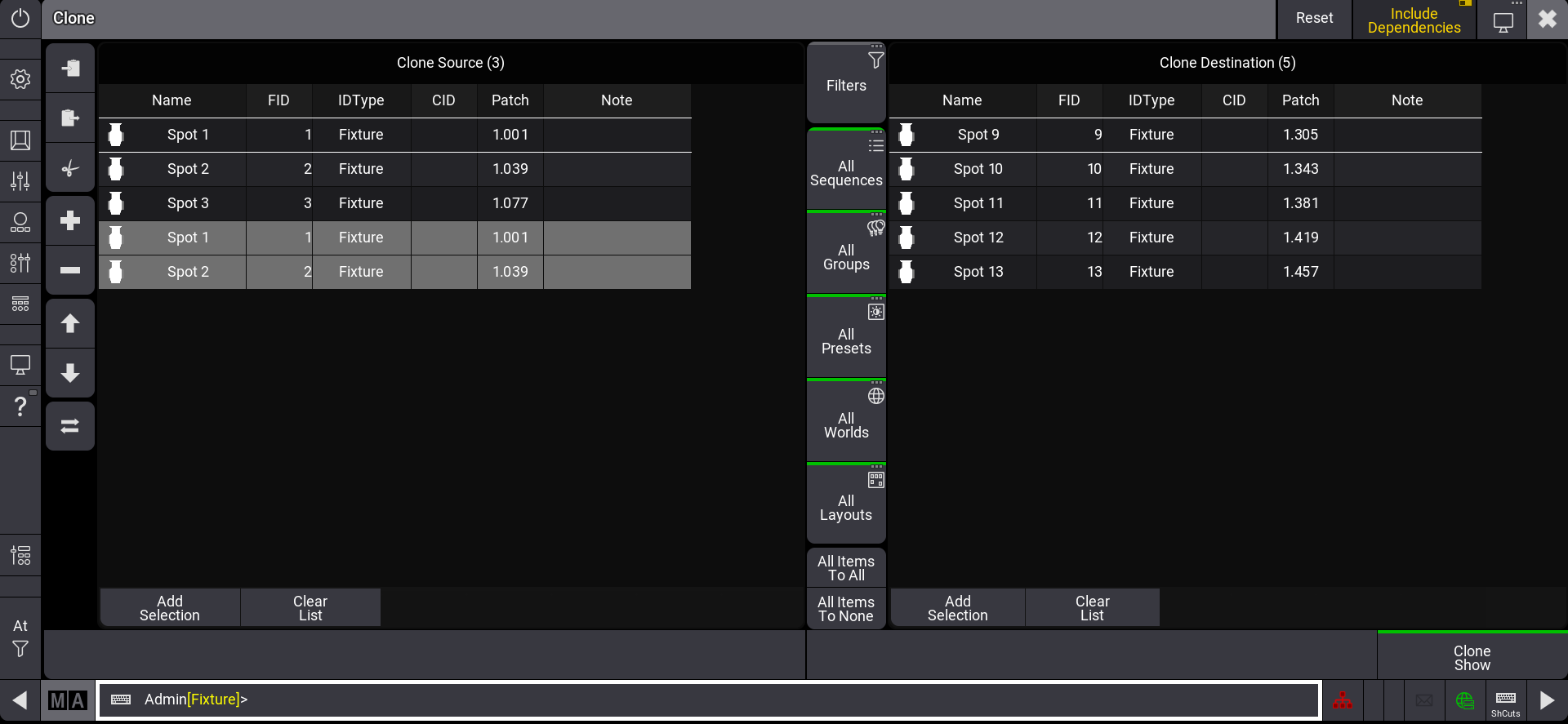
In the image below, Fixture 1 is set as the clone source for Fixture 9 and Fixture 2 is set as the clone source for Fixture 10.
If one area has fewer fixtures than the other, the side with fewer fixtures is automatically adjusted by adding the selected fixtures again from the top of the list. The adjusted fixtures are displayed with a light gray background.
There are two methods for copying fixtures or programmer values:
- You can use the At keyword in the command line input, for more information see At Keyword.
- Or use the Clone keyword in the command line input. Single attributes of a fixture source can be cloned as well. For more information, see Clone Keyword.
When executing the clone command using the clone keyword, the clone menu opens. For example, when entering Clone Fixture 1 At Fixture 2 in the command line.
-
To execute the clone command directly, use the If keyword. For example, by entering Clone Fixture 1 At Fixture 2 If Programmer into the command line input. The clone menu will not open and the priority pop-up
opens. For more information, see If
Keyword.
Hint: You could also use the Fixture 2 at Fixture 1 command instead of Clone Fixture 1 At Fixture 2 If Programmer - To execute the clone command without opening the clone menu or the priority pop-up, use the /NoDependencies keyword. The command will be executed in low priority. For more information, see /NoDependencies.
Example
Requirements:
- The grandMA3 demo show file is loaded and the clone menu is open.
To clone fixtures in the programmer using the clone menu:
- Add Fixtures to the Clone Source and Clone Destination areas as described above.
- Tap All Items To None, located in the object bar between both Clone areas. The button in the lower right corner switches to Clone Programmer and the object indicator bar turns grey.
- Tap Clone Programmer. The fixture values are cloned.
|
|
Hint: |
| Cloning only programmer values is indicated by gray-colored indicator bars above the object buttons and the Clone button. For more information on the colors, see Cloning Show Data. |
|
|
Hint: |
|
When cloning only programmer values, Include Dependencies has no effect
and therefore the button is grayed out. For more information, see Include Dependencies.
|