Using the Shapers Dialog
|
grandMA3 User Manual » Operate Fixtures » Special Dialog » Using the Shapers Dialog
|
Version 2.4 |
The Shapers dialog, part of the Special Dialog window, provides a graphical user interface for controlling shaper attributes in fixtures. The values that are used to visualize the shapers come from the DMX layer. For more information, see Fixture Sheet and Layouts.
Watch the following video to get an overview of the Shapers dialog feature.
Requirements:
- A fixture type with a shaper is selected in the programmer, for example, Ayrton Eurus. For more information, see Import Fixture Types and What is the Programmer.
To open the Shapers Dialog window:
- Open the Add Window dialog.
- Tap Common and Special Dialog. The Special Dialog window opens.
- Tap the Shapers tab on the left. The Shapers dialog opens.
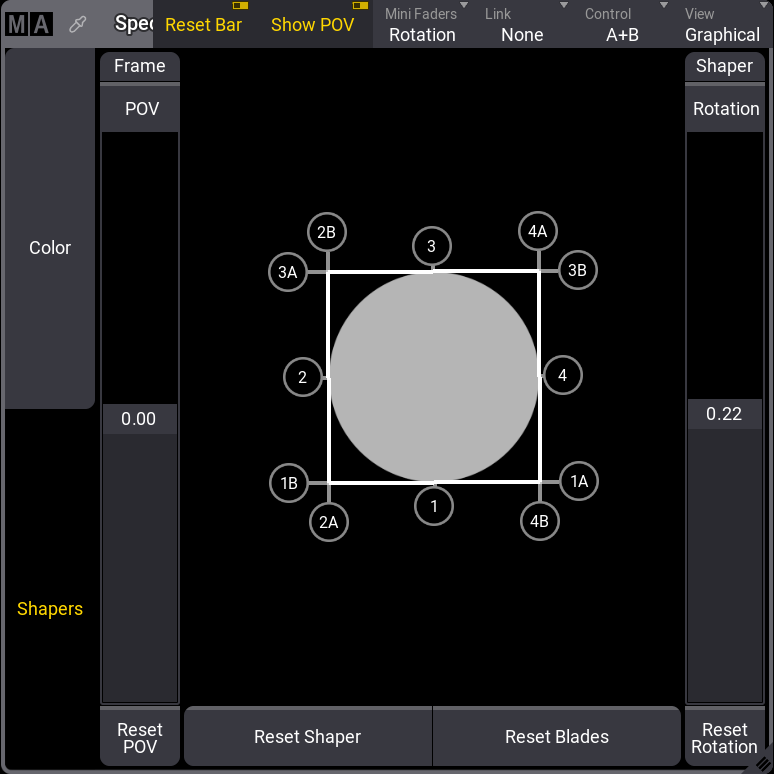
The title bar of the Shapers Dialog provides some options for controlling blades and shapers of fixtures. For more information, see Title Bar Configuration.
- Tapping Reset Shaper resets blades and rotation. Tapping Reset Blades resets only the blades.
- Use the POV fader to manually rotate the Point of View (POV) to match the real-life fixture orientation.
- To change the number of displayed faders, tap Mini Faders in the title bar.
- None: No faders are displayed.
- Full: The faders for blades and rotation are displayed depending on the value of Control.
- Blades: The faders for blades are displayed depending on the value of Control.
- Rotation: A fader for the shaper rotation is displayed.
-
Tap Link in the title bar to define how the movement of one or more blades works together.
- None: Each blade can be controlled individually.
- All: Moving one blade moves all other blades proportionally.
- Parallel: Moving one blade will also move the opposite blade.
- Mirrored: Moving one blade will mirror the opposite blade.
- To change the control mode, tap Control in the title bar. The Shaper Encoder Bar also follows the control selection. See below.
- Ins+Rot: The depth of insertion (1-4 -"I") and the blade rotation (1-4-"R") can be defined.
- A+B: The blade corners (A,B) can be defined.

|
Hint: |
| The software converts different types of shaper engines to the correct DMX values, allowing all modes to be used regardless of the fixture type. Blade misconfigurations are shown in the Conflicts in Fixture Types. |

|
Important: |
| Depending on the fixture type, there may be inaccuracies when switching between control modes. |
- Tapping View in the title bar changes the display mode.
- Graphical: Shows a shaper visualization.
- Faders: Shows only faders.
When the focus is on the Shaper Dialog, the Shaper Encoder Bar is displayed. Depending on the selected control mode, the encoders display the corresponding functions.

Graphical View Mode
The graphical view mode shows a fixture beam visualization. This beam is colored light gray.
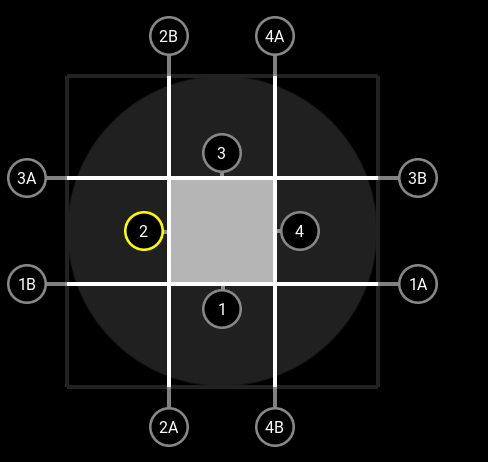
The insertion of blades can be changed with the movable handles. Handles labeled 1 through 4 are blades. Handles labeled with additional A and B are corners of the blades.
Four white lines show the actual insertion into the beam. The covered part of the beam is shown in dark gray.
Example
- Patch a blade fixture, for example, Ayrton Eurus.
- Select the patched blade fixture.
- Open the Shapers Dialog window.
- Tap and hold Link in the title bar. A dropdown menu opens.
- Select All. The dropdown menu closes.
- Tap and hold handle 2. Handle 2 turns yellow.
- Drag handle 2 on the inside of the cycle. The beam becomes a square.
|
|
Hint: |
| Tap and hold anywhere in the visualization to select the nearest handle. |
Using the Faders
With faders, you can adjust the insertion of the blades.
Values from 0.00 to 1.00 define the blade's insertion. 0.00 does not cover the beam, and 1.00 will insert the blades as far as the fixture allows.
To reset single blades, use Reset 1-4. To reset the shaper unit's rotation, use Reset Rotation.
Example:
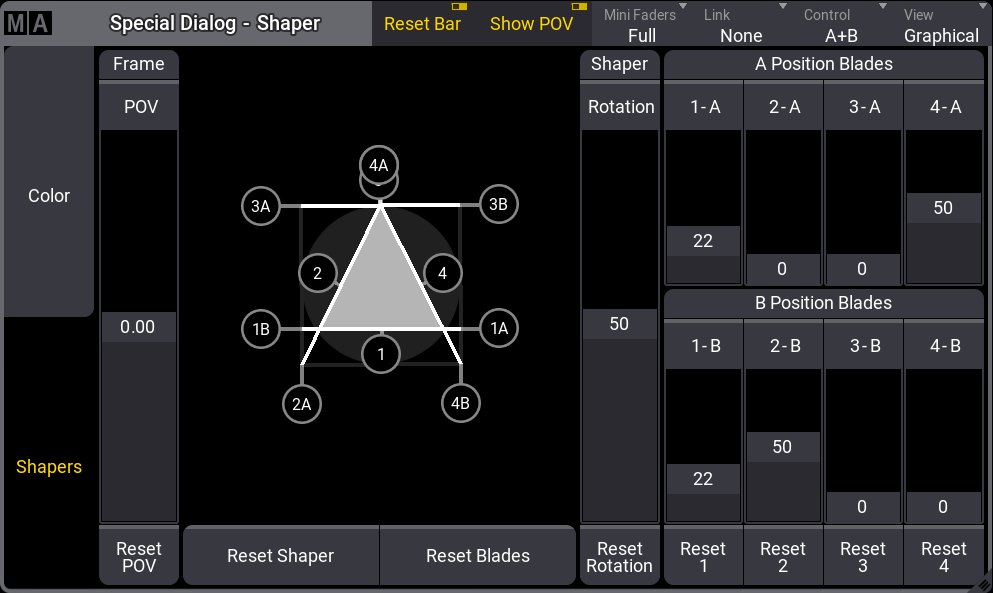
To create a triangle shape:
- Select a blade fixture.
- Tap and hold Mini Faders in the title bar of the Special Dialog window. A dropdown menu opens.
- Select Full. The dropdown menu closes.
- Tap and hold Control.
- Select A+B in the dropdown menu.
- Drag the faders to the following values: 1-A 0.22, 4-A 0.50, 1-B 0.22, 2-B 0.50.
- A triangle shape is created.
|
|
Hint: |
| The graphical representation of the Shaper Dialog may differ from the shaper of the actual fixture due to the fixture's technical conditions. |
|
|
Hint: |
| The faders are grayed out for fixtures with fewer than 4 blades or fixtures without a full set of attributes to control a blade. The handles for missing blades are adjusted accordingly in the graphical view. |