Tracks
|
grandMA3 User Manual » Timecode Show » Tracks
|
Version 2.4 |
A Track Group can contain multiple Tracks. The track contains one or multiple Time Ranges. The time range can contain Events. The Track can have one or multiple Subtracks. Subtracks contain information about fader positions and movements.
A track should have a Target. The target can be one of the following objects:
- Sequence
- Sound
- Timecode
- Timecode Slot (TCSlot)
- Preset
- Group
- Master
To add a target to a track, follow these steps:
- Edit a timecode pool object, for example, by using the swipey command. See Pool Windows for more information. The timecode editor opens.
- Tap the arrow (
 ) next to the track group name to expand it.
 - Edit the cell under the target column, and the assignment editor opens.
- Select the object you want to add as a target.
- The target is added.
Subtracks
Subtracks contain information about fader positions and transitions.
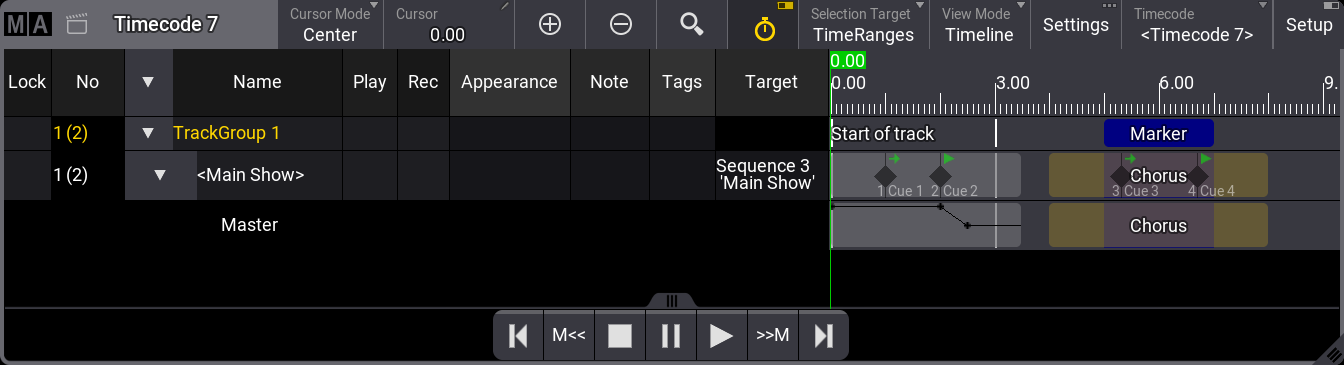
Subtracks can be added by starting a recording and then moving a fader or rotating a knob. The timecode show will record a series of events containing a fader value. These points will recreate the fader movement. The events can be edited only to contain the relevant events.
Be aware that if Auto Start and Auto Stop are activated, moving the master fader to and from zero may also record cue events.
Subtracks appear as rows nested in the tracks. The rows have no settings that can be changed and appear with a black background. The name column indicates what fader type it affects. Only the events in the subtrack can be edited.
Subtracks can be deleted by pressing Delete and then tapping the subtrack.
Sound Track
Sound pool objects can be assigned to tracks and will display the waveform in the timecode show. For more information, see Sounds Pool.
The left and right of the audio track are divided by a horizontal line across the waveform.
The sound assigned to a track is played back when the timecode show is played. For more information, see Local Settings and Connect Sound Out.
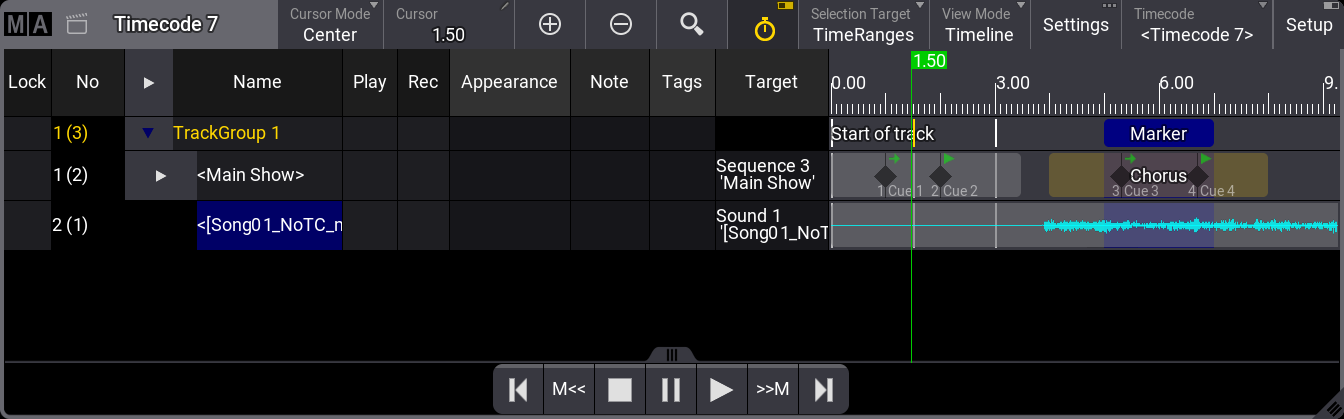
Events cannot be added to the soundtrack.
A warning icon ( ) will be displayed on the left side of the track if the sound file is corrupted.