Playback Bar
|
grandMA3 User Manual » Workspace » Playback Bar
|
Version 2.4 |

|
Hint: |
|
For more information about executors, page navigation, and the playback window and settings see What are Executors.
|
The playback bar displays the labels of the objects that are currently assigned to the corresponding executors.
The bar includes:
- The playback status of each object
-
The controls assigned to the executor keys, faders, and knobs
-
In some cases:
- Master Area
- Custom Area
- Page navigation controls
- Xkeys

Executor Labels
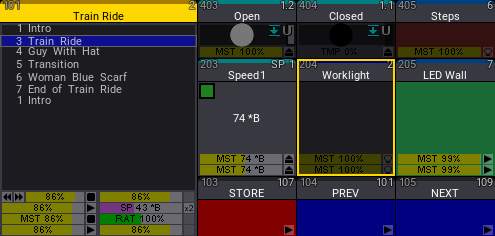
The executor labels display information about the objects and executors.
The bar at the top of each label indicates the type of object using the color of the corresponding pool.
If an appearance or scribble is assigned to an object, they are displayed in the background of the label. For sequences, this can be changed in the Executor Display Mode setting. For more information about settings in sequences see Sequence Settings.
The executor number is displayed in the upper left corner of the label.
The pool index number is displayed in the upper right corner of the label.
For masters, an abbreviation additionally indicates the type of master.
The abbreviations for the master indicators are:
- SM: Selected Master
- GM: Grand Master
- SP: Speed Master
- PB: Playback Master
- TM: Timing Master
For sequences, a simplified list with cue numbers and cue names is displayed.
Active cues are indicated by a blue background.
The bars in the bottom of the executor display the state of the master faders and knobs.
To open the assign menu for an executor, tap the label of that executor in
the playback bar.
For more information about the assign menu see Assign Object to an Executor.
To edit an object, tap and hold the label of that object in the playback bar. The assign menu opens to the Edit or Edit Setting tab, depending on which object is assigned to the executor.
Playback Bar on Different Screens
The playback bar is displayed permanently on some screens and optionally on other
screens.
To show or hide the playback bar on a screen, tap Show
Playback Bar in the Configure Display
pop-up.
Depending on where an instance of the playback bar appears, the bar contains different information.
The following table provides an overview of which version of the playback bar appears on which screen:
| Screen |
Playback Bar Display Mode
|
Additional Elements in the Playback Bar
|
|---|---|---|
|
9 2 |
permanent optional |
|
|
10 11 12 3
4
5 |
permanent permanent permanent optional optional optional |
|
|
7 |
optional |
|
For more information about internal and external screens and their numbering see Screen Allocation.
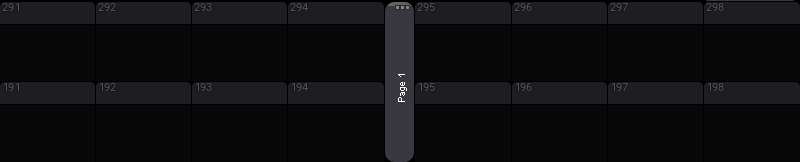
A window showing the assignment and status of the Xkeys is available in the Common and More tabs in the Add Window pop-up. Additionally, a version of the playback bar is also available as a window in the Common and More tab in the Add Window pop-up. The Playback window does not include the custom area, master area, or the same page navigation controls as the Playback Bar. For more information on adding windows see Add Windows.