|
grandMA3 User Manual » Workspace » User Interface » Configuration of Displays
|
Version 2.4 |
The displays are populated with a user-defined area and a collection of additional display elements. The additional elements offer quick access to helpful features, and their availability differs from screen to screen.
The following video gives an overview of the display configuration.
Pressing Menu then tapping Configure Display on any screen (excluding screens 8, 9, 10, 11, and 12) opens the Configure Display pop-up for that screen. The number of the display to be configured is displayed in the title bar of the pop-up. This pop-up can also be opened by tapping any empty user-defined area on the desired screen and tapping Configure in the upper-right corner of the Add Window pop-up.
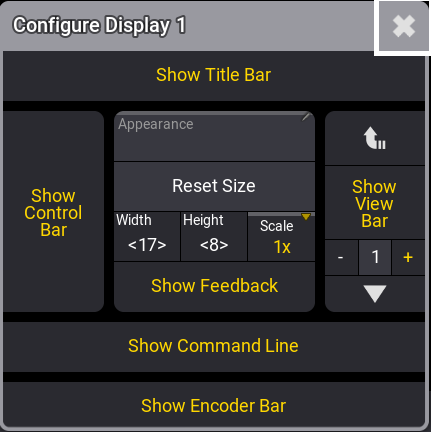
This pop-up is used to configure or change the display's appearance. It has different areas:
-
Show Title Bar:
Activate this button to see the window frame in the grandMA3 onPC. This is not an option in the MA hardware. -
Show Control Bar:
Activate this to see the control bar on the left side of the display. For more information, see Control Bar. -
Appearance:
Tap this to open the Select Appearance pop-up and select one of the existing appearances for this display. The appearance is added as a background for the screen area. Read more in the Appearance section. -
Reset size:
Tap this to reset the size of the user-defined area. - Width:
Tapping Width opens the calculator, and the width can be edited. - Height:
Tapping Height opens the calculator, and the height can be edited. -
Scale:
The scale can be used to adjust the interface's size. This option is only available on onPC and on external screens. It is very useful for high-DPI screens or for screens with a lower resolution than Full HD. Tap and hold Scale to open the dropdown menu and select a value. - Show Feedback:
Activates a small feedback pop-up at the bottom of the display. This feedback appears briefly when the show is saved. -
Show View Bar:
Activates the column of view buttons. For more information on the View Bar, see View Bar and View Buttons. -
Show Command Line:
Activate this to see the command line input bar at the bottom of the display. For more information, see Command Line. -
Show Encoder Bar or Show Playback Bar:
Activates the encoder bar or the playback bar at the bottom of the display.

|
Hint: |
| The user-defined area can be shared by multiple users using the corresponding Screen Config. A user-defined area bigger than the display will appear within a brown frame. A user-defined area smaller than the screen will be grayed out. For more information, see User-Defined Area. |
The  in the
title bar closes the pop-up.
in the
title bar closes the pop-up.
These additional elements can be hidden to increase the available user-defined area, or shown in different combinations on most screens, whether internal screens or external monitors.
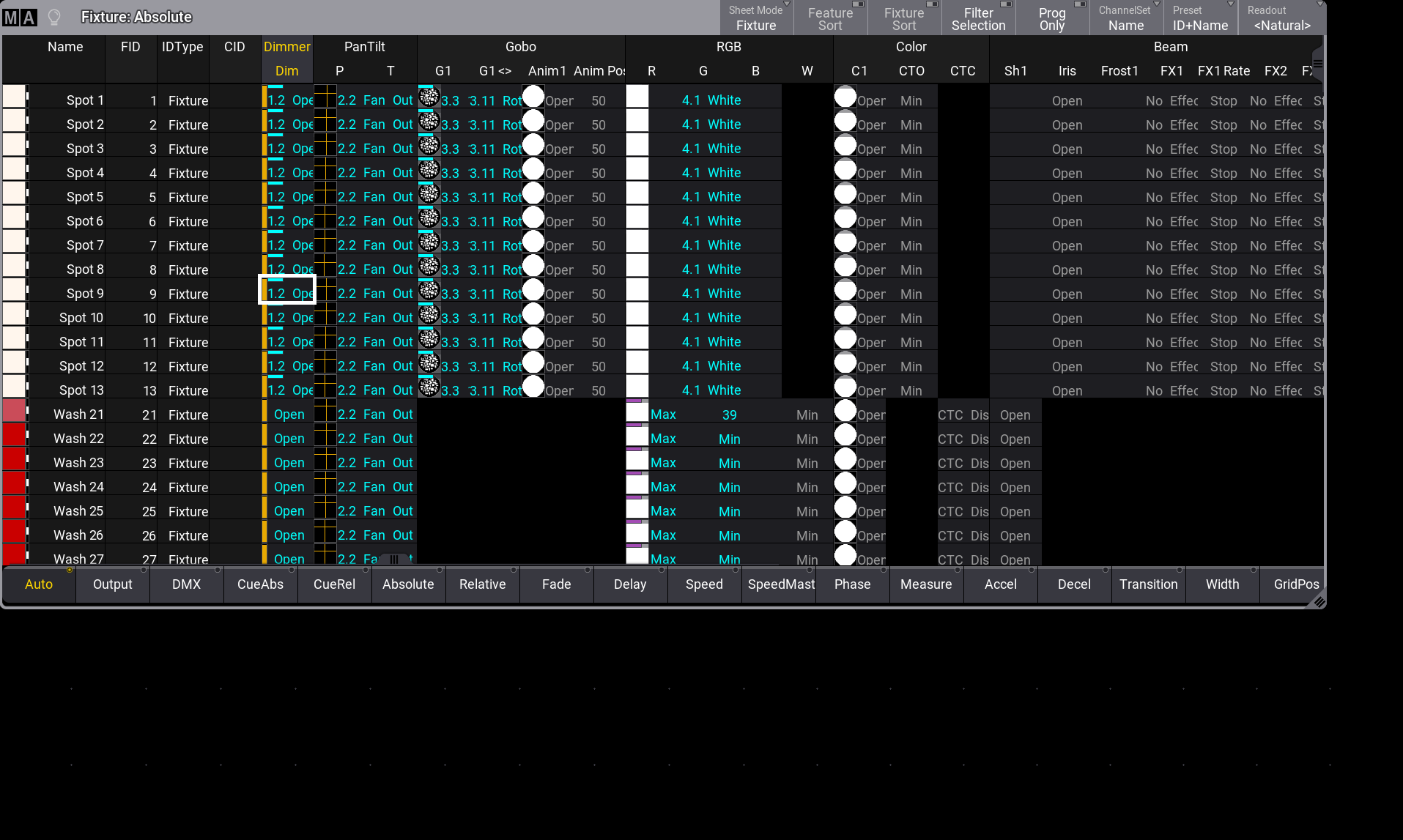
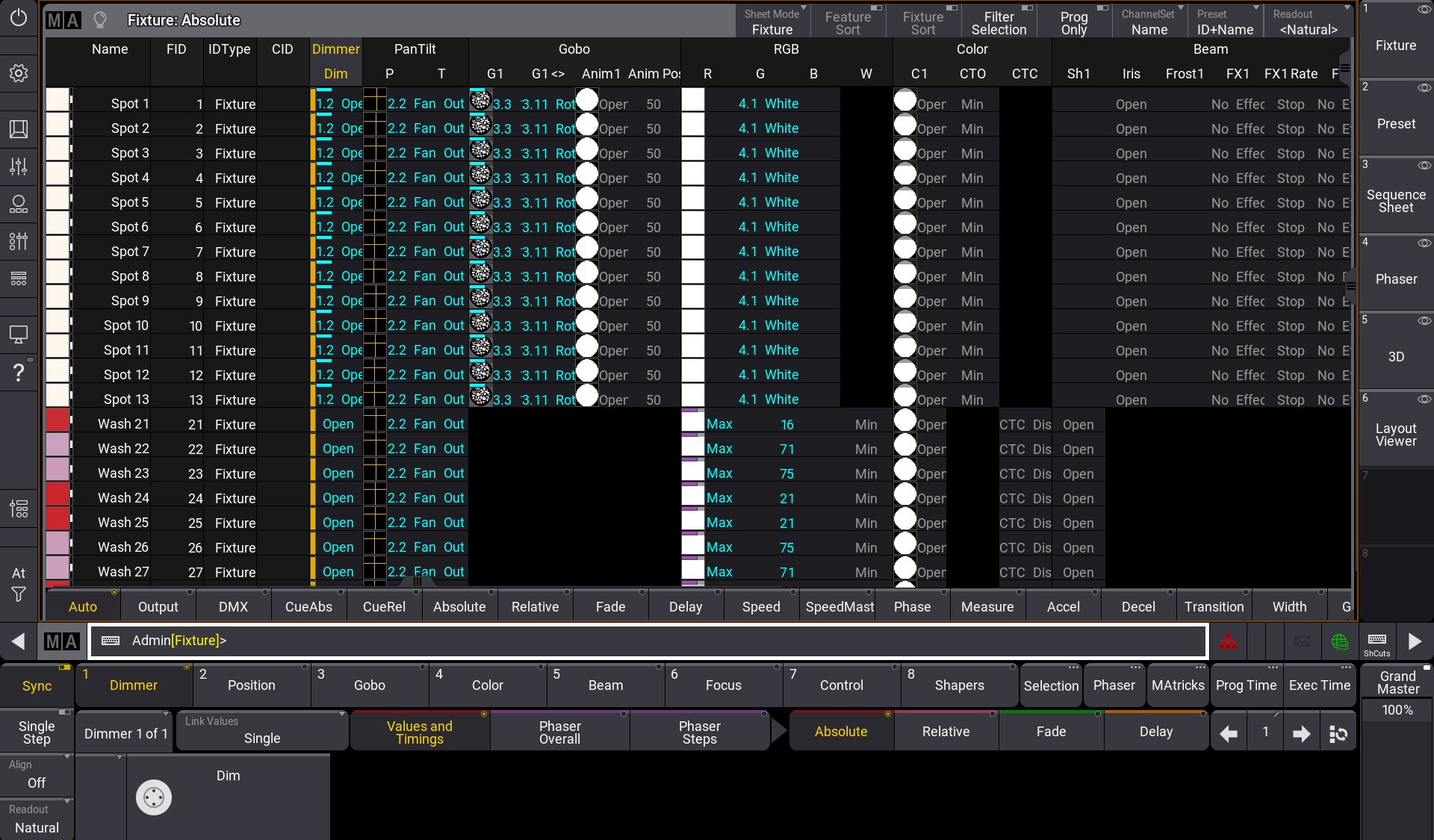

Screen 1, Screen 2, and Screen 3
Screen 1, Screen 2, and Screen 3 are the main screen workspaces on the console. The displays on these screens offer the largest available user-defined area on any of the internal screens. They can be configured with a selection of additional display elements.
By default, screen 1 includes the command line and the view bar. It can also be configured to display the control bar and encoder bar.
By default, screens 2 and 3 include the view bar. In addition, the grandMA3 compact XT includes the command line on screen 2. They can also be configured to display the command line, control bar, and playback bar.
Screen 4 and Screen 5
Screens 4 and 5 are on the optional external monitors. The displays on these screens offer a large amount of user-defined area. They can be configured with a selection of additional display elements. They can be configured to display the view bar, command line, control bar, and playback bar.
The scale option is available on screens 4 and 5 to support monitors with different resolutions.
Screen 6 and Screen 7
Screens 6 and 7 are the right and left command screens, respectively. The displays on these screens offer a small amount of user-defined area. They can be configured with a selection of additional display elements.
Screen 6 can be configured to display the view bar, command line, and control bar.
Screen 7 can be configured to display the view bar, command line, control bar, and playback bar. The playback bar available on screen 7 shows the status of objects assigned to the Xkeys.
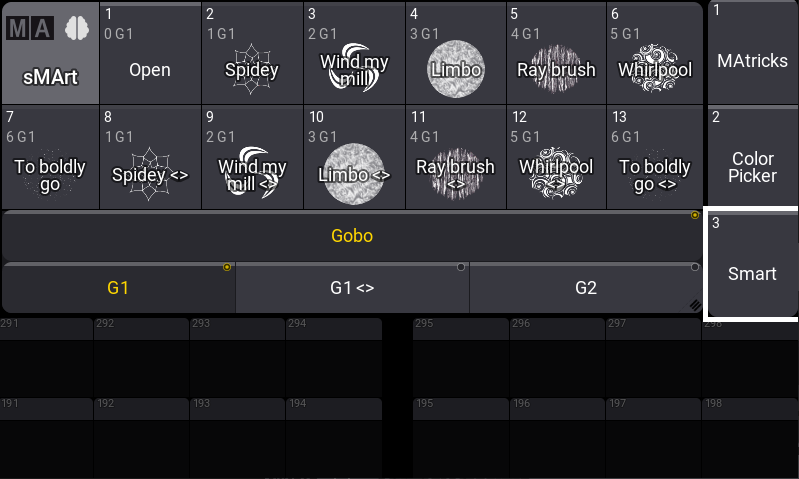
Screen 8, Screen 9, Screen 10, Screen 11, and Screen 12
Screens 8, 9, 10, 11, and 12 are the letterbox screens, which are available on the grandMA3 full-size, light, and extension. The displays on these screens offer no user-defined area. The configurations of these displays cannot be changed. These screens are dedicated to displaying specific information and accepting user input.
Screen 8 displays the encoder bar and grand master.
Screen 9 displays the playback bar and master section.
Screens 10, 11, and 12 display the playback bar and custom section encoders and wheels.