My Virtual Rig (MVR)
|
grandMA3 User Manual » Patch and Fixture Setup » My Virtual Rig (MVR)
|
Version 2.4 |
MVR (My Virtual Rig) is a file format that is used to share data for a stage set up between a lighting console, a visualizer, a CAD program or similar tools. This allows for transferring parametric and geometric data between different programs.
It is a complementary system to the GDTF files.
MVR is described in the GDTF help pages (external link): https://gdtf-share.com/help/en/help/mvr/index.html
Import MVR
Partial Show Read has been enhanced to support MVR integration. For more information, see the Partial Show Read (PSR).
Export MVR
To export the patch as an MVR file, open the Patch menu. The exported file will be saved in the following directory on the selected drive: MALightingTechnology\gma3_library\mvr.
At the bottom of the menu, tap the Export button to open the Patch Export pop-up window, which could look like this:
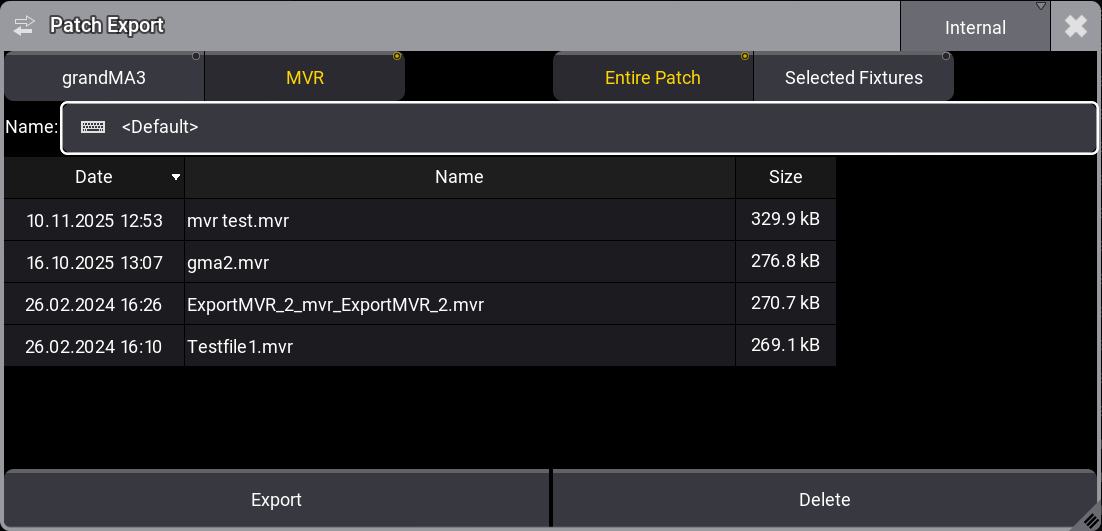
In this window, you can:
- Select the desired drive.
-
Enter a file name in the Name field.
-
If you leave it as
<Default>, the current show file name will be used automatically.
-
If you leave it as
- View existing MVR files on the selected drive.
Export Options
There are two export file types:
- grandMA3
- MVR (selected by default)
On the right side of the pop-up, you can choose the scope of the export:
- Entire Patch: Exports the entire patch including fixture files, stage elements, and organizational elements like the Classes and Layers.
- Selected Fixtures: Exports the selected fixtures including fixture files, stage elements, and organizational elements.
Tap Delete to remove the currently selected file from the list.
/MVR exports fixtures in MVR format. For more information, see /MVR keyword topic.

|
Hint: |
| It is a good idea to store the show file before exporting it to the MVR file. |
MVR-xchange
The MVR menu in the In & Out menu offers a platform to exchange and manage MVR files via a network connection. See MVR-xchange, to get more information.