Recipe Presets
|
grandMA3 User Manual » Presets » Recipe Presets
|
Version 2.4 |
Please read the Recipe topics before this topic.
This topic explores how to build recipes by editing a preset. Recipes can also be build in the programmer and stored in a preset. This workflow is described in the Edit Recipe Mode topic.
Recipes can be added to presets that do not contain attribute values when using the user interface.
Presets with attribute data offer to turn the existing attribute data into a recipe (by tapping Turn into Recipe - read more below).
Adding Recipe Lines
Recipe lines are added to presets using the Edit Preset Object pop-up. This can be accessed using the Swipey on a preset pool object.
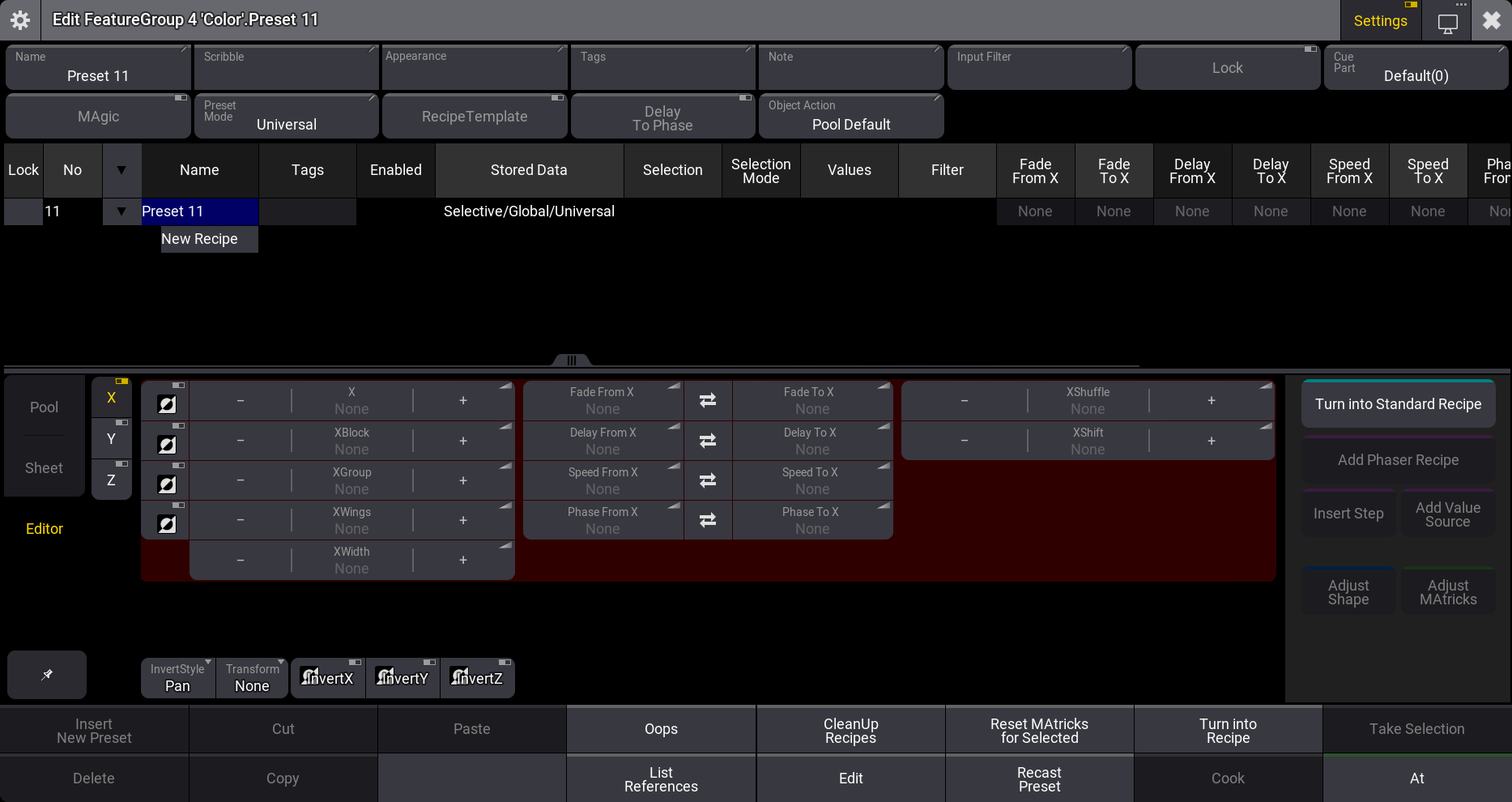
The middle part of this pop-up is about the recipes and, for instance, grid values.
The preset settings can be visible at the top; most of them are described in the Preset Pools topic. There is a setting specifically for the recipes: Recipe Template. This can be enabled to turn the preset into a Recipe Template. If the Recipe Template setting is enabled in a recipe preset, the recipe itself will be loaded into the programmer part and will be cooked there. Presets that have this setting enabled are shown with a green cooking pot icon with the lid open.
The bottom of the editor has different buttons:
-
Insert [selected object] - (this button is available when the preset is turned into a recipe preset):
Creates a new recipe line. Adding additional recipe lines will reference the values from the first line when values are stored in the first line. When the first line contains a preset, the reference to this preset is copied. Additional lines also automatically reference the MAtricks values from the first line. -
Cut:
Cuts the selected object. -
Paste:
Paste the copied or cut object. -
Delete:
Delete the selected object. -
Copy:
Copies the selected object. -
Oops:
Oops the last action.
-
CleanUp Recipes:
Tap this to remove unused recipe lines. Multiple lines can be created with the same selection and values for the same attributes, but only one line can send values to the attribute. Clean Up removes the unused lines. -
Reset MAtricks for Selected:
Resets the MAtricks for the selected recipe line. -
Turn Into Recipe:
Tap this button to turn a preset containing attribute value into a recipe preset. -
Take Selection:
This allows using a selection of fixtures instead of a group. Tap this button to make the current programmer fixture selection the new selection for the selected recipe line. -
List References:
Tapping this opens a pop-up listing all elements that reference and depend on the preset.
-
Edit:
Closes the editor and takes the selected recipe line into the programmer in edit mode.
-
Recast Preset:
This will recast the preset where it is referenced. This means that if attributes are added or deleted after the preset is used in cues, then the preset might need to be recast for the cues to reflect the new content. Read about this in the Cue Recipes topic. -
Cook:
This will cook the preset recipes. This might be necessary for the preset to reflect the recipe content. -
At:
Tapping this applies the preset's current settings to the selection.
Create a New Standard Recipe Preset Using the Edit Preset Object Pop-Up
Open the editor for an empty preset.
Tap Add Standard Recipe in the menu at the bottom.
This turns the preset into a recipe preset and creates the first recipe line.
It is almost always relevant to at least add a preset reference value. To do this, tap the Values field in the recipe row.
Use the context area to select the desired preset.
Add the desired values in the other columns.
Add a selection if desired - from a group or by tapping Take Selection.
If the recipe line is edited, then the preset is automatically cooked when the edit pop-up is closed.

|
Hint: |
|
The Recipe Editor topic describes all the details about the Recipe Editor.
|
Example
We want a preset that can take the current selection of fixtures to a new position in two wings and with a ranged time.
Requirement:
Have a show with some moving heads patched and placed in a row. The show also needs a position preset and dimmer preset where the fixtures are at full. This example uses the Demoshow.
Follow these steps to create the recipe preset:
- Tap an empty position preset pool object and swipe the finger outside the preset to open the Swipey menu.
- Select Edit Setting in the Swipey menu.
- Tap Add Standard Recipe to create a recipe line.
- Tap the first field in the "Values" column.
- Tap Pool and then 1 Dimmer and then the preset where the intensity is at full (Open).
- Tap and hold New Recipe and select Standard Recipe to create a second line.
- Select the values field for the second recipe line.
- Tap 2 Position and select a position preset (Roof Floor).
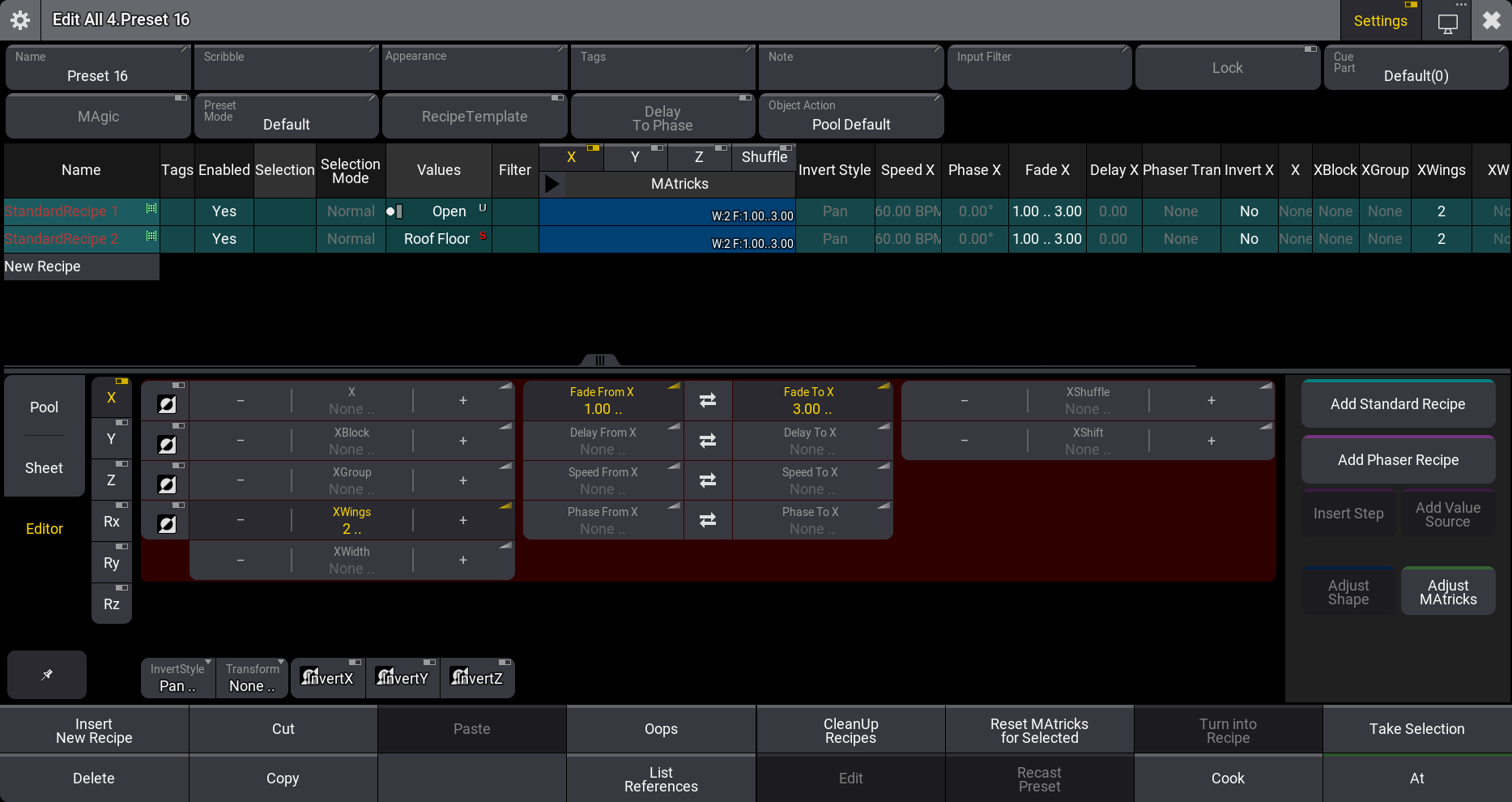
- Select both recipe lines in the MAtricks columns and make sure "X" is active in the row with toggle buttons. Expand the MAtricks settings to see all the MAtricks columns.
- Tap Editor to open the MAtricks editor in the context area.
- Set the "XWing" value to "2".
- Set the "Fade From X" value to "1".
- Sel the "Fade To X" value to "3".
It should look like this:
- Close the editor.
- Select some fixtures (for instance, group 2).
- Tap the new recipe preset and see the fixtures move while they turn on.
If the move and fade should start from the center, then open the edit preset object pop-up again and set the InvertStyle to "All" and the InvertX to "Yes" for both recipe lines.
Working with Recipe Presets
There are three suggested workflows with presets using recipes:
- Preset containing recipe lines with a selection and Recipe Template disabled.
- Preset containing recipe lines without a selection and Recipe Template disabled.
-
Preset containing recipe lines and Recipe Template enabled.
Preset Containing Recipe Lines With a Selection and Recipe Template Disabled
The recipe preset is cooked and will be referenced by the fixtures in the programmer (Recipe Editor window). These values can be stored or removed/overwritten in the programmer.
For example, if a recipe preset contains one line with a group as the selection and a value referencing color preset 5. The preset is cooked in the preset. Tapping the recipe preset will result in a reference to the recipe preset in the programmer.
Recipe presets with a selection can be played back from executors. Learn more bout this in the Use Presets topic.
Preset Containing Recipe Lines Without a Selection and Recipe Template Disabled
This recipe works with the programmers' current selection of fixtures. The recipe preset is not loaded into the programmer. Instead, the recipe value links and grid values are used with the current selection of fixtures to cook values directly to the programmer.

|
Important: |
|
When a recipe preset does not contain a selection, two different scenarios are valid regarding the values stored in the recipe lines.
If hard values are stored in the recipe and the recipe preset is called, the values will be called into the programmer also as hard values without a preset link. If presets are stored as values in the recipe and the recipe preset is called, the values will be called into the programmer with preset links.
|
This is a great way to have a bunch of template objects in the preset pools that allow for quickly calling complex looks based on grid values and MAtricks ranges.
Preset Containing Recipe Lines and Recipe Template Enabled
Recipe Templates load the recipe lines into the active programmer part. This means the recipe lines are cooked in the programmer when the lines contain a selection. If the recipe includes a selection, then it is cooked immediately. If the recipe lines do not contain a selection, it must be added, for instance, using the Recipe Editor window.
For example, if a Recipe Template contains one line with a group as the selection and a value referencing color preset 5, tapping the recipe preset will result in a recipe in the programmer part with a recipe line that references color preset 5.